
Introduction
This manual provides comprehensive instructions for the installation, setup, operation, and maintenance of your Makayuron Smart Door Lock M06pro. Please read this manual thoroughly before installation and use to ensure proper function and safety. This smart lock offers multiple unlocking methods including 3D face recognition, palmprint, fingerprint, IC card, passcode, Tuya app remote control, and mechanical keys.

Image 1.1: The Makayuron Smart Door Lock M06pro, showcasing its sleek design and integrated display screen on the front panel.
1. Safety Information
- Ensure all components are present and undamaged before installation.
- Do not attempt to disassemble or repair the lock yourself. Contact customer support for assistance.
- Keep mechanical keys in a secure location outside the property, accessible only for emergencies.
- Before permanent installation, connect the lock to your mobile phone and test all functions to ensure proper operation.
- This device is designed for indoor use and protected outdoor environments. Avoid direct exposure to harsh weather conditions.
2. Package Contents
Verify that all items are included in your package:
- Smart Door Lock Assembly (Front and Rear Panels)
- 6068 Mortise Lock Body
- Lithium Ion Battery (5000mAh)
- IC Cards (Quantity may vary)
- Mechanical Keys (Quantity may vary)
- Installation Accessories (Screws, Spindle, etc.)
- User Manual (This document)
3. Product Overview
Familiarize yourself with the components of your Makayuron Smart Door Lock M06pro.

Image 3.1: Front and rear panels of the smart lock with labeled components. Key features include the wide-angle camera, display screen, fingerprint reader, touch keypad, card sensing area, doorbell button, cylinder hole, USB port for emergency power, ambient light, control keys, one-button switch lock, quick open handle, unlock knob, and anti-lock knob.
- Wide-angle Camera: Captures video for face recognition and doorbell functions.
- Display Screen: Shows user interface, video feed, and status.
- Fingerprint Reader: Biometric sensor for fingerprint unlocking.
- Touch Keypad: For passcode entry.
- Card Sensing Area: For IC card unlocking.
- Doorbell Button: Activates the video doorbell function.
- Cylinder Hole: For mechanical key access.
- USB Port Power Supply: Emergency power input (Type-C).
- Ambient Light: Indicator light for various statuses.
- Quick Open Handle: Allows quick exit from the inside.
- Unlock Knob: Manual unlock from the inside.
- Anti-lock Knob: Engages an independent deadbolt for enhanced security from the inside.
4. Installation
This section outlines the general installation process. Professional installation is recommended if you are unfamiliar with door lock installation.
4.1 Door Preparation
- Ensure your door is compatible with a 6068 mortise lock body. Refer to the dimensions provided in the specifications.
- Measure your door thickness and backset to ensure proper fit.

Image 4.1: Technical drawing illustrating the dimensions of the 6068 mortise lock body, including measurements for length, width, and keyhole placement. This diagram helps ensure compatibility with existing door preparations.
4.2 Mortise Installation
- Insert the 6068 mortise lock body into the prepared mortise pocket on the door edge.
- Secure the mortise with the provided screws.
4.3 Front and Rear Panel Installation
- Connect the necessary cables from the front panel to the rear panel through the door.
- Align the spindle with the mortise and attach the front and rear panels to the door.
- Secure the panels with the provided through-bolts and screws.
- Install the battery into the designated compartment on the rear panel.
Important: Before fully securing the lock, connect it to your mobile phone and test all functions as per the "Warm Reminder" in the product features. This ensures proper operation before final installation.
5. Setup and Configuration
5.1 Initial Power-On
- After battery installation, the lock will power on. Follow the on-screen prompts for initial setup.
5.2 TUYA App Integration
The Makayuron Smart Door Lock M06pro is managed via the Tuya Smart app.

Image 5.1: A smartphone screen showing the Tuya app with options for security protection, member management, temporary password generation, and smart linkage, demonstrating remote control capabilities.
- Download the "Tuya Smart" app from your mobile device's app store.
- Register or log in to your Tuya account.
- Add the smart door lock as a new device within the app, following the on-screen instructions.
- Ensure your phone is connected to a 2.4GHz Wi-Fi network during the pairing process.
5.3 User Management (via App or Lock Interface)
Register users for various unlocking methods:
- Face Recognition: Register face profiles through the lock's camera. The built-in motion sensor activates face recognition when a person approaches.
- Palmprint: Register palmprint data for palm vein recognition.
- Fingerprint: Register fingerprints using the integrated reader.
- IC Card: Enroll IC cards by presenting them to the card sensing area.
- Passcode: Set up permanent or temporary passcodes via the touch keypad or Tuya app.
6. Operating Instructions
6.1 Unlocking Methods
- 3D Face Recognition: Approach the lock; the camera will activate. Once your registered face is recognized, the lock will unlock.
- Palmprint: Place your palm over the palmprint sensor. The lock will unlock upon successful recognition.
- Fingerprint: Place your registered finger on the fingerprint reader. The lock will unlock in approximately 0.5 seconds.
- IC Card: Present your registered IC card to the card sensing area.
- Passcode: Enter your registered passcode on the touch keypad, followed by the '#' key (or equivalent confirmation).
- Tuya App Remote: Use the Tuya app to remotely unlock the door.
- Mechanical Key: In emergencies or power outages, insert the mechanical key into the cylinder hole and turn to unlock.

Image 6.1: The Makayuron Smart Door Lock M06pro demonstrating its 3D face recognition feature, with a user's face being scanned by the integrated camera for unlocking.

Image 6.2: A close-up of the Makayuron Smart Door Lock M06pro showing the fingerprint sensor in use, with a blue light indicating active scanning for biometric authentication.
6.2 Locking Methods
- Automatic Locking: The lock will automatically engage after a set period once the door is closed. This duration can typically be configured in the Tuya app.
- Manual Locking (Exterior): Press the lock button on the keypad or use the app to lock.
- Manual Locking (Interior): Use the one-button switch lock or the anti-lock knob for enhanced security from the inside.
7. Video Doorbell and Intercom Function
- When a visitor presses the doorbell button, the indoor screen will automatically light up, displaying the outdoor situation.
- If you are away, you will receive a notification on the Tuya app. You can view the visitor, communicate with them via the app's intercom function, and remotely unlock the door if desired.
8. TUYA App Management Features
The Tuya app provides comprehensive control and monitoring capabilities:
- Temporary Passwords: Generate time-limited or one-time passcodes for guests or service personnel.
- Battery Status: Check the current battery level of the lock.
- Activity Log: Review a record of who opened the door, when, and by what method.
- Lock Status: Monitor whether the door is locked or unlocked.
- Alerts and Notifications: Receive real-time alerts for doorbell presses, stranger presence, or attempts to pry open the lock. Customize notification settings to receive only important alerts.
- Remote Unlocking: Unlock the door from anywhere using the app.
9. Maintenance
9.1 Battery Management
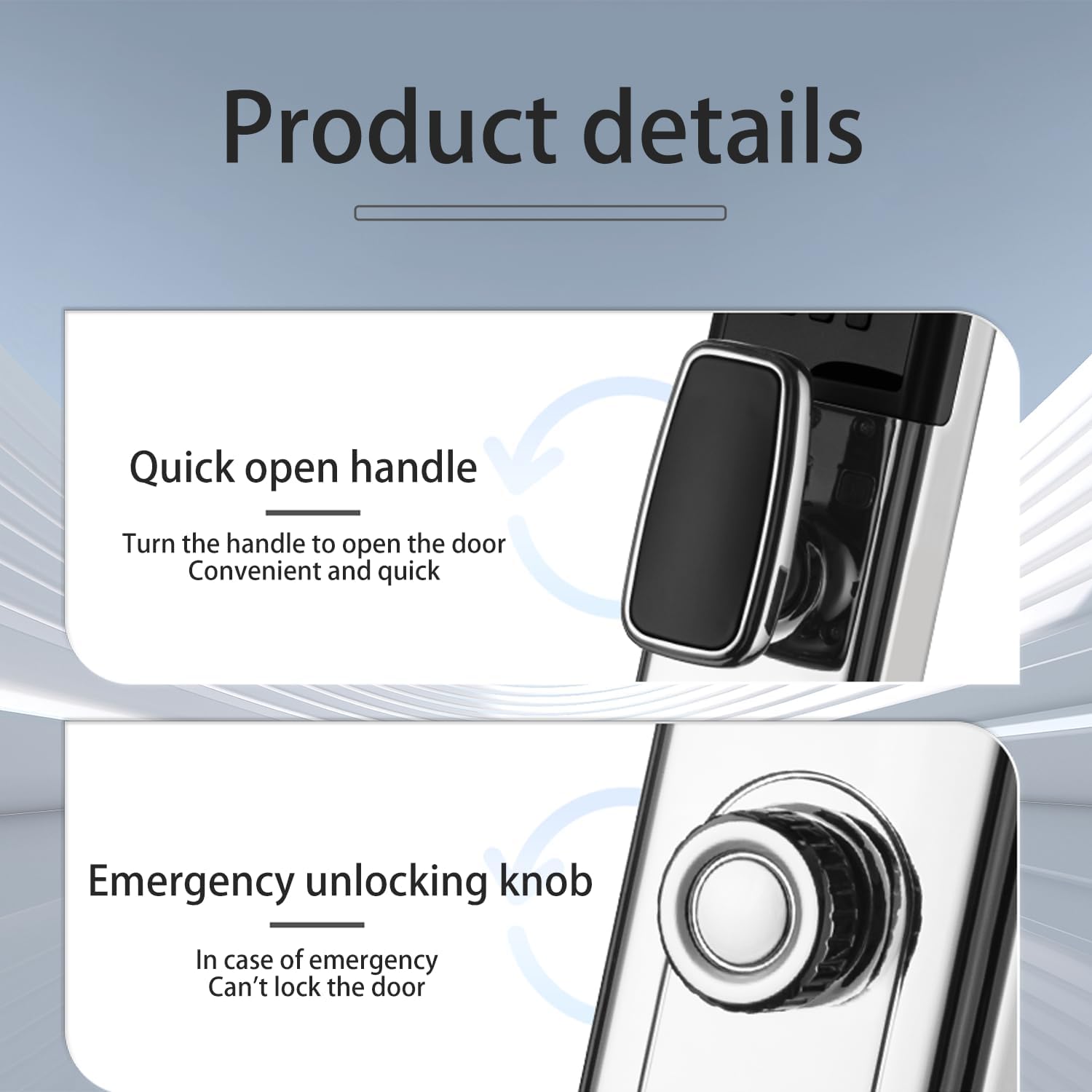
Image 9.1: An illustration of the 5000mAh lithium battery with indicators for electricity visualization (84%), low battery reminder (20%), and emergency power supply (0%). This highlights the battery capacity and warning thresholds.
- The lock is powered by a 5000mAh rechargeable lithium battery.
- When the battery level is low, the lock will issue an alarm. You can still open the door approximately 50 times after the alarm.
- Recharge the battery using the outdoor Type-C charging port.
- In case of complete power depletion, use the mechanical key for access or connect an external power bank to the emergency USB port.
9.2 Cleaning
- Clean the lock's surface with a soft, dry cloth.
- Avoid using abrasive cleaners or solvents that could damage the finish or electronic components.
- Keep the fingerprint reader and camera lens clean for optimal performance.
10. Troubleshooting
| Problem | Possible Cause | Solution |
|---|---|---|
| Lock does not respond. | Low or depleted battery. | Recharge the battery via the Type-C port or use the mechanical key. |
| Fingerprint/Face recognition fails. | Sensor/camera is dirty; unregistered biometric data; improper placement. | Clean the sensor/camera. Ensure your biometric data is registered correctly. Try repositioning your finger/face. |
| Cannot connect to Tuya app. | Incorrect Wi-Fi network (not 2.4GHz); app pairing error; lock not in pairing mode. | Ensure your phone is on a 2.4GHz Wi-Fi network. Restart the pairing process in the app and on the lock. |
| Doorbell video/intercom not working. | Poor Wi-Fi connection; app permissions not granted. | Check Wi-Fi signal strength. Ensure the Tuya app has camera and microphone permissions. |
| Lock is difficult to install. | Door not properly prepared; incorrect measurements. | Verify door dimensions and mortise compatibility. Consider professional installation. |
11. Specifications
| Feature | Detail |
|---|---|
| Model Number | M06pro |
| Brand | Makayuron |
| Unlocking Methods | 3D Face Recognition, Palmprint, Fingerprint, IC Card, Passcode, Tuya App, Mechanical Key |
| Mortise Type | 6068 Mortise |
| Lock Cylinder | Class C |
| Battery Type | 5000mAh Rechargeable Lithium Ion |
| Emergency Power | Type-C USB Port |
| Material | Aluminum Alloy |
| Dimensions (Product) | 7 x 5 x 43 cm |
| Item Weight | 4.71 Kilograms |
| Special Features | Active intercom, Emergency USB port, Facial recognition, Fingerprint, Palm vein recognition, Video Doorbell |
12. Warranty and Support
- Warranty: Makayuron offers a 30-day unconditional return policy and free replacement within 1 year from the date of purchase.
- Customer Support: For any questions regarding installation, operation, or troubleshooting, please contact Makayuron customer service. Refer to your purchase documentation for contact details.