
Introduction
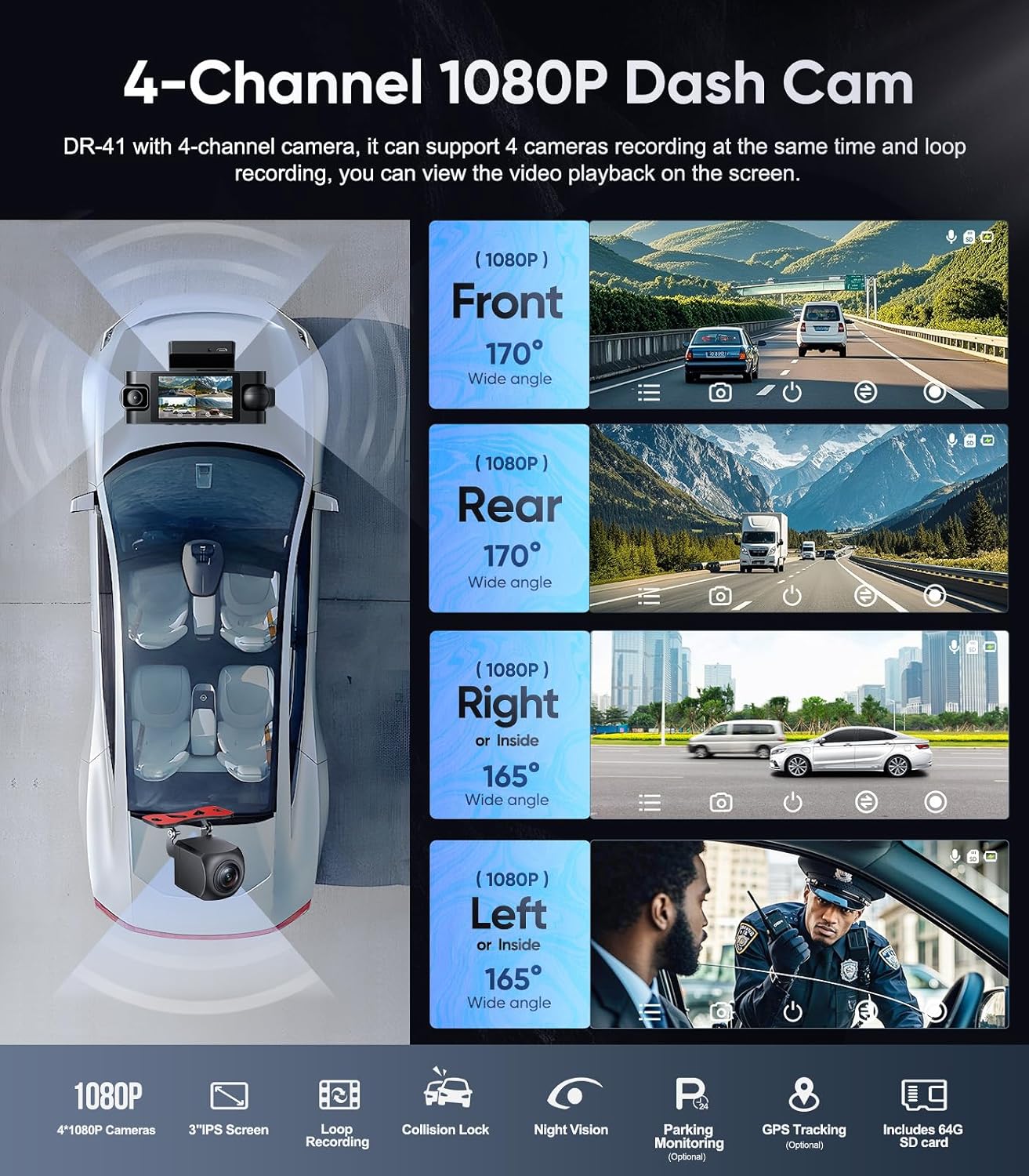
The Seventour DR-41 is a 4-channel dash camera system designed to record video from the front, rear, left, and right sides of your vehicle simultaneously. It features 1080P resolution for all cameras, a 3-inch IPS screen, night vision, loop recording, and a G-sensor for crash detection. Optional accessories include a GPS module and a hardwire kit for 24/7 parking monitoring.
Setup
Unboxing and Components
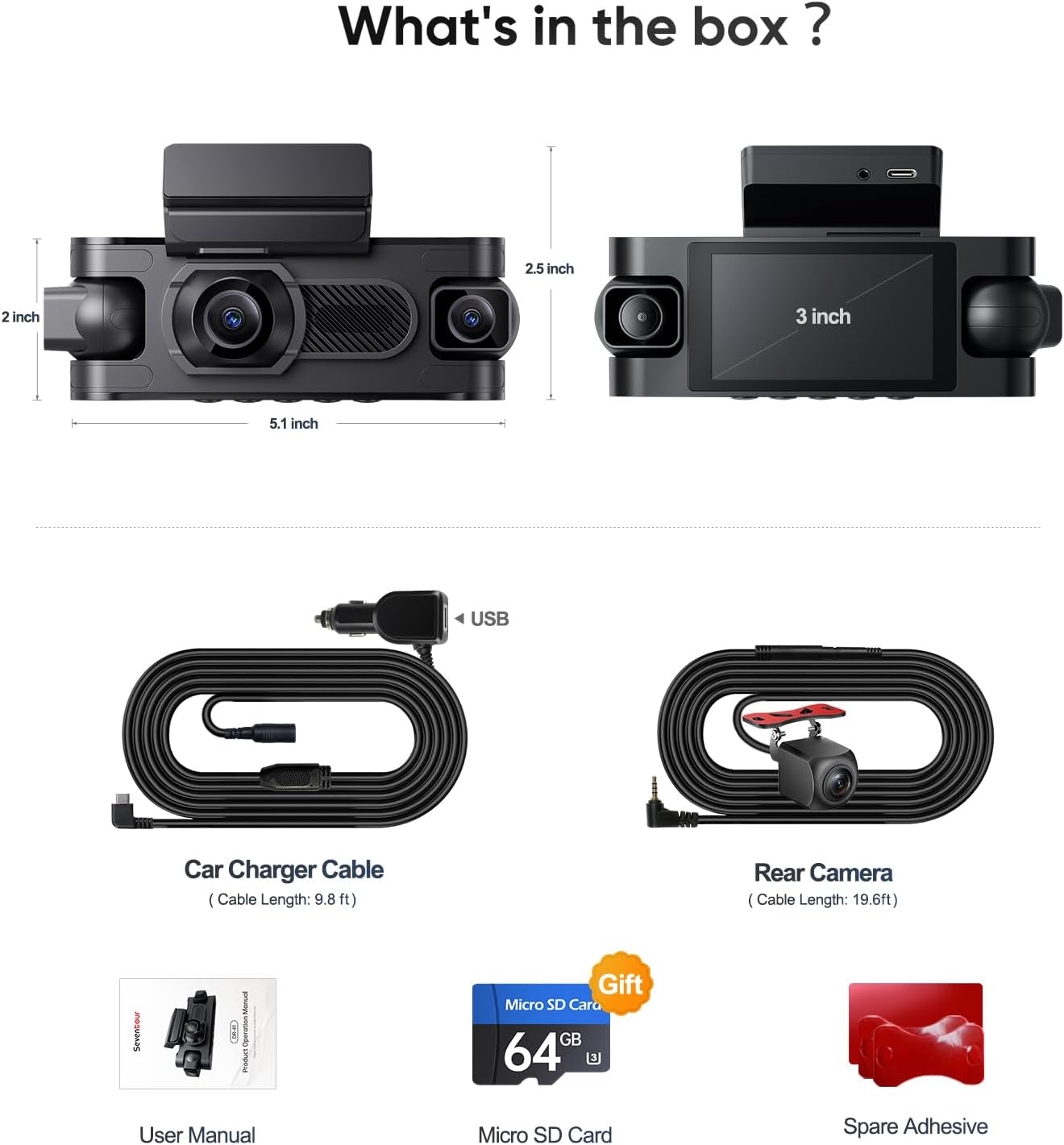
Before installation, verify that all components are present:
- Dash Cam Unit (with 3" IPS Screen)
- Car Charger Cable (9.8 ft)
- Rear Camera (19.6 ft cable)
- Micro SD Card (64GB)
- Spare Adhesive
- User Manual
Micro SD Card Installation
Insert the provided 64GB Micro SD card into the dash cam's card slot. Ensure the card is inserted correctly until it clicks into place. The device supports up to 256GB SD (UHS-3) cards.
It is recommended to format the Micro SD card within the dash cam before first use and periodically thereafter to ensure optimal performance.
Mounting the Dash Cam
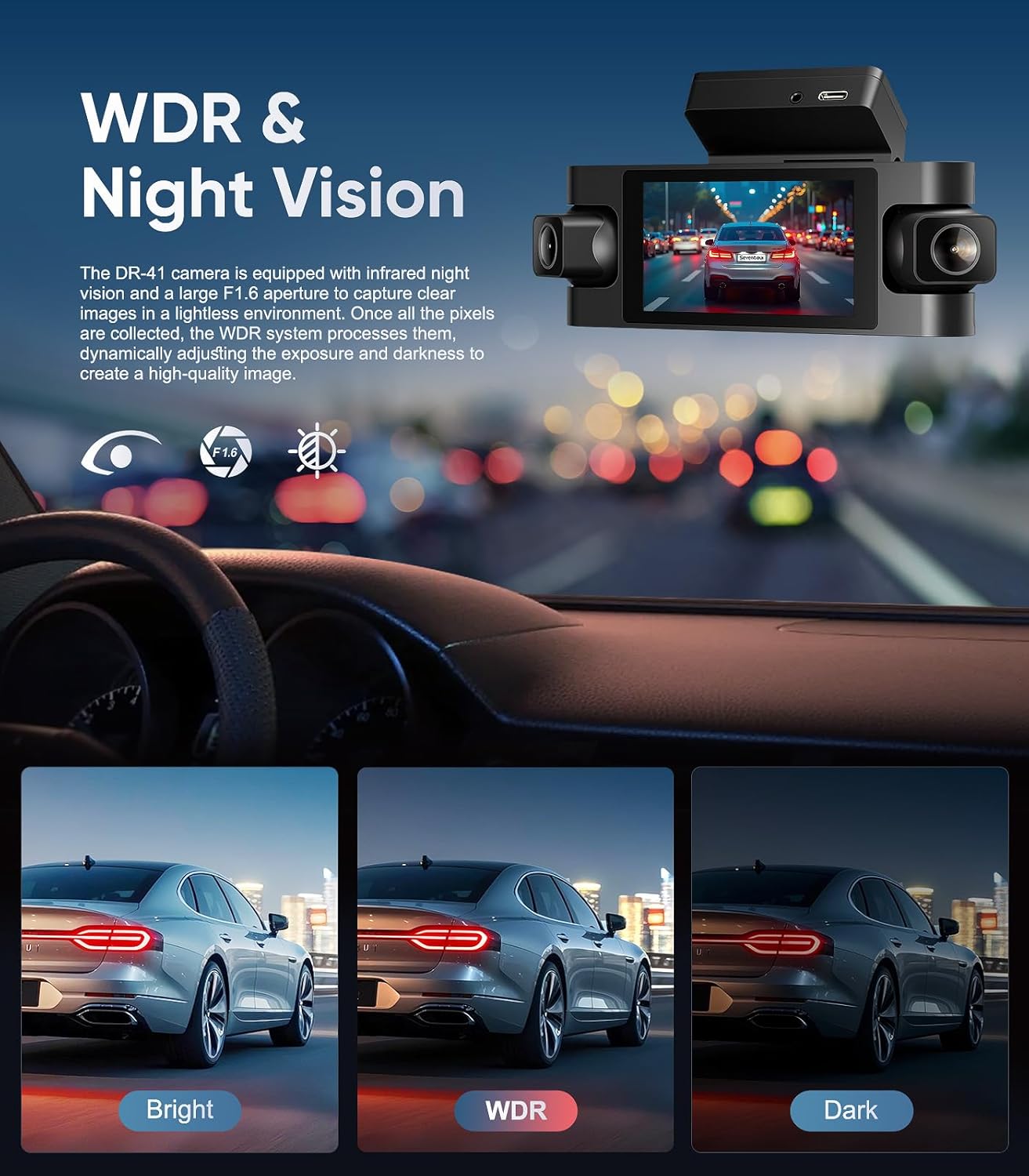
Choose a suitable location on your windshield, typically behind the rearview mirror, that does not obstruct your view. Clean the windshield surface thoroughly. Attach the dash cam using the provided adhesive mount. Adjust the front camera angle to capture the road ahead. The left and right cameras can be swiveled 180 degrees to face either the interior or exterior of the vehicle.

Connecting Power
Connect the car charger cable to the dash cam and plug the other end into your vehicle's 12V power outlet (cigarette lighter socket). Route the cable neatly to avoid interference with driving.
Rear Camera Installation
Connect the rear camera cable to the main dash cam unit. Mount the rear camera on the rear windshield or license plate area, ensuring a clear view. Route the cable carefully.
Initial Settings
Upon first power-on, the dash cam may prompt you to set the date, time, and language. Follow the on-screen instructions using the 3-inch IPS screen.
Operating Instructions
Automatic Recording
The dash cam automatically begins recording when connected to power and the vehicle starts. Recording stops when the vehicle is turned off and power is disconnected.
Loop Recording
The system records video in continuous loops. When the memory card reaches its full capacity, the oldest unlocked footage is automatically overwritten to make space for new recordings. This ensures continuous operation without manual intervention.
G-Sensor (Collision Lock)
A built-in gravity sensor detects sudden impacts or violent shaking. In such events, the dash cam automatically locks the current video footage, preventing it from being overwritten by loop recording. This ensures critical evidence is preserved.
Night Vision & WDR
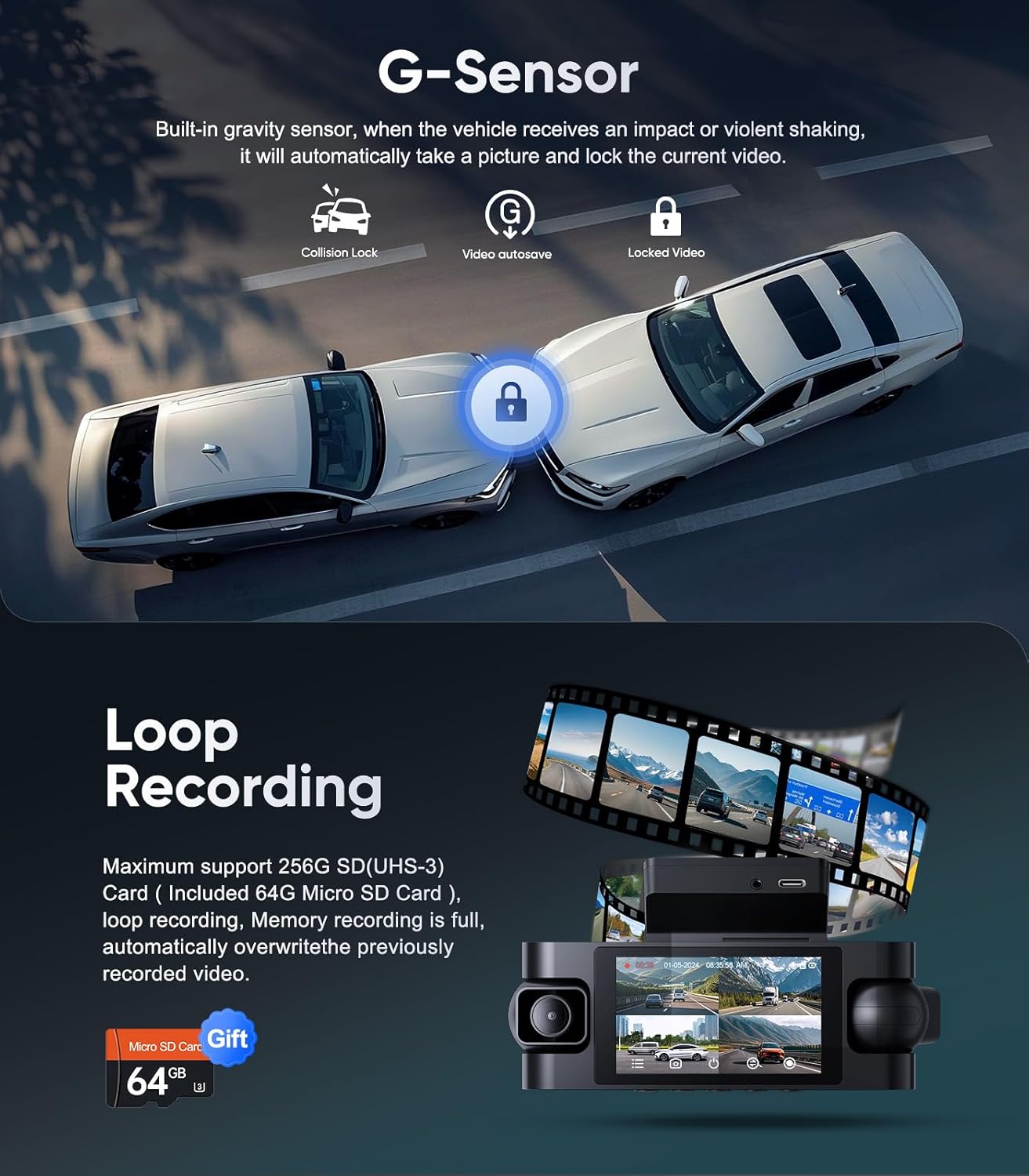
The DR-41 features an F1.5 aperture lens and infrared lights on the three main cameras to enhance low-light recording. Wide Dynamic Range (WDR) technology adjusts exposure to capture clear details in varying light conditions, from bright to dark.

24/7 Parking Mode (Optional)
To enable 24/7 parking monitoring, an additional hardwire kit (ASIN: B0BZL9WY5T) is required. Once installed and powered by the hardwire kit, the dash cam will automatically enter time-lapse recording mode (1 frame per second) when the car is turned off. It will return to normal recording when the car starts again.
GPS Logger (Optional)
An optional GPS module (ASIN: B0BZHVK8PY) can be purchased separately. When connected, the GPS module accurately records the vehicle's location, speed (KMH/MPH), time, and routes. This data can be viewed using the GXPlayer software, providing visual tracking of the vehicle's path and precise incident location for roadside assistance or insurance claims.

Maintenance
SD Card Management
Regularly format the Micro SD card (at least once a month) through the dash cam's menu to maintain optimal recording performance and prevent data corruption. Replace the Micro SD card if you experience frequent recording errors or data loss.
Cleaning
Use a soft, dry cloth to clean the camera lenses and the 3-inch IPS screen. Avoid abrasive materials or chemical cleaners, which can damage the surfaces.
Firmware Updates
Check the manufacturer's website (Seventour) periodically for available firmware updates. Follow the provided instructions carefully for any updates to ensure your dash cam operates with the latest features and improvements.
Troubleshooting
Dash Cam Does Not Power On
- Ensure the car charger cable is securely connected to both the dash cam and the vehicle's power outlet.
- Check if the vehicle's power outlet is functioning correctly.
- If operating in cold conditions, allow the device to warm up slightly as extreme cold can affect startup time.
Recording Errors / Footage Not Saving
- Format the Micro SD card within the dash cam's settings menu.
- Ensure the Micro SD card is a high-speed (UHS-3) card and is not damaged.
- If the issue persists, try a different compatible Micro SD card.
Mount Not Sticking
- Ensure the windshield surface is clean and dry before applying the adhesive mount.
- Apply firm pressure for several seconds during installation.
- If the mount repeatedly fails, contact customer support for assistance or consider alternative mounting solutions if available.
Image Appears Reversed (Rear Camera)
- Check the camera's settings for an option to flip or mirror the rear camera image, if applicable. Some rear cameras are designed for specific orientations.
GPS Not Recording Data
- Ensure the optional GPS module is correctly connected and has a clear view of the sky.
- Verify GPS settings are enabled in the dash cam menu.
General Issues
- Perform a factory reset through the dash cam's settings menu.
- Refer to the official Seventour support resources or contact customer service for further assistance.
Specifications
| Feature | Detail |
|---|---|
| Brand | Seventour |
| Model Name | DR-41 |
| Vehicle Service Type | Car |
| Connectivity Technology | Wire |
| Special Feature | 360 Degree coverage |
| Video Capture Resolution | 1080p |
| Included Components | 3" IPS Screen, 64GB Micro SD Card |
| Mounting Type | Dashboard Mount (Adhesive) |
| Color | Black |
| Field Of View | 360 degrees (overall coverage), 170 degrees (real angle of view for main cameras) |
| Control Method | Touch |
| Screen Size | 3 inches |
| Optical Sensor Technology | CMOS |
| Auto Part Position | Inside |
| Display Type | IPS |
| Compatible Devices | Car, Truck, Motorcycle |
| Frame Rate | 30 FPS |
| Auto Part Orientation | Front & Inside |
| Item Dimensions (D x W x H) | 7.7"D x 6.7"W x 2.8"H |
| UPC | 760762575979 |
| Model Number | DR-41 |
Warranty & Support
Warranty Information
- Product Quality Issues: Replacement within 6 months of purchase.
- Product Repair: Free of charge within 1 year of purchase.
Customer Service Support
Seventour is committed to providing professional after-sales support for all our products. For any inquiries or assistance, please contact us:
- Phone Service: +1 833 - 853 - 8881
- Email: help@seventour.vip
