Introduction
This manual provides essential information for setting up, operating, maintaining, and troubleshooting your Lenovo Tab M11 tablet. Please read this guide thoroughly to ensure optimal performance and longevity of your device.
1. Setup
1.1 Unboxing and Package Contents
Carefully unpack your Lenovo Tab M11. The standard package includes:
- Lenovo Tab M11 Tablet
- Lenovo Tab Pen
- Folio Case
- 256GB SD Card (pre-installed or separate)
- USB-C Charging Cable
- Power Adapter (may vary by region)
- Quick Start Guide and Safety Information
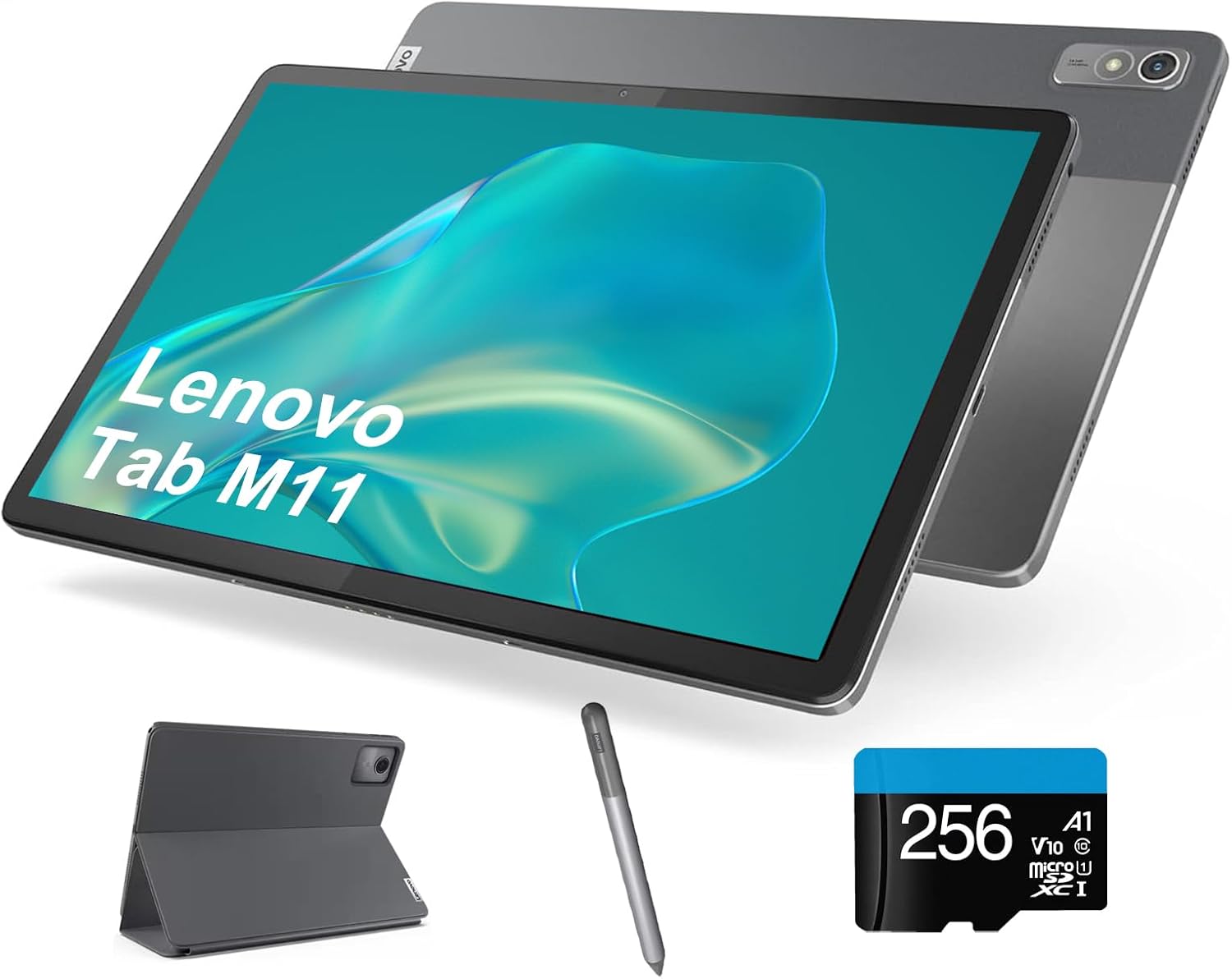
Image: The Lenovo Tab M11 tablet displayed with its bundled accessories, including the Lenovo Tab Pen, a protective folio case, and a 256GB microSD card, illustrating the complete package contents.
1.2 Charging the Tablet
Before first use, fully charge the tablet. Connect the USB-C cable to the tablet's USB-C port and the other end to the power adapter. Plug the adapter into a wall outlet. The battery indicator on the screen will show charging status.
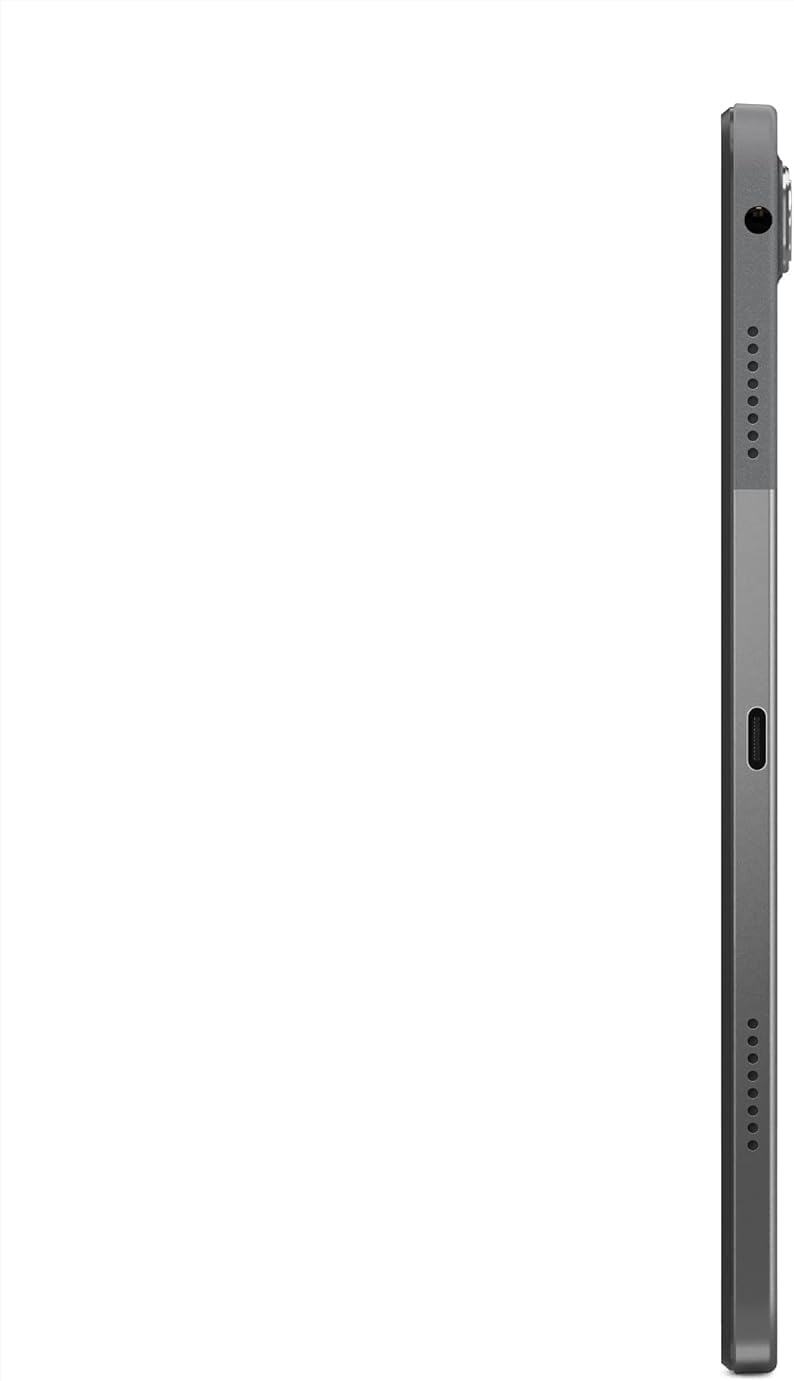
Image: A detailed side view of the Lenovo Tab M11, highlighting the USB-C port for charging and data transfer, along with volume buttons and the power button.
1.3 Powering On/Off
- To Power On: Press and hold the Power button until the Lenovo logo appears.
- To Power Off: Press and hold the Power button, then select "Power off" from the options on the screen.
- To Restart: Press and hold the Power button, then select "Restart" from the options.
1.4 Initial Setup
Upon first power-on, follow the on-screen prompts to:
- Select your language and region.
- Connect to a Wi-Fi network.
- Sign in with your Google Account or create a new one.
- Set up screen lock (PIN, pattern, password).
- Review and accept terms and conditions.
1.5 Inserting the MicroSD Card
The Lenovo Tab M11 supports expandable storage via a MicroSD card. Locate the card slot on the side of the tablet. Use the provided SIM ejector tool (if applicable) or a paperclip to open the tray. Insert the MicroSD card into the designated slot, ensuring correct orientation, then close the tray securely.
1.6 Using the Lenovo Tab Pen
The included Lenovo Tab Pen allows for precise input and creative tasks. No pairing is typically required; the pen is ready to use with the tablet's touchscreen. Use it for writing, drawing, or navigating the interface.
1.7 Attaching the Folio Case
The folio case provides protection and can act as a stand. Align the tablet with the case and gently press it into place. The case typically has magnetic closures and can be folded to prop up the tablet for viewing.

Image: The Lenovo Tab M11 tablet securely placed within its folio case, positioned to stand upright, with the Lenovo Tab Pen visible in the foreground, demonstrating its use as a protective cover and stand.
2. Operating Instructions
2.1 Basic Navigation
- Touch: Tap an icon to open an app or select an item.
- Swipe: Drag your finger across the screen to scroll or switch between screens.
- Pinch-to-Zoom: Place two fingers on the screen and move them apart or together to zoom in or out.
- Long Press: Press and hold an item for more options.
2.2 Display Settings
Access display settings by swiping down from the top of the screen and tapping the settings icon, then navigating to "Display". Here you can adjust:
- Brightness: Manually adjust or enable Adaptive brightness.
- Refresh Rate: The 90Hz refresh rate provides smoother visuals.
- Screen Timeout: Set how long the screen stays active before turning off.
- Font Size and Display Size: Customize text and element scaling.

Image: A clear front view of the Lenovo Tab M11, showcasing its 11-inch WUXGA (1920x1200) IPS display with vibrant colors, demonstrating the tablet's visual clarity.
2.3 Audio and Dolby Atmos
The tablet features four speakers with Dolby Atmos technology for an enhanced audio experience. Adjust volume using the physical volume buttons on the side or through the quick settings panel. Dolby Atmos settings can be configured in the Sound & Vibration section of the tablet's settings.

Image: The rear panel of the Lenovo Tab M11, featuring the prominent Dolby Atmos logo, indicating its advanced audio capabilities, alongside the integrated camera module.
2.4 Camera Usage
The Lenovo Tab M11 is equipped with an 8.0MP front camera and an 8.0MP rear camera. Open the Camera app to take photos or record videos. Tap the camera icon to switch between front and rear cameras. Various modes and settings are available within the app.

Image: The back of the Lenovo Tab M11 tablet, showcasing its sleek design and the placement of the rear 8.0MP camera module, along with the Lenovo brand logo.
2.5 Connectivity
- Wi-Fi: Connect to wireless networks via Settings > Network & internet > Wi-Fi. Supports 2.4GHz and 5GHz (802.11 a/b/g/n/ac).
- Bluetooth: Pair with Bluetooth devices like headphones or speakers via Settings > Connected devices > Bluetooth. Supports Bluetooth 5.1.
2.6 Ports
- USB-C 2.0: Used for charging, data transfer, and connecting USB-C digital headsets.
- 3.5mm Headphone Jack: For connecting wired headphones or external audio devices.
- Card Slot: For MicroSD card expansion.
2.7 Android 13 Operating System
Your Lenovo Tab M11 runs on Android 13. This version offers enhanced privacy controls, improved notification management, and personalized themes. Lenovo anticipates providing two major OS upgrades, up to Android 15, ensuring your device stays updated with the latest features and security patches.
3. Maintenance
3.1 Cleaning the Device
To clean your tablet, power it off and disconnect all cables. Use a soft, lint-free cloth slightly dampened with water or a screen cleaner. Avoid harsh chemicals, abrasive materials, or excessive moisture. Do not spray cleaners directly onto the screen.
3.2 Battery Care
- Avoid extreme temperatures, which can degrade battery life.
- Do not let the battery fully discharge frequently.
- Use only the provided or certified charging accessories.
- If storing the tablet for an extended period, charge it to about 50-60% first.
3.3 Software Updates
Regularly check for and install software updates to ensure your tablet has the latest features, security patches, and performance improvements. Go to Settings > System > System update to check for available updates.
3.4 Storage Management
To maintain optimal performance, periodically manage your tablet's storage. Delete unnecessary files, uninstall unused apps, and move large media files to the MicroSD card or cloud storage. You can check storage usage in Settings > Storage.
4. Troubleshooting
4.1 Common Issues and Solutions
- Tablet not powering on: Ensure the battery is charged. Connect to a charger for at least 30 minutes, then try powering on again.
- Screen unresponsive: Restart the tablet by holding the power button for about 10-15 seconds until it reboots.
- Wi-Fi connectivity issues:
- Toggle Wi-Fi off and on.
- Restart your Wi-Fi router.
- Forget the network and reconnect.
- Slow performance:
- Close unused apps.
- Clear app caches (Settings > Apps > [App Name] > Storage & cache > Clear cache).
- Free up storage space.
- Restart the tablet.
- Apps crashing:
- Ensure the app is updated to the latest version.
- Clear the app's cache and data.
- Reinstall the app.
4.2 Factory Reset
If persistent issues occur and other troubleshooting steps fail, a factory reset may be necessary. Warning: This will erase all data on your tablet. Back up important data before proceeding.
- Go to Settings > System > Reset options.
- Select "Erase all data (factory reset)".
- Confirm your decision. The tablet will restart and restore to its original factory settings.
5. Specifications
| Feature | Detail |
|---|---|
| Model | Lenovo Tab M11 |
| Display | 11" WUXGA (1920 x 1200) IPS, anti-fingerprint, touchscreen, 400 nits, 90Hz refresh rate |
| Processor | MediaTek Helio G88 Octa-Core (2x A75 @2.00 GHz + 6x A55 @1.80 GHz) |
| RAM | 4GB LPDDR4X |
| Internal Storage | 128GB SSD |
| Expandable Storage | MicroSD card slot (256GB SD Card included) |
| Battery | 7040 mAh, Up to 10 hours battery life |
| Audio | 4 x speakers with Dolby Atmos |
| Cameras | Front 8.0MP / Rear 8.0MP |
| WLAN | WiFi 2.4Ghz / 5Hz (802.11 a/b/g/n/ac) |
| Bluetooth | Bluetooth 5.1 |
| Ports | 1x USB-C 2.0, 1x 3.5mm headphone jack, 1x Card slot |
| Operating System | Android 13 (expect 2 OS upgrades until Android 15) |
| Color | Arctic Grey |
| Dimensions (LxWxH) | 10.04" x 6.54" x 0.28" |
| Weight | 1.02 lbs |
6. Warranty Information
Your Lenovo Tab M11 is covered by a manufacturer's warranty. The specific terms and duration of the warranty may vary by region and point of purchase. Please refer to the warranty card included in your product packaging or visit the official Lenovo support website for detailed warranty information.
Keep your proof of purchase for warranty claims.
7. Support
For further assistance, technical support, or to download updated drivers and manuals, please visit the official Lenovo Support website:
You can also contact Lenovo customer service through the contact information provided on their website.