
1. Product Overview
The Aigo Darkflash DV240S-240mm AIO ARGB Liquid CPU Cooler is designed to provide efficient cooling for your CPU while offering customizable aesthetic options. It features a magnetic LCD display, addressable RGB (ARGB) lighting, and high-performance PWM fans.

Figure 1: Darkflash DV240S AIO Liquid CPU Cooler. This image shows the complete cooler unit, including the radiator with two ARGB fans, the pump with an integrated square LCD display, and the connecting tubes.
Key Features:
- Magnetic Customizable LCD Display: 320x320px, 450 nits brightness, 24-bit true color, supports personalized images and animations (JPG, PNG, GIF, MP4).
- High-Performance ARGB PWM Fans: Two 120mm fans with infinity mirror design, up to 1800 RPM, 51 CFM airflow, rifle bearings, and low noise operation (max 32 dBA).
- Broad Platform Compatibility: Supports Intel LGA 1700, 1200, 115X, 2066 and AMD AM5, AM4 sockets.
- Efficient Thermal Design: Copper-based water block for superior thermal conductivity.
- 5V ARGB Sync: Compatible with motherboard ARGB software for synchronized lighting effects.
2. Installation Guide
Before beginning installation, ensure your system is powered off and disconnected from the power source. Refer to your motherboard manual for specific CPU cooler mounting instructions.
2.1. Prepare Your Motherboard
- Install the appropriate backplate and mounting brackets for your CPU socket (Intel or AMD).
- Apply thermal paste to the CPU if not pre-applied on the cold plate.
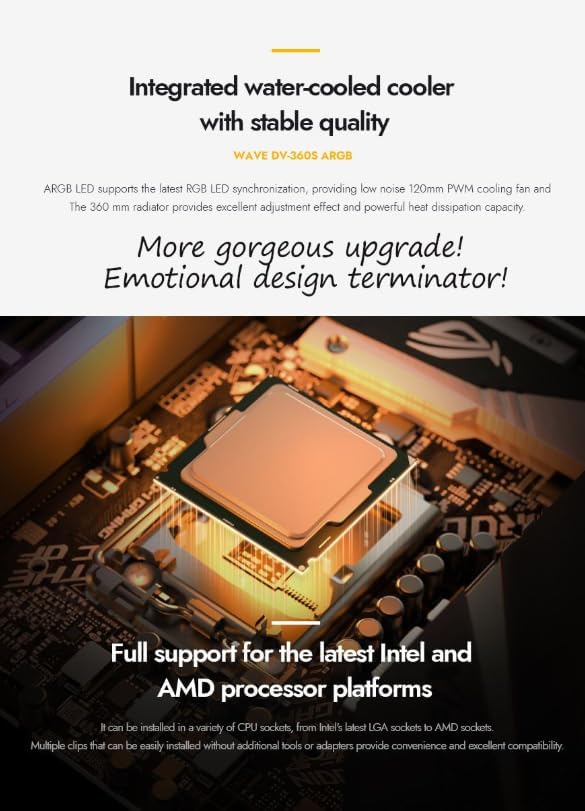
Figure 2: CPU Socket Preparation. This image illustrates a CPU socket on a motherboard with the necessary mounting hardware for the cooler already in place, ready for the water block installation.
2.2. Mount the Radiator and Fans
- Attach the 120mm ARGB PWM fans to the radiator using the provided screws. Ensure the fan airflow direction is appropriate for your case's cooling configuration.
- Mount the radiator assembly to an available fan mount location in your PC case (e.g., top, front, or rear).

Figure 3: ARGB Fans. This image provides a close-up view of the cooler's 120mm ARGB fans, highlighting their infinity mirror design and displaying key specifications like speed, noise level, air volume, and bearing type.
2.3. Install the Water Block/Pump
- Carefully place the water block onto the CPU, aligning it with the mounting holes.
- Secure the water block using the provided screws, tightening them in a cross pattern until snug.

Figure 4: Water Block Installation. This image shows the water block, featuring its magnetic modular design and integrated LCD display, mounted onto a CPU on a motherboard.
2.4. Connect Cables
- Connect the pump power cable to the CPU_FAN or AIO_PUMP header on your motherboard.
- Connect the fan power cables to available fan headers on your motherboard.
- Connect the 5V ARGB cable from the cooler to a 5V ADD_HEADER on your motherboard.
- Important Notice: Do not connect the ARGB cable to a 12V RGB header. Connecting to a 12V header may damage the product and void the warranty. The ARGB LED operates at 5V.

Figure 5: ARGB Sync Connection. This image highlights the correct 5V ARGB header (ADD_HEADER) on a motherboard for connecting the cooler's lighting, and explicitly warns against using the 12V RGB header.
- Connect the USB cable from the pump to an available internal USB 2.0 header on your motherboard for LCD display control.
3. Operating Instructions
3.1. LCD Display Customization
The DV240S features a magnetic LCD display that can be customized using dedicated software. This software allows you to:
- Upload personalized images (JPG, PNG) and animations (GIF, MP4).
- Adjust screen brightness (450 nits peak brightness).
- Rotate the display content (supports 270° installation).
- Monitor system parameters.
Download the latest software from the official Aigo/Darkflash website. Install and launch the software to access customization options.
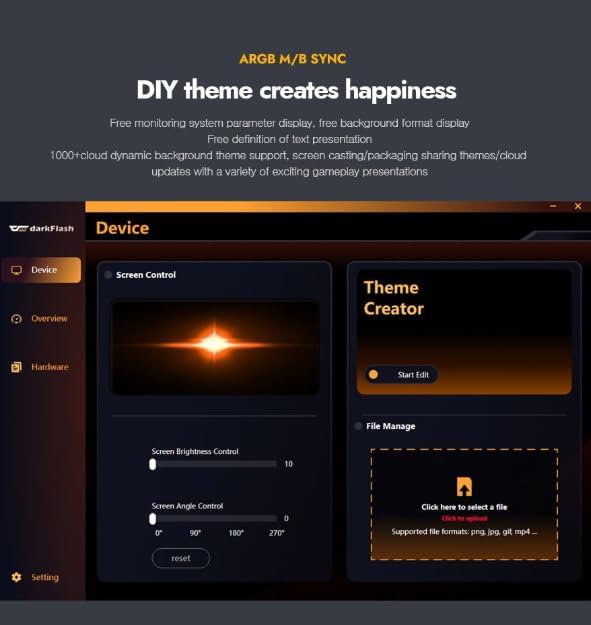
Figure 6: LCD Customization Software. This image displays the user interface of the Darkflash software, showing options for screen control, brightness adjustment, screen angle rotation, and file management for uploading custom images or animations to the LCD display.

Figure 7: Customizable LCD Display. This image provides a detailed view of the cooler's pump head, highlighting the square IPS display screen with a personalized image, and mentioning its magnetic attachment and 270° installation support.
3.2. ARGB Lighting Control
The 5V ARGB lighting can be controlled via your motherboard's ARGB synchronization software (e.g., ASUS Aura Sync, MSI Mystic Light Sync, GIGABYTE RGB Fusion, ASRock Polychrome Sync). Refer to your motherboard's manual for instructions on using its ARGB software.
3.3. PWM Fan Control
The fans support PWM (Pulse Width Modulation) control, allowing your motherboard to automatically adjust fan speeds based on CPU temperature. This ensures optimal cooling performance and reduced noise levels when the system is under light load. Configure fan curves in your motherboard's BIOS/UEFI settings or through compatible software.
4. Maintenance
Regular maintenance helps ensure optimal performance and longevity of your AIO cooler.
- Dust Cleaning: Periodically clean the radiator fins and fan blades with compressed air to remove dust buildup. Dust can impede airflow and reduce cooling efficiency.
- Check Connections: Ensure all cables (power, ARGB, USB) are securely connected to the motherboard and cooler components.
- Inspect Tubing: Occasionally check the tubing for any signs of kinks, leaks, or damage.
5. Troubleshooting
If you encounter issues with your Darkflash DV240S cooler, refer to the following common troubleshooting steps:
- No Power/Fans Not Spinning:
- Verify that the pump and fan power cables are correctly connected to the motherboard headers.
- Check BIOS/UEFI settings to ensure fan headers are enabled and configured correctly.
- No ARGB Lighting:
- Ensure the 5V ARGB cable is securely connected to a 5V ADD_HEADER on your motherboard.
- Reiterate: Do not connect to a 12V RGB header.
- Check your motherboard's ARGB software for lighting control and ensure it recognizes the device.
- LCD Display Not Working/Blank:
- Verify the internal USB 2.0 cable is securely connected to both the pump and the motherboard.
- Ensure the Darkflash customization software is installed and running.
- Check device manager to see if the USB device is recognized.
- Poor Cooling Performance:
- Confirm the water block is securely mounted to the CPU and thermal paste is properly applied.
- Check for dust buildup on the radiator and clean if necessary.
- Ensure fans are spinning at appropriate speeds (check BIOS/UEFI or monitoring software).
- Verify correct fan orientation for optimal airflow within your case.
6. Specifications
| Feature | Specification |
|---|---|
| Model | DV240S |
| Cooler Type | All-in-One (AIO) Liquid CPU Cooler |
| Radiator Size | 240mm |
| Fan Size | 2 x 120mm ARGB PWM Fans |
| Fan Speed | Up to 1800 RPM |
| Airflow | Up to 51 CFM (per fan) |
| Noise Level | Max 32 dBA |
| Bearing Type | Rifle Bearing |
| Water Block Material | Copper |
| LCD Display | 320x320px, 450 nits brightness, 24-bit true color, magnetic attachment, 270° rotation support |
| ARGB Sync | 5V Addressable RGB |
| CPU Socket Compatibility | Intel: LGA 1700, 1200, 115X, 2066 AMD: AM5, AM4 |
| Overall Material | Acrylonitrile Butadiene Styrene, Aluminum, Copper |
7. Warranty and Support
For warranty information and technical support, please contact your retailer or the manufacturer, Aigo/Darkflash, directly. Specific warranty terms may vary by region and retailer.
Extended warranty options may be available from third-party providers. Please consult your purchase documentation for details.
Manufacturer: Aigo