
Introduction
Thank you for choosing the Ezonetronics 1 Din Car Stereo. This device features a 6.86-inch full HD touchscreen, offering a comprehensive in-car entertainment and connectivity solution. It supports both wireless and wired Apple CarPlay and Android Auto, Bluetooth for hands-free calls and audio streaming, FM/RDS radio, USB and Type-C connectivity, Mirror Link, and rear camera input. This manual provides essential information for installation, operation, maintenance, and troubleshooting to ensure optimal performance and user safety.
Setup and Installation
Important: Professional installation is recommended. Disconnect the vehicle's battery before starting installation to prevent electrical shorts or damage.
Package Contents
- 1 x Ezonetronics Car Stereo Player
- 1 x Power Wiring Harness
- 1 x User Manual
- 1 x Rear Camera (if included in package)
Wiring Diagram
Refer to the following diagram for proper wiring connections. Ensure all connections are secure to prevent malfunctions.

Image Description: A detailed wiring diagram for the Ezonetronics car stereo. It illustrates the main power harness (A) with connections for battery, ignition, ground, antenna, and speaker outputs (A1-A8, B1-B8). Below this, there's a diagram for the RCA input/output ports and USB slot (1-9), including AUX, CVBS IN, R-OUT, V-OUT, CAM IN, and USB Slot. This diagram is crucial for correct installation.
Key Connections:
- Power Harness (A): Connects to vehicle's power (A4: Battery+, A7: Ignition Switch), ground (A8: Ground), and antenna (A5: Antenna).
- Speaker Outputs (B): Connects to vehicle's speakers (B1-B8 for right/left rear/front speakers).
- RCA Ports (1): Includes AUX input, CVBS video input, R-OUT (right audio output), V-OUT (video output), and CAM IN (rear camera input).
- USB Slot (9): For media playback and smartphone connectivity.
- Type-C Port: Located on the front panel for fast charging and data transfer.
Mounting the Unit
Install the 1 Din unit into your vehicle's dashboard opening. Secure it using the provided mounting brackets and screws. Ensure the unit is firmly in place and does not obstruct any vehicle controls.
Operating Instructions
Power On/Off
Press the power button on the front panel to turn the unit on or off. The unit will automatically power on when the vehicle's ignition is turned on.
Touchscreen Interface
The 6.86-inch full HD touchscreen provides intuitive control over all functions. Tap icons to select applications or settings. Swipe gestures may be used for navigation.
Apple CarPlay & Android Auto (Wireless/Wired)
This unit supports both wireless and wired CarPlay and Android Auto. Connect your smartphone via USB or wirelessly via Bluetooth and Wi-Fi to access navigation, music, calls, and messages through the car stereo interface.

Image Description: A visual representation of the car stereo's screen displaying CarPlay, Android Auto, and Mirror Link options. Below the main unit, a smartphone is shown connected, illustrating how Android Auto, CarPlay, and Mirror Link function with different phone systems (Android, iOS, or both via USB).
To connect:
- For wired connection, connect your smartphone to the USB port using a compatible cable.
- For wireless connection, enable Bluetooth and Wi-Fi on your smartphone. Pair your phone with the car stereo via Bluetooth. Once paired, the system will prompt you to activate CarPlay or Android Auto wirelessly.
Bluetooth Connectivity
Pair your smartphone with the car stereo via Bluetooth for hands-free calling and audio streaming.
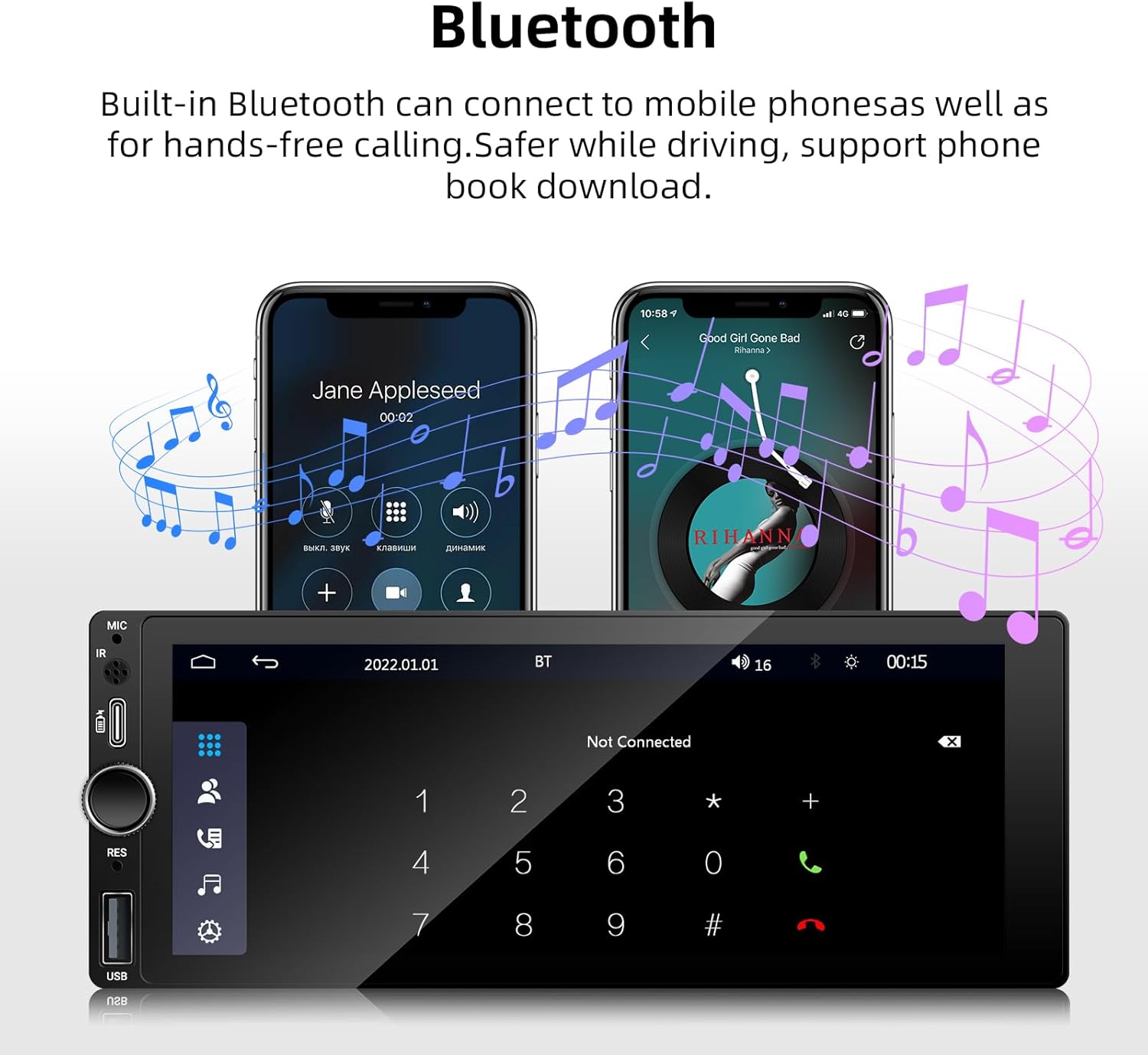
Image Description: The car stereo screen showing a phone dialer interface and two smartphones above, indicating hands-free calling and music playback via Bluetooth. Musical notes float around the phones, emphasizing audio streaming capabilities.
Pairing Steps:
- Go to the Bluetooth settings on the car stereo.
- Enable Bluetooth on your smartphone and search for available devices.
- Select "Ezonetronics" (or similar device name) from the list on your phone.
- Confirm the pairing code on both devices.
FM/RDS Radio
Access the FM radio function to listen to your favorite stations. The RDS feature provides station information where available.
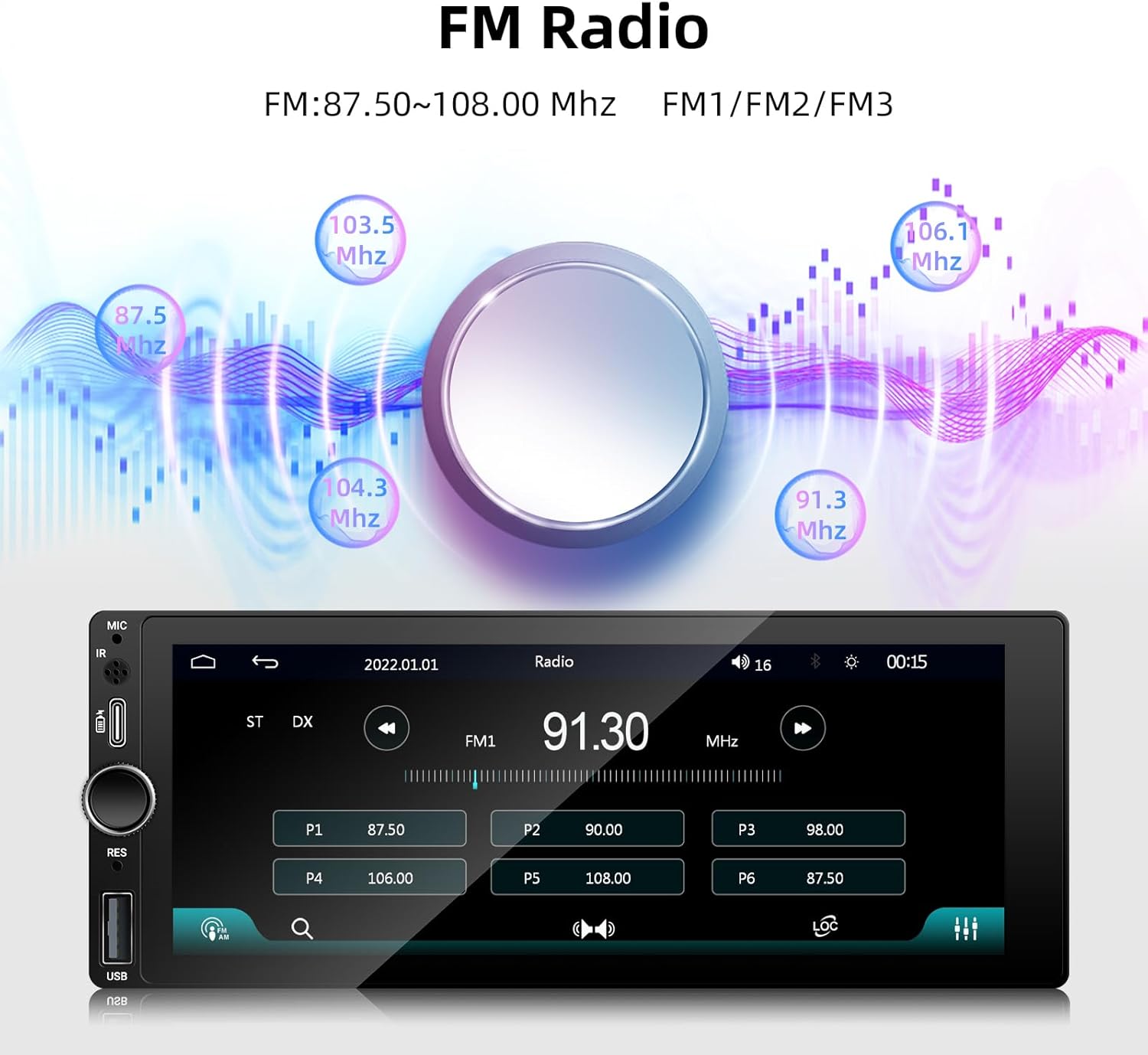
Image Description: The car stereo screen displaying the FM radio interface. It shows a large frequency display (e.g., 91.30 MHz) and preset buttons (P1-P6) for saving stations. A central knob graphic and wavy lines symbolize radio waves and tuning.
Use the touchscreen to scan for stations, save presets, and switch between FM1, FM2, and FM3 bands.
USB Playback
Connect a USB disk device to the USB slot to play audio and video files.

Image Description: The car stereo screen displaying a movie scene, surrounded by various movie posters, indicating its capability to play video files from a USB device.
Steering Wheel Control (SWC)
If your vehicle supports it, connect the SWC wires to control volume, track changes, and calls directly from your steering wheel buttons.
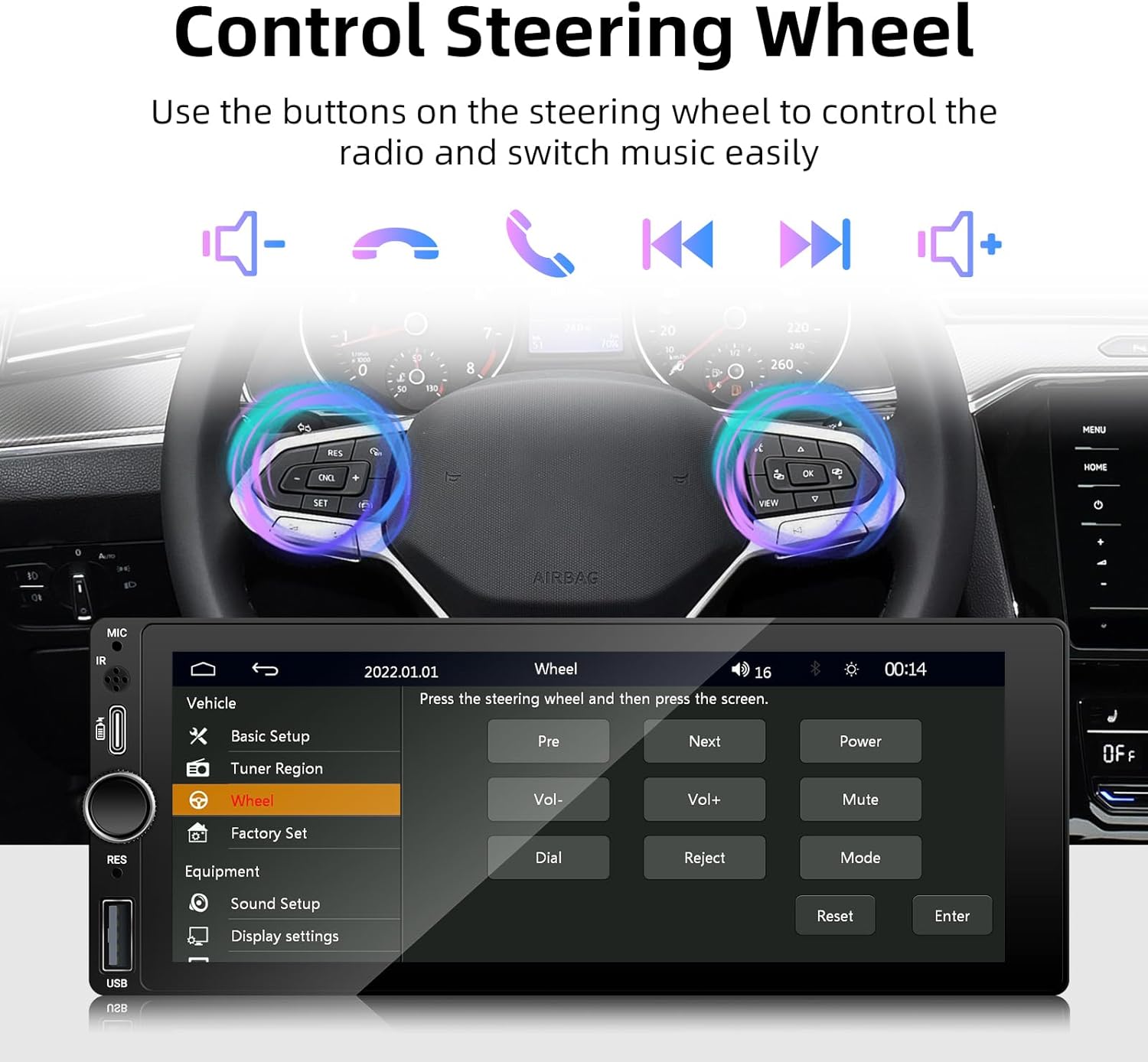
Image Description: The car stereo screen showing the "Wheel" settings menu, where users can program steering wheel controls. Buttons like "Pre", "Next", "Vol-", "Vol+", "Mute", "Mode", "Dial", "Reject", "Power", and "Enter" are visible for mapping. A steering wheel with illuminated buttons is shown in the background.
Setup: Navigate to the "Steering Wheel Control" settings in the unit's menu to program the buttons according to your vehicle's configuration.
Rear Camera Input
The unit supports a rear camera input. When reverse gear is engaged, the display will automatically switch to the camera view for safe parking.

Image Description: The car stereo screen displaying a rear camera view of a parking garage with dynamic parking guidelines. Above the unit, two cars are depicted in a parking scenario, illustrating the function of a backup camera.
Type-C & USB Charging Interface
The front panel features a Type-C port for fast charging and a standard USB port for charging and data transfer.

Image Description: The car stereo unit with its Type-C and USB ports highlighted. A smartphone is shown connected to the Type-C port, displaying a fast-charging icon and 75% battery level, emphasizing the quick charging capability.
Mirror Link
Use Mirror Link to display your smartphone's screen directly on the car stereo. This feature is compatible with both Android and iOS systems.
Maintenance
- Cleaning: Use a soft, dry cloth to clean the screen and unit. Avoid abrasive cleaners or solvents.
- Software Updates: Check the manufacturer's website periodically for any available software updates to ensure optimal performance and new features.
- Environmental Conditions: Avoid exposing the unit to extreme temperatures, direct sunlight for prolonged periods, or excessive moisture.
Troubleshooting
| Problem | Possible Cause | Solution |
|---|---|---|
| No power | Incorrect wiring; Blown fuse; Vehicle battery issue. | Check power and ground connections. Inspect vehicle fuses. Ensure vehicle battery is charged. |
| No sound | Speaker wires disconnected; Volume too low; Incorrect audio source. | Verify speaker connections. Increase volume. Select correct audio input (e.g., FM, Bluetooth, USB). |
| Bluetooth not connecting | Bluetooth off on phone/stereo; Device not in pairing mode; Interference. | Ensure Bluetooth is enabled on both devices. Put stereo in pairing mode. Try pairing again. Move closer to the unit. |
| CarPlay/Android Auto not starting | Incorrect USB cable; Phone not compatible; Software glitch. | Use a high-quality USB data cable. Ensure your phone's OS is up to date. Restart both phone and stereo. |
| Rear camera not displaying | Camera not connected; Incorrect wiring; Camera faulty. | Check camera input connection (CAM IN). Verify reverse trigger wire connection. Test with another camera if possible. |
Specifications
- Brand: Ezonetronics
- Model Number: RM-CP6801
- Screen Size: 6.86 inches
- Resolution: 1280 x 480 (Full HD Touchscreen)
- Connectivity Technology: Bluetooth, USB, Type-C
- Special Features: Apple CarPlay (Wireless/Wired), Android Auto (Wireless/Wired), Mirror Link, Steering Wheel Control, Equalizer, GPS (via CarPlay/Android Auto), Integrated Bluetooth, FM/RDS Radio, Rear Camera Input
- Compatible Devices: Smartphones
- Audio Output Mode: Stereo
- Video Encoding: H.264, H.265/HEVC
- Audio Channels: 6.0
- Analog RGB Input: USB, RCA
- Total HDMI Ports: 1 (Note: This might be an error in source data, as typical car stereos don't have HDMI. Assuming it refers to a video input/output capability.)
- Dimensions: Approximately 18.8 cm (width) x 7.1 cm (height) x 5 cm (depth) for the screen, 17.8 cm (width) x 5 cm (height) x 7 cm (depth) for the main unit.

Image Description: A diagram illustrating the physical dimensions of the Ezonetronics car stereo unit and its screen, along with a list of included accessories: power wiring harness, horn cable, and user manual.
Warranty Information
Warranty details are typically provided with the product packaging or on the manufacturer's official website. Please refer to the documentation included with your purchase for specific warranty terms and conditions. Keep your proof of purchase for warranty claims.
Customer Support
For technical assistance, troubleshooting beyond this manual, or warranty inquiries, please contact Ezonetronics customer support. Contact information can usually be found on the product packaging, the official Ezonetronics website, or through your retailer.
Online Resources: Visit the official Ezonetronics website for FAQs, updated manuals, and software downloads.


