
Eaula Videns AJ-SQ20-4G
Contents
Eaula Videns 4G LTE Cellular Solar Security Camera User Manual
Model: AJ-SQ20-4G
1. Introduction
This user manual provides comprehensive instructions for the installation, operation, and maintenance of your Eaula Videns 4G LTE Cellular Solar Security Camera. This camera is designed for outdoor use in locations without Wi-Fi or traditional power sources, leveraging 4G LTE connectivity and solar power for continuous operation. Please read this manual thoroughly before using the product to ensure proper functionality and safety.
2. Product Overview
2.1. Package Contents
Verify that all items are present in the package:
- Solar Camera
- Solar Panel
- Prepaid SIM Card (EIOTCLUB, 100MB trial data)
- 32GB TF Card (pre-installed or included separately)
- Mounting Screws and Anchors
- User Manual (this document)
2.2. Camera Components

Figure 2.2.1: Main components of the Eaula Videns 4G LTE Cellular Solar Security Camera, including the camera unit, solar panel, SIM card, and 32GB TF card.
The camera unit features a 2K resolution lens, infrared LEDs for night vision, a PIR motion sensor, and a speaker/microphone for two-way audio. The solar panel connects to the camera to provide continuous power, charging the built-in 10400mAh rechargeable battery. The camera supports Pan & Tilt rotation for a 360-degree viewing angle.
3. Setup
3.1. Initial Charging
Before initial use, fully charge the camera's built-in battery using a USB-C charger (not included). This ensures the camera has sufficient power for setup and initial operation, especially if solar charging conditions are not optimal immediately after installation.
3.2. SIM Card and TF Card Installation
The camera comes with a pre-installed or included EIOTCLUB 4G LTE prepaid SIM card and a 32GB TF card. Ensure both are properly inserted into their respective slots on the camera unit. The SIM card supports AT&T, T-Mobile, and Verizon networks within the United States. Only the provided SIM card is compatible with this camera.
3.3. App Download and Account Registration
Download the companion mobile application from your device's app store (iOS or Android). Search for "EIOTCLUB" or refer to the QR code provided in the quick start guide (if applicable). Register for a new account and log in.
3.4. Camera Pairing
Follow the in-app instructions to add your camera. This typically involves scanning a QR code on the camera or manually entering its device ID. Ensure your mobile device has an active internet connection during this process.
3.5. Mounting the Camera and Solar Panel
Select a mounting location that provides a clear view of the area you wish to monitor and receives ample direct sunlight for the solar panel. The camera is IP66 weatherproof, suitable for outdoor conditions ranging from -15°C (5°F) to 60°C (140°F).

Figure 3.5.1: The camera and solar panel mounted, illustrating suitability for remote locations without Wi-Fi or electrical power.
- Attach the mounting bracket to a sturdy surface using the provided screws and anchors.
- Secure the camera unit to the mounting bracket.
- Mount the solar panel in a position that maximizes sun exposure throughout the day.
- Connect the solar panel cable to the camera's power input port.
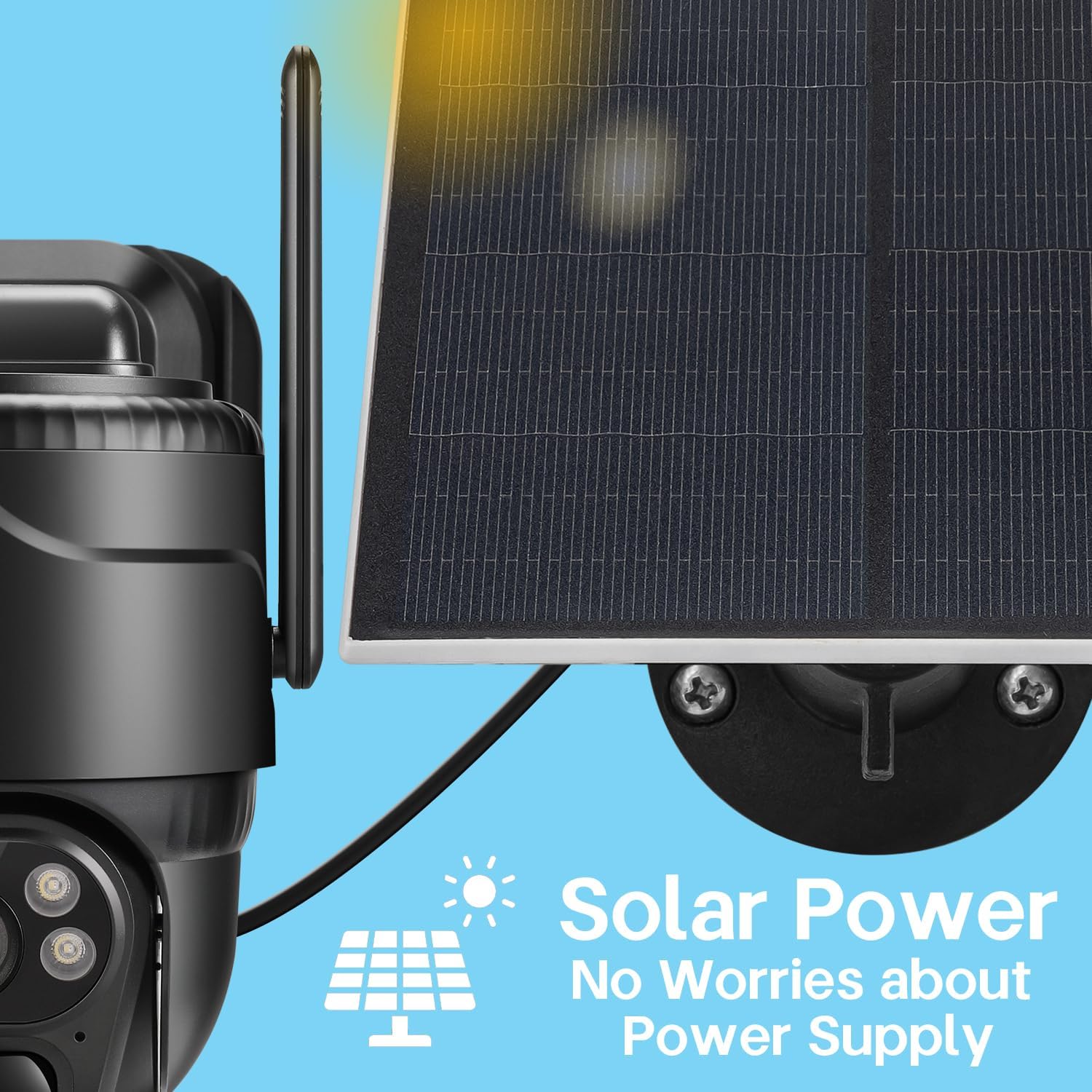
Figure 3.5.2: Detail of the solar panel connection, ensuring continuous power to the camera.

Figure 3.5.3: The camera's IP66 weatherproof rating ensures reliable operation in various outdoor conditions.
4. Operating Instructions
4.1. Live View and PTZ Control
Access the live video feed through the mobile application. Use the on-screen controls to pan (horizontal rotation) and tilt (vertical rotation) the camera for a 360-degree panoramic view. The camera provides 2K high-resolution video with 4X digital zoom capability.

Figure 4.1.1: The camera offers 360-degree PTZ (Pan-Tilt-Zoom) live view and 2.5K high-definition picture quality.
4.2. Night Vision
The camera features full-color night vision, allowing for clear visibility even in low-light or dark conditions. This feature activates automatically or can be manually controlled via the app.
4.3. PIR Motion Detection and Alerts
The sensitive PIR (Passive Infrared) motion sensor detects movement from objects or animals. Upon detection, the camera will send instant alert notifications to your mobile phone. You can adjust the sensitivity of the PIR motion detection settings within the application to minimize false alarms.

Figure 4.3.1: Smart detection capabilities provide instant alerts to your mobile device upon detecting motion.
4.4. Two-Way Audio
Utilize the two-way audio function to communicate with individuals near the camera. This feature allows you to speak through the camera's speaker and hear audio from its microphone via the mobile app.
4.5. Data Plan Management
The included SIM card provides 100MB of trial data. Data plans can be renewed within the application. Refer to the app for current pricing and available data plans. Continuous 4G LTE coverage is required for the camera's operation.
5. Maintenance
5.1. Solar Panel Cleaning
Periodically clean the surface of the solar panel to ensure maximum sunlight absorption. Dust, dirt, and debris can reduce charging efficiency. Use a soft, damp cloth for cleaning.
5.2. Firmware Updates
Check the mobile application regularly for available firmware updates. Keeping the camera's firmware updated ensures optimal performance, security, and access to new features.
5.3. Storage Management
The camera supports up to a 128GB TF card. Monitor the storage usage through the app. Old recordings may be overwritten automatically, or you may need to manually manage storage depending on your settings.
6. Troubleshooting
- Camera Not Connecting:
- Ensure the SIM card is correctly inserted and has an active data plan.
- Verify 4G LTE signal strength at the camera's location.
- Check if the camera battery is charged.
- Restart the camera by pressing the reset button (if available) or power cycling.
- Poor Video Quality:
- Clean the camera lens.
- Ensure sufficient 4G LTE bandwidth.
- Adjust camera placement for optimal lighting.
- Motion Detection Issues:
- Adjust PIR sensitivity settings in the app.
- Ensure the camera's view is not obstructed.
- Consider environmental factors like strong winds or moving foliage that might trigger false alarms.
- Battery Not Charging:
- Ensure the solar panel is clean and receives direct sunlight for several hours daily.
- Check the connection between the solar panel and the camera.
- Verify the solar panel is not shaded by trees or buildings.
7. Specifications
| Feature | Detail |
|---|---|
| Model Name | AJ-SQ20-4G |
| Brand | Eaula Videns |
| Connectivity Technology | Wireless (4G LTE Cellular) |
| Power Source | Solar Powered (Built-in 10400mAh rechargeable battery) |
| Video Capture Resolution | 2K (2560*1440) |
| Night Vision | Full Color Night Vision |
| Motion Detection | PIR Motion Sensor |
| Audio | Two-Way Audio |
| Viewing Angle | 360° Pan & Tilt |
| Storage | Supports up to 128GB TF card (32GB included) |
| Weatherproof Rating | IP66 |
| Operating Temperature | -15°C to 60°C (5°F to 140°F) |
| Dimensions (L x W x H) | 6 x 5 x 6 inches |
| Item Weight | 2.09 pounds |
| UPC | 797422986196 |
8. Warranty and Support
For warranty information and technical support, please refer to the contact details provided on the product packaging or visit the official Eaula Videns website. Keep your purchase receipt as proof of purchase for warranty claims.
Note: The camera is designed to work exclusively with the provided SIM card and its associated data plans. Compatibility with other SIM cards or networks is not guaranteed.
Ask a question about this manual
Ask about setup, troubleshooting, compatibility, parts, safety, or missing instructions. Manuals+ will review the question and use this page’s manual context to help answer it.