
1. Introduction
This manual provides detailed instructions for the setup, operation, and maintenance of your OFFNOVA TSC-2043PB Bluetooth Thermal Label Printer. Please read this manual thoroughly before using the device to ensure proper functionality and to extend the product's lifespan. This printer is designed for various labeling tasks, including address labels, shipping labels, product tags, and more, compatible with both mobile devices and computers.
2. Package Contents
Verify that all items are present in the package:
- 1 x OFFNOVA TSC-2043PB Label Maker
- 1 x Roll of 200 Labels (70mm x 40mm)
- 1 x USB-C Cable
- 1 x Instruction Manual
3. Product Overview
The OFFNOVA TSC-2043PB is a portable thermal label printer featuring Bluetooth and USB connectivity. It offers high-resolution printing at 203 DPI and supports label widths from 0.78 inches to 3.14 inches (20-80mm). The device is equipped with a 2500mAh rechargeable battery for extended use.
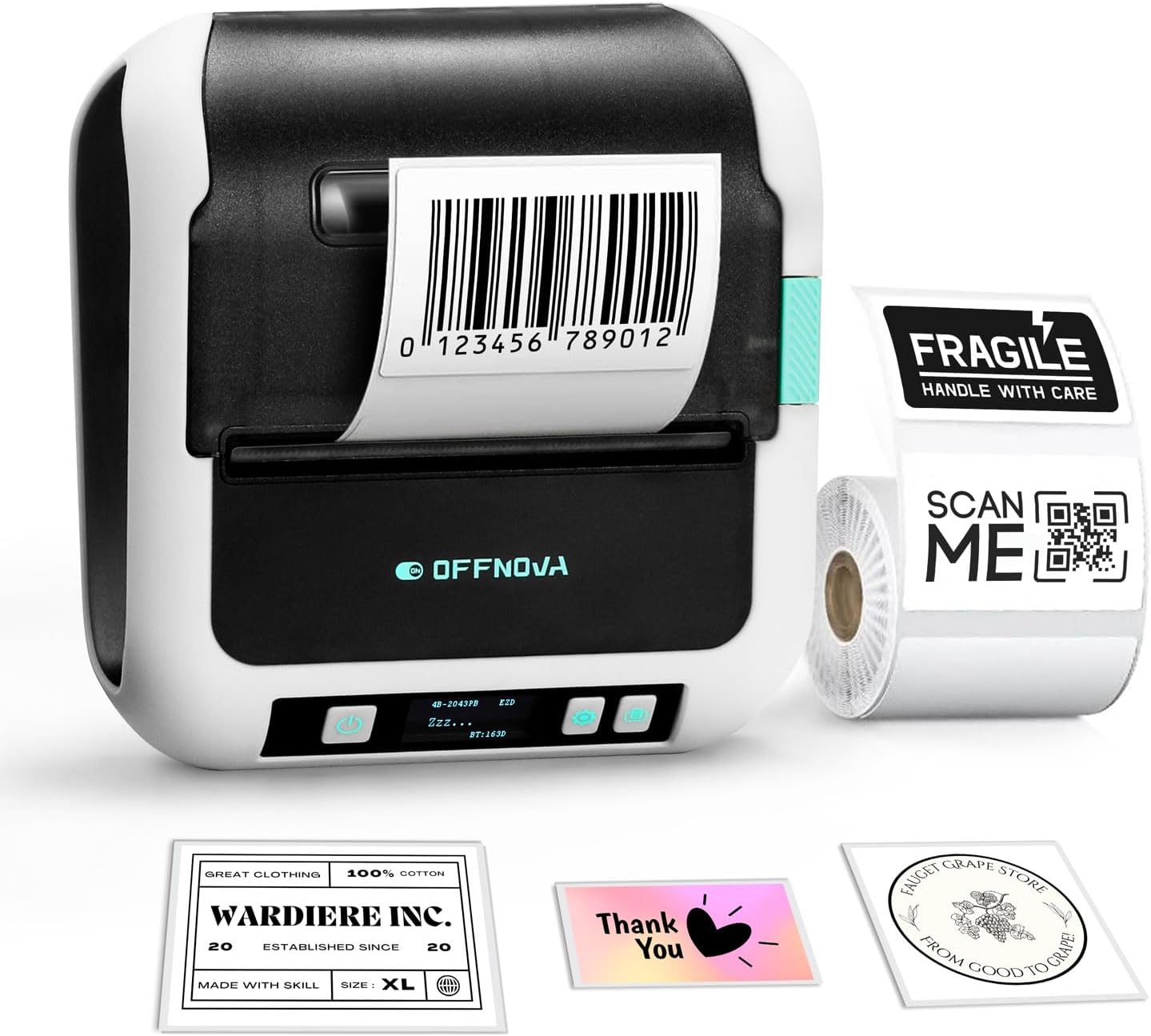
Image 3.1: OFFNOVA TSC-2043PB Label Maker. The printer is shown with a barcode label being printed, alongside various sample labels like 'Fragile', 'Thank You', and 'Wardrobe Inc.'.

Image 3.2: Close-up of the printer's digital display. The display shows '4B-2043PB', 'ZZZ...', 'EZD', and 'BT:163D', indicating model information and Bluetooth status.
Key Features:
- Stable Bluetooth Connectivity: For wireless printing from iOS and Android devices.
- High-Speed Printing: Up to 70mm/s.
- Long Battery Life: 2500mAh rechargeable battery.
- Wide Label Support: Compatible with labels from 0.78" to 3.14" (20-80mm) width.
- High Resolution: 203 DPI for clear text and barcodes.
- Versatile Application: Suitable for home, office, and small business use.
4. Setup
4.1 Loading Labels
Follow these steps to properly load label paper into your printer:
- Step 1: Unlock and Adjust Baffle. Unlock and adjust the baffle width to accommodate the label paper's width.
- Step 2: Insert Label Paper. Put the label paper roll into the printer compartment. Ensure the labels face upwards.
- Step 3: Lock Baffle. Lock and secure the baffle to hold the label roll in place.
- Step 4: Close Cover and Power On. Close the printer cover, then turn on the power. The printer will automatically calibrate the label.
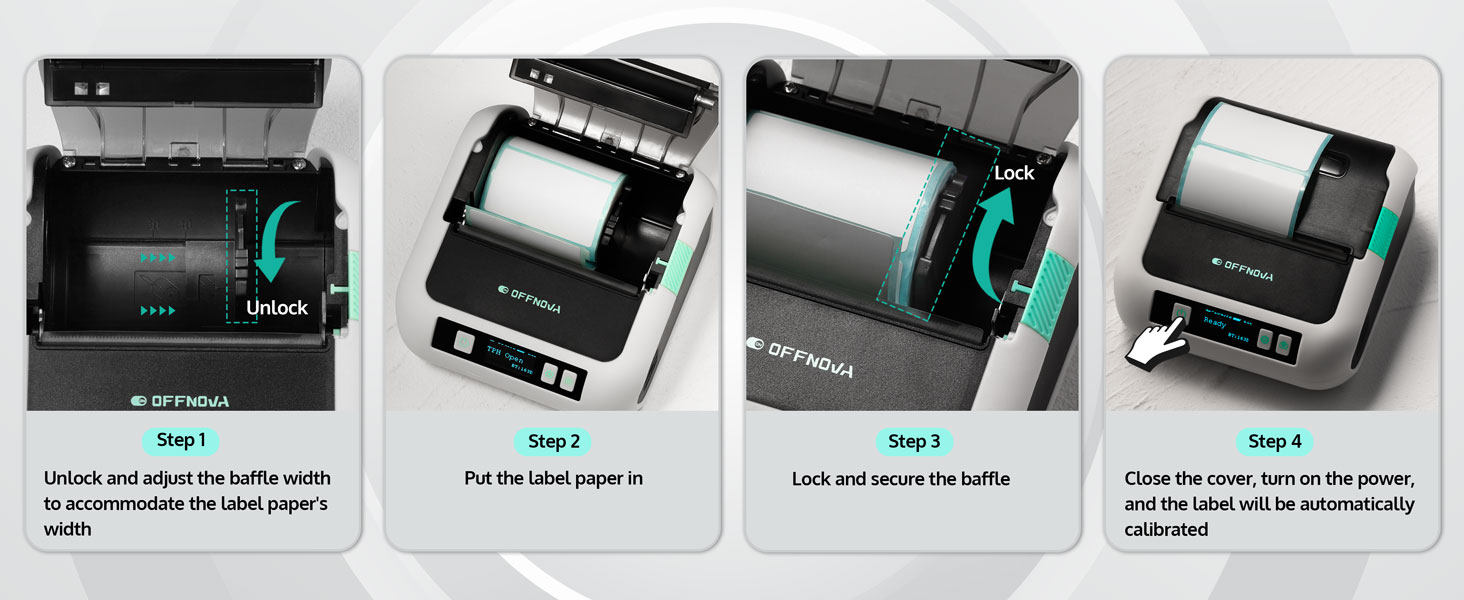
Image 4.1: Visual guide for loading labels. Shows unlocking, inserting, locking, and automatic calibration steps.
4.2 Mobile Device Setup (iOS/Android)
To print from your smartphone or tablet, follow these steps:
- Step 1: Download the App. Download the "4Barcode" app from your device's app store.
- Step 2: Power On and Enable Bluetooth. Turn on the OFFNOVA label maker and ensure Bluetooth is enabled on your mobile device.
- Step 3: Connect and Print. Open the "4Barcode" app, connect to your printer via Bluetooth, customize your label content, and initiate printing.

Image 4.2: The label maker connected to a smartphone via Bluetooth and a laptop via USB-C, illustrating its compatibility.
4.3 PC/Mac Setup
To print from your computer, follow these steps:
- Step 1: Download Driver. Visit the official OFFNOVA website and download the correct driver for your computer's operating system (Windows or macOS).
- Step 2: Connect via USB. Connect the printer to your computer using the provided USB-C cable.
- Step 3: Select and Print. Customize your label content using your preferred software, select the '2043PB' model as your printer, and begin printing.
5. Operating Instructions
5.1 Using the 4Barcode App
The 4Barcode app provides extensive features for label design and printing:
- Ready-to-Use Templates: Access a variety of pre-designed templates for different label types.
- Barcode/QR Code Generators: Easily create and print barcodes and QR codes.
- Icons and Batch Printing: Add various icons to your labels and print multiple labels efficiently.
- Voice Input and OCR Recognition: Utilize advanced input methods for convenience.

Image 5.1: Screenshot of the 4Barcode app interface, showing various design options and templates for creating labels.
5.2 Label Printing Guidelines
The printer supports a range of label sizes to accommodate various needs:
- Label Width: From 0.78 inches (20mm) to 3.14 inches (80mm).
- Applications: Suitable for barcode labels, file folder labels, logo labels, address labels, price labels, and asset identification.
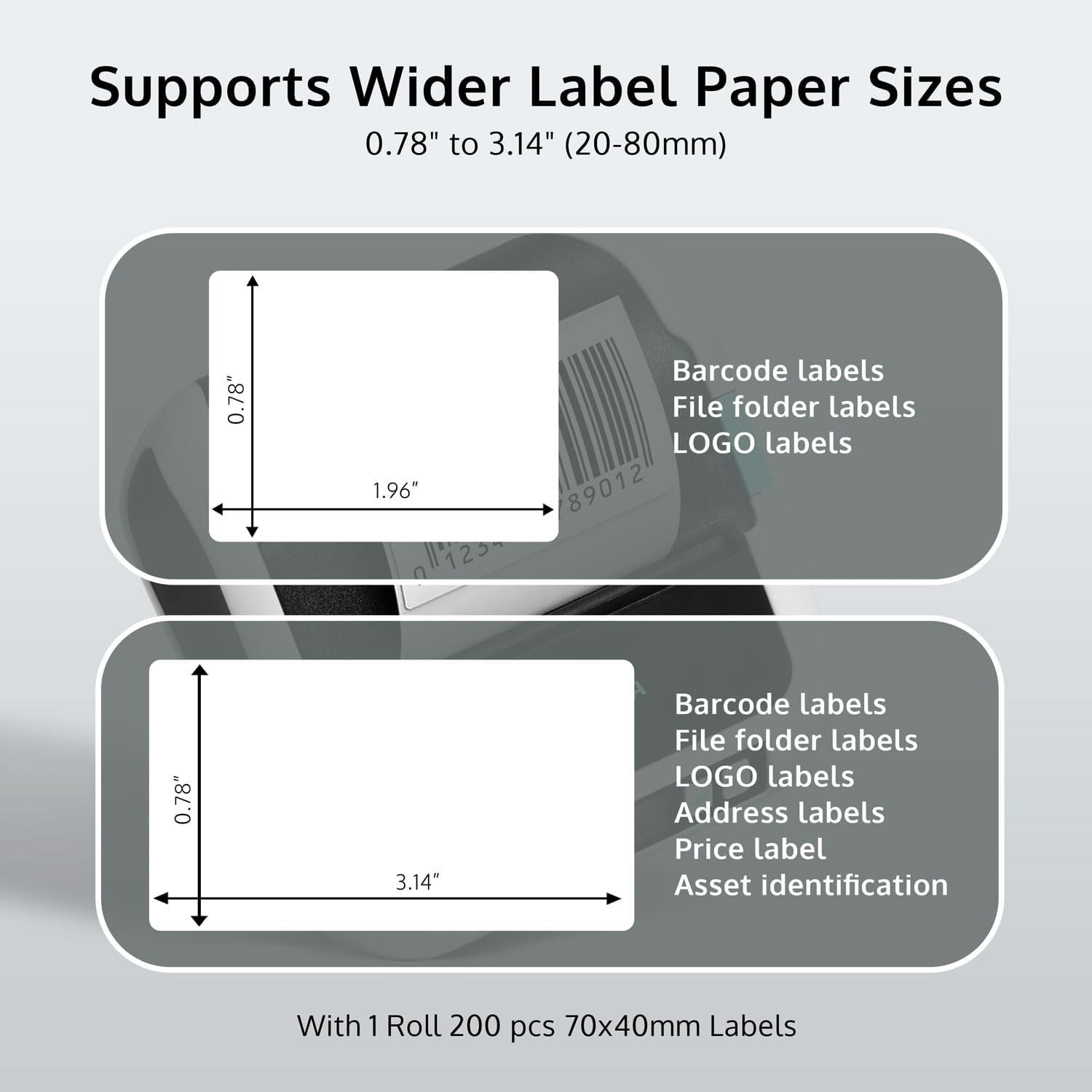
Image 5.2: Diagram illustrating the supported label paper sizes, specifically 0.78" x 1.96" and 0.78" x 3.14", along with examples of their uses.
6. Maintenance
Regular maintenance ensures optimal performance and longevity of your label maker:
- Cleaning the Print Head: Use a soft, lint-free cloth lightly dampened with isopropyl alcohol to gently wipe the print head. Ensure the printer is off and cooled down before cleaning.
- Cleaning the Roller: Use a similar cloth to clean the rubber roller to prevent paper jams and ensure smooth feeding.
- Dust Removal: Keep the printer free from dust and debris. Use compressed air if necessary.
- Storage: Store the printer in a cool, dry place away from direct sunlight and extreme temperatures.
- Battery Care: For optimal battery life, avoid fully discharging the battery frequently. Charge the printer regularly, especially if it will be stored for an extended period.
7. Troubleshooting
If you encounter issues with your OFFNOVA TSC-2043PB, refer to the following common problems and solutions:
| Problem | Possible Cause | Solution |
|---|---|---|
| Printer not turning on | Low battery; Power button not pressed correctly | Charge the printer using the USB-C cable; Press and hold the power button for a few seconds. |
| Cannot connect via Bluetooth | Bluetooth not enabled; Printer not discoverable; App issue | Ensure Bluetooth is on for both printer and device; Restart both devices; Reinstall the 4Barcode app. |
| Poor print quality | Dirty print head; Low battery; Incorrect label type | Clean the print head (see Maintenance); Charge the printer; Ensure you are using thermal labels. |
| Paper jam / "Paper Out" error | Improper label loading; Debris in paper path; Sensor issue | Re-load labels correctly, ensuring they are aligned; Clean the paper path; Turn the printer off and on again to reset. |
| Printer not recognized by PC/Mac | Driver not installed; USB cable issue | Install the correct driver from the OFFNOVA website; Try a different USB-C cable or port. |
8. Specifications
Detailed technical specifications for the OFFNOVA TSC-2043PB Label Maker:
| Feature | Detail |
|---|---|
| Model Number | TSC-2043PB |
| Product Dimensions | 4.5"D x 4.5"W x 2"H |
| Item Weight | 1.25 pounds (0.57 Kilograms) |
| Connectivity Technology | Bluetooth, USB (USB Type C) |
| Printing Technology | Thermal |
| Maximum Print Resolution | 203 DPI (dots per inch) |
| Maximum Print Speed | 70mm/s (Monochrome) |
| Maximum Media Size | 76mm (3.14 inches) |
| Sheet Size (Width) | 25.4-76 mm (0.78-3.14 inches) |
| Max Input Sheet Capacity | 300 |
| Compatible Devices | Laptops, PC, Smartphones, Tablets |
| Special Features | Bluetooth, Lightweight, Portable |
| Power Source | 2500mAh Rechargeable Battery |
9. Warranty and Support
The OFFNOVA TSC-2043PB Label Maker comes with a 1-Year Warranty from the date of purchase. This warranty covers manufacturing defects and malfunctions under normal use.
For technical support, warranty claims, or any questions regarding your product, please contact OFFNOVA customer service through their official website or the contact information provided in your product packaging. When contacting support, please have your model number (TSC-2043PB) and purchase details ready.