
1. Introduction
This manual provides essential information for setting up, operating, and maintaining your Acer Aspire 3 AI-Powered Laptop, model A315-44P-R7GS. This laptop is equipped with an AMD Ryzen 7 5700U processor, 64GB DDR4 RAM, a 2TB SSD, and a 15.6-inch Full HD display, running on AI-Powered Windows 11. It also includes a comprehensive accessory bundle to enhance your computing experience.

Figure 1: Acer Aspire 3 AI-Powered Laptop, showcasing its sleek design and vibrant display.
2. Getting Started: Initial Setup
Follow these steps to set up your new Acer Aspire 3 laptop:
- Unpacking: Carefully remove the laptop and all accessories from the packaging. Ensure all components listed in the 'What's in the Box' section are present.
- Connect Power: Plug the AC adapter into the laptop's power port and then into a wall outlet. It is recommended to fully charge the battery before initial use.
- Initial Boot: Open the laptop lid and press the power button. The laptop will guide you through the Windows 11 setup process, including language selection, network connection, and user account creation.
- Connect Accessories: Connect any external devices such as the included portable SSD, USB hub, or HDMI cable as needed.
3. Product Features
3.1 Core Components
- Processor: AMD Ryzen 7 5700U (8-Core, Up to 4.3 GHz, 8MB Cache) for efficient multitasking and performance.
- Memory: 64GB DDR4 SDRAM, providing ample capacity for demanding applications and smooth operation.
- Storage: 2TB Solid State Drive (SSD) for fast boot times, quick application loading, and extensive storage capacity.
- Graphics: Integrated AMD Radeon Graphics, suitable for everyday tasks and multimedia consumption.
- Display: 15.6-inch Full HD (1920 x 1080) SVA BrightView micro-edge WLED display.
- Operating System: AI-Powered Windows 11, offering enhanced features and a modern user interface.
3.2 Connectivity
The Acer Aspire 3 offers a variety of ports for connecting peripherals and external displays:
- 1 x USB Type-C port
- 3 x USB Type-A ports
- 1 x HDMI port
- 1 x RJ-45 (Ethernet) port
- 1 x Headphone/Speaker/Line-Out Jack (3.5mm)
- Wireless: Wi-Fi 6 (802.11ax) and Bluetooth for high-speed wireless connectivity.

Figure 2: Detailed view of the laptop's connectivity ports.
3.3 Included Accessory Bundle
Your laptop comes with a bundle of useful accessories:
- NVME/SATA Dual Protocol Hard Disk Box
- 128GB SATA Disk
- Multifunctional Folding Universal Holder
- 65W Mecha 4-IN-1 Data Cable
- USB / Type-C 4-IN-1 HUB
- RK HDMI CABLE

Figure 3: Overview of the included RK accessory bundle.
4. Operating Your Laptop
4.1 Power Management
- Power On/Off: Press the power button located on the keyboard deck to turn the laptop on or off.
- Sleep Mode: Close the lid or select 'Sleep' from the Start menu to put the laptop into a low-power state.
- Restart: Select 'Restart' from the Start menu to reboot the system.
4.2 Keyboard and Touchpad
The laptop features a full-size keyboard and a precision touchpad.
- Keyboard: Standard QWERTY layout with a numeric keypad. Function keys (F1-F12) provide quick access to system settings when pressed with the 'Fn' key.
- Touchpad: Supports multi-touch gestures for navigation, scrolling, and zooming. Refer to Windows settings for customization.
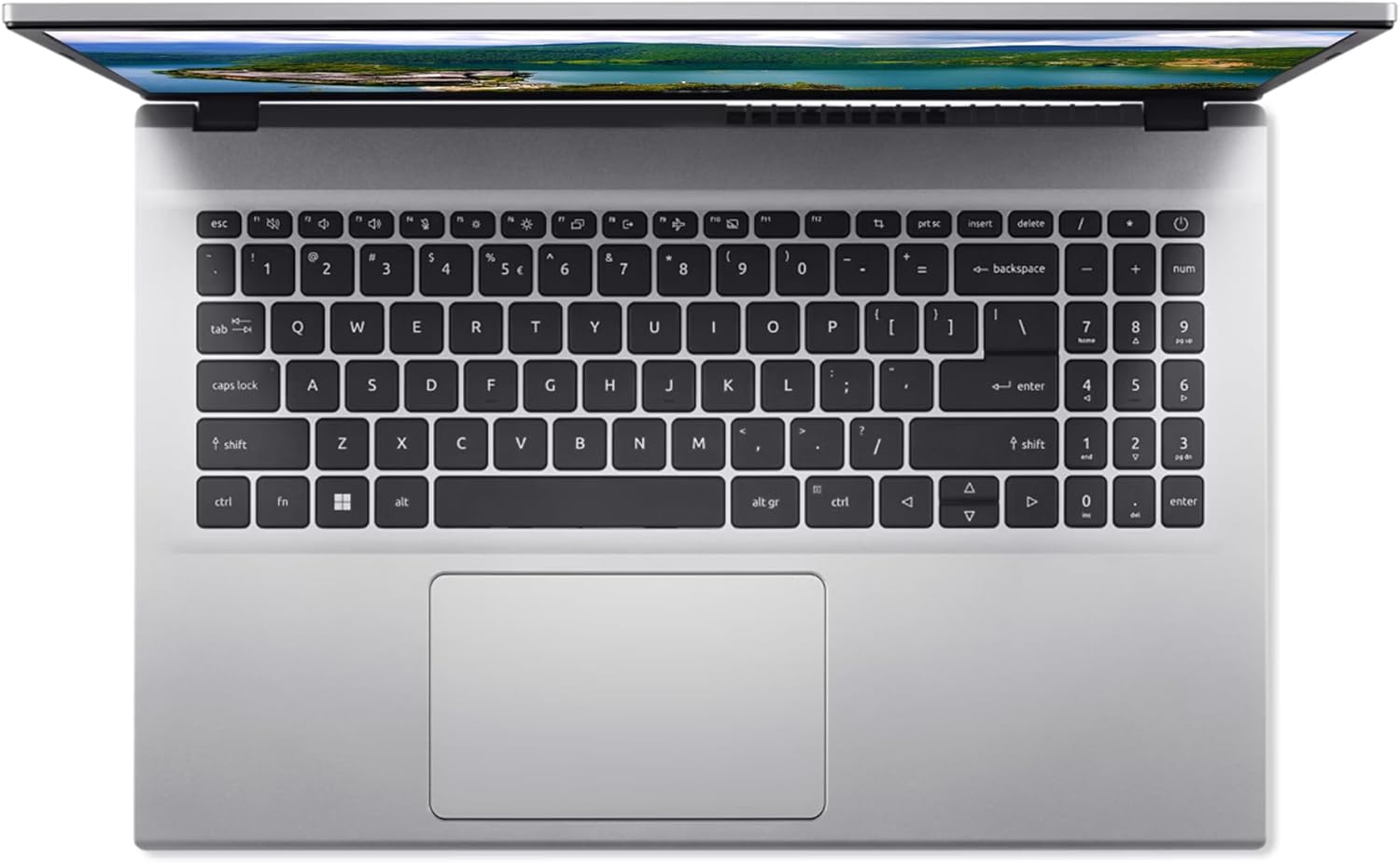
Figure 4: The laptop's keyboard and touchpad for user interaction.
4.3 Windows 11 and Copilot
Your laptop comes with AI-Powered Windows 11. Utilize Copilot for enhanced productivity and assistance:
- Access Copilot: Click the Copilot icon on the taskbar or press the Windows key + C.
- Ask Questions: Type or speak your queries to get information, generate content, or perform tasks.
- Manage Settings: Use Copilot to quickly change system settings, organize windows, or activate dark mode.
5. Maintenance and Care
Proper maintenance ensures the longevity and optimal performance of your laptop:
- Cleaning: Use a soft, lint-free cloth to clean the screen and exterior. Avoid harsh chemicals.
- Battery Care: Avoid extreme temperatures. For long-term storage, charge the battery to about 50-70%.
- Software Updates: Regularly install Windows updates and driver updates to ensure security and performance.
- Storage Management: Periodically clear unnecessary files and applications to maintain optimal SSD performance.
- Ventilation: Ensure the laptop's vents are not obstructed to prevent overheating.
6. Troubleshooting
If you encounter issues, refer to these common solutions:
- No Power: Ensure the AC adapter is securely connected and the power outlet is functional. Try a different outlet.
- Display Issues: If the screen is blank, try connecting an external monitor to check if the display output is working. Adjust brightness settings.
- Slow Performance: Close unnecessary applications, check for malware, and ensure sufficient free storage space.
- Connectivity Problems: For Wi-Fi, restart your router and the laptop. For wired connections, check the Ethernet cable.
- System Freezes: Press and hold the power button for 10-15 seconds to force a shutdown, then restart.
For persistent issues, consult the Acer support website or contact customer service.
7. Specifications
| Feature | Specification |
|---|---|
| Brand | acer |
| Model Name | Aspire 3 |
| Item Model Number | A315-44P-R7GS |
| Standing Screen Display Size | 15.6 Inches |
| Screen Resolution | 1920 x 1080 pixels (FHD) |
| Processor | AMD Ryzen 7 5700U (1.1 GHz base, up to 4.3 GHz boost) |
| Number of Processors | 8 |
| RAM Memory Installed Size | 64 GB DDR4 SDRAM |
| Hard Drive | 2048 GB SSD (2TB SSD) |
| Graphics Coprocessor | AMD Radeon Graphics (Integrated) |
| Operating System | Windows 11 |
| Wireless Type | 802.11ax (Wi-Fi 6) |
| Item Weight | 3.92 pounds |
| Product Dimensions (LxWxH) | 19 x 10 x 1 inches |
| Batteries | 1 Lithium Polymer battery (included) |
8. Warranty and Support
Your Acer Aspire 3 laptop is covered by a manufacturer's warranty. For detailed warranty terms, conditions, and registration information, please refer to the documentation included with your product or visit the official Acer support website.
For technical assistance, driver downloads, or service inquiries, please visit the Acer Support Website.