
Introduction
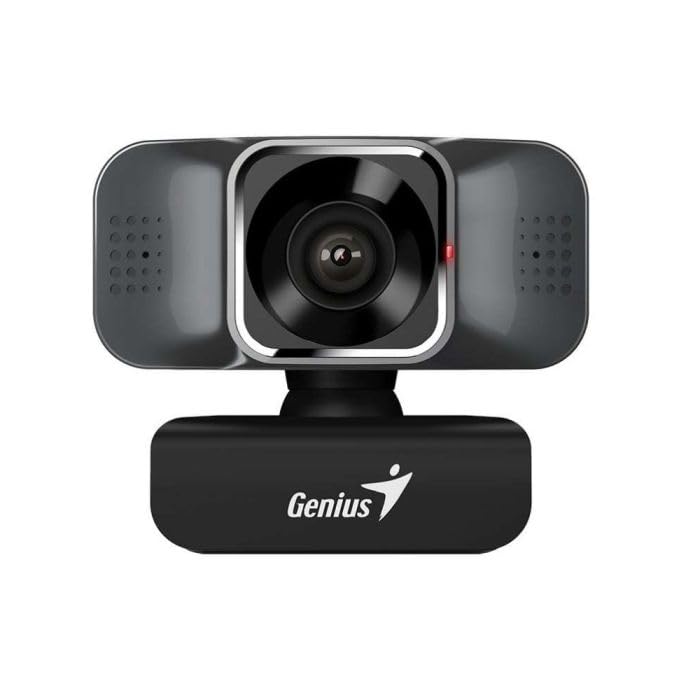
Thank you for choosing the Genius FaceCam Quiet Black Webcam. This manual provides essential information for setting up, operating, and maintaining your webcam. Please read these instructions carefully before use to ensure optimal performance and longevity of your device.
What's in the Box
Verify that all components are present in the package:
- Genius FaceCam Quiet Black Webcam
Setup
Follow these steps to set up your Genius FaceCam Quiet Webcam:
- Placement: Position the webcam on top of your computer monitor, laptop screen, or on a flat surface. The flexible clip allows for secure attachment.
- Connect to Computer: Plug the webcam's USB cable into an available USB port on your computer.
- Driver Installation: The webcam is typically plug-and-play. Your operating system should automatically detect and install the necessary drivers. If prompted, follow the on-screen instructions.
- Adjust Angle: The webcam features 360-degree rotation. Adjust the camera angle to achieve your desired view.
Operating Instructions
Once the webcam is set up, you can begin using it for video communication and recording:
- Launch Application: Open your preferred video conferencing software (e.g., Zoom, Skype, Microsoft Teams) or video recording application.
- Select Webcam: In the application's settings, select "Genius FaceCam Quiet" as your video input device.
- Select Microphone: If the webcam has a built-in microphone, select "Genius FaceCam Quiet" as your audio input device in the application's settings.
- Noise Reduction: The webcam features a noise reduction function. Refer to the device itself for any physical switches or software settings to activate or adjust this feature for clearer audio.
- Video Quality: The webcam supports Full HD 1920x1080p resolution at 30 frames per second (fps). Ensure your application settings are configured to utilize these specifications for optimal video quality.
Maintenance
To ensure the longevity and performance of your webcam, follow these maintenance guidelines:
- Cleaning the Lens: Gently wipe the webcam lens with a soft, lint-free cloth. Avoid using harsh chemicals or abrasive materials that could scratch the lens.
- Cleaning the Body: Use a soft, dry cloth to clean the body of the webcam. If necessary, a slightly damp cloth can be used, but ensure no moisture enters the device.
- Storage: When not in use, store the webcam in a clean, dry place away from extreme temperatures and direct sunlight.
- Cable Care: Avoid bending or twisting the USB cable excessively to prevent damage.
Troubleshooting
If you encounter issues with your webcam, refer to the following common problems and solutions:
| Problem | Solution |
|---|---|
| Webcam not detected by computer. |
|
| Poor video quality or flickering. |
|
| No audio or poor audio quality. |
|
Specifications
| Feature | Detail |
|---|---|
| Brand | Genius |
| Model Name | 32200005400 |
| Resolution | Full HD 1920x1080p |
| Frame Rate | 30fps |
| Rotation | 360 degrees |
| Audio Features | Noise Reduction |
| Photo Sensor Technology | Other |
| Video Capture Format | MP4 |
| Included Components | Web Cam |
Warranty and Support
For warranty information, please refer to the documentation included with your product or visit the official Genius website. If you require technical support or have questions not covered in this manual, please contact Genius customer service through their official support channels.
You can typically find support contact details on the Genius official website.
