1. Introduction
Thank you for purchasing the Lazmin112 HiFi MP3 Player. This portable digital music player is designed to deliver high-fidelity, lossless audio playback with a user-friendly interface and versatile connectivity options. Featuring a 2.4-inch HD display and Bluetooth 5.3, it provides an immersive listening experience for all your favorite music.
This manual provides detailed instructions on how to set up, operate, and maintain your new MP3 player. Please read it thoroughly before use to ensure optimal performance and longevity of your device.
2. Product Overview
Familiarize yourself with the components and controls of your Lazmin112 HiFi MP3 Player.
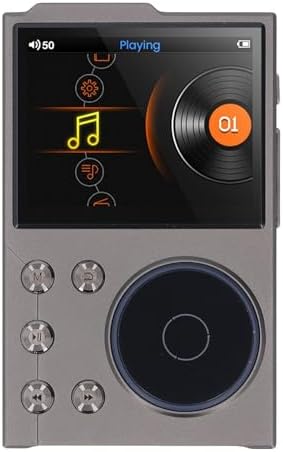
Figure 2.1: Front View
This image displays the front of the MP3 player, highlighting its 2.4-inch HD screen and the intuitive control buttons, including the central scroll wheel for navigation and playback controls.
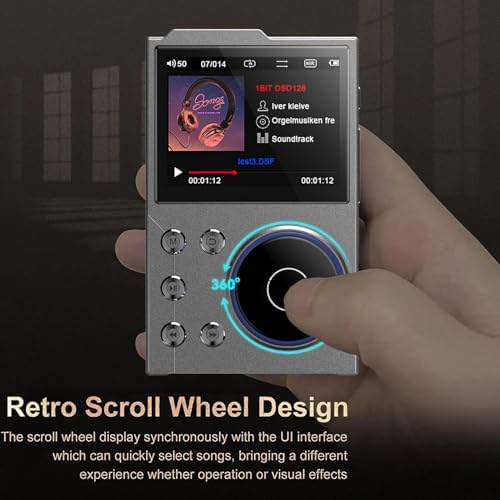
Figure 2.2: Retro Scroll Wheel Design
A detailed view of the scroll wheel, emphasizing its design for quick song selection and navigation through the user interface. This feature enhances the user experience for browsing music libraries.
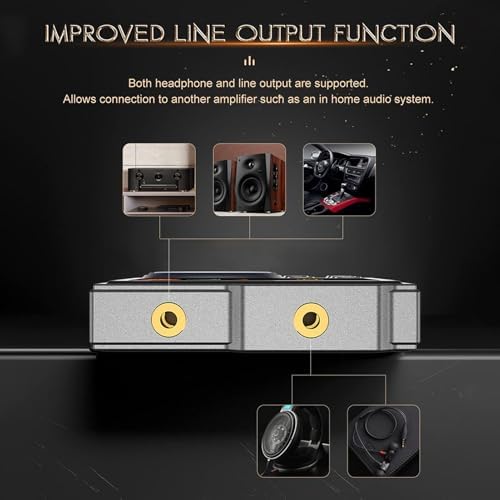
Figure 2.3: Improved Line Output Function
This image illustrates the top of the device, showing both the headphone output and line output ports. It highlights the player's versatility for connecting to headphones, home audio systems, or car auxiliary inputs.

Figure 2.4: Expandable Storage
A side view of the MP3 player, pointing out the slot for expandable storage (microSD card). This demonstrates the ability to significantly increase the device's music capacity beyond its internal memory.
3. Setup
3.1 Charging the Device
Before first use, fully charge your MP3 player. Use the provided USB cable to connect the device to a computer's USB port or a compatible USB wall adapter (not included).
- Connect the small end of the USB cable to the player's USB port.
- Connect the large end of the USB cable to a powered USB port.
- The battery indicator on the screen will show charging status.
- A full charge typically takes approximately 2 hours.

Figure 3.1: Charging and Battery Life
This image illustrates the player being charged and highlights its long play time of up to 24 hours on a full 750mAh battery charge.
3.2 Adding Music and Files
The player has 16GB of built-in memory and supports expandable storage up to 256GB via a microSD card (not included).
- Insert MicroSD Card (Optional): Locate the microSD card slot on the side of the player (refer to Figure 2.4). Gently insert the card until it clicks into place.
- Connect to Computer: Connect the MP3 player to your computer using the provided USB cable.
- Transfer Files: The player will appear as a removable disk drive on your computer. Drag and drop your music files (FLAC, APE, DFF, MP3, WAV, WMA, M4A, MP2, AAC, ALAC, OGG, AIFF, Native DSD) into the player's storage or the microSD card.
- Safely Eject: Once file transfer is complete, safely eject the device from your computer before disconnecting the USB cable.
4. Operating Instructions
4.1 Power On/Off
- Power On: Press and hold the Power button (usually located on the side or top) until the screen lights up.
- Power Off: Press and hold the Power button until the "Power Off" prompt appears, then confirm.
4.2 Navigating the Interface
The player features a 2.4-inch HD screen and a scroll wheel for intuitive navigation.
- Scroll Wheel: Rotate the scroll wheel to move through menus and lists.
- Center Button: Press the center button of the scroll wheel to select an item or confirm an action.
- Back Button: Use the dedicated Back button (often labeled 'M' or an arrow) to return to the previous screen.
- Menu Buttons: Other buttons around the scroll wheel typically control playback (Play/Pause, Next/Previous Track) and volume.
4.3 Music Playback
To play music:
- From the main menu, select "Music" or "My Music".
- Browse by Artist, Album, Song, Genre, or Folder.
- Select a song or album to begin playback.
- Use the physical buttons for Play/Pause, Skip Forward/Backward, and Volume adjustment.
4.4 Bluetooth Connectivity
The player supports Bluetooth 5.3 for wireless audio streaming to compatible devices (headphones, speakers) or functioning as a Bluetooth receiver.
- From the main menu, select "Bluetooth".
- Turn Bluetooth "On".
- The player will scan for available devices.
- Select your desired Bluetooth device from the list to pair.
- Once paired, audio will stream wirelessly to the connected device.
4.5 Advanced Features
- Equalizer (EQ): Adjust sound profiles to your preference.
- Line Out: Connect the player to external amplifiers or home audio systems using the dedicated line-out port (refer to Figure 2.3).
- USB DAC Mode: Connect the player to a computer or smartphone via USB to use it as an external DAC (Digital-to-Analog Converter) for enhanced audio quality.

Figure 4.1: HiFi Music Player Features
This image highlights the player's support for various high-resolution audio formats (DSD, Hi-Res Audio, HD Audio) and features like an equalizer and auto-upgrade capabilities.
5. Maintenance
5.1 Cleaning
- Use a soft, dry, lint-free cloth to clean the device's surface and screen.
- Do not use abrasive cleaners, alcohol, or chemical solvents, as they may damage the finish or screen.
5.2 Storage
- Store the player in a cool, dry place away from direct sunlight and extreme temperatures.
- Avoid exposing the device to water or high humidity.
5.3 Battery Care
- To prolong battery life, avoid fully discharging the battery frequently.
- If storing the device for an extended period, charge it to about 50% before storage.
6. Troubleshooting
| Problem | Possible Cause | Solution |
|---|---|---|
| Device does not power on. | Low battery; device frozen. | Charge the device for at least 10 minutes. If still unresponsive, press and hold the Power button for 10-15 seconds to force a restart. |
| No sound from headphones. | Headphones not properly connected; volume too low; corrupted audio file. | Ensure headphones are fully plugged in. Increase volume. Try playing a different audio file. Check if Bluetooth is enabled and connected to another device. |
| Cannot connect to Bluetooth device. | Bluetooth not enabled; device out of range; pairing mode not active on target device. | Ensure Bluetooth is enabled on both devices. Move devices closer. Put the target Bluetooth device into pairing mode. Restart both devices. |
| Files not appearing on the player. | Incorrect file format; files not transferred correctly; storage issue. | Verify file formats are supported (FLAC, MP3, etc.). Re-transfer files. Check if the microSD card is properly inserted and formatted. |
7. Specifications
| Model Name | Lazmin112awp71bn68v |
| Brand | Lazmin112 |
| Display | 2.4-inch HD Screen |
| Battery Type | Built-in Polymer Lithium-ion Battery |
| Battery Capacity | 750 mAh |
| Bluetooth Version | Bluetooth 5.3 (Bidirectional) |
| Internal Storage | 16 GB |
| Expandable Storage | Up to 256 GB (via MicroSD card) |
| Supported Audio Formats | FLAC, APE, DFF, MP3, WAV, WMA, M4A, MP2, AAC, ALAC, OGG, AIFF, Native DSD (up to 128 bits/5.6 MHz) |
| Dimensions (Approx.) | 97 mm x 60.4 mm x 13.9 mm (3.82 in x 2.38 in x 0.55 in) |
| Weight (Approx.) | 187 g |
| Output Ports | Headphone Output, Line Output |
8. Warranty and Support
8.1 Warranty Information
This product comes with a standard manufacturer's warranty. Please refer to the warranty card included in your product packaging for specific terms and conditions, including warranty duration and coverage details. Keep your purchase receipt as proof of purchase for warranty claims.
8.2 Customer Support
For technical assistance, troubleshooting, or any questions regarding your Lazmin112 HiFi MP3 Player, please contact the seller or manufacturer's customer support. Contact information can typically be found on the product packaging or the seller's website.
For online support, you may visit the Lazmin112 store on Amazon: Lazmin112 Amazon Store