
1. Introduction
The ORICO FlashGo External SSD is a high-performance portable storage solution designed for demanding tasks such as 4K/8K video editing and large file transfers. Featuring Thunderbolt 4 (40Gbps) and USB-C (10Gbps) compatibility, a robust aluminum alloy casing, and an integrated cooling fan, the FlashGo ensures stable and efficient operation. This manual provides essential information for setting up, operating, and maintaining your device.
2. Key Features
- Massive 4TB Capacity: Ample storage for large media files and professional projects.
- 3200MB/s Transfer Speed: Utilizes USB4 technology for ultra-fast data transfer up to 40Gbps, significantly improving workflow efficiency.
- Stable Lossless Transmission: Aluminum alloy construction and a built-in cooling fan maintain optimal operating temperatures, ensuring data integrity and device longevity.
- On-The-Go Creativity: Compact and portable design with an internal NVMe SSD, ideal for mobile editing and file management.
- Widely Compatible: Supports Thunderbolt 4 (40Gbps) and USB-C (10Gbps) interfaces, compatible with various devices and operating systems including Windows, macOS, and Linux.
3. Package Contents
Please verify that all items listed below are included in your package:
- FlashGo External SSD x 1
- Packaging Box x 1
- Manual x 1
- Cable x 2 (USB-C to USB-C, USB-C to USB-A)
- Power Adapter x 1

Figure 3.1: Contents of the ORICO FlashGo package, including the SSD unit, cables, power adapter, and manual.
4. Setup
4.1 Connecting the Device
To begin using your ORICO FlashGo External SSD, follow these steps:
- Connect the provided power adapter to the DC IN port on the back of the FlashGo SSD and plug it into a power outlet.
- Connect one end of the data cable (USB-C to USB-C for Thunderbolt 4/USB-C 10Gbps, or USB-C to USB-A for standard USB-A ports) to the USB-C port on the FlashGo SSD.
- Connect the other end of the data cable to the appropriate port on your computer or compatible device.
- Press the power button on the front of the FlashGo SSD to turn it on. The LED indicator will illuminate.

Figure 4.1: The ORICO FlashGo SSD connected to its power adapter and a data cable, ready for use.
4.2 Initializing the SSD (First Use)
For first-time use, your operating system may prompt you to initialize and format the SSD. Follow your operating system's instructions to prepare the drive. Typically, this involves:
- Opening Disk Management (Windows) or Disk Utility (macOS).
- Locating the new drive.
- Initializing the disk (e.g., GPT partition style).
- Creating a new simple volume and formatting it with a suitable file system (e.g., NTFS for Windows, APFS/HFS+ for macOS).
5. Operation
5.1 Data Transfer
Once the FlashGo SSD is connected and recognized by your computer, you can transfer files by dragging and dropping them between your computer's storage and the FlashGo drive. For optimal performance, ensure you are connected to a Thunderbolt 4 (40Gbps) or USB-C (10Gbps) port.
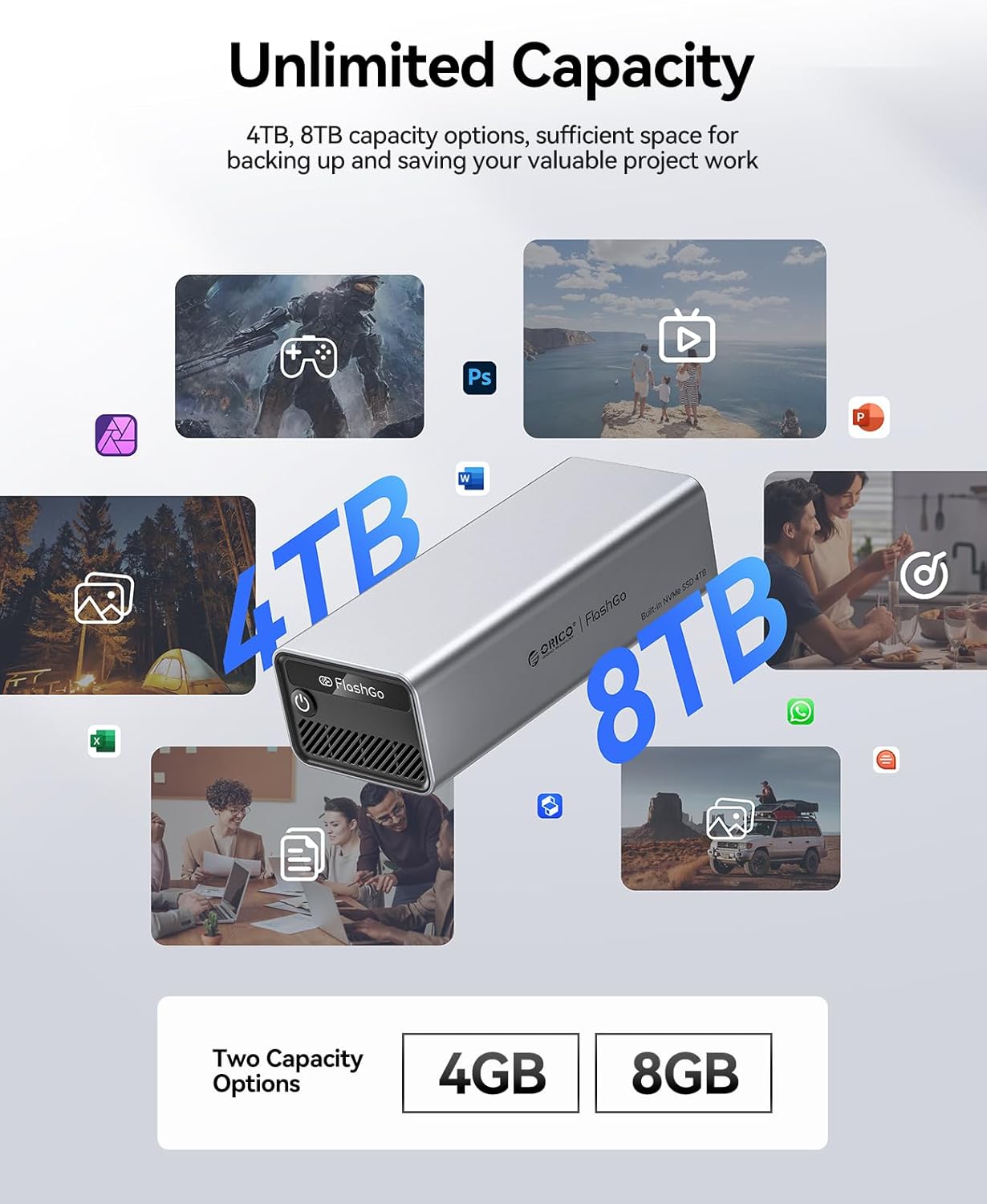
Figure 5.1: The ORICO FlashGo SSD connected to a laptop, demonstrating its use for data transfer and storage expansion.
5.2 Compatibility
The ORICO FlashGo is designed for broad compatibility across various devices and operating systems:
- Interfaces: Thunderbolt 4 (40Gbps), USB-C (10Gbps), USB 3.0 (via adapter).
- Operating Systems: Windows, macOS, Linux, Android.
- Compatible Devices: Mac mini, MacBook, Mac Studio, iMac, professional workstations, smartphones, and other portable devices with compatible ports.

Figure 5.2: Visual representation of the FlashGo's compatibility with different devices like MacBooks, Mac Minis, and various operating systems.
5.3 Performance Overview
The FlashGo SSD delivers high-speed performance crucial for professional workflows:
- Read Speed: Up to 3200 MB/s
- Write Speed: Up to 3000 MB/s
These speeds are achieved when connected via a Thunderbolt 4 interface. Performance may vary with different interfaces (e.g., USB-C 10Gbps, USB 3.0) and system configurations.

Figure 5.3: Graphic illustrating the high-speed data transmission capabilities of the ORICO FlashGo SSD, highlighting read and write speeds.
5.4 Video Editing Capabilities
The high capacity and speed of the FlashGo SSD make it suitable for direct video editing, allowing users to natively edit footage without transferring files to internal storage, thereby minimizing production downtime.

Figure 5.4: The FlashGo SSD integrated into a video editing workstation, demonstrating its utility for professional media production.
6. Maintenance
To ensure the longevity and optimal performance of your ORICO FlashGo External SSD, consider the following maintenance tips:
- Safe Ejection: Always safely eject the SSD from your operating system before disconnecting it to prevent data corruption.
- Physical Care: Avoid dropping or subjecting the device to strong impacts. While durable, extreme physical shock can damage internal components.
- Temperature Control: The built-in fan helps manage heat. Ensure the fan vents are not obstructed to allow for proper airflow. Avoid operating in extremely hot or cold environments.
- Cleaning: Use a soft, dry cloth to clean the exterior. Do not use liquid cleaners or solvents.
- Firmware Updates: Periodically check the ORICO official website for any available firmware updates for your model to ensure continued performance and compatibility.
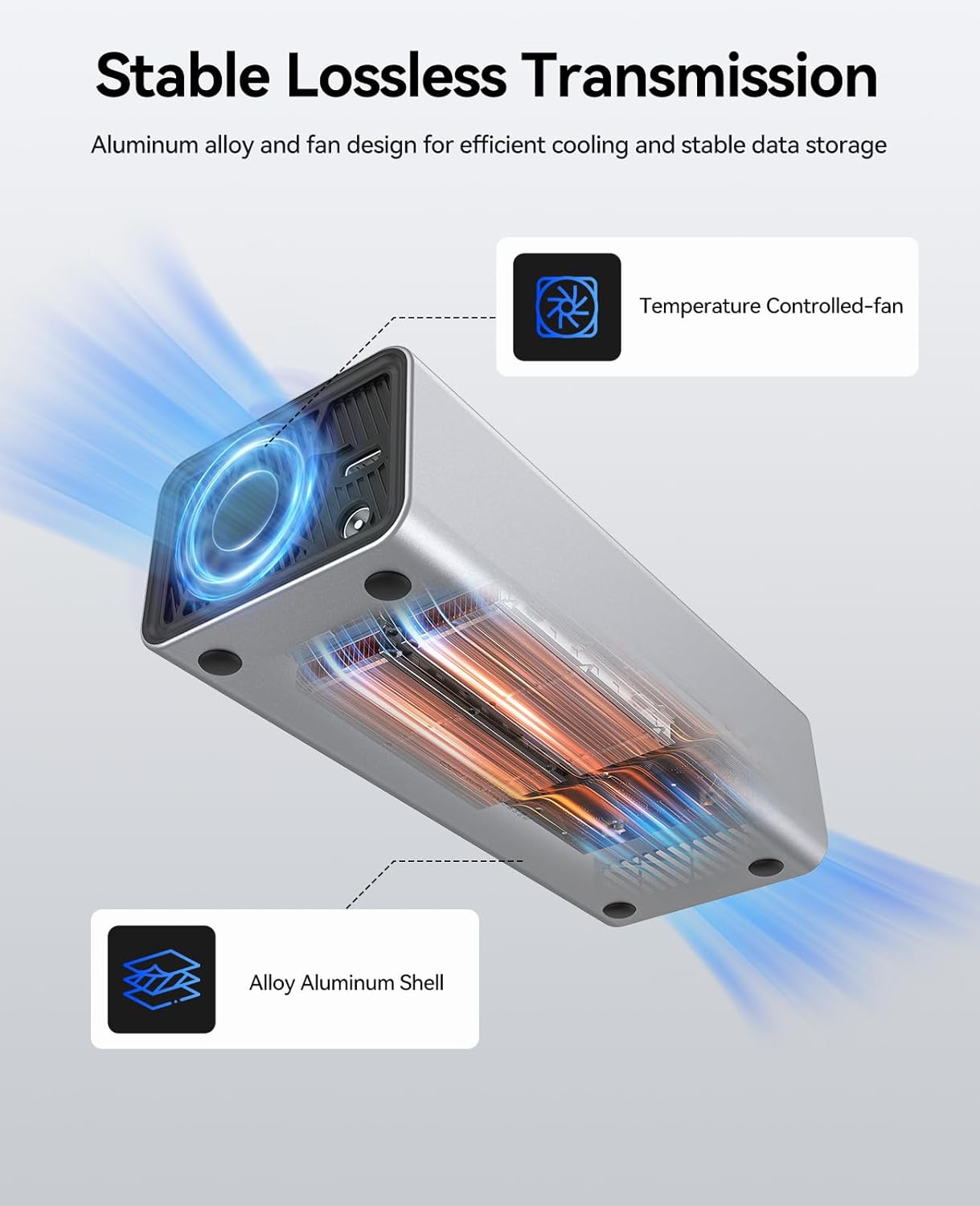
Figure 6.1: Internal view highlighting the temperature-controlled fan and aluminum alloy shell for efficient cooling.
7. Troubleshooting
If you encounter issues with your ORICO FlashGo SSD, refer to the following common problems and solutions:
- Device Not Recognized:
- Ensure all cables (power and data) are securely connected.
- Verify the FlashGo SSD is powered on (blue LED indicator).
- Try connecting to a different USB/Thunderbolt port on your computer.
- Test with a different data cable if available.
- Check Disk Management (Windows) or Disk Utility (macOS) to see if the drive appears but is uninitialized or unformatted.
- Slow Transfer Speeds:
- Ensure you are using a Thunderbolt 4 (40Gbps) compatible port and cable for maximum speed. USB-C (10Gbps) and USB 3.0 ports will yield lower speeds.
- Close other applications that might be consuming system resources or disk bandwidth.
- Verify your computer's drivers for USB/Thunderbolt ports are up to date.
- Device Overheating:
- Ensure the fan vents on the FlashGo SSD are not blocked.
- Avoid placing the device in enclosed spaces where heat can accumulate.
- Prolonged heavy usage can generate heat; this is normal, but ensure adequate ventilation.
8. Specifications
| Feature | Description |
|---|---|
| Brand | ORICO |
| Series | FlashGo (FG02) |
| Model Number | FG02-4T |
| Digital Storage Capacity | 4 TB |
| Hard Disk Interface | USB 3.0 (compatible with USB-C and Thunderbolt 4) |
| Connectivity Technology | USB (Thunderbolt 4, USB-C) |
| Max Transfer Speed | Up to 3200MB/s (Thunderbolt 4) |
| Special Feature | Portable, Built-in Fan, Aluminum Alloy Casing |
| Hard Disk Form Factor | 2.5 Inches (Internal NVMe SSD) |
| Item Weight | 10.6 ounces |
| Package Dimensions | 7.87 x 7.09 x 2.36 inches |
9. Warranty and Support
For detailed warranty information and technical support, please refer to the official ORICO website or contact their customer service. Product registration may be required to activate your warranty.
Additional data recovery plans may be available for purchase separately. Please consult the retailer or ORICO for more details on these services.
10. Product Overview Video
Video 10.1: A brief overview of the ORICO FlashGo 4TB External Solid State Drive, showcasing its features and design.


