
1. Introduction
The BOXPUT Mini Android Box 12.0 Lemon TV is a compact streaming media player designed to enhance your home entertainment experience. Powered by Android 12.0 and an Allwinner H618 quad-core chip, it offers 4K HD video output, dual-band WiFi6, and Bluetooth 5.4 connectivity. This manual provides essential information for setting up, operating, and maintaining your device.

Image: The BOXPUT Mini Android Box, its remote control, and product packaging.
2. What's in the Box
Verify that all items are present in your product package:
- Lemon TV Mini Box * 1
- BT Voice Remote Control * 1
- HD cable * 1
- Power adapter * 1
- Warranty & After-sales Support information

Image: The Lemon TV Mini Box, remote control, power cable, and HDMI cable included in the package.
Video: An overview of the Lemon TV Mini Smart TV Box, showcasing its features and components.
3. Setup
3.1 Physical Connections
- Connect the HDMI cable from the Lemon TV Mini Box to an available HDMI port on your television.
- Connect the power adapter to the DC IN port on the Lemon TV Mini Box, then plug the adapter into a power outlet.
- If desired, connect USB devices (e.g., USB flash drives) to the available USB ports.

Image: Visual guide for connecting the TV Box to a television, including power and HDMI connections.
3.2 Remote Control Pairing
The BT Voice Remote Control uses Bluetooth 5.4 for connection. To pair the remote:
- Insert two AAA batteries into the remote control.
- Ensure the Lemon TV Mini Box is powered on and connected to your TV.
- Follow on-screen instructions to pair the remote. Typically, this involves pressing and holding specific buttons (e.g., 'OK' and 'Volume Down') simultaneously until an indicator light flashes, signaling pairing mode.
3.3 Network Connection (WiFi6)
The device supports dual-band WiFi6 (2.4G/5G) for fast and stable internet access.
- Navigate to the 'Settings' menu on your TV screen using the remote.
- Select 'Network & Internet'.
- Turn on Wi-Fi and select your desired network from the list.
- Enter the Wi-Fi password if prompted and connect.
Video: Demonstrates the WiFi6 network test and connection process for the Lemon TV Mini.
4. Operating Instructions
4.1 Navigation and App Usage
The Lemon TV Mini runs on Android 12.0, providing a user-friendly interface. Use the BT Voice Remote Control to navigate through menus and select applications. The home screen displays frequently used apps and content recommendations.

Image: The Lemon TV Mini connected to a television, displaying the Android TV interface.
4.2 Voice Control
The included BT Voice Remote allows for convenient voice search and control. Press the dedicated voice button on the remote and speak your commands (e.g., "Open YouTube," "What's the weather?").

Image: A user demonstrating voice control functionality with the BT Voice Remote.
4.3 Wireless Screen Sharing
The Lemon TV Mini supports wireless screen sharing from mobile devices via DLNA, Miracast, and Airplay. This feature allows you to display videos, photos, and other content from your smartphone or tablet directly on your TV screen.
Video: A demonstration of how to use screen mirroring with the Lemon TV Mini.
5. Features and Specifications
5.1 Key Features
- Powerful Allwinner H618 Chip: Equipped with a quad-core processor, 2GB RAM, and 16GB storage for smooth performance and ample space for apps.
- High-Quality Video Output: Supports 4K HD video decoding and playback for vibrant detail and clarity, compatible with popular audio/video formats and subtitle formats.
- Android 12.0 OS: Ensures stable and smooth operation with improved app compatibility and a responsive user experience.
- Advanced Connectivity: Features dual-band WiFi6 (2.4G/5G) for fast internet and Bluetooth 5.4 for easy pairing with various wireless devices.
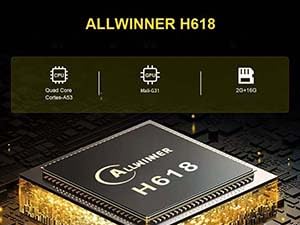
Image: Close-up of the Allwinner H618 quad-core chip, highlighting its processing capabilities.
5.2 Technical Specifications
| Specification | Detail |
|---|---|
| Brand | BOXPUT |
| Model Name | Lemon TV Mini |
| Operating System | Android 12.0 |
| Processor | Allwinner H618 Quad-core |
| RAM | 2GB |
| Storage | 16GB |
| Connectivity | Dual-band WiFi6 (2.4G/5G), Bluetooth 5.4, HDMI, USB, AV |
| Resolution | 4K |
| Special Feature | DLNA |
| Dimensions | 6.3 x 3.15 x 2.17 inches |
| Weight | 9.9 ounces |
6. Maintenance
To ensure optimal performance and longevity of your BOXPUT Mini Android Box, follow these general maintenance guidelines:
- Keep the device in a well-ventilated area to prevent overheating.
- Avoid exposing the device to extreme temperatures, humidity, or direct sunlight.
- Clean the device regularly with a soft, dry cloth. Do not use liquid cleaners or aerosols.
- Perform regular firmware updates as they become available to improve performance and security.

Image: The internal aluminum heat sink, designed for efficient heat dissipation.
7. Troubleshooting
If you encounter any issues with your BOXPUT Mini Android Box, please refer to the following common solutions or contact support.
Common Issues:
- No Power: Ensure the power adapter is securely connected to both the device and a working power outlet.
- No Display: Check that the HDMI cable is firmly connected to both the device and the TV, and that the TV input is set to the correct HDMI source.
- Remote Not Responding: Verify that the batteries are correctly inserted and charged. Re-pair the remote if necessary (refer to Section 3.2).
- Wi-Fi Connection Issues: Ensure your Wi-Fi router is working correctly. Reconnect to the Wi-Fi network via the 'Network & Internet' settings.
- App Performance: Close unused applications to free up RAM. Clear app caches or reinstall problematic apps if issues persist.
8. Warranty & Support
Your BOXPUT Mini Android Box comes with a manufacturer's warranty and after-sales support. For any operational or usage issues that cannot be resolved using this manual, please contact BOXPUT Official Support.
- For TV Box Issues: Provide your device’s MAC address when contacting support. The technical team will assist you within 24 hours.
- For Remote Issues: Contact BOXPUT Official Support for assistance.
You can find contact information for BOXPUT Official Support on the product packaging or the official BOXPUT website.