
Introduction
This manual provides detailed instructions for setting up and using your JOYACCESS Wireless Keyboard and Mouse Combo. Please read thoroughly to ensure optimal performance and longevity of your devices.
What's Included
- Wireless Keyboard
- Wireless Mouse
- USB Receiver (Dongle)
- USB-A to USB-C Adapter
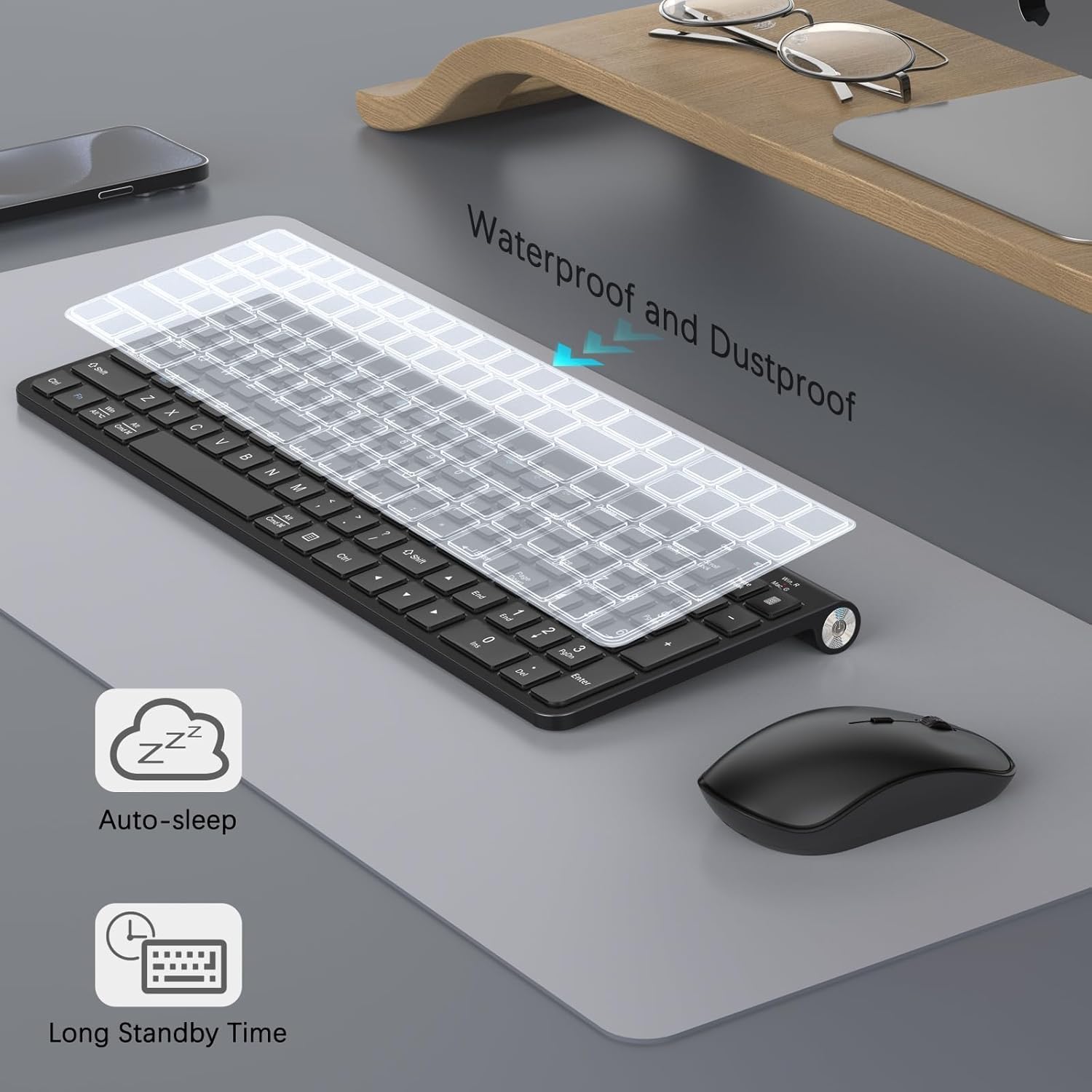
- Waterproof/Dustproof Silicone Keyboard Cover
- User Manual

Image showing the wireless keyboard, wireless mouse, USB receiver, USB-C adapter, silicone keyboard cover, and user manual laid out on a dark surface.
Setup Instructions
1. Install Batteries
Mouse Battery Installation
The wireless mouse requires one AA battery.
- Open the battery compartment on the underside of the mouse.
- Insert one AA battery, ensuring correct polarity.
- Close the battery compartment.
- Turn on the mouse using the power switch located on the bottom.

A close-up view of the underside of the wireless mouse, illustrating how to open the battery compartment and insert a single AA battery. The power switch is also visible.
Keyboard Battery Installation
The wireless keyboard requires two AAA batteries.
- Locate the battery compartment on the back of the keyboard.
- Open the compartment and insert two AAA batteries, observing polarity.
- Close the battery compartment.
- Turn on the keyboard using the power switch located on the side.

The back of the keyboard is shown, highlighting the battery compartment and the adjustable feet that can be extended for ergonomic typing.
2. Connect the USB Receiver
The keyboard and mouse share a single USB receiver for wireless connectivity.
- Locate the USB receiver (dongle). It may be stored inside the mouse's battery compartment.
- Plug the USB receiver directly into an available USB-A port on your computer.
- If your computer only has USB-C ports, use the provided USB-A to USB-C adapter.

An image displaying the compact USB Nano Receiver and a USB-A to USB-C adapter, indicating how they connect to a computer.
Your computer should automatically detect and install the necessary drivers. No additional software is required.
Operating Instructions
Keyboard Usage
System Compatibility Switch
The keyboard supports both Mac and Windows operating systems. Use the following key combinations to switch between modes:
- For Mac System: Press Fn + A
- For Windows System: Press Fn + S
A visual guide on the keyboard illustrating the "Fn" key and the "A" and "S" keys, with labels indicating "Switch to Mac System" (Fn+A) and "Switch to Windows System" (Fn+S).
Adjustable Stand
The keyboard features an adjustable stand to customize your typing angle for improved comfort.
- Flip the keyboard over to access the underside.
- Gently pull out the two adjustable feet to raise the keyboard.
- Push the feet back in to return the keyboard to a flat position.

A detailed image showing the adjustable stand mechanism on the back of the keyboard, with arrows indicating how to extend or retract the feet for ergonomic adjustment.
Indicator Lights
The keyboard has indicator lights for various functions:
- Num Lock Indicator: Lights up when Number Lock is active.
- Caps Lock Indicator: Lights up when Caps Lock is active.
- Power Indicator: Shows battery status.
- Mac/Windows Layout Switch Indicator: Indicates the currently active operating system layout.

A close-up of the top right section of the keyboard, highlighting the indicator lights for Num Lock, Caps Lock, Power, and the Mac/Windows layout switch.
Mouse Usage
Adjustable DPI Levels
The mouse offers five adjustable DPI (Dots Per Inch) levels to control cursor speed and sensitivity.
- Press the DPI button located behind the scroll wheel to cycle through the DPI settings (800/1200/1600/2000/2400 DPI).
- Select the DPI level that best suits your task, whether for precision work or faster navigation.
An image of the wireless mouse with an overlay diagram illustrating the five adjustable DPI levels (800, 1200, 1600, 2000, 2400) and the button used to switch between them.
Maintenance
Waterproof and Dustproof Film
The keyboard comes with a silicone film designed to protect it from spills and dust.
- Place the silicone film directly over the keyboard keys.
- To clean, remove the film and wash it with mild soap and water. Ensure it is completely dry before placing it back on the keyboard.

The keyboard is shown with a transparent silicone cover placed over the keys, demonstrating its waterproof and dustproof design.
General Cleaning
- For the keyboard and mouse, use a soft, dry cloth to wipe surfaces.
- Avoid using harsh chemicals or abrasive cleaners.
Troubleshooting
Connectivity Issues
- Ensure batteries are installed correctly and charged: Replace batteries if necessary.
- Check USB receiver connection: Ensure the USB receiver is firmly plugged into a working USB port. Try a different USB port if issues persist.
- Restart your computer: Sometimes a simple restart can resolve connectivity problems.
- Re-pair devices: If connection is lost, try unplugging and re-plugging the USB receiver. The devices should automatically re-pair.
Keyboard Not Typing or Mouse Not Moving
- Check power switches: Ensure both the keyboard and mouse are switched ON.
- Verify system mode: Make sure the keyboard is set to the correct operating system (Mac or Windows) using Fn + A or Fn + S.
- Check for interference: Move the keyboard and mouse closer to the USB receiver and away from other wireless devices that might cause interference.
Specifications
- Brand: JOYACCESS
- Model: B0DQCQPXVZ
- Connectivity Technology: USB (2.4G Wireless via USB receiver)
- Keyboard Layout: QWERTY, Full-Size
- Keyboard Special Features: Ergonomic, Adjustable Stand, Dustproof, Lightweight, Portable
- Mouse DPI Levels: 800/1200/1600/2000/2400
- Compatible Devices: Laptop, Personal Computer, Tablet
- Operating System Compatibility: Mac OS, Windows 7/8/10 (and newer), Linux
- Power Source: Battery Powered (Keyboard: 2x AAA, Mouse: 1x AA)
- Wireless Range: Up to 33 feet (10 meters)
Warranty and Support
This product comes with a 1-year warranty from the manufacturer, JOYACCESS. For technical support, troubleshooting assistance, or warranty claims, please refer to the contact information provided in the original product packaging or visit the official JOYACCESS website.
