
CUQI RS-01
Contents
CUQI 10 Inch IPS Portable Monitor User Manual
Model: RS-01
1. Introduction
Thank you for purchasing the CUQI 10 Inch IPS Portable Monitor. This compact and versatile display is designed to enhance your computing and entertainment experience, offering a clear 1024x600 resolution IPS screen with wide viewing angles. It is compatible with a variety of devices, including Raspberry Pi, laptops, PCs, Switch, Xbox, and PS4. This manual provides detailed instructions for setup, operation, maintenance, and troubleshooting to ensure optimal performance of your monitor.
What's in the Box
- 10 Inch Monitor
- Leather Stand
- HDMI Cable
- Micro HDMI Adapter
- Type-C USB Cable (for power)

Figure 1.1: Included accessories and the CUQI 10 Inch Portable Monitor.
2. Safety Information
Please read and follow these safety guidelines to prevent damage to the monitor and ensure your safety:
- Do not expose the monitor to rain, moisture, or extreme temperatures.
- Avoid placing the monitor in direct sunlight or near heat sources.
- Use only the provided power cable and adapter.
- Do not attempt to disassemble or repair the monitor yourself. Refer all servicing to qualified personnel.
- Keep the monitor away from strong magnetic fields.
- Clean the screen with a soft, lint-free cloth. Avoid using harsh chemicals or abrasive cleaners.
3. Product Features
The CUQI 10 Inch Portable Monitor offers several features designed for optimal user experience:
- Clear IPS Screen: Features a 1024x600 high-resolution IPS display with a 178-degree full viewing angle, providing stable, anti-interference, bright, and color-accurate images.
- Dual Built-In Speakers: Integrated speakers deliver clear audio without the need for external speakers.
- Portable Leather Stand: Comes with a lightweight leather protective case that doubles as an adjustable stand, offering two viewing angles. The case is detachable via two screws on the back.
- Plug and Play Connectivity: Simple connection via HDMI and USB cable for immediate use.
- Strong Compatibility: Compatible with Raspberry Pi 4/4B/3B+/3B, Banana Pi, Windows 7/8/10 PC, Mac, Switch, Xbox, PS4, and systems like Retro Pi, NOOBS, Raspbian, Ubuntu, and Kodi.

Figure 3.1: Wide 178-degree viewing angle of the IPS screen.

Figure 3.2: Portable adjustable leather case features.
4. Connections and Ports
The monitor features several ports for connectivity and power:
- Mini HDMI Interface: For video input from compatible devices.
- Type-C Power Port: For supplying power to the monitor (5V/3A recommended).
- 3.5mm Audio Interface: For connecting external headphones or speakers.
- Screen On/Off Buttons: Power control.
- Brightness +/- Buttons: Adjust screen brightness.
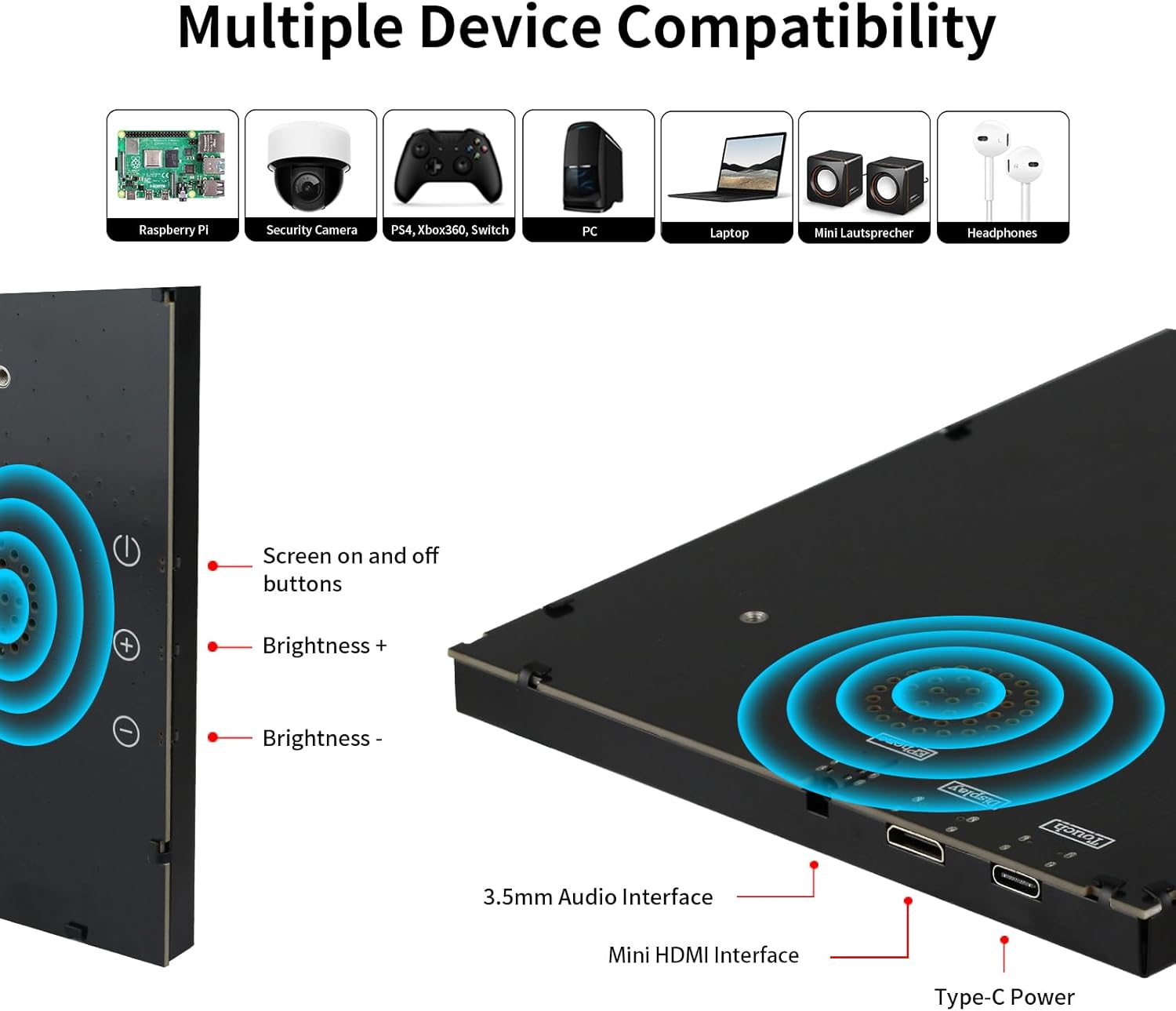
Figure 4.1: Monitor ports and controls.
5. Setup
Follow these steps to set up your CUQI portable monitor:
- Attach the Leather Stand: If not already attached, secure the leather stand to the back of the monitor using the provided screws. Adjust the stand to your desired viewing angle.
- Connect Video Input:
- For devices with a standard HDMI port (e.g., PC, Laptop, PS4, Xbox, Switch Dock): Use the provided HDMI cable to connect your device to the monitor's Mini HDMI interface.
- For devices with a Micro HDMI port (e.g., Raspberry Pi 4/5): Use the provided Micro HDMI adapter with the HDMI cable to connect your Raspberry Pi to the monitor.
- Connect Power: Connect the provided Type-C USB cable to the monitor's Type-C power port and the other end to a 5V/3A power adapter (not included) or a compatible USB port on your device. Ensure stable power supply for optimal performance.
- Power On: Press the power button on the side of the monitor to turn it on. The display should automatically detect the input signal.

Figure 5.1: Connecting the monitor to a Raspberry Pi.
6. Operating Instructions
Once connected and powered on, your monitor is ready for use. Here are basic operating instructions:
- Power On/Off: Use the dedicated power button on the side of the monitor to turn the display on or off.
- Adjusting Brightness: Use the '+' and '-' buttons located next to the power button to increase or decrease the screen brightness.
- Audio Output: If your device sends audio through HDMI, the monitor's built-in speakers will play the sound. You can also connect external headphones or speakers to the 3.5mm audio jack.
7. Maintenance
Proper maintenance will extend the lifespan of your monitor:
- Screen Cleaning: Gently wipe the screen with a soft, dry, lint-free cloth. For stubborn smudges, slightly dampen the cloth with water or a screen-safe cleaning solution. Do not spray liquid directly onto the screen.
- Case and Stand Care: The leather stand can be wiped clean with a damp cloth. Avoid harsh chemicals.
- Storage: When not in use for extended periods, store the monitor in a cool, dry place, preferably in its original packaging or a protective case.
8. Troubleshooting
If you encounter issues with your monitor, refer to the following common problems and solutions:
| Problem | Possible Cause | Solution |
|---|---|---|
| No image on screen / "No Signal" message |
|
|
| Screen flickers or disconnects frequently |
|
|
| No sound from speakers |
|
|
| Poor image quality / Lines on screen |
|
|
9. Specifications
Detailed technical specifications for the CUQI 10 Inch Portable Monitor:
| Feature | Specification |
|---|---|
| Screen Size | 10 Inches |
| Display Type | IPS |
| Resolution | 1024 x 600 Pixels |
| Aspect Ratio | 1.60:1 |
| Viewing Angle | 178 Degrees |
| Image Brightness | 500 Candela |
| Product Dimensions | 0.44 x 6.54 x 4.01 inches (1.12 x 16.61 x 10.19 cm) |
| Item Weight | 1.72 pounds (0.78 kg) |
| Power Input | 5V/3A (via Type-C USB) |
| Manufacturer | CUQI |
| Model Number | RS-01 |

Figure 9.1: Monitor dimensions and resolution.
10. Warranty and Support
CUQI provides professional technical support for its products. If you have any questions, require assistance with setup, or encounter any issues not covered in this manual, please do not hesitate to contact us via email. Our support team is dedicated to providing you with a great shopping experience and resolving any concerns you may have.
For warranty information and to contact technical support, please refer to the contact details provided with your purchase or visit the official CUQI website.
Documents and downloads
Ask a question about this manual
Ask about setup, troubleshooting, compatibility, parts, safety, or missing instructions. Manuals+ will review the question and use this page’s manual context to help answer it.