
Introduction
This manual provides detailed instructions for the J-Tech Digital JTECH-SP12M18G 4K@60Hz 1x2 HDMI Splitter. This device is designed to distribute a single HDMI source signal to two displays simultaneously, supporting resolutions up to 4K@60Hz with downscaling capabilities. Please read this manual thoroughly before operation to ensure proper setup and performance.
Product Features
- 1-in-2-Out HDMI Distribution: Distributes one HDMI source signal to two displays simultaneously. Note: This splitter duplicates/mirrors the source signal and does not extend the display.
- 4K@60Hz Resolution Support: Supports resolutions up to 4K@60Hz 4:4:4, compliant with HDMI 2.0 standard and HDCP 2.2. Backwards compatible with 1080P Full HD resolutions.
- 4K to 1080P Downscaling: Features an automatic downscaling function to convert 4K signals to 1080P for compatibility with 1080P displays while maintaining 4K on 4K displays. Note: Does not downscale to 720P or handle HDR metadata.
- 3 EDID Settings: Offers Auto, Copy, and Downscaling EDID modes to resolve source and display compatibility issues.
- Digital Audio Format Support: Supports both compressed and uncompressed digital audio formats.

Image: The J-Tech Digital HDMI Splitter supports 4K@60Hz resolution, HDR, and Dolby Vision, ensuring high-quality video output.
Package Contents
Please verify that all items are included in your package:
- 1x J-Tech Digital 1x2 HDMI Splitter (JTECH-SP12M18G)
- 1x DC 5V Power Adapter
- 1x User Manual
- 2x Mounting Brackets

Image: Visual representation of the splitter's dimensions and the items included in the package.
Product Overview
Front Panel
- Power LED: Indicates power status.
- HDMI 1-2 Output LED Indicators: Light up when an HDMI output is connected.
- Auto Mode LED Indicator: Lights up when EDID Auto mode is selected.
- Copy Mode LED Indicator: Lights up when EDID Copy mode is selected.
- Downscaler Mode LED Indicator: Lights up when EDID Downscale mode is selected.
- Service Port: For firmware updates.
- EDID Button: Press to cycle through EDID modes (Auto, Copy, Downscale).
Rear Panel
- DC 5V: Power input port.
- INPUT: HDMI input port for source device.
- OUTPUT 1/2: HDMI output ports for displays.

Image: Detailed diagram illustrating the layout of the splitter's ports and LED indicators on both the front and rear panels.
Setup Instructions
Follow these steps to connect your J-Tech Digital HDMI Splitter:
- Connect your HDMI source device (e.g., gaming console, streaming device, Blu-ray player) to the INPUT port of the splitter using an HDMI cable.
- Connect your two HDMI displays (e.g., TVs, monitors, projectors) to the OUTPUT 1 and OUTPUT 2 ports of the splitter using HDMI cables.
- Connect the included DC 5V power adapter to the DC 5V port on the splitter, then plug the adapter into a power outlet.
- Power on your HDMI source device and both displays. The splitter will automatically detect the displays and begin mirroring the signal.
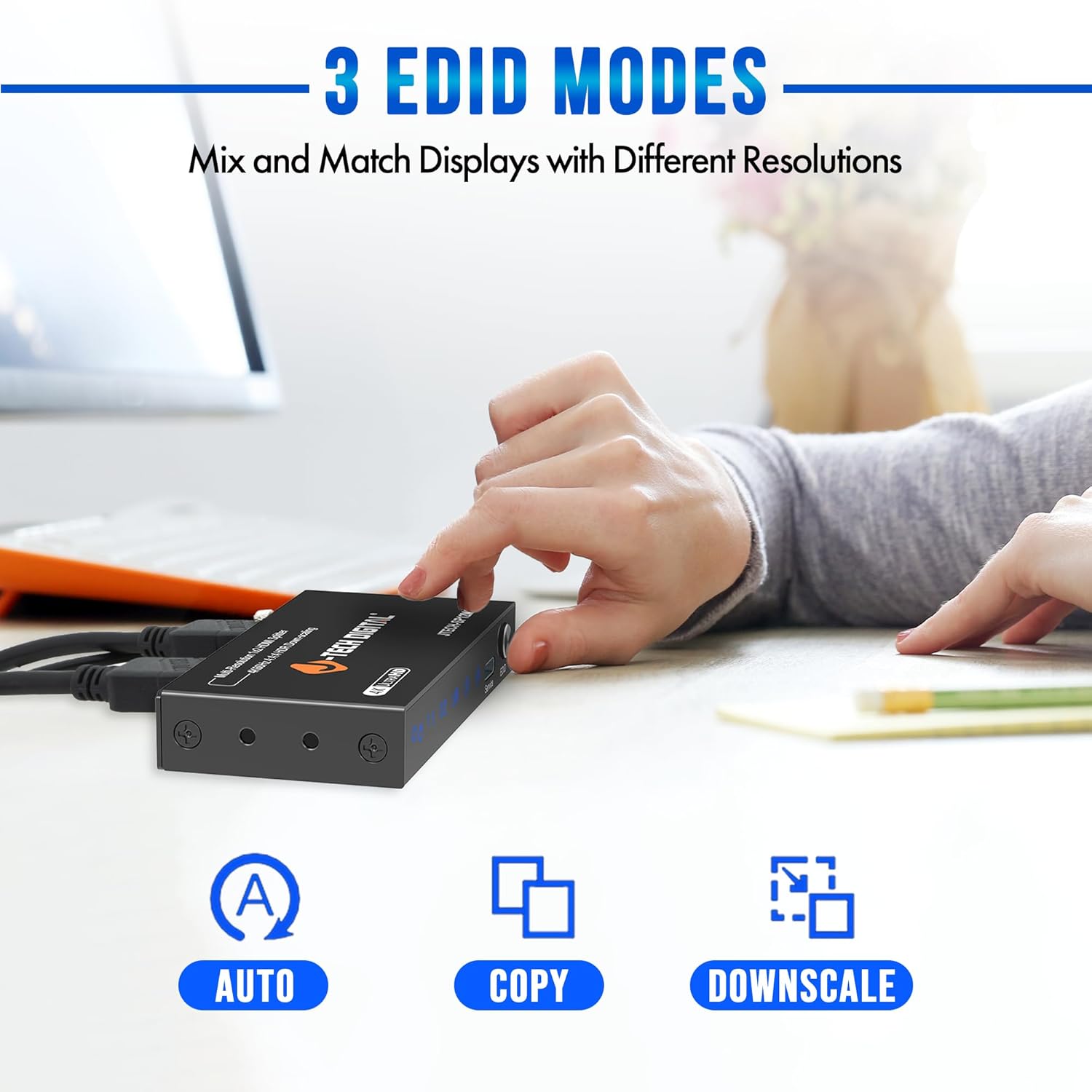
Image: A visual guide demonstrating how to connect an HDMI source to the splitter and then to two separate displays for simultaneous viewing.
Video: An official J-Tech Digital video demonstrating the setup and downscaling function of the 1x2 HDMI Splitter.
Operating Instructions
EDID Management
The splitter features three EDID modes to ensure compatibility between your source and displays. Use the EDID Button on the front panel to cycle through these modes:
- Auto Mode: The splitter analyzes the EDID (Extended Display Identification Data) of all connected displays and selects a common resolution and audio format compatible with all of them. If you have a mix of 4K and 1080p displays, it will typically choose 1080p for all outputs.
- Copy Mode: The splitter copies the EDID from the display connected to OUTPUT 1 and applies it to OUTPUT 2. This is useful if you want both displays to receive the exact same signal characteristics as the primary display. If OUTPUT 1 is 1080p and OUTPUT 2 is 4K, OUTPUT 2 will receive a 1080p signal.
- Downscale Mode: This mode allows the splitter to send a 4K signal to a 4K display and simultaneously downscale the same signal to 1080P for a 1080P display. This is ideal for mixed display environments. Note: This mode only downscales from 4K to 1080P; it does not downscale to 720P or handle HDR metadata.

Image: An illustration of the three EDID modes (Auto, Copy, Downscale) available on the splitter, allowing for flexible display communication.

Image: A diagram detailing the downscaling EDID function, showing how 4K signals can be converted to 1080P for compatible displays.
Specifications
| Feature | Description |
|---|---|
| Model Number | JTECH-SP12M18G |
| Product Dimensions | 1.73 x 3.54 x 0.55 inches |
| Item Weight | 4 ounces |
| Connector Type | HDMI |
| Supported Resolution | Up to 4K@60Hz 4:4:4 |
| HDMI Compliance | HDMI 2.0 |
| HDCP Compliance | HDCP 2.2 |
| Downscaling | 4K to 1080P (does not downscale to 720P or HDR metadata) |
| EDID Modes | Auto, Copy, Downscale |
| Audio Formats | Compressed and Uncompressed Digital Audio |
| Power Supply | DC 5V |
Troubleshooting
- No Signal on Display:
- Ensure all HDMI cables are securely connected to both the source, splitter, and displays.
- Verify the power adapter is correctly connected and the Power LED on the splitter is illuminated.
- Try cycling through the EDID modes using the EDID button on the front panel.
- Test with different HDMI cables or displays to rule out cable/display issues.
- Image Quality Issues (e.g., flickering, distortion):
- Ensure you are using high-quality HDMI 2.0 cables, especially for 4K@60Hz signals.
- Check the EDID settings. If one display is 1080p and the other is 4K, use Downscale mode.
- Verify that your source device and displays support the selected resolution and refresh rate.
- Splitter Does Not Extend Display:
- This splitter is designed to duplicate/mirror the source signal to two displays, not to extend the desktop across multiple screens. For extended desktop functionality, a different type of device (e.g., a multi-stream transport hub or graphics card with multiple outputs) is required.
- Downscaling Issues:
- The splitter only downscales from 4K to 1080P. It will not downscale to 720P or upscale lower resolutions.
- Advanced metadata like HDR or Dolby Vision is not downscaled. Ensure your displays are compatible with the original HDR/Dolby Vision signal if these features are critical.
Warranty and Technical Support
All J-Tech Digital products include a one-year manufacturer replacement warranty. Additionally, free lifetime technical support is available from our customer support team located in Stafford, TX. Support is available from 9 AM – 6 PM CST, Monday – Friday. Contact information can be found on our official seller page or website.
Safety Information
- Do not expose this unit to water, moisture, or excessive humidity.
- Do not attempt to open or repair the unit yourself. Refer all servicing to qualified personnel.
- Ensure proper ventilation around the unit to prevent overheating.
- Use only the provided power adapter. Using an incorrect power adapter may damage the device and void the warranty.
- Keep the device away from heat sources and direct sunlight.