
1. Introduction
Thank you for choosing the NPET K10V3 RGB Backlit Gaming Keyboard. This manual provides essential information for setting up, operating, and maintaining your new keyboard. Please read it thoroughly to ensure optimal performance and longevity of your device.
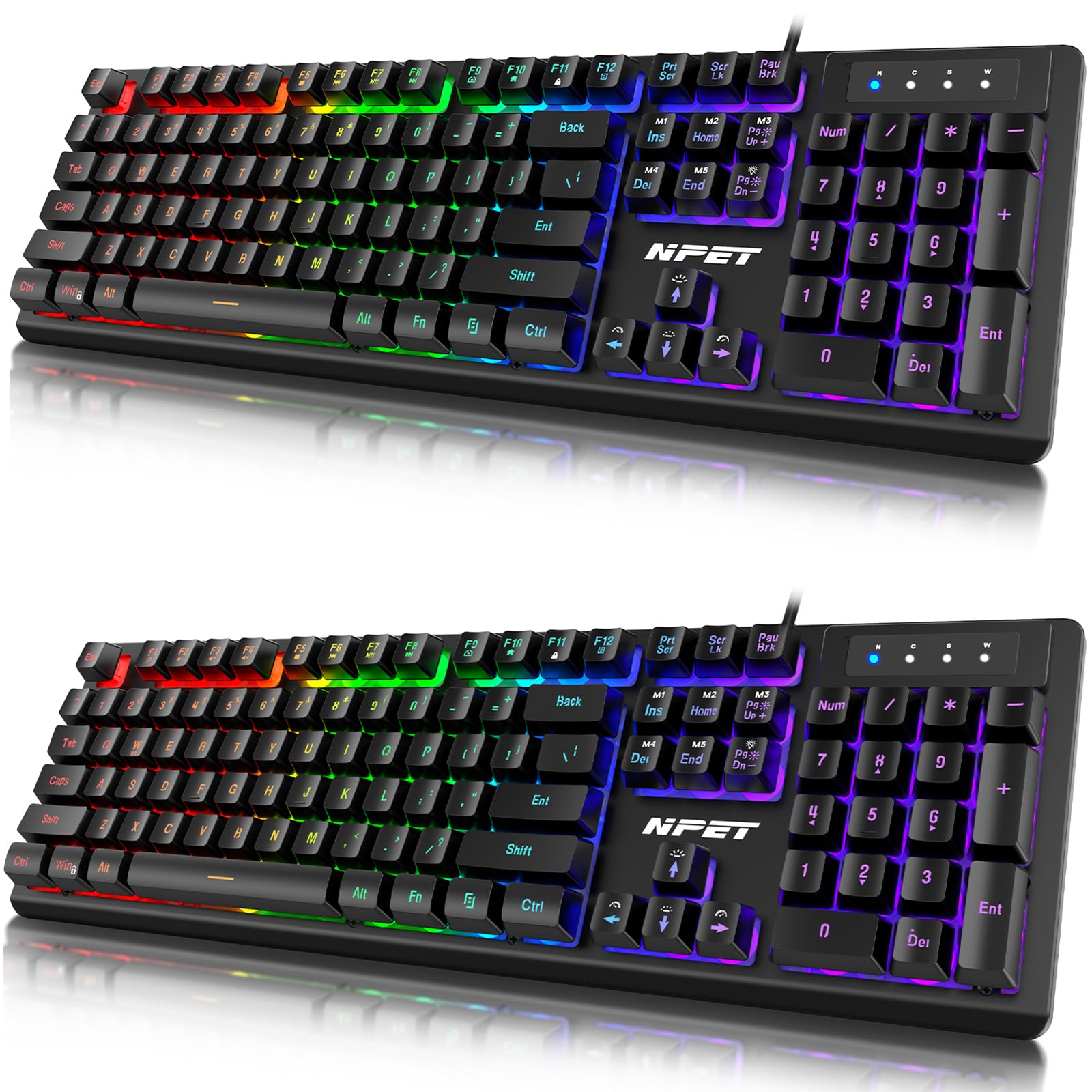
Figure 1: NPET K10V3 RGB Backlit Gaming Keyboard showcasing its vibrant illumination.
2. Package Contents
Ensure all items are present in the package:
- NPET K10V3 RGB Backlit Gaming Keyboard
- Keycap Puller
- User Manual (this document)
3. Setup
- Connect the Keyboard: Plug the USB-A connector of the NPET K10V3 keyboard into an available USB port on your computer.
- Driver Installation: The keyboard is plug-and-play. Your operating system should automatically detect and install the necessary drivers. No additional software installation is typically required.
- Adjust Keyboard Feet: Flip out the adjustable feet located on the underside of the keyboard to set it to your preferred typing angle for comfort.
4. Key Features
- Brilliant Color Spectrum Illumination: Personalize five individual lighting zones from a spectrum of over 16.8 million colors. Adjust colors to match your setup or specific preferences. Doubleshot ABS keycaps enhance illumination visibility.
- Comfortable and Durable Design: The K10V3 is a full-sized keyboard built for gaming and productivity. Its durable construction is designed to repel liquids, crumbs, and dirt for easy cleanup.
- Performance Tuned with Multi-key Input: Keys are tuned for enhanced tactile experience, providing ultra-quick, responsive feedback. Features 26 anti-ghosting keys for optimal gaming performance, ensuring simultaneous key presses are registered accurately.
- 12 FN Multi-media Controls: Dedicated media controls allow instant play, pause, and mute functions for music and videos without interrupting your activity.

Figure 2: Durable Doubleshot ABS Keycaps for enhanced illumination and longevity.
5. Operating Instructions
5.1. RGB Backlight Control
The NPET K10V3 keyboard features customizable RGB backlighting. While specific key combinations for all 16.8 million colors are not detailed here, the keyboard allows for personalization of five individual lighting zones. Refer to the product's official software or on-board controls (if available) for advanced customization.
- Turning On/Off: Locate the dedicated LED button on the keyboard (often near the function keys or scroll lock). Press it to cycle through lighting modes or turn the backlight on/off.
- Adjusting Brightness: Use the Function (FN) key in combination with designated arrow keys (usually Up/Down arrows) or Page Up/Page Down keys to adjust the brightness level of the backlighting.
5.2. Windows Key Lock
To prevent accidental presses of the Windows key during gaming, you can lock it. This function is typically activated by pressing the Function (FN) key simultaneously with the Windows key or a designated F-key (e.g., FN + F11). Repeat the combination to unlock.
6. Multimedia Controls
The K10V3PRO includes 12 FN multimedia controls for convenient access to media functions:
- Play/Pause: FN + F1 (example, actual key may vary)
- Stop: FN + F2 (example, actual key may vary)
- Previous Track: FN + F3 (example, actual key may vary)
- Next Track: FN + F4 (example, actual key may vary)
- Mute: FN + F5 (example, actual key may vary)
- Volume Down: FN + F6 (example, actual key may vary)
- Volume Up: FN + F7 (example, actual key may vary)
- Other functions may include opening email, web browser, calculator, etc., using FN in combination with other F-keys.
7. Specifications
| Feature | Detail |
|---|---|
| Brand | NPET |
| Model Number | K10V3 |
| Connectivity Technology | USB-A |
| Keyboard Description | Gaming |
| Keyboard Backlighting | RGB |
| Special Feature | Backlit, Ergonomic |
| Material | Acrylonitrile Butadiene Styrene (ABS) |
| Product Dimensions | 5.34 x 0.59 x 17.32 inches (13.56 x 1.50 x 43.99 cm) |
| Compatible Devices | Gaming Console, PC (Windows 10, 8, 7, Vista, XP; Limited Mac OS support) |
8. Maintenance & Care
- Cleaning: The keyboard's durable construction repels liquids, crumbs, and dirt. For general cleaning, use a soft, damp cloth. For deeper cleaning, you may carefully remove keycaps using the included keycap puller. Ensure the keyboard is disconnected from power before cleaning.
- Spill Management: In case of liquid spills, immediately disconnect the keyboard from your computer. Turn the keyboard upside down to allow liquid to drain through the built-in drainage holes. Allow it to dry completely before reconnecting.
- Storage: Store the keyboard in a cool, dry place away from direct sunlight and extreme temperatures.
9. Troubleshooting
- Keyboard Not Responding:
- Ensure the USB cable is securely plugged into your computer.
- Try plugging the keyboard into a different USB port.
- Restart your computer.
- RGB Backlight Not Working/Incorrect:
- Press the dedicated LED button to ensure the backlight is turned on or to cycle through modes.
- Adjust brightness levels using FN + arrow keys (Up/Down) or Page Up/Page Down.
- Ensure no conflicting software is running that might override keyboard lighting settings.
- Keys Not Registering Correctly (Anti-Ghosting):
- While the keyboard features 26 anti-ghosting keys, ensure you are not pressing an excessive number of keys outside of the designated anti-ghosting zones simultaneously.
- Clean under the affected keycaps to remove any debris.
10. Warranty & Support
The NPET K10V3 Gaming Keyboard comes with a manufacturer's warranty. Please refer to the warranty card included with your product for specific terms and conditions. For technical support, troubleshooting assistance, or warranty claims, please contact NPET customer service through their official website or the contact information provided in your product packaging.


