
1. Introduction
Thank you for choosing the SABLUTE Wireless Keyboard and Mouse Combo. This product is designed to provide a comfortable and efficient computing experience with its ergonomic features, large print keys, and versatile backlight options. This manual will guide you through the setup, operation, maintenance, and troubleshooting of your new device.
2. Package Contents
- Wireless Keyboard
- Wireless Mouse
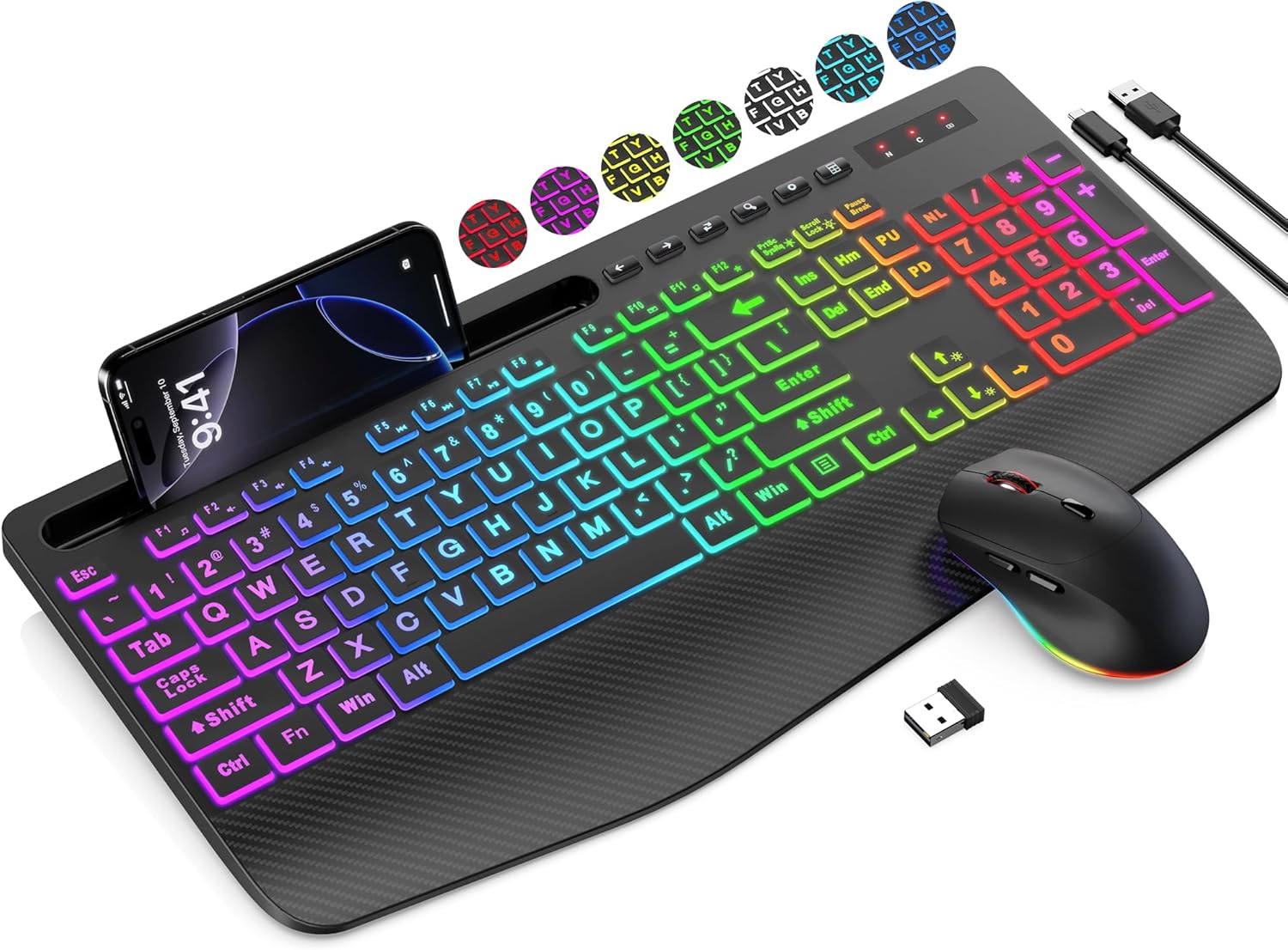
- USB Receiver (stored in the mouse battery compartment)
- USB Charging Cable (Type-A to Type-C)
- User Manual
3. Setup Guide
Follow these steps to set up your SABLUTE Wireless Keyboard and Mouse Combo:
- Charge the Devices: Before first use, ensure both the keyboard and mouse are fully charged. Connect the included USB charging cable to the charging ports on the keyboard and mouse, and then to a USB power source (e.g., computer USB port, USB wall adapter). The charging indicator will typically turn off or change color when fully charged.
- Locate the USB Receiver: The 2.4G USB receiver is typically stored in the battery compartment of the mouse for safekeeping during transport. Carefully open the mouse's battery cover and remove the small USB receiver.
- Connect the USB Receiver: Insert the USB receiver into an available USB-A port on your computer, laptop, or compatible device.
- Power On: Turn on the keyboard and mouse using their respective power switches. The power switch for the keyboard is usually located on the top edge, and for the mouse, it's on the bottom.
- Automatic Connection: The keyboard and mouse should automatically connect to your device within a few seconds. No additional drivers are typically required for most operating systems.
Note: A USB-C dongle is not included. This keyboard and mouse combo cannot connect directly to tablets or phones that only have USB-C ports without an appropriate adapter (not supplied).
4. Operating Instructions
4.1 Keyboard Features
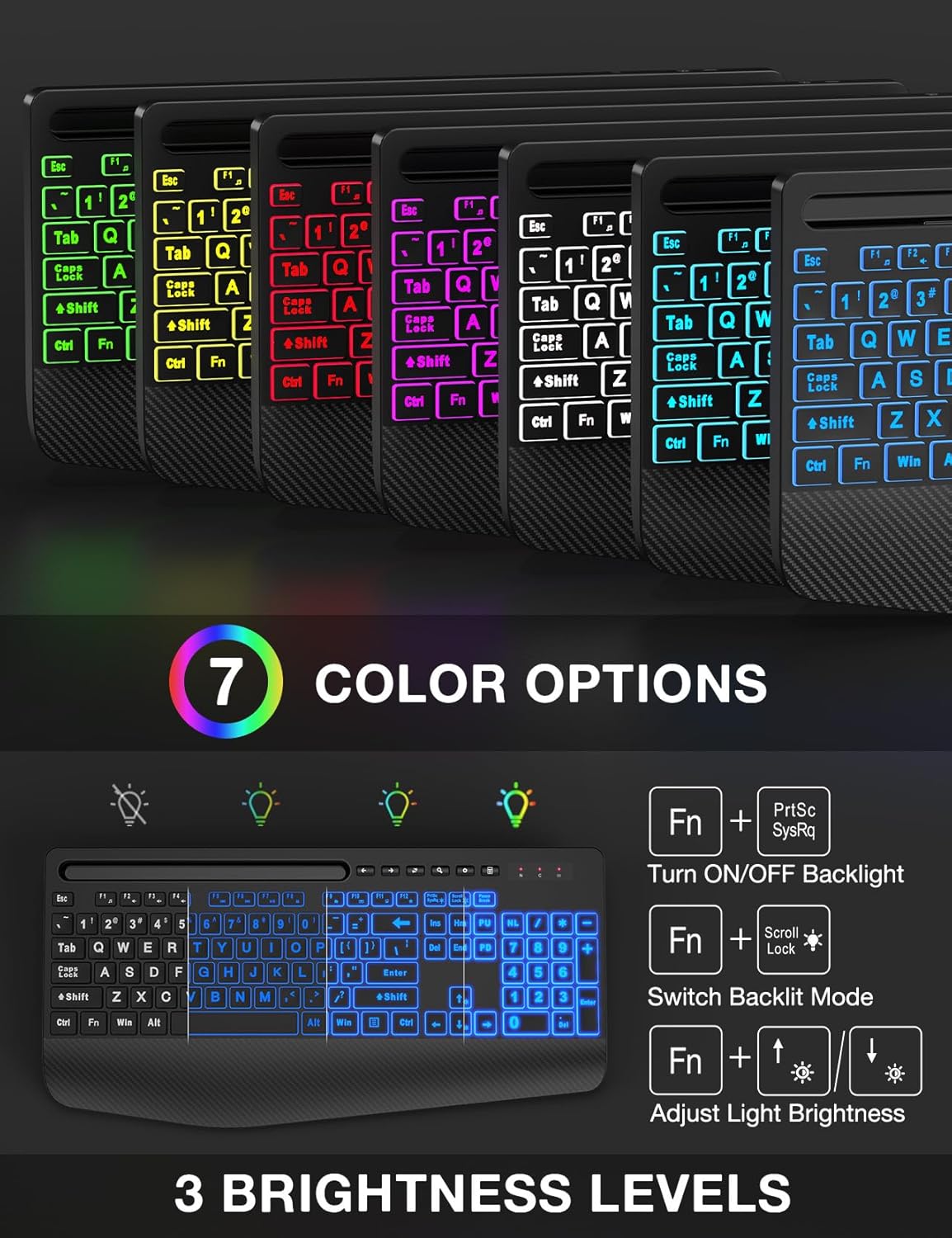
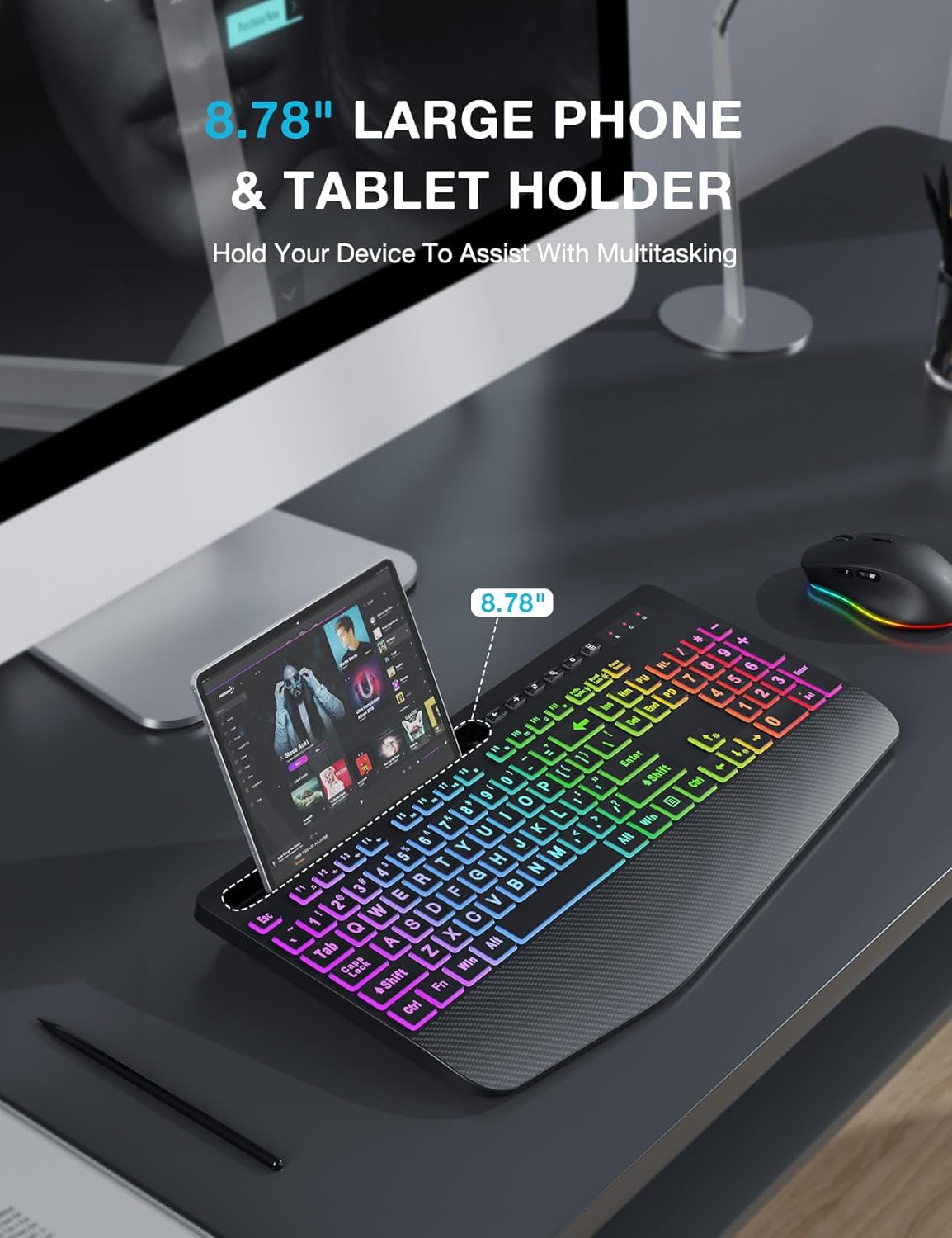
- Backlight Control: The keyboard features 7 solid color lights and 1 rainbow backlight. You can switch between lighting effects using the FN + Scroll Lock keys. To turn off the backlight, press FN + PrtSc. Adjust brightness with FN + Up/Down Arrow keys.
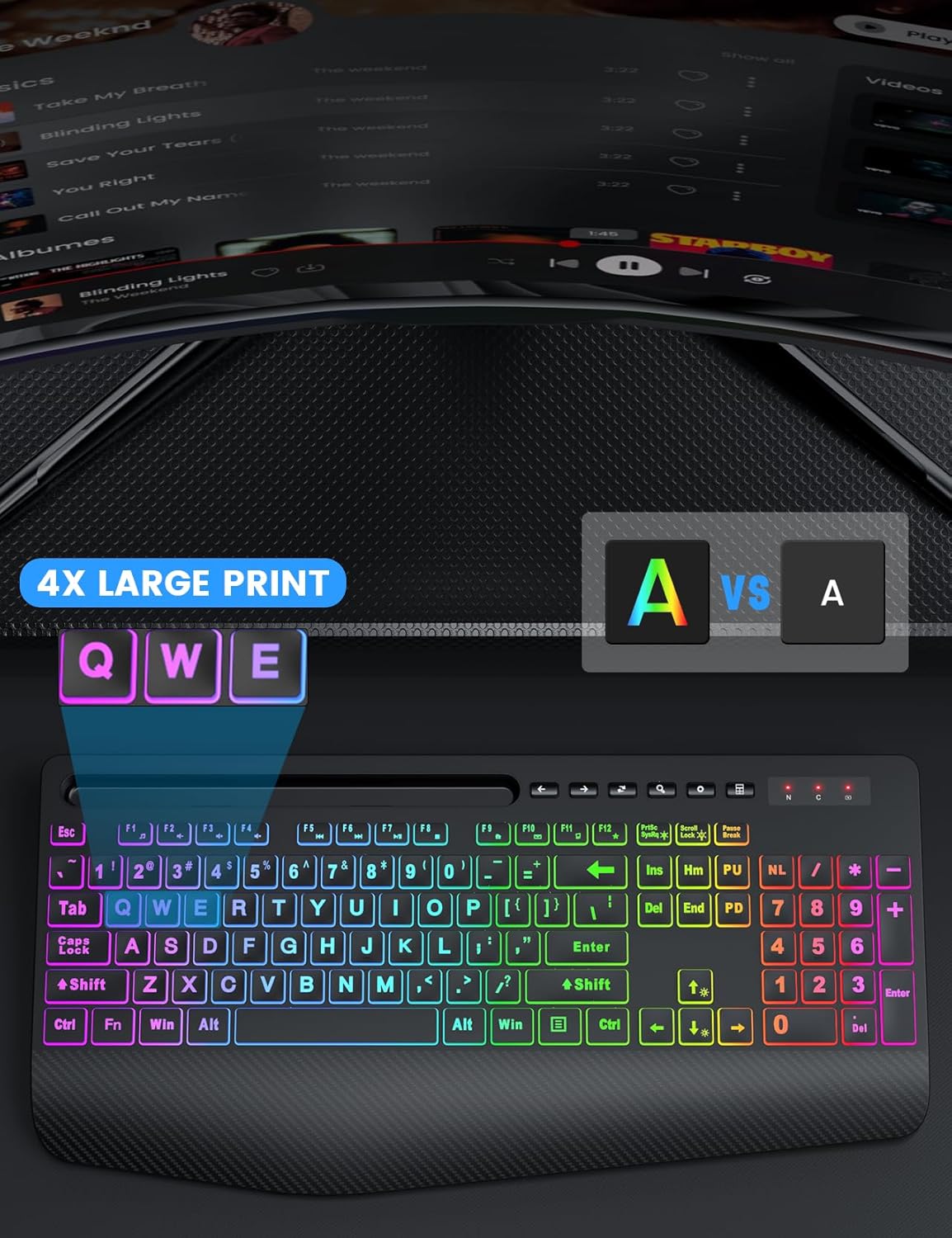
- Large Print Keys: The keys feature characters that are 4 times larger than standard, enhancing readability and making typing easier for users with low vision, seniors, or beginners.
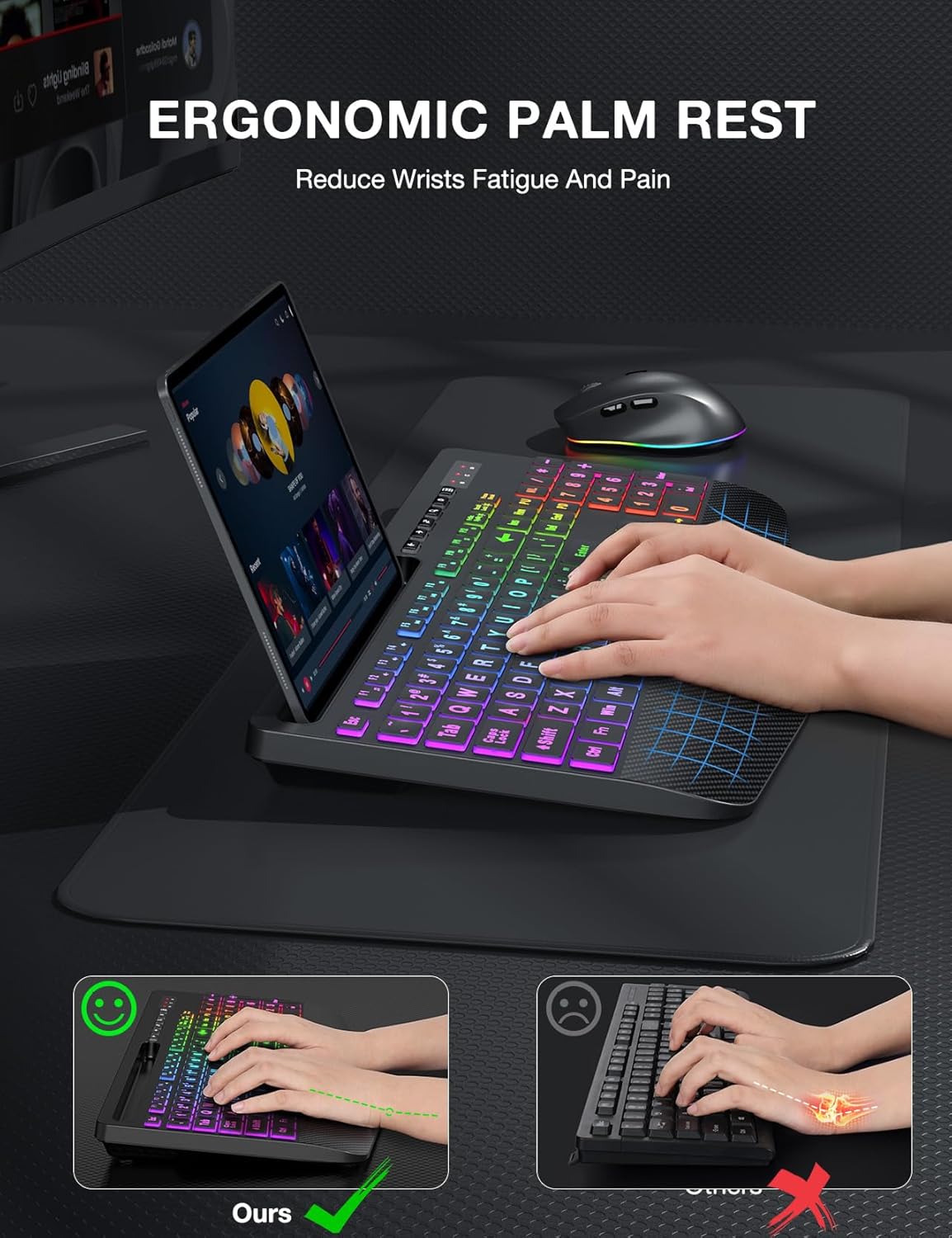
- Ergonomic Wrist Rest: The keyboard is equipped with an extra-large wrist rest (2.8'' at its widest edge) to provide significant wrist support and reduce strain during prolonged use.
- Integrated Device Holder: A built-in holder accommodates phones and tablets up to 11.9 inches, allowing for convenient multitasking.
- Efficient Hotkeys: In addition to standard F1-F12 shortcut keys, the keyboard includes 6 one-touch hotkeys for quick access to common functions.
4.2 Mouse Features
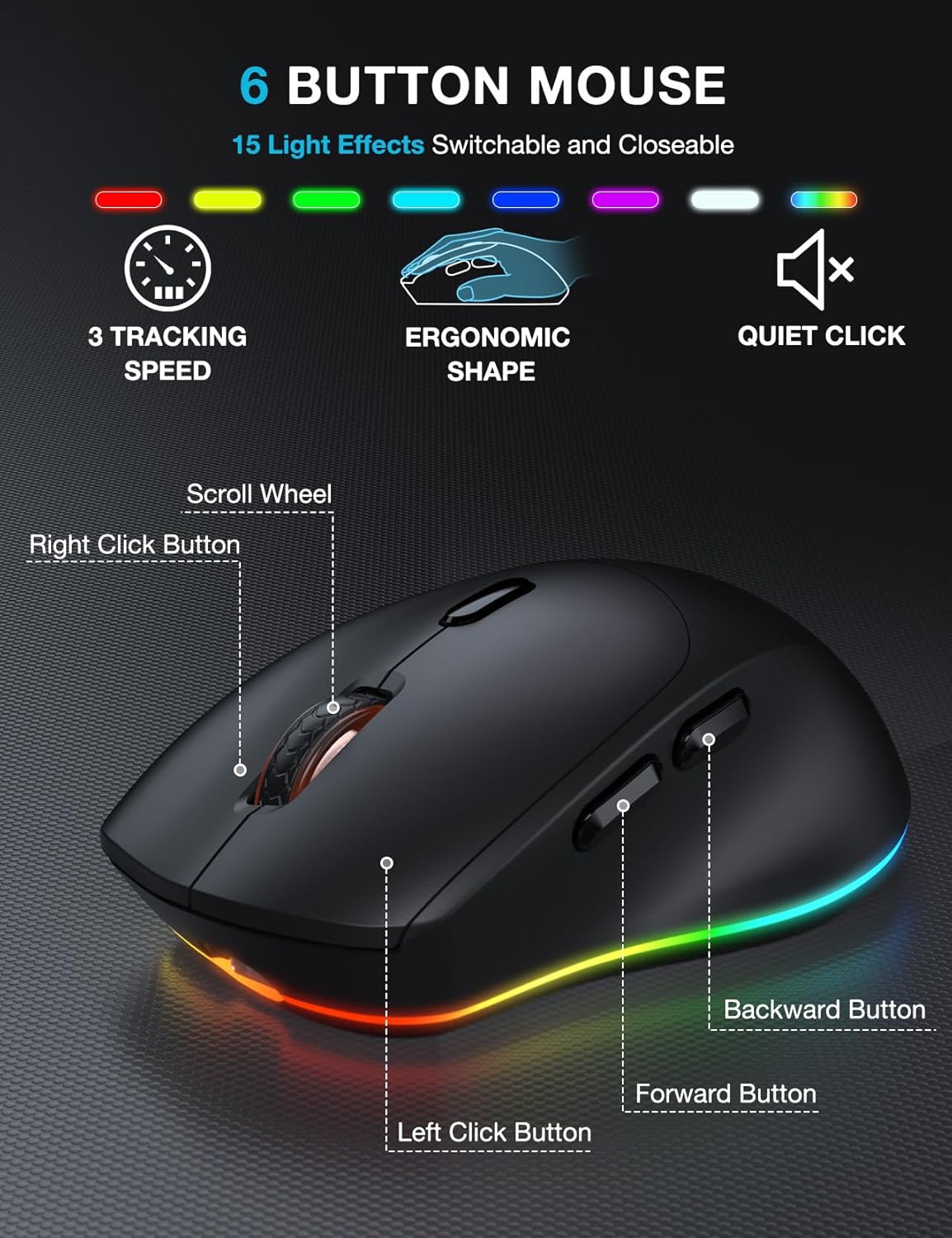
- 6-Button Design: The mouse features a standard left and right click, scroll wheel, and dedicated forward/backward buttons for enhanced navigation.
- Adjustable Tracking Speed: Cycle through 3 levels of tracking speed (DPI) to suit your preference for precision or speed.
- Silent Clicks: The mouse utilizes silent micro motion technology, significantly reducing click noise for a quieter working environment.
4.3 Power Management
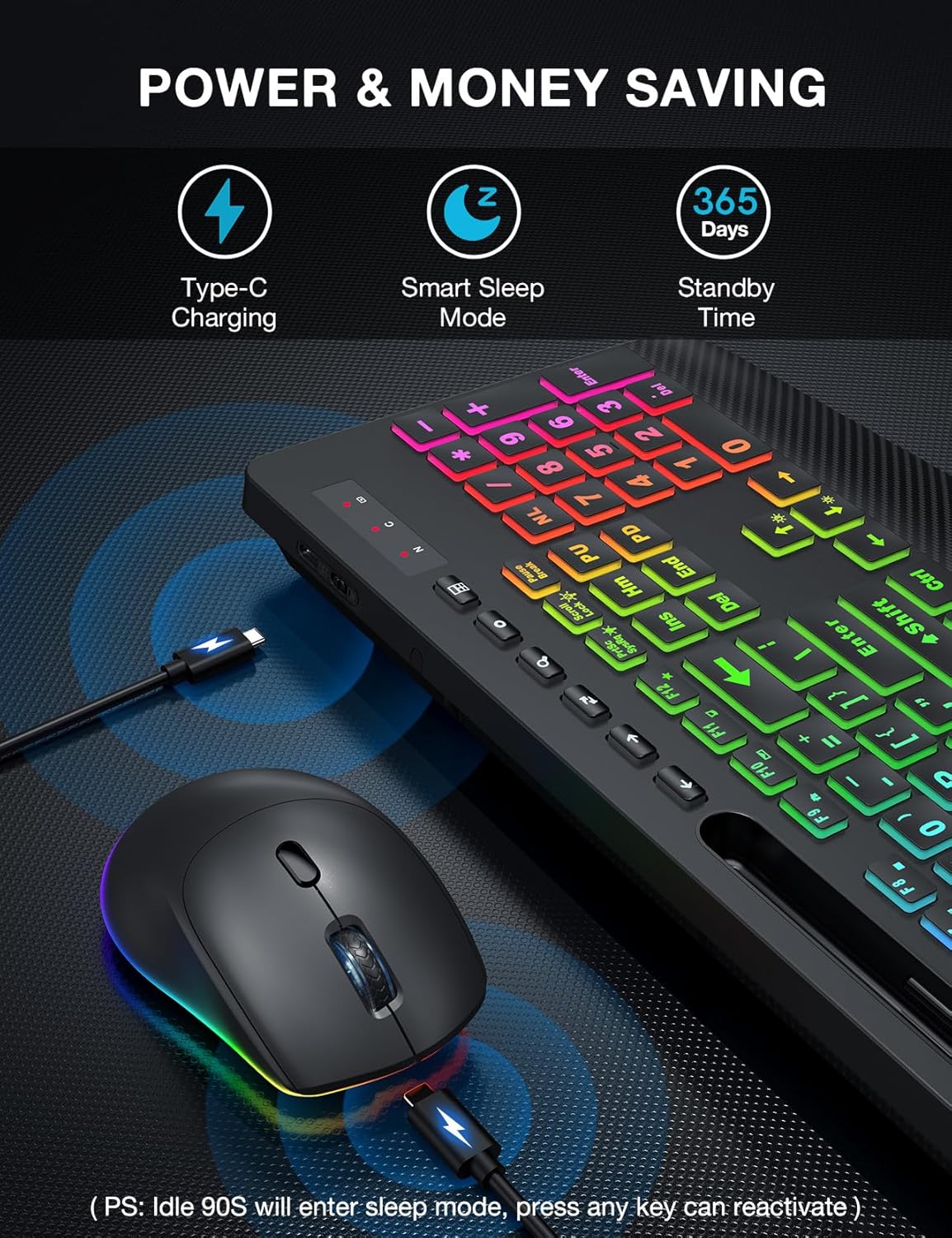
- Rechargeable Battery: Both the keyboard and mouse have built-in rechargeable batteries. Use the provided USB charging cable to recharge them when the battery is low.
- Smart Sleep Mode: To conserve energy, both devices will enter a smart sleep mode after 90 seconds of inactivity. To wake them up, simply press any button or key.
5. Maintenance
To ensure the longevity and optimal performance of your keyboard and mouse combo, follow these maintenance tips:
- Cleaning: Use a soft, dry cloth to wipe down the surfaces of the keyboard and mouse. For stubborn dirt, a slightly damp cloth with mild soap can be used, but ensure no liquid enters the device. Do not use harsh chemicals or abrasive cleaners.
- Dust Removal: Use compressed air to remove dust and debris from between the keys and around the mouse sensor.
- Storage: When not in use for extended periods, store the devices in a cool, dry place away from direct sunlight and extreme temperatures.
- Charging: Avoid overcharging. Disconnect the charging cable once the devices are fully charged.
6. Troubleshooting
If you encounter any issues with your SABLUTE Wireless Keyboard and Mouse Combo, please refer to the following common problems and solutions:
- No Connection/Lag:
- Ensure the USB receiver is securely plugged into a working USB-A port on your computer.
- Make sure both the keyboard and mouse are powered on and fully charged.
- Move the keyboard and mouse closer to the USB receiver. The effective range is approximately 33 feet (10 meters).
- Try plugging the USB receiver into a different USB port on your computer.
- Restart your computer.
- Backlight Not Working:
- Ensure the keyboard is charged.
- Press FN + PrtSc to toggle the backlight on/off.
- Adjust brightness using FN + Up/Down Arrow keys.
- Mouse Cursor Jumps or is Unresponsive:
- Check the mouse battery level and recharge if necessary.
- Ensure the mouse sensor is clean and free of debris.
- Use the mouse on a suitable surface (not highly reflective or transparent).
- Keyboard or Mouse Enters Sleep Mode Too Quickly:
- This is a power-saving feature. Simply press any key or button to wake the device.
- Cannot Connect to Tablet/Phone:
- This combo is designed for computers and laptops via the 2.4G USB receiver. It does not support direct Bluetooth connection to tablets or phones. A USB-C dongle is not included, and direct connection to USB-C only devices is not supported without an external adapter.
7. Specifications
| Feature | Description |
|---|---|
| Brand | SABLUTE |
| Model | B0DQ8LS43V |
| Color | Textured Black |
| Connectivity Technology | 2.4G USB Wireless |
| Special Features | Large Print, Backlit, Ergonomic Wrist Rest, Phone Holder, Shortcut Keys, Low-profile keycap, Water Repellent |
| Compatible Devices | Laptop, Personal Computer, Television |
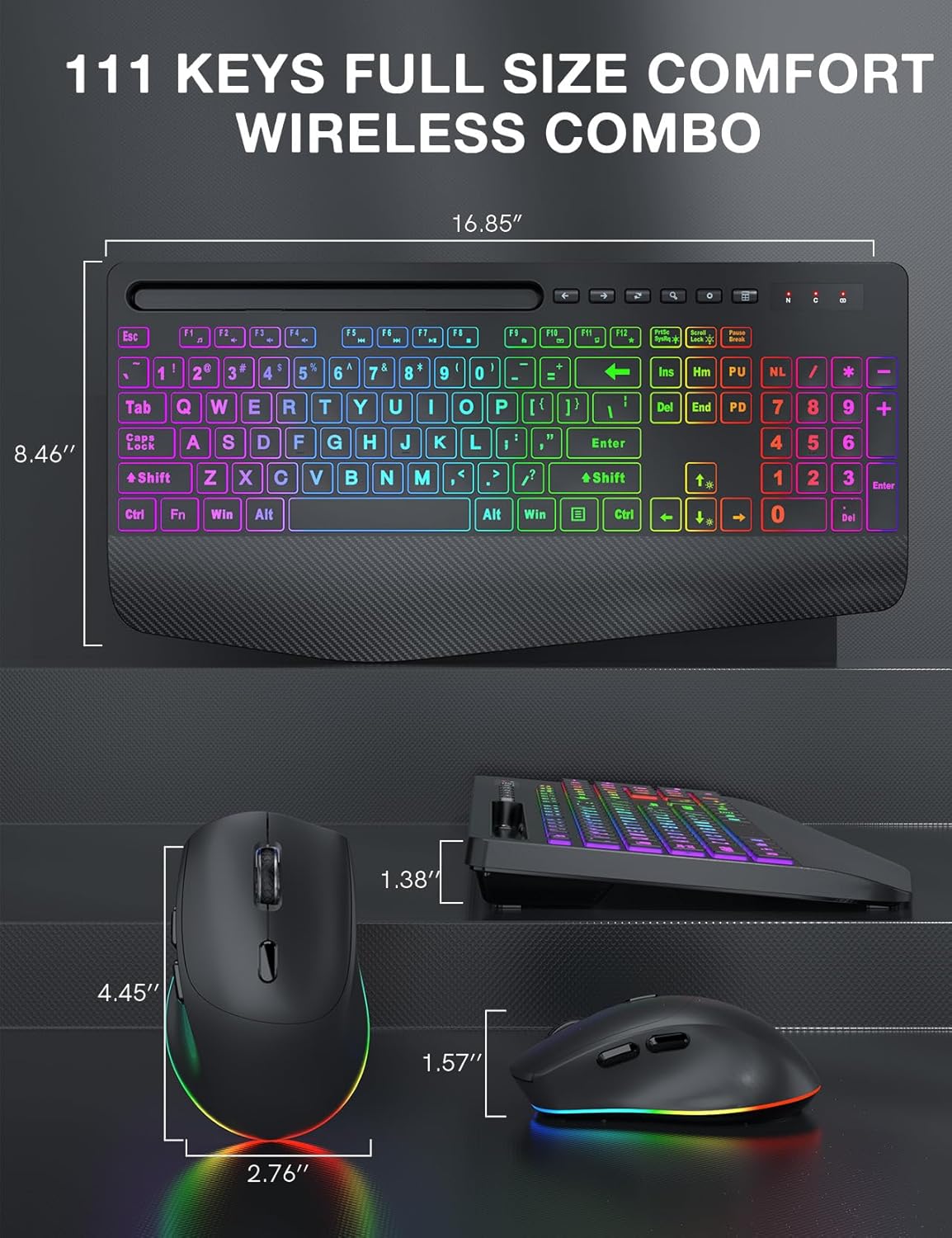
| Keyboard Dimensions | Approx. 16.85" x 8.46" |
| Mouse Dimensions | Approx. 4.45" x 2.76" x 1.57" |
| Battery Type | Rechargeable (Built-in) |
| Wireless Range | Up to 33 feet (10 meters) |
8. Warranty and Support
SABLUTE products are manufactured to high-quality standards. For information regarding warranty coverage, technical support, or any product-related inquiries, please refer to the contact information provided on the product packaging or the official SABLUTE website. Please retain your proof of purchase for warranty claims.