
DBKWT F6
DBKWT F6 Language Translator Device User Manual
Model: F6
1. Introduction
This manual provides detailed instructions for the operation and maintenance of your DBKWT F6 Language Translator Device. Please read this manual thoroughly before using the device to ensure proper functionality and to maximize your user experience. The DBKWT F6 is designed to facilitate communication across language barriers through various translation modes.
2. Product Overview
2.1 Device Components
The DBKWT F6 translator features a compact design with a touchscreen interface and physical buttons for intuitive control.

Figure 1: Front and back view of the DBKWT F6 Language Translator Device, showing the screen with application icons and the rear speaker and camera.
Key features include a high-definition camera for photo translation, dual noise-canceling microphones for clear audio input, and a speaker for translated output. The device also includes two physical buttons for tactile feedback and ease of use.
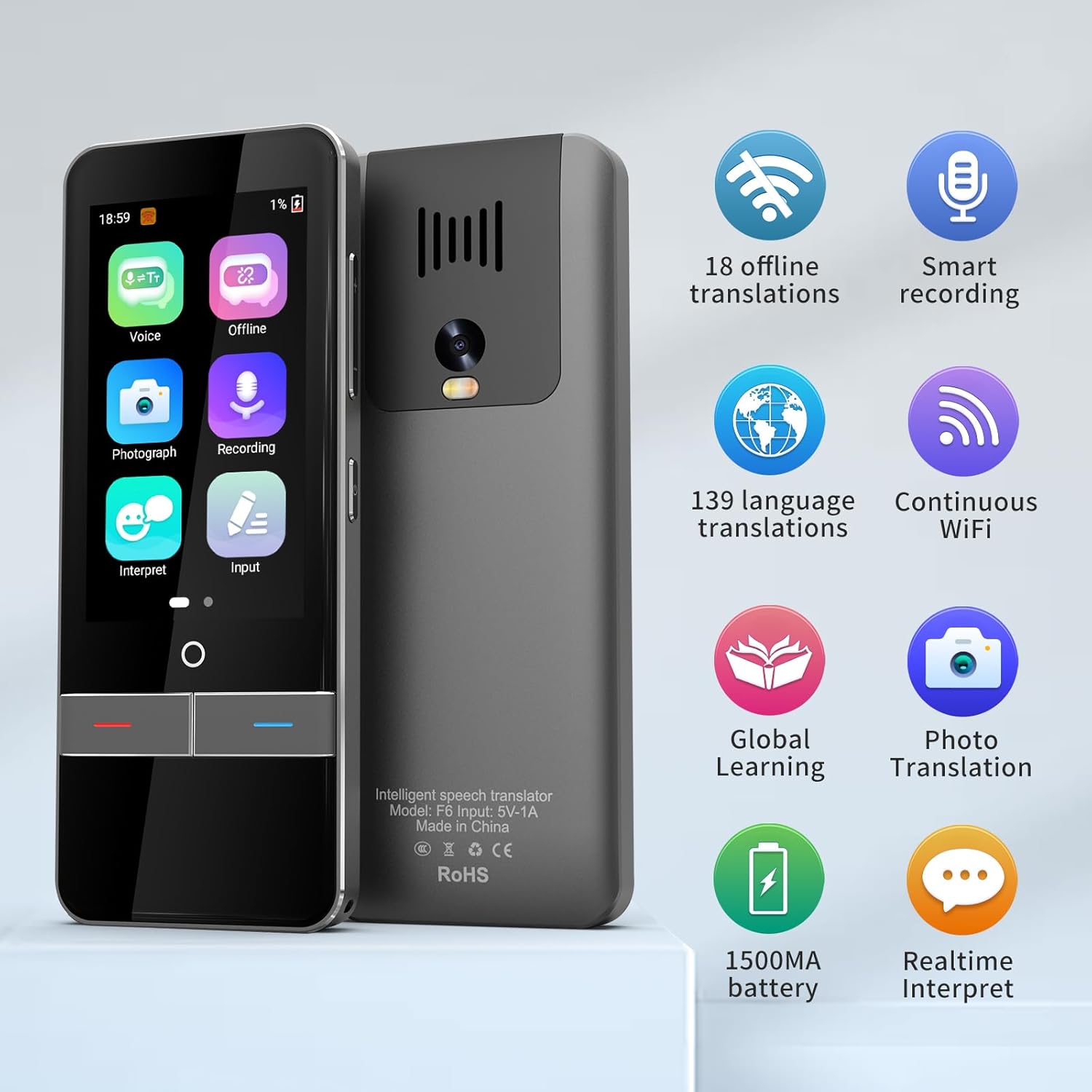
Figure 2: Visual representation of the DBKWT F6's capabilities, including 18 offline translations, smart recording, 139 language translations, continuous Wi-Fi, global learning, photo translation, 1500mA battery, and real-time interpretation.
3. Setup
3.1 Charging the Device
The device is equipped with a rechargeable Lithium Ion battery. Before first use, fully charge the device using the provided charging cable and a compatible power adapter (5V-1A input recommended). The battery indicator on the screen will show charging status.
3.2 Power On/Off
- To power on: Press and hold the power button until the screen illuminates.
- To power off: Press and hold the power button, then select "Power Off" on the screen.
3.3 Wi-Fi Connection
For online translation features and access to the full range of 139 languages, connect the device to a Wi-Fi network. Navigate to the settings menu, select "Wi-Fi," and choose your desired network. Enter the password if prompted.
4. Operating Instructions
4.1 Voice Translation (Online & Offline)
The device supports two-way voice translation. Online mode offers 139 languages, while offline mode supports 18 languages without an internet connection.
- Select "Voice" or "Offline" from the main menu.
- Choose the source and target languages.
- Press and hold the designated physical button (usually indicated by a color, e.g., red for source language, blue for target language) and speak clearly into the microphone.
- Release the button to hear the translation and see it displayed on the screen.

Figure 3: The device screen showing an example of offline voice translation between English and Japanese, demonstrating its capability to translate without an internet connection.
4.2 Photo Translation
The device can translate text from images in up to 57 languages using its high-definition camera.
- Select "Photograph" from the main menu.
- Point the camera at the text you wish to translate.
- Tap the screen to capture the image.
- The translated text will appear on the screen.
4.3 Recording and Real-Time Interpretation
The device offers real-time interpretation and recording functionalities.
- Real-Time Interpretation: This function translates speech in real-time and records it as text for up to 1 minute.
- Recording: Audio recordings can be saved for up to 60 minutes on the device.
- Synchronization: Scan the QR code displayed on the device with a mobile phone to synchronize, display, download, and copy recorded content to your phone.

Figure 4: A hand holding the DBKWT F6 translator, demonstrating its ergonomic design and the clear display of its main application icons, including Voice, Offline, Photograph, Recording, Interpret, and Input.

Figure 5: The DBKWT F6 translator device shown fitting easily into a pant pocket, highlighting its compact and portable design for on-the-go use.

Figure 6: Two individuals engaged in a conversation, with one person holding the DBKWT F6 translator, illustrating how the device facilitates effortless communication between speakers of different languages.
5. Maintenance
- Keep the device clean by wiping it with a soft, dry cloth. Avoid using liquid cleaners or abrasive materials.
- Protect the screen from scratches by using a screen protector if available.
- Avoid exposing the device to extreme temperatures, direct sunlight, or moisture.
- Store the device in a cool, dry place when not in use.
6. Troubleshooting
6.1 Common Issues and Solutions
- Device not powering on:
Ensure the device is fully charged. Connect it to a power source and wait a few minutes before attempting to power it on again.
- Inaccurate or slow translation:
Ensure you are speaking clearly and at a moderate pace directly into the microphone. Avoid background noise. For online translation, verify a stable Wi-Fi connection. For offline translation, ensure the desired language packs are downloaded and up to date.
- Wi-Fi connection issues:
Check if other devices can connect to the same Wi-Fi network. Restart the translator device and your Wi-Fi router. Re-enter the Wi-Fi password carefully.
- Screen unresponsive:
Restart the device. If the issue persists, ensure the screen is clean and free of debris.
7. Specifications
| Feature | Detail |
|---|---|
| Brand | DBKWT |
| Model | F6 |
| Online Translation Languages | 139 |
| Offline Voice Translation Languages | 18 |
| Online Photo Translation Languages | 57 |
| Battery Type | Lithium Ion (rechargeable, included) |
| Battery Capacity | 1500mA |
| Input Voltage | 5V-1A |
| Dimensions | 6.65 x 3.58 x 1.65 inches (16.9 x 9.1 x 4.2 cm approx) |
| Weight | 9.6 ounces (272 grams approx) |
8. Warranty and Support
For warranty information or technical support, please refer to the documentation provided with your purchase or contact DBKWT customer service. Contact details can typically be found on the manufacturer's official website or on the product packaging.
Ask a question about this manual
Ask about setup, troubleshooting, compatibility, parts, safety, or missing instructions. Manuals+ will review the question and use this page’s manual context to help answer it.