
Product Overview
The GODIAG GT112 K-Line Test Platform is a specialized tool designed for automotive diagnostic and key matching tasks, particularly for VW, Audi, Skoda, and Seat vehicles equipped with 2nd and 3rd generation dashboards. It facilitates offline key and IM-MO instrument synchronization tests, intelligent IM-MO system emergency start area sensing detection, IM-MO dashboard offline diagnosis, and instrument IM-MO data reading and writing. This device is compatible with mainstream automotive diagnostic tools such as VVDI2 and Key Tool Plus.

Figure 1: GODIAG GT112 K-Line Test Platform components.
What's in the Box
- GODIAG GT112 Test Platform
Product Features
- Supports VW Audi Skoda Seat: Performs offline key and IM-MO instrument synchronization test, intelligent IM-MO system emergency start area sensing detection, IM-MO dashboard offline diagnosis, instrument IM-MO data reading and writing.
- Sensing area detection: Press the vehicle's start switch and bring the device's key identifier close to a certain area. If the key identifier light flashes or lights up, it means that the area is the vehicle's key emergency start sensing area.
- Offline connection to the dashboard to convert to standard OBD2, equipped with an independent ignition switch and key sensor adapter with light.
- The key identification light flashes, flashes for a long time, or does not flash, which respectively means that the chip key is normal, the key does not match the vehicle, or the vehicle's IM-MO system is faulty.
- Compatible with most mainstream automotive diagnostic tools, such as: VVDI2, Key Tool Plus, etc.
Setup and Connection
Follow these steps to set up the GODIAG GT112 K-Line Test Platform for dashboard IM-MO matching and data reading.
1. Connecting with Autel IM608/IM508
- Connect the Autel diagnostic tablet to the Autel MaxiFlash J2534 VCI (or similar VCI) using the provided USB cable.
- Connect the blue VGA-style cable from the Autel VCI to the GODIAG GT112's OBD2 port.
- Connect the blue and green connectors from the GODIAG GT112 to the corresponding ports on the back of the vehicle dashboard. Ensure a secure connection.
- Connect the independent ignition switch and key sensor adapter to the GODIAG GT112.
- Power on the Autel diagnostic tablet and the dashboard (if required, via an external 12V power supply, not included with GT112).

Figure 2: Connecting the GODIAG GT112 with an Autel diagnostic tool and dashboard.

Figure 3: Detail of connecting the blue and green connectors to the dashboard.
2. Connecting with VVDI2
- Connect the VVDI2 device to your laptop via USB.
- Connect the GODIAG GT112's OBD2 port to the VVDI2 device.
- Connect the blue and green connectors from the GODIAG GT112 to the corresponding ports on the back of the vehicle dashboard.
- Connect the independent ignition switch and key sensor adapter to the GODIAG GT112.
- Ensure the dashboard is powered (if required, via an external 12V power supply).

Figure 4: Connecting the GODIAG GT112 with a VVDI2 device and laptop for data operations.
Operating Instructions
IM-MO System Status Scan (Using Autel IM608/IM508)
After connecting the GT112 to the dashboard and your Autel device, you can perform an IM-MO system status scan to check the key recognition and system health.
- On the Autel device, navigate to the "IMMO" function.
- Select the vehicle manufacturer (e.g., Volkswagen), model, and year range.
- Proceed to the "Immobilizer status scan" or similar option.
- Press the red button on the GT112's independent ignition switch to simulate ignition.
- Observe the key identifier light on the GT112 and the dashboard indicators.

Figure 5: Autel device displaying IM-MO system scan results.
Key Identifier Light Indications:
- Flashes and then goes out: Indicates the IM-MO chip and the chip key are working properly, and the key is recognized.
- Flashes for a long time: Indicates the chip key and the vehicle's IM-MO system do not match, and the chip key needs to be re-matched.
- Does not flash: Means the vehicle's IM-MO system is faulty. Please check the vehicle's IM-MO system.
Official Product Videos
Using IM608 with GT112 to Test VAG 2th/3th Series Dashboards
This video demonstrates the process of using the Autel IM608 diagnostic tool in conjunction with the GODIAG GT112 to test 2nd and 3rd generation VAG dashboards for IM-MO functionality and key recognition.
Using VVDI2 and GT112 to read V-A-G IM-MO data
This video illustrates how to use the VVDI2 key programming device with the GODIAG GT112 to read IM-MO data from VAG dashboards, a crucial step for key generation and matching.
Using autel im508 and GT112 to read VAG IM-MO data
This video demonstrates the procedure for reading VAG IM-MO data using the Autel IM508 and the GODIAG GT112, essential for immobilizer system diagnostics and key programming.
Emergency Start Area Sensing Detection
The GT112 can assist in identifying the vehicle's key emergency start sensing area.
- Connect the GT112 as per the setup instructions.
- Press the vehicle's start switch (or simulate ignition using the GT112's independent switch).
- Bring the GT112's key identifier close to different areas of the vehicle's interior.
- If the key identifier light flashes or lights up, it indicates that the area is the vehicle's key emergency start sensing area.
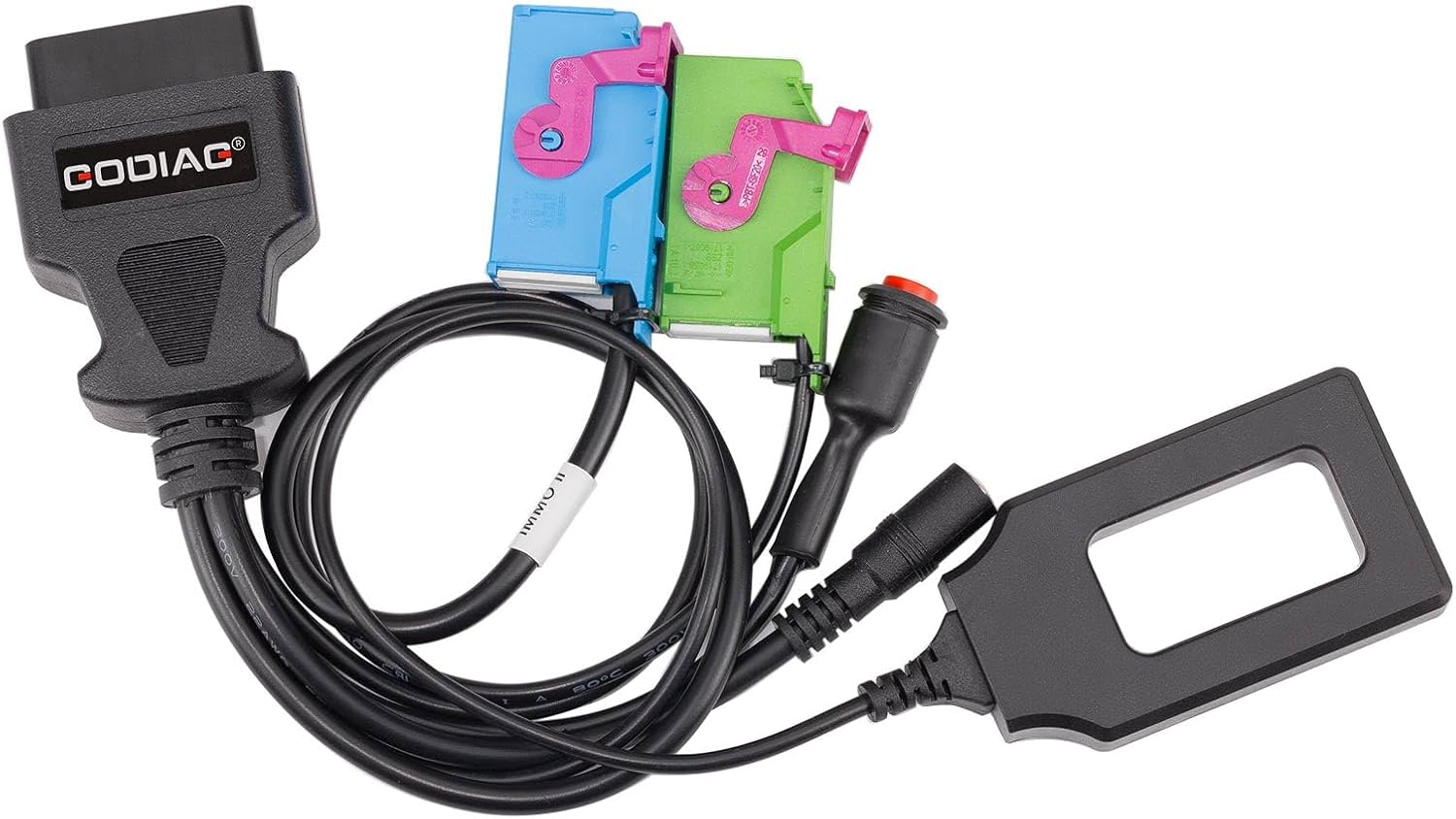
Figure 6: The key sensing adapter of the GODIAG GT112.
Specifications
| Attribute | Value |
|---|---|
| Brand | GODIAG |
| Model | GT112 |
| Power Source | Corded Electric |
| Item Weight | 6.1 ounces |
| Package Dimensions | 5.71 x 4.13 x 1.65 inches |
| Country of Origin | China |
| UPC | 889327085477 |
Troubleshooting
- Key Not Recognized (Key Identifier Flashes Long): This indicates a mismatch between the chip key and the vehicle's IM-MO system. The chip key needs to be re-matched or programmed. Refer to your diagnostic tool's specific key programming procedures.
- IM-MO System Faulty (Key Identifier Does Not Flash): If the key identifier light does not flash at all, it suggests a fault within the vehicle's IM-MO system itself. Further diagnostic steps using your main diagnostic tool are required to pinpoint the exact issue.
- No Communication with Dashboard: Ensure all connections (GT112 to dashboard, GT112 to diagnostic tool, diagnostic tool to power) are secure and correctly inserted. Verify the dashboard is receiving power. Check for any loose cables or damaged connectors.
- Software/Firmware Issues: Ensure your diagnostic tool's software and firmware are up-to-date. Consult the diagnostic tool manufacturer's website for the latest updates and compatibility information.
Warranty and Support
GODIAG products are designed for reliability and performance. For any technical assistance, warranty claims, or product inquiries, please contact GODIAG official support channels. Refer to your purchase documentation for specific warranty terms and conditions. Keep your proof of purchase for any warranty-related services.
For more information and support resources, visit the official GODIAG store on Amazon: GODIAG Store