
1. Introduction
This instruction manual provides comprehensive guidance for setting up, operating, maintaining, and troubleshooting your WAVLINK AX6000 WiFi 6 Mesh Router. Designed for high-speed and extensive coverage, this device integrates advanced features to enhance your network experience. Please read this manual thoroughly to ensure proper installation and utilization of all available functionalities.
2. What's in the Box
Upon unboxing your WAVLINK AX6000 WiFi 6 Mesh Router, verify that all the following components are present:
- WAVLINK AX6000 WiFi 6 Router
- Power Adapter
- Ethernet Cable
- Quick Start Guide

Image: The WAVLINK AX6000 WiFi 6 Mesh Router, its power adapter, an Ethernet cable, and the quick start guide, laid out on a wooden surface.
3. Product Overview
The WAVLINK AX6000 router features a robust design with eight high-gain antennas for optimized signal strength and coverage. The front panel includes LED indicators for Status, WiFi, WAN, LAN (1-4), and Power, providing quick visual feedback on the device's operational status. The rear panel houses all essential ports and controls.

Image: A top-down perspective of the WAVLINK AX6000 router, showcasing its eight adjustable antennas and sleek black design.
Rear Panel Ports and Buttons:
- USB 3.0 Port: For connecting external storage devices or a printer.
- LAN Ports (x4): Gigabit Ethernet ports for wired connections to devices like computers, gaming consoles, or smart TVs.
- WAN Port (2.5 Gbps): Connects to your modem for internet access.
- Power Jack: Connects to the included power adapter.
- Power Button: Turns the router on or off.
- Reset Button: Used to restore factory default settings (requires a paperclip or similar pointed object).

Image: A detailed view highlighting the router's rear panel with its various ports, including the 2.5 Gbps WAN port, LAN ports, and USB 3.0 port, alongside an internal diagram of its quad-core CPU.
4. Setup
Follow these steps to set up your WAVLINK AX6000 WiFi 6 Mesh Router:
- Unpack: Carefully remove all components from the packaging.
- Position the Router: Place the router in a central location within your home or office, away from obstructions and other electronic devices that may cause interference. Extend all eight antennas upwards.
- Connect Power: Plug the power adapter into the router's Power Jack and then into a wall outlet.
- Connect to Modem: Connect one end of the provided Ethernet cable to your modem's LAN port and the other end to the router's WAN (2.5G) port.
- Power On: Press the Power Button on the rear panel. Wait for the LED indicators on the front to stabilize, indicating the router is ready.
- Connect Your Device: Connect your computer or mobile device to the router via Wi-Fi (using the SSID and password found on the router's label) or via an Ethernet cable to one of the LAN ports.
- Access Configuration: Open a web browser on your connected device and enter the default IP address (usually 192.168.10.1 or check the Quick Start Guide) or download the WavRouter app (available for iOS and Android) to complete the initial setup and customize your network settings.

Image: Displays the WavRouter app interface on two smartphones and a laptop, illustrating the user-friendly network management and setup options available.
5. Operating
Wi-Fi Connectivity
The AX6000 router supports dual-band Wi-Fi 6 (802.11ax) for high-speed wireless connections. It operates on both 2.4 GHz (up to 1148 Mbps) and 5 GHz (up to 4804 Mbps) frequencies, providing a combined speed of 6.0 Gbps. Ensure your devices are Wi-Fi 6 compatible for optimal performance.

Image: Illustrates the router's high-speed Wi-Fi capabilities and extensive coverage area, emphasizing the role of its eight high-gain antennas in providing a strong signal throughout a 1700+ sq. ft. space.
Mesh Technology
Create a seamless whole-home mesh Wi-Fi system by connecting multiple WAVLINK mesh routers. This technology allows up to 8 WAVLINK devices to form a unified Wi-Fi SSID, eliminating dead zones and providing consistent coverage across your entire property. Simply press and hold the 'Pair' button for 2 seconds on compatible devices to instantly set up the mesh system.
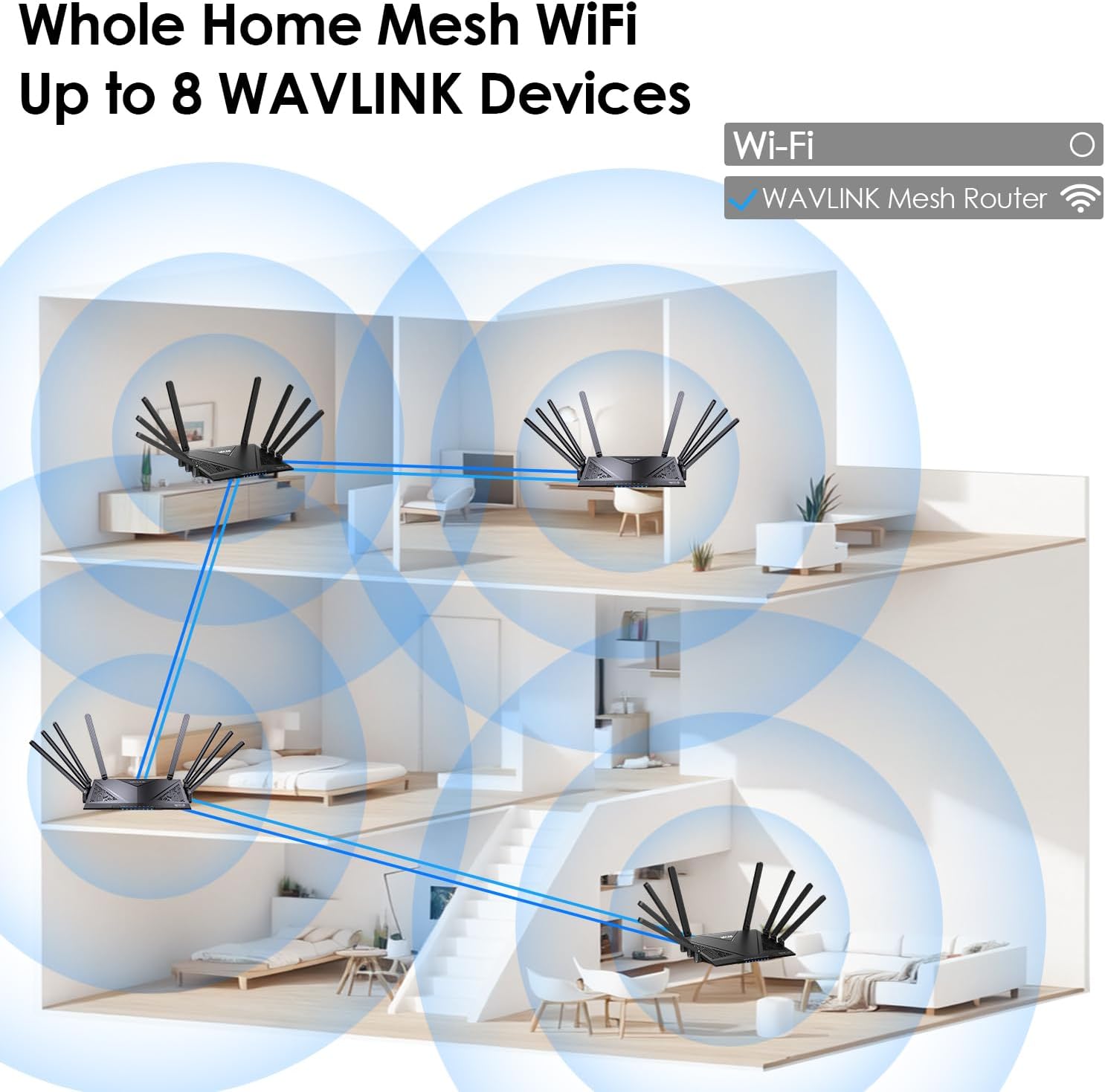
Image: A diagram depicting how multiple WAVLINK routers can be interconnected to form a comprehensive whole-home mesh Wi-Fi network, ensuring seamless coverage.
WavRouter App & Web Interface
Manage your network settings, connected devices, and advanced features conveniently through the WavRouter app or the web-based interface. This allows for smart control and monitoring of your network from anywhere.
USB 3.0 Port Functionality
The integrated USB 3.0 port offers versatile functionality, including:
- File Sharing: Share movies, music, and other files across your network by connecting a USB storage device.
- Printer Server: Connect a USB printer to the router to make it accessible to all devices on your network.
- USB Tethering: Utilize a smartphone's mobile data connection as a backup internet source.
Parental Control
Implement parental controls to manage internet access times and block unsuitable content for specific devices, ensuring a secure online environment for children.
QoS (Quality of Service)
Prioritize network traffic for specific applications or devices using QoS settings. This ensures optimal performance for critical activities like gaming or video conferencing by allocating sufficient bandwidth.
Guest Mode
Set up a separate guest Wi-Fi network with its own password. This allows visitors to access the internet without gaining access to your main network or connected devices, enhancing security.

Image: Visual representations of the router's Home Network Guard features, including Quality of Service (QoS) for traffic management, Parental Control for content filtering, and Guest Mode for secure visitor access.
VPN Support
The router includes built-in VPN functionalities, supporting various protocols such as OpenVPN, WireGuard, PPTP, and L2TP. This allows for secure and private network connections, increasing your cybersecurity.

Image: A diagram illustrating the VPN protocols supported by the WAVLINK router, including OpenVPN and WireGuard, along with their respective maximum speeds for secure internet browsing.
6. Maintenance
To ensure the longevity and optimal performance of your WAVLINK AX6000 router, consider the following maintenance tips:
- Firmware Updates: Regularly check for and install the latest firmware updates through the WavRouter app or web interface. Updates often include performance improvements, security patches, and new features.
- Physical Cleaning: Keep the router clean by gently wiping it with a soft, dry cloth. Ensure ventilation holes are free from dust and debris to prevent overheating.
- Proper Ventilation: Place the router in an open area with good airflow. Avoid enclosing it in cabinets or placing it near heat sources.
- Secure Placement: Ensure the router is placed on a stable surface to prevent accidental falls or damage.
- Regular Reboots: Periodically rebooting your router (unplugging it for 10-15 seconds and plugging it back in) can help clear its memory and resolve minor performance issues.
7. Troubleshooting
If you encounter issues with your WAVLINK AX6000 router, refer to the following common problems and solutions:
- No Internet Connection:
- Check if the Ethernet cable from your modem is securely connected to the router's WAN port.
- Verify that your modem is working correctly.
- Check the WAN LED indicator on the router. If it's off or red, there might be an issue with the internet connection from your ISP.
- Reboot both your modem and router.
- Slow Wi-Fi Speeds:
- Ensure your devices are within optimal range of the router or mesh nodes.
- Minimize physical obstructions (walls, furniture) between devices and the router.
- Check for Wi-Fi interference from other electronic devices (microwaves, cordless phones).
- Adjust Wi-Fi channels in the router settings to less congested ones.
- Disable QoS for non-critical applications if it's causing slowdowns.
- Frequent Wi-Fi Disconnections:
- Ensure the router's firmware is up to date.
- Check for signal strength and interference.
- If using a mesh system, ensure nodes are properly placed and connected.
- Cannot Access Router Settings:
- Verify your device is connected to the router's network.
- Ensure you are using the correct IP address or app.
- Try clearing your browser's cache or using a different browser.
- Factory Reset:
- If other troubleshooting steps fail, you may need to perform a factory reset. With the router powered on, use a paperclip to press and hold the Reset button on the rear panel for approximately 10 seconds until the LED indicators flash. The router will then restart with default settings. You will need to reconfigure your network.
8. Specifications
| Feature | Description |
|---|---|
| Product Dimensions | 8.27 x 5.91 x 1.77 inches |
| Item Weight | 1.72 pounds |
| Model Number | WN536AX6-RZ |
| Brand | WAVLINK |
| Model Name | 536AX6 |
| Special Feature | Parental Control |
| Frequency Band Class | Dual-Band |
| Wireless Communication Standard | 802.11ax (WiFi 6) |
| Compatible Devices | Personal Computer, Smartphone, Tablet |
| Frequency | 5 GHz (4804 Mbps), 2.4 GHz (1148 Mbps) |
| Recommended Uses | Business, Gaming, Home |
| Included Components | WAVLINK AX6000 WiFi 6 Router |
| Connectivity Technology | Wi-Fi, Ethernet |
9. Warranty and Support
For warranty information, technical support, or further assistance with your WAVLINK AX6000 WiFi 6 Mesh Router, please refer to the official WAVLINK website or contact their customer support directly. Details can typically be found in the Quick Start Guide or on the product packaging.