
Product Overview
The ASUS ROG AeroActive Cooler X Pro is a high-performance cooling accessory designed for the ROG Phone 8 and ROG Phone 9 series. It features enhanced cooling capabilities, an integrated subwoofer for immersive audio, dual physical control buttons, and flexible connectivity options including a 3.5mm headphone jack and USB-C port. A built-in kickstand provides convenient hands-free viewing.

This image displays the ASUS ROG AeroActive Cooler X Pro mounted on a compatible ROG Phone, highlighting its sleek design and integrated RGB lighting. The cooler is designed to enhance gaming performance and audio.
Setup Instructions
1. Attaching the Cooler
To attach the AeroActive Cooler X Pro, align the cooler with the back of your ROG Phone 8 or ROG Phone 9 series device. Gently press the cooler onto the phone until it securely clips into place. Ensure the connection is firm to optimize cooling performance and button functionality.
Compatibility:
This cooler is exclusively compatible with the ROG Phone 8 and ROG Phone 9 series. Attempting to attach it to other devices may result in damage or improper function.
2. Power Connection
The AeroActive Cooler X Pro can be powered directly by your ROG Phone. For extended use or charging the phone while using the cooler, connect a USB-C cable to the USB-C port located on the side of the cooler. This allows for pass-through charging of your device.
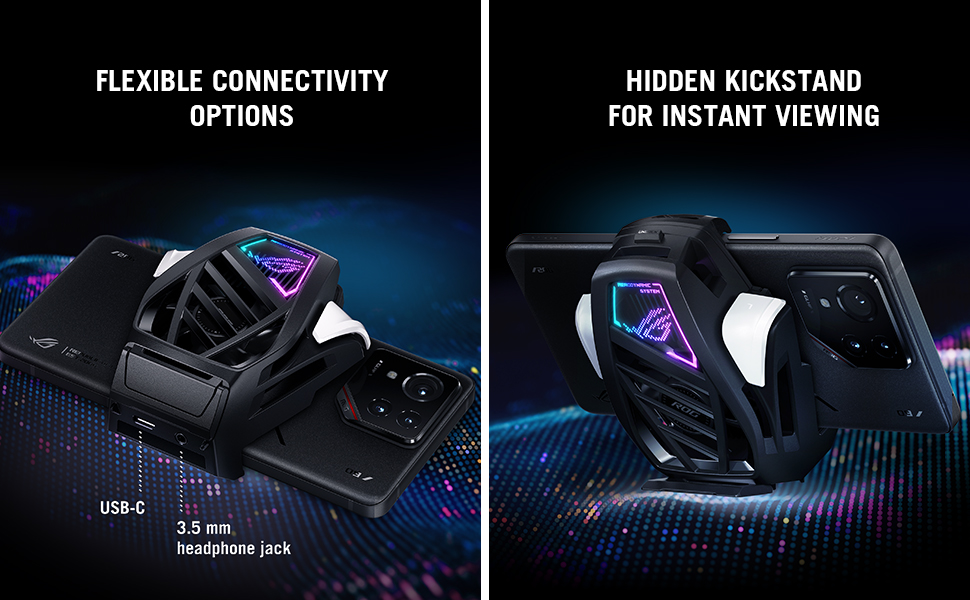
This image illustrates the connectivity options of the AeroActive Cooler X Pro, including the USB-C port for power and pass-through charging, and the 3.5mm headphone jack for audio output.
3. Initial Configuration
Upon first connection, your ROG Phone may prompt you to update the cooler's firmware or configure its settings via the Armoury Crate application. Follow the on-screen instructions to complete any necessary setup. This may include mapping the dual physical buttons to in-game actions.
Operating Instructions
1. Cooling Operation
The AeroActive Cooler X Pro automatically activates its cooling function when attached to a compatible ROG Phone. The fan speed and cooling intensity can typically be adjusted through the Armoury Crate application on your phone. Higher fan speeds provide more effective cooling, reducing device temperature by up to 29% for sustained performance during intensive gaming sessions.

This image highlights the advanced cooling system of the AeroActive Cooler X Pro, showing how it dissipates heat from the ROG Phone to maintain optimal performance during intense gaming.
2. Audio Enhancement
The built-in subwoofer enhances the audio experience, providing a 124% bass performance boost on ROG Phone 9. This feature is active when the cooler is attached. For private listening, connect your headphones to the 3.5mm headphone jack on the cooler.
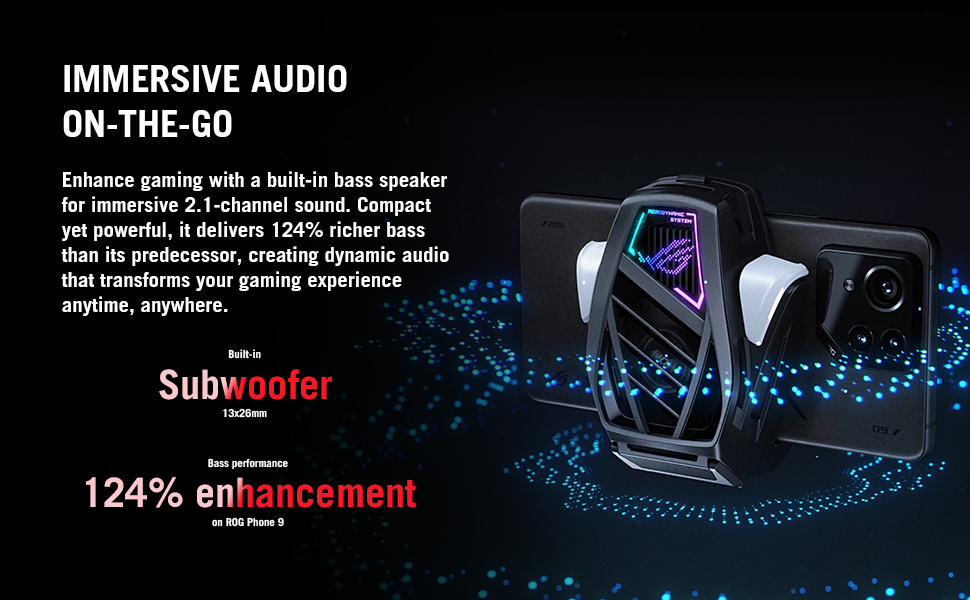
This image focuses on the integrated subwoofer of the AeroActive Cooler X Pro, which provides a significant boost in bass for a more immersive 2.1-channel audio experience.
3. Using Physical Buttons
The cooler features dual physical buttons designed for precise control during gameplay. These buttons can be customized within the Armoury Crate application to perform various in-game actions, offering a console-like gaming experience. The buttons are rated for up to 200,000 presses.
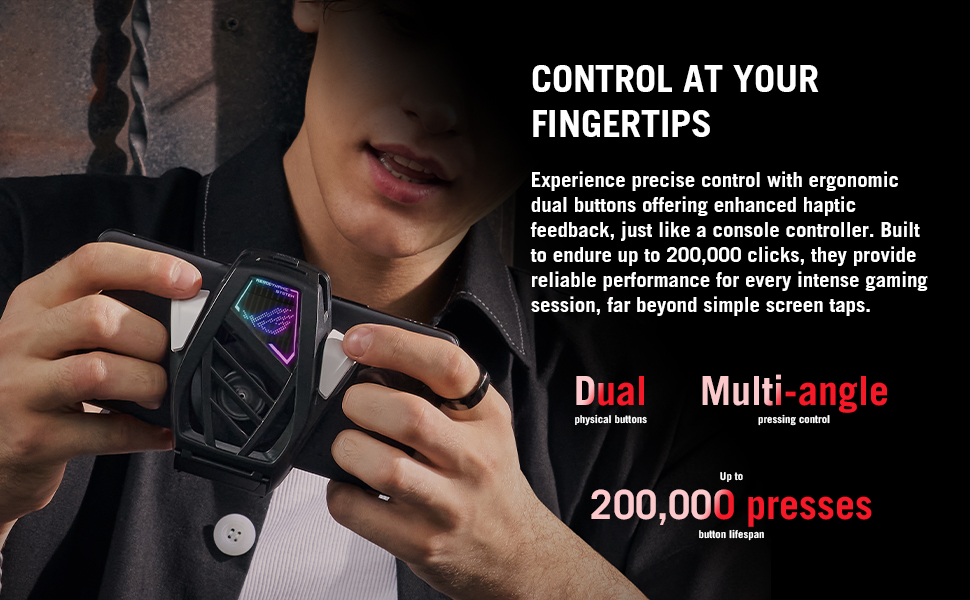
This image shows a user interacting with the dual physical buttons on the AeroActive Cooler X Pro, which offer precise control and haptic feedback for an enhanced gaming experience.
4. Kickstand Functionality
A hidden kickstand is integrated into the cooler. To deploy, gently pull out the kickstand from the back of the unit. This allows your device to stand securely on a flat surface, providing a hands-free viewing experience for media consumption or gaming.

This image illustrates the convenient built-in kickstand of the AeroActive Cooler X Pro, allowing the ROG Phone to be propped up for hands-free viewing or gaming.
Maintenance
1. Cleaning
Regularly clean the fan vents and cooling surfaces of the AeroActive Cooler X Pro to prevent dust buildup, which can impede cooling efficiency. Use a soft, dry cloth or a can of compressed air to gently remove dust. Do not use liquid cleaners or abrasive materials.
2. Storage
When not in use, store the cooler in a clean, dry environment away from direct sunlight and extreme temperatures. Ensure it is detached from the phone to prevent accidental activation or strain on the phone's port.
Troubleshooting
1. Cooler Not Activating
If the cooler does not activate upon attachment, ensure it is securely connected to your ROG Phone. Verify that your phone is a compatible model (ROG Phone 8 or 9 series). Check the Armoury Crate application for any error messages or settings that might prevent activation.
2. Insufficient Cooling
If cooling performance seems inadequate, ensure the fan vents are clear of obstructions and dust. Increase the fan speed settings via the Armoury Crate application. Confirm that the cooler's thermal contact with the phone is unobstructed.
3. Audio Issues
If the subwoofer is not producing sound or the 3.5mm headphone jack is not working, ensure the cooler is properly attached. Check your phone's audio settings and the Armoury Crate application for any specific audio configurations related to the cooler.
4. Buttons Not Responding
If the physical buttons are unresponsive, ensure the cooler is firmly attached. Verify button mappings within the Armoury Crate application. Restart your phone and reattach the cooler to reset the connection.
Product Specifications
| Brand | ASUS |
| Model | AeroActive Cooler X Pro |
| Color | Black |
| Material | Plastic |
| Item Weight | 0.29 Pounds |
| Product Dimensions (L x W x H) | 34"L x 16.97"W x 41.26"H |
| Cooling Method | Air (AI thermoelectric cooling) |
| Connectivity | USB-C, 3.5mm Headphone Jack |
| Compatibility | ROG Phone 8 Series, ROG Phone 9 Series |
| UPC | 197105667297 |
Warranty and Support
Warranty Information
The ASUS ROG AeroActive Cooler X Pro comes with a 1 Year Limited Warranty. Please retain your proof of purchase for warranty claims. For detailed warranty terms and conditions, refer to the official ASUS website or the documentation included with your product.
Customer Support
For technical assistance, troubleshooting, or service inquiries, please visit the official ASUS support website or contact ASUS customer service. You can find contact information and support resources on the ASUS global website.
