
1. Introduction
The InnAIO T9 AI Language Translator Device is designed to facilitate real-time communication across over 150 languages. Utilizing advanced AI, it offers features such as voice cloning, cross-application translation, offline translation, and video call translation. Its portable design makes it suitable for various scenarios including business, travel, and education.

Image: The InnAIO T9 translator device shown next to a smartphone displaying its various AI translation capabilities.
2. What's in the Box
Upon unboxing your InnAIO T9, please verify that all the following items are included:
- AI Translator × 1
- Charging Cable × 1
- Magnetic Ring × 1
- Documentation (User Guides & Warranty)

Image: A visual representation of the InnAIO T9 package contents, including the translator, charging cable, magnetic ring, and user manual.
Unboxing Video
Video: An official unboxing video demonstrating the contents of the InnAIO T9 translator package and initial handling of the device.
3. Setup Guide
3.1 Initial Charging
Before first use, fully charge your InnAIO T9 device using the provided charging cable. Connect the cable to the device and a standard USB power adapter (not included). The device's indicator light will show charging status.
3.2 App Installation and Pairing
- Download the official InnAIO application from your smartphone's app store (iOS App Store or Google Play Store).
- Open the app and follow the on-screen instructions to create an account or log in.
- Ensure your InnAIO T9 device is powered on and Bluetooth is enabled on your smartphone.
- Within the app, search for and select your InnAIO T9 device to pair. Follow any prompts to complete the pairing process.
Important Note: Some advanced features or services within the app may require registration or subscription. Please refer to the app's specific terms and conditions. Some users have reported issues with registration requiring a Chinese mobile number for the "pro version app"; ensure you have the correct version or contact support if you encounter this.
3.3 Magnetic Attachment
The InnAIO T9 features a magnetic design for convenient attachment to your smartphone. Use the included magnetic ring if your phone does not have a built-in magnetic surface or case. Attach the magnetic ring to the back of your phone or phone case, then simply place the InnAIO T9 translator onto the ring.

Image: The InnAIO T9 device shown attached magnetically to the back of a smartphone, ready for use.
4. Operating Instructions
4.1 Power On/Off
- To Power On: Press and hold the main button on the device until the indicator light illuminates.
- To Power Off: Press and hold the main button until the indicator light turns off.
4.2 Online Translation Modes
Ensure your device is connected to the InnAIO app and has an active internet connection for online translation features.
- Voice Translation:
Open the app, select your desired source and target languages. Press and hold the device's button to speak, then release to hear and see the translation. The device supports over 150 languages with high accuracy and fast response times.
- AI Voice Cloning:
This feature allows the translated output to be delivered in a voice that mimics your own tone and accent. Activate this setting within the InnAIO app for a more natural communication experience.

Image: A visual explanation of the AI Voice Cloning feature, illustrating how the device translates speech while maintaining the user's unique voice characteristics across different languages.
- Cross-App Translation:
The InnAIO T9 integrates with popular messaging applications like WhatsApp, Messenger, LINE, and WeChat. Enable this feature in the app settings to translate voice and text chats directly within these platforms.

Image: A sequence of images showing the InnAIO T9 in action, from pressing the device to speaking, and finally displaying translated text within a chat application.
- Video Call & Speech Translation:
During video or voice calls, the device provides instant translation displayed on your smartphone screen, ensuring clear communication. This feature makes voice visible by providing real-time subtitles.

Image: A user engaged in a video call, with the InnAIO T9 providing real-time translation and subtitles displayed on the smartphone screen.
- Simultaneous Interpretation:
For meetings, lectures, or business negotiations, the device can provide real-time simultaneous interpretation. This allows you to listen to foreign content with instant translation and can also record and save the translated audio.

Image: A classroom scenario where the InnAIO T9 is used for simultaneous interpretation, displaying translated text on a smartphone screen during a lecture.
- Meeting Minutes:
The device can record and transcribe meetings, providing a detailed record of discussions with translation. This feature is useful for reviewing conversations and ensuring all participants understand key points.

Image: A business meeting setting where the InnAIO T9 is used to record and transcribe meeting minutes, with the translated text visible on a smartphone.
- Shared Translation for Multi-country Meetings:
Facilitate communication in group settings where multiple languages are spoken. The device enables shared translation, allowing participants to engage in their native language with auto-translation in chat groups. Other participants do not need to download the app; they can join via a conference link.
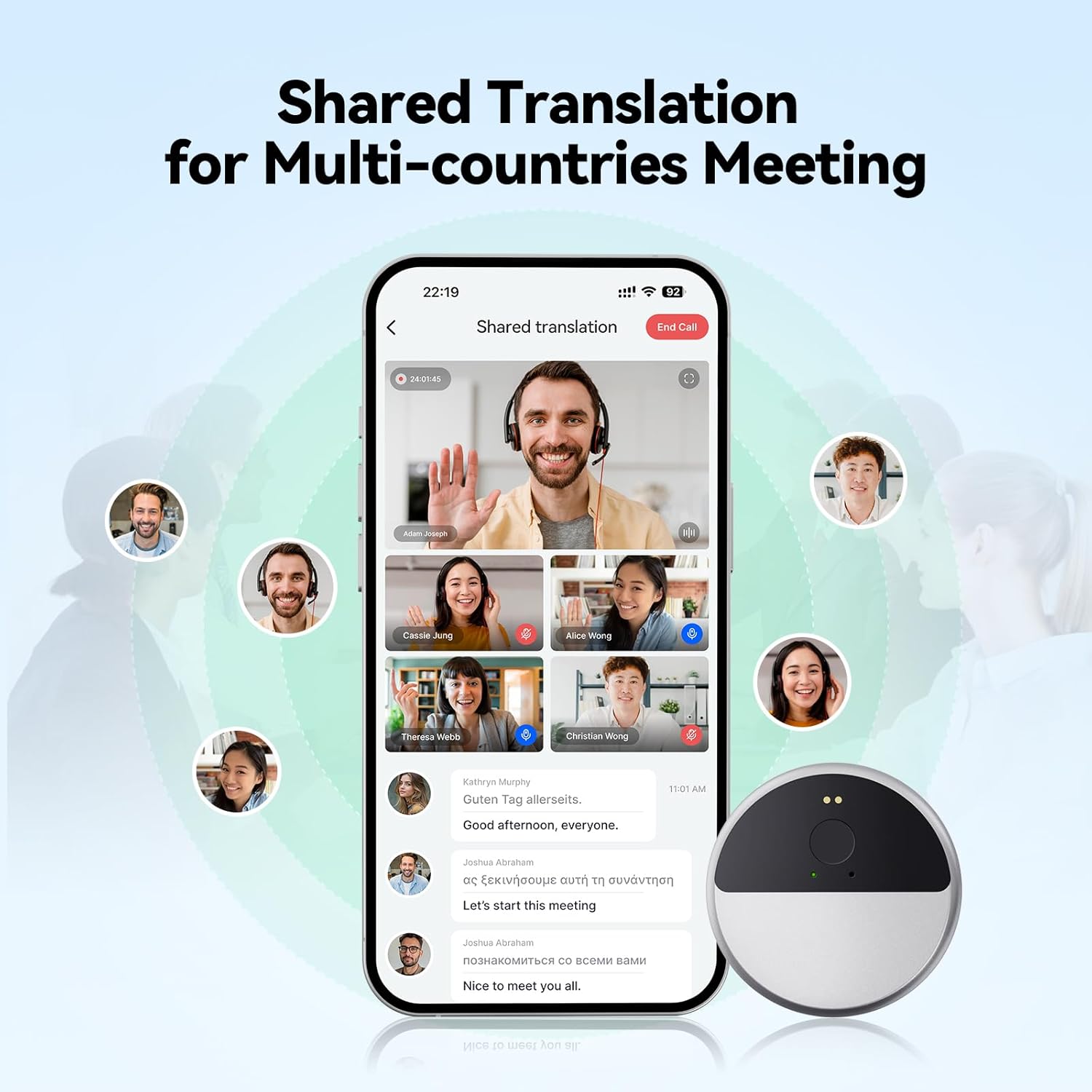
Image: A group of diverse individuals participating in a shared translation session, with the InnAIO T9 and smartphone app displaying real-time translated conversations.
4.3 Offline Translation
The InnAIO T9 supports offline translation for 10 major languages without requiring an internet connection. These languages include Chinese, English, Japanese, Korean, French, Spanish, German, Russian, and Thai. Ensure you download the necessary language packs within the app before traveling to areas without Wi-Fi access.

Image: Two individuals using the InnAIO T9 for face-to-face translation in an outdoor environment, highlighting its offline capability.
Important Note: Some users have reported that certain languages are not available for offline use without internet, or that offline translation capabilities may require additional payment after initial use. Please verify the specific terms for offline language packs within the InnAIO app.
5. Maintenance
- Cleaning: Wipe the device with a soft, dry cloth. Do not use liquid cleaners or abrasive materials.
- Storage: Store the device in a cool, dry place away from direct sunlight and extreme temperatures.
- Battery Care: To prolong battery life, avoid fully discharging the device frequently. Charge it regularly, even if not in use for extended periods.
- Charging Cable: Use only the provided charging cable. The device uses a specific interface, and generic replacements may not work.
6. Troubleshooting
Device Not Powering On
- Ensure the device is fully charged. Connect it to the charging cable and a power source for at least 30 minutes.
- Press and hold the power button for several seconds to attempt a forced power-on.
Unable to Pair with Smartphone
- Make sure Bluetooth is enabled on your smartphone and the InnAIO T9 device is powered on.
- Ensure the InnAIO app is installed and updated to the latest version.
- Restart both the device and your smartphone, then try pairing again.
- Check if the device is already paired with another phone. Disconnect it if so.
Translation Inaccurate or Slow
- Verify a stable internet connection for online translation.
- Ensure correct source and target languages are selected in the app.
- Speak clearly and at a moderate pace, directly into the device's microphone.
- Minimize background noise for optimal performance.
Offline Translation Not Working
- Confirm that the required offline language packs have been downloaded and installed via the InnAIO app while connected to the internet.
- Check the app for any subscription requirements for offline language packs.
App Registration Issues (e.g., Chinese Mobile Number)
- If you encounter issues requiring a specific regional mobile number for registration, ensure you are using the correct version of the app for your region.
- Contact InnAIO customer support for assistance with international registration or alternative methods.
7. Specifications
| Feature | Detail |
|---|---|
| Model Number | InnAIO T9 |
| Product Dimensions | 2.2 x 2.2 x 0.17 inches |
| Item Weight | 1.06 ounces |
| Batteries | 1 Lithium Ion battery (included) |
| Supported Languages | 150+ (online), 10 major (offline) |
| Accuracy | 98.6% |
| Response Time | 0.5 seconds |
| Battery Life | 15 hours continuous use, 35 days standby |
| Manufacturer | Shenzhen Laihua Technology Innovation Co., Ltd |
| ASIN | B0DQ72DVTF |
8. Warranty & Support
Your InnAIO T9 device comes with a limited warranty. Please refer to the "Documentation (User Guides & Warranty)" included in your package for specific warranty terms and conditions. For technical support, troubleshooting assistance, or warranty claims, please contact InnAIO customer service through their official website or the contact information provided in your documentation.
Online Resources: For additional support and FAQs, visit the official InnAIO website: InnAIO Official Store


