
1. Product Overview
The Hyundai HyTab Plus 10LB2 is a 10.1-inch digital tablet designed for work, study, entertainment, and web browsing. It features a slim and portable design, dual speakers, and runs on Android 10 Go Edition. This tablet offers 4G LTE and Wi-Fi connectivity, a Quad-Core processor, 2GB of RAM, and 32GB of internal storage, expandable up to 128GB via microSD.

Image 1.1: Front and back view of the Hyundai HyTab Plus 10LB2 tablet highlighting its key features: 4G LTE, Android operating system, and dual camera capability.
Key Features:
- Display: 10.1-inch digital screen with 1280 x 800 pixel resolution.
- Operating System: Android 10 Go Edition for optimized performance.
- Processor: Efficient Quad-Core processor for smooth multitasking.
- Memory & Storage: 2GB RAM and 32GB internal storage, expandable up to 128GB with a microSD card.
- Connectivity: Integrated 4G LTE and Wi-Fi (802.11g) for reliable internet access.
- Cameras: Front and rear cameras (up to 5MP webcam resolution).
- Audio: Dual speakers for enhanced sound experience.
- Design: Slim, lightweight, and portable.
2. Device Layout
Familiarize yourself with the physical components and ports of your HyTab Plus 10LB2 tablet.

Image 2.1: Detailed diagram illustrating the location of ports and buttons on the HyTab Plus 10LB2 tablet.
- Micro USB Port: For charging and data transfer.
- 3.5mm Audio Jack: For connecting headphones or external speakers.
- SIM Card Slot: For inserting a 4G LTE SIM card.
- Front Camera: For video calls and selfies.
- Volume +/- Buttons: To adjust the device volume.
- Power Button: To turn the device on/off or put it to sleep.
- Rear Camera: For taking photos and videos.
- Flash: Provides illumination for the rear camera.
- Speakers: For audio output.
3. Setup
3.1 Initial Charging
Before first use, fully charge your tablet. Connect the provided USB cable to the Micro USB port on the tablet and the other end to a power adapter. Plug the adapter into a wall outlet. The battery indicator on the screen will show charging status.
3.2 Inserting a SIM Card (Optional)
If you plan to use 4G LTE connectivity, insert a compatible SIM card:
- Locate the SIM card slot on the side of the tablet.
- Use the provided SIM ejector tool (if applicable) or a small paperclip to open the SIM tray.
- Place the SIM card into the tray with the gold contacts facing down, ensuring it is correctly oriented.
- Gently push the tray back into the slot until it clicks into place.
3.3 Inserting a MicroSD Card (Optional)
To expand storage, insert a microSD card (up to 128GB):
- Locate the microSD card slot, often combined with the SIM card slot or a separate slot.
- Insert the microSD card into the slot with the gold contacts facing down, ensuring correct orientation.
- Push the card gently until it locks into place.
3.4 Powering On/Off
- To Power On: Press and hold the Power button until the Hyundai logo appears.
- To Power Off: Press and hold the Power button until the power options appear on the screen. Select "Power off" and confirm.
- To Sleep/Wake: Briefly press the Power button to put the tablet to sleep or wake it up.
3.5 Initial Setup Wizard
Upon first power-on, the tablet will guide you through an initial setup process:
- Select your preferred language.
- Connect to a Wi-Fi network.
- Accept the terms and conditions.
- Sign in with your Google account or create a new one. This is essential for downloading apps from the Google Play Store.
- Set up screen lock (PIN, pattern, or password).
- Review and adjust other settings as prompted.
4. Operating Instructions
4.1 Basic Navigation
The HyTab Plus 10LB2 uses a capacitive touchscreen for interaction:
- Tap: To select an item or open an application.
- Touch & Hold: To access contextual menus or move items.
- Swipe: To scroll through lists or switch between screens.
- Pinch: To zoom in or out on images and web pages.
4.2 Wi-Fi Connectivity
To connect to a Wi-Fi network:
- Go to Settings > Network & internet > Wi-Fi.
- Toggle Wi-Fi On.
- Select your desired network from the list.
- Enter the password if prompted and tap Connect.
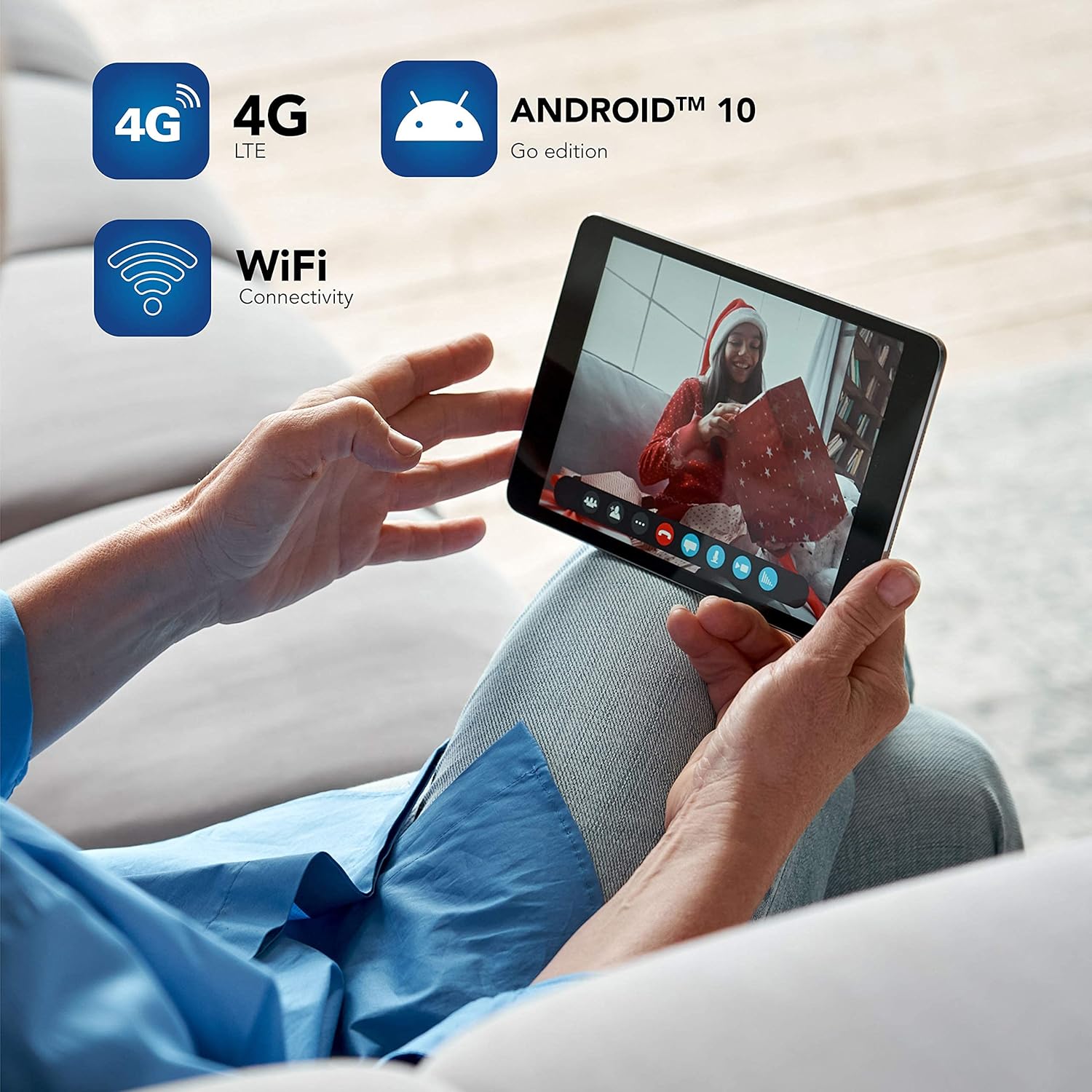
Image 4.1: The tablet screen showing the Android 10 Go edition interface and icons for 4G LTE and Wi-Fi connectivity.
4.3 Mobile Data (4G LTE)
If a SIM card is inserted and configured:
- Go to Settings > Network & internet > Mobile network.
- Ensure Mobile data is toggled On.
- You may need to configure APN settings depending on your carrier.
4.4 Using Cameras
To take photos or videos:
- Open the Camera application.
- Tap the camera icon to switch between front and rear cameras.
- Tap the shutter button to take a photo or start/stop video recording.
4.5 Managing Storage
To check storage usage or manage files:
- Go to Settings > Storage.
- Here you can see internal storage usage and manage files on your microSD card.
4.6 Installing and Uninstalling Apps
- Install: Open the Google Play Store app, search for your desired app, and tap Install.
- Uninstall: Touch and hold the app icon on the home screen or app drawer, then drag it to "Uninstall" or select "App info" and tap "Uninstall." Alternatively, go to Settings > Apps & notifications, select the app, and tap Uninstall.
5. Maintenance
5.1 Cleaning the Device
Use a soft, lint-free cloth to clean the screen and body of the tablet. For stubborn smudges, slightly dampen the cloth with water or a screen cleaner designed for electronics. Avoid harsh chemicals or abrasive materials.
5.2 Battery Care
- Avoid exposing the tablet to extreme temperatures.
- Do not let the battery completely drain frequently.
- Use only the original charger or a certified compatible charger.
5.3 Software Updates
Regularly check for and install system updates to ensure optimal performance and security:
- Go to Settings > System > System update.
- Follow the on-screen instructions to check for and install any available updates.
5.4 Data Backup
Regularly back up your important data to a cloud service (e.g., Google Drive) or a computer to prevent data loss.
6. Troubleshooting
This section addresses common issues you might encounter with your tablet.
6.1 Device Not Turning On
- Ensure the battery is charged. Connect the charger and wait a few minutes before attempting to power on.
- Press and hold the Power button for at least 10-15 seconds to perform a forced restart.
6.2 Screen Unresponsive
- Restart the tablet by holding the Power button.
- Ensure the screen is clean and free of debris.
6.3 Wi-Fi/LTE Connection Issues
- Toggle Wi-Fi/Mobile data off and on again in Settings.
- Restart your Wi-Fi router or check your mobile data plan.
- Forget the Wi-Fi network and reconnect.
6.4 Slow Performance / App Crashes
- Close unused applications running in the background.
- Clear cache for problematic apps (Settings > Apps & notifications > select app > Storage & cache > Clear cache).
- Ensure sufficient free storage space.
- Restart the tablet.
6.5 Factory Reset (Last Resort)
If issues persist, a factory reset can resolve many software problems. Warning: This will erase all data on your tablet. Back up important data before proceeding.
- Go to Settings > System > Reset options.
- Select Erase all data (factory reset).
- Confirm your decision and follow the on-screen prompts.
7. Specifications
Detailed technical specifications for the Hyundai HyTab Plus 10LB2 tablet.
| Feature | Specification |
|---|---|
| Brand | HYUNDAI |
| Model Name | HyTab Plus |
| Model Number | HT10LB2MBKLTM-cr |
| Screen Size | 10.1 Inches |
| Max Screen Resolution | 1280 x 800 Pixels |
| Operating System | Android 10 Go Edition |
| Processor Brand | Allwinner |
| RAM | 2 GB |
| Storage Capacity | 32 GB (Expandable up to 128GB via microSD) |
| Wireless Technology | 4G LTE, Wi-Fi (802.11g) |
| Connectivity Technology | Wi-Fi, Cellular |
| Max Webcam Resolution | 5 MP |
| Battery Type | Lithium Ion |
| Battery Energy Content | 18.5 Watt-hour |
| Item Weight | 1.1 Kilograms |
| Input Interface | Touchscreen |
| Color | Black |
| UPC | 703670816765 |
8. Warranty and Support
8.1 Warranty Information
This product comes with a 90-day limited warranty. Please refer to the warranty documentation included with your purchase for specific terms and conditions. This warranty covers manufacturing defects under normal use.
8.2 Customer Support
For technical assistance, warranty claims, or further inquiries, please contact Hyundai Technology customer support. Refer to the contact information provided in your product packaging or visit the official Hyundai Technology website.


