
1. Introduction
This manual provides comprehensive instructions for the installation, operation, and maintenance of your XTRONS 12.3 Inch Qualcomm Snapdragon 680 Android 14 Car Stereo. This advanced in-dash system is designed to enhance your driving experience with its large IPS touch screen, powerful processor, and seamless smartphone integration. Please read this manual thoroughly before using the product to ensure proper function and safety.
2. Key Features
- 12.3" IPS Touch Screen: A large, high-fidelity 1920x720 IPS display with a 24:9 aspect ratio, offering wide viewing angles and vibrant colors. It features a fully-laminated, anti-glare, ultra-slim design with a tailor-made bezel.
- Qualcomm Snapdragon 680 Processor: Octa-core Kyro 265 CPU, up to 2.4GHz, built on 6nm process technology for enhanced power efficiency and robust processing.
- Android 14 Operating System: Combined with 8GB LPDDR4 RAM and 128GB Solid State ROM for fast, responsive performance and ample storage for applications.
- Wireless CarPlay & Wireless/Wired Android Auto: Seamlessly integrate your smartphone for navigation, calls, music, and voice commands (Siri/Google Assistant).
- Bluetooth 5.1: Provides stable connections and high-quality audio transmission for hands-free calls and music streaming.
- Dual Wi-Fi Band: Supports both 2.4GHz and 5GHz bands for faster and more flexible internet connectivity.
- Multi-task Display & Picture-in-Picture (PIP): Allows simultaneous operation of two applications, such as navigation and music, or viewing videos while using other apps.

Image: Overview of the XTRONS 12.3 Inch Car Stereo's core specifications and features.
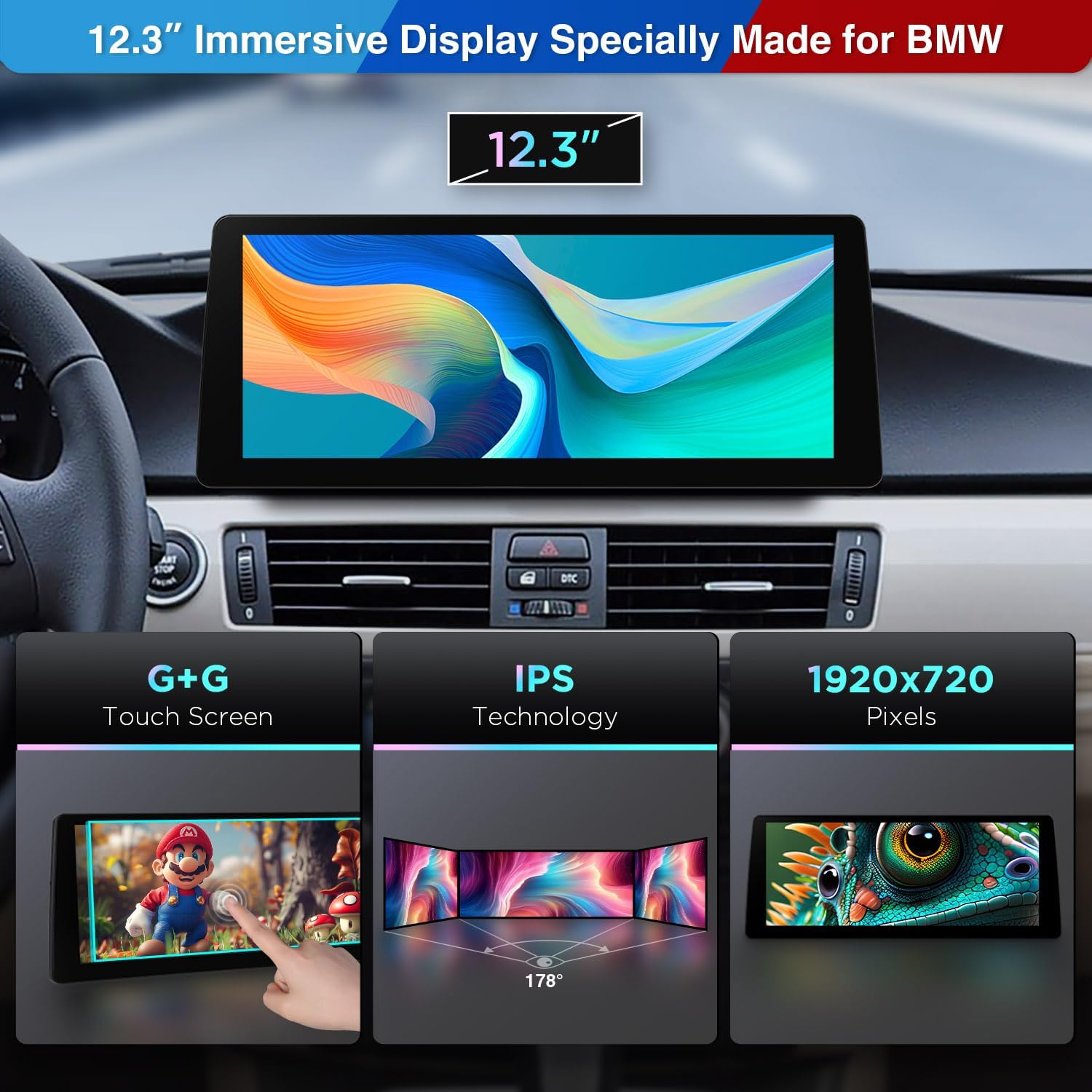
Image: Detailed view of the 12.3-inch IPS display technology, highlighting its touch screen, IPS panel, and resolution.
3. Applicable Models and Compatibility
This XTRONS car stereo is specifically designed for the following BMW models and years:
- BMW 3 Series E90/E91/E92/E93/M3 (2009-2012) with CIC System
Important Notes on Compatibility:
To ensure full audio functionality, connect the XTRONS unit to your car's AUX input. Verify that your car has a functional AUX input. If your car comes with no audio AUX input or if the AUX port is not functioning, you may need to order an FM transmitter adapter for installation. Compatible XTRONS FM transmitters include CA/ITR/FM02 and CA/ITR/FM03.

Image: Visual guide to applicable BMW models and system compatibility (CIC system required).
4. Package Contents
Please check the package carefully to ensure all items are present:
- 1 x ISO Wiring Harness
- 1 x Audio Cable
- 1 x RCA Cable
- 1 x GPS Antenna
- 1 x 4G Antenna
- 1 x USB Cable
- 1 x Mini Speaker
- 1 x Tweezers
- 1 x Plastic Bracket
- 1 x Fix Mount
- 3 x Screws
- 1 x User Manual (this document)
- 1 x Installation Instruction
- 128GB SSD (integrated)

Image: Visual representation of the wiring harness and all components included in the product package.
5. Setup and Installation
Installation of the XTRONS car stereo requires technical knowledge and familiarity with car audio systems. It is highly recommended to have the unit installed by a qualified professional to avoid damage to the product or your vehicle.
General Installation Steps:
- Preparation: Disconnect the vehicle's battery before starting any electrical work.
- Remove Original Unit: Carefully remove the existing car stereo or display unit from your dashboard.
- Connect Wiring Harness: Connect the provided ISO wiring harness to the vehicle's wiring. Ensure all connections are secure and correct according to the included Installation Instruction document.
- Connect Antennas: Attach the GPS antenna and 4G antenna to the corresponding ports on the new unit. Position the antennas in a location that provides optimal signal reception.
- Connect Peripherals: Connect any additional accessories such as the RCA cable, USB cable, mini speaker, and optional components like a DVR or backup camera (if applicable).
- Test Functionality: Before fully reassembling the dashboard, reconnect the vehicle's battery and perform a basic test of the unit's functions (power on, audio, touch screen, basic navigation).
- Secure Unit: Mount the XTRONS unit securely into the dashboard using the provided plastic bracket, fix mount, and screws.
- Reassemble Dashboard: Carefully reassemble the dashboard components.
For detailed, step-by-step instructions, please refer to the dedicated Installation Instruction document included in your package.
6. Operating Instructions
6.1 Basic Operation
- Power On/Off: The unit typically powers on with the vehicle's ignition. To manually power off or restart, refer to the on-screen controls or physical buttons if available.
- Touch Screen Navigation: Navigate through menus and applications by tapping, swiping, and pinching on the 12.3-inch IPS touch screen.
- Volume Control: Adjust volume using the on-screen controls or the vehicle's steering wheel controls if integrated.
6.2 Smartphone Integration (Wireless CarPlay & Android Auto)
The unit supports Wireless CarPlay for iPhones and Wireless/Wired Android Auto for Android phones, allowing you to access compatible apps safely while driving.
- Enable Bluetooth: Ensure Bluetooth is enabled on both your smartphone and the XTRONS unit.
- Pair Device: On the XTRONS unit, go to the Bluetooth settings and search for your phone. Pair the devices.
- Launch CarPlay/Android Auto: Once paired, the system should prompt you to launch CarPlay or Android Auto. Follow the on-screen instructions. For Android Auto, you may also connect via a USB cable for a wired connection.
- Voice Commands: Use Siri (for CarPlay) or Google Assistant (for Android Auto) directly from the head unit for hands-free control.

Image: Demonstrates seamless smartphone integration via Wireless CarPlay, Android Auto, Screen Mirroring, and Bluetooth.
6.3 Retained Original Functions
The XTRONS unit is designed to integrate with your vehicle's existing systems, retaining key original functions:
- iDrive system control
- Original speaker system
- Original radio and CD functions
- Compatibility with original camera
- Support for steering wheel controls

Image: Illustrates the retention of original BMW vehicle functions after installing the XTRONS unit.
6.4 User Interface (UI)
The XTRONS unit features a customizable user interface with various options:
- Day/Night Mode: Automatically or manually switch between day and night display modes for optimal visibility.
- Classic UIs: Choose from 6 sets of classic UI designs tailored for BMW enthusiasts.
- Quick Access Bar: Customize shortcuts for frequently used functions.
- Drag & Drop: Organize icons and widgets on the home screen.

Image: Examples of the customizable user interface, including day/night modes and various classic UI themes.
6.5 Advanced Features
- Multi-task Display: Run two applications simultaneously on the 12.3-inch IPS screen, such as navigation and a music player.
- Picture-in-Picture (PIP): Watch videos in a small window while navigating or using other applications.
- 2K Video Playback: Enjoy high-resolution video content supported by the Adreno 610 GPU.

Image: Demonstrates advanced features like 2K video support, split-screen mode, and Picture-in-Picture (PIP).
7. Specifications
| Feature | Specification |
|---|---|
| Display Size | 12.3 Inches |
| Screen Resolution | 1920x720 |
| Touch Screen Type | In-Cell (IPS) |
| Processor | Qualcomm Snapdragon 680 Octa-Core (Kyro 265 CPU, up to 2.4GHz) |
| GPU | Adreno 610 |
| RAM | 8GB LPDDR4 |
| Internal Storage | 128GB Solid State ROM (SSD) |
| Operating System | Android 14 |
| Bluetooth Version | 5.1 |
| Wi-Fi Support | 2.4GHz / 5GHz Dual Band |
| Connectivity Technology | USB, Wired Android Auto |
| Special Features | Smartphone Integration, Multi-task Display, PIP |
| Mounting Type | Dashboard Mount |
| Vehicle Service Type | Car |
8. Troubleshooting
If you encounter issues with your XTRONS car stereo, please refer to the following common troubleshooting steps:
- No Power: Check all power connections and fuses. Ensure the vehicle's ignition is on.
- No Sound: Verify that the AUX input is correctly connected and selected. Check speaker connections and volume levels. Ensure the original speaker system is properly integrated.
- Touch Screen Unresponsive: Try restarting the unit. If the issue persists, ensure the screen is clean and free of debris.
- Bluetooth/Wi-Fi Connectivity Issues: Ensure Bluetooth/Wi-Fi is enabled on both devices. Try unpairing and re-pairing devices. Check for interference from other electronic devices.
- GPS Signal Loss: Ensure the GPS antenna is properly connected and placed in a location with a clear view of the sky.
- System Slow/Freezing: Close unnecessary applications. Perform a system restart. If issues persist, consider a factory reset (note: this will erase all user data).
For more complex issues, please consult the XTRONS customer support or a qualified technician.
9. Maintenance
Proper maintenance will ensure the longevity and optimal performance of your XTRONS car stereo:
- Cleaning the Screen: Use a soft, lint-free cloth to gently wipe the screen. For stubborn smudges, dampen the cloth slightly with water or a screen-safe cleaner. Avoid harsh chemicals or abrasive materials.
- General Cleaning: Keep the unit and surrounding dashboard area free from dust and debris. Use a soft brush or compressed air to clean vents and crevices.
- Software Updates: Periodically check the XTRONS official website or system settings for available software updates to ensure optimal performance and access to new features.
- Avoid Extreme Temperatures: Do not expose the unit to extreme hot or cold temperatures for prolonged periods, as this can affect performance and lifespan.
10. Warranty and Support
For information regarding product warranty, please refer to the warranty card included with your purchase or visit the official XTRONS website. For technical support, troubleshooting assistance, or inquiries about optional accessories, please contact XTRONS customer service or visit their official store page: