1. Introduction
This manual provides essential information for the proper setup, operation, and maintenance of your HP 27-inch Series 5 527sh IPS LED FHD Monitor. Please read this guide thoroughly before using your monitor to ensure optimal performance and longevity.

Figure 1: HP 27-inch Series 5 527sh IPS LED FHD Monitor
The HP Series 5 527sh monitor is designed to enhance your daily computing experience with a vibrant 27-inch Full HD display, 99% sRGB color accuracy, a 100 Hz refresh rate, and a 1500:1 contrast ratio. It features an adjustable height stand and HP Eye Ease technology for user comfort.
2. What's in the Box
Verify that all components are present in the packaging:
- HP Series 5 527sh 27-inch FHD Height Adjust Monitor
- Power Adapter
- AC Power Cord
- HDMI Cable
- Document Kit (including this manual)
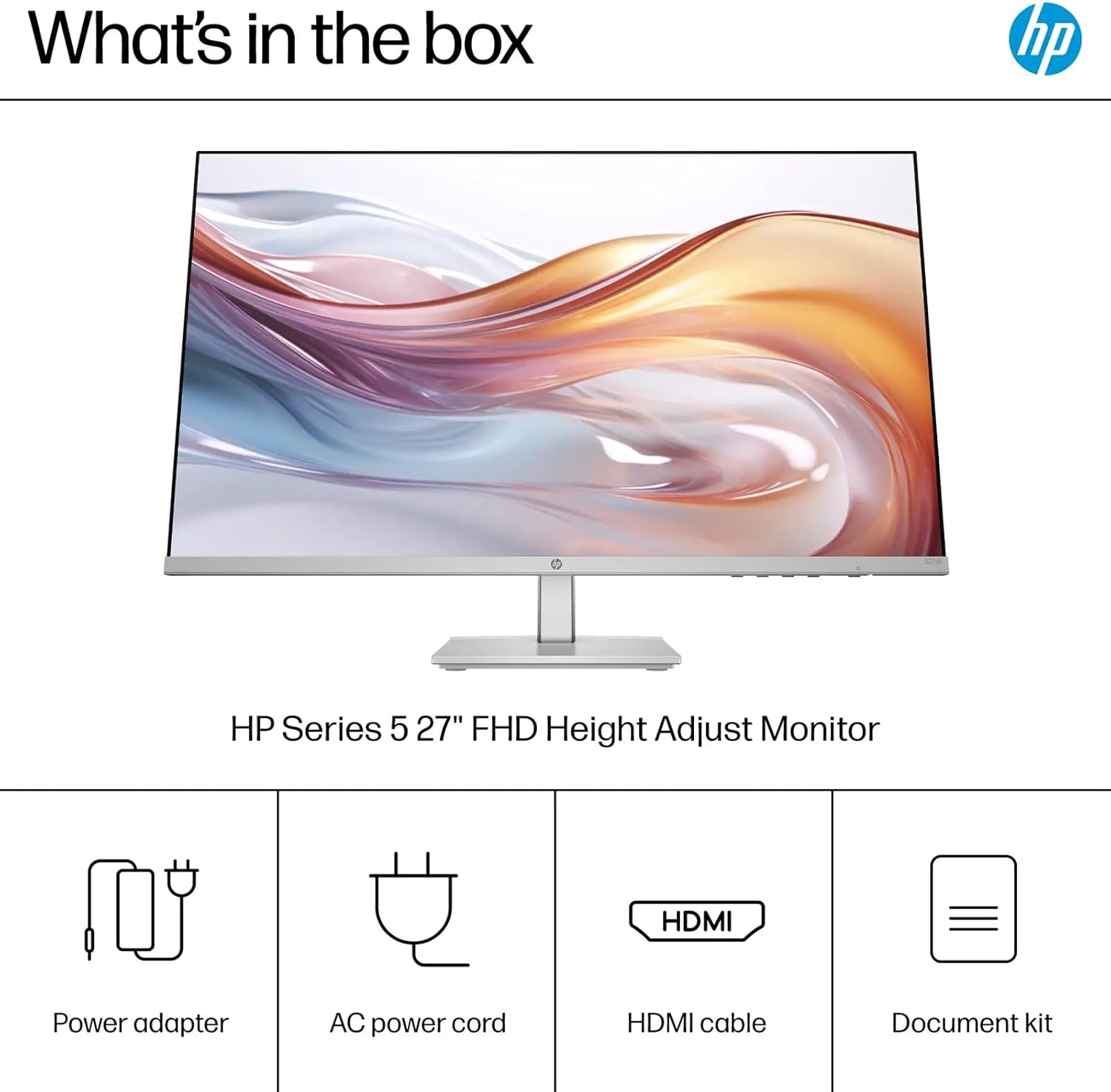
Figure 2: Included items in the monitor packaging
3. Setup
3.1. Physical Assembly
- Carefully remove the monitor and its components from the packaging.
- Attach the stand base to the monitor column, ensuring it clicks securely into place.
- Place the assembled monitor on a stable, flat surface.
3.2. Connecting to a Device
The monitor supports multiple input options:
- HDMI: Connect one end of the provided HDMI cable to an HDMI port on your computer or device, and the other end to one of the two HDMI 1.4 ports on the monitor.
- VGA: Connect a VGA cable (not included) to the VGA port on your computer and the VGA port on the monitor.
Ensure cables are securely connected. This monitor does not include internal speakers or an audio output jack.

Figure 3: Monitor Connectivity Ports
3.3. Power On
- Connect the power adapter to the monitor's power input.
- Plug the AC power cord into the power adapter and then into a wall outlet.
- Press the power button located on the bottom right bezel of the monitor to turn it on.
4. Operating the Monitor
4.1. Adjusting the Stand
The monitor features an adjustable stand for ergonomic comfort:
- Height Adjustment: Gently push or pull the monitor panel up or down to adjust its height within a 100 mm range.
- Tilt Adjustment: Tilt the monitor panel forward or backward to achieve your desired viewing angle. The tilt range is typically 5° to +25°.

Figure 4: Monitor Features and Adjustments
4.2. On-Screen Display (OSD) Controls
Access the OSD menu using the buttons located on the bottom right bezel of the monitor. These controls allow you to customize various display settings:
- Brightness: Adjust the overall luminance of the screen.
- Contrast: Modify the difference between the lightest and darkest areas of the display.
- Color Control: Fine-tune color temperature, saturation, and hue.
- Input: Select the active video input source (HDMI 1, HDMI 2, VGA).
- Image Control: Adjust sharpness, aspect ratio, and other image properties.
- Power: Manage power-saving options.
- Menu: Navigate through OSD options.
- Management: Access system information and reset settings.
- Language: Select the OSD menu language.
- Information: View current display resolution and refresh rate.
- Exit: Close the OSD menu.
4.3. HP Eye Ease
The monitor features HP Eye Ease with Eyesafe Certification, an always-on, true-color, low-blue light filter designed to help keep your eyes comfortable during extended use without compromising color accuracy.

Figure 5: Monitor in a typical office environment
5. Maintenance
5.1. Cleaning the Monitor
To maintain the clarity and appearance of your monitor, follow these cleaning guidelines:
- Always power off the monitor and unplug it from the power outlet before cleaning.
- Use a soft, lint-free microfiber cloth to gently wipe the screen and exterior surfaces.
- For stubborn smudges, lightly dampen the cloth with water or a non-abrasive, ammonia-free screen cleaner. Do not spray liquid directly onto the screen.
- Avoid using abrasive cleaners, waxes, or solvents as they can damage the monitor's surface.
6. Troubleshooting
If you encounter issues with your monitor, refer to the following common troubleshooting steps:
- No Power: Ensure the power cable is securely connected to the monitor, power adapter, and wall outlet. Check if the power outlet is functional.
- No Signal: Verify that the video cable (HDMI or VGA) is correctly connected to both the monitor and your computer. Select the correct input source using the OSD menu.
- Flickering or Distorted Image: Check the video cable for damage or loose connections. Ensure your computer's display resolution and refresh rate are compatible with the monitor's specifications.
- Display Issues: Reset the monitor to factory default settings via the OSD menu. Adjust brightness, contrast, and color settings as needed.
For further assistance, consult the HP support website or contact customer service.
7. Specifications
| Feature | Specification |
|---|---|
| Display Size | 27 Inches |
| Panel Type | IPS |
| Resolution (Maximum) | FHD (1920x1080) |
| Aspect Ratio | 16:9 |
| Refresh Rate | 100 Hz |
| Response Time | 5ms GtG (with overdrive) |
| Brightness | 300 nits |
| Contrast Ratio | 1500:1 |
| Color Gamut | 99% sRGB |
| Viewing Angle | 178° Vertical and Horizontal |
| Connectivity | 2x HDMI 1.4, 1x VGA |
| Height Adjustment Range | 100 mm |
| Tilt Adjustment | 5° to +25° |
| Special Features | HP Eye Ease (Eyesafe Certified), Anti-glare, On-screen controls |
| Product Dimensions (WxDxH) | 23.93 x 8.35 x 19.7 inches |
| Item Weight | 9.15 pounds |

Figure 6: Monitor Dimensions
8. Environmental Information
HP is committed to environmental sustainability. This monitor incorporates eco-friendly design principles:
- Designed using 85% recycled materials and 5% ocean-bound plastics.
- EPEAT Gold registered.
- ENERGY STAR Certified.

Figure 7: Environmental Certifications
9. Warranty and Support
Your HP Series 5 527sh monitor comes with a standard manufacturer's warranty. Please refer to the document kit included in your packaging for detailed warranty terms and conditions.
For technical support, product registration, or to access additional resources, visit the official HP support website or contact HP customer service.