
Introduction
Thank you for purchasing the Docooler Hands-Free 2D Barcode Scanner. This device is designed for efficient and accurate scanning of 1D and 2D barcodes in various retail and point-of-sale environments. Please read this manual carefully before use to ensure proper operation and to maximize the lifespan of your scanner.
Setup
Package Contents
- 1 x Docooler Hands-Free 2D Barcode Scanner
- 1 x User Manual
Connecting the Scanner
- Place the scanner on a stable, flat surface near your computer or POS system.
- Connect the integrated USB cable from the scanner to an available USB port on your computer or POS system.
- The scanner will power on automatically. Most operating systems will recognize the device as a standard USB-HID keyboard or USB-COM virtual serial port, requiring no additional driver installation.
The scanner supports both USB-HID keyboard and USB-COM virtual serial port communication interfaces. The default mode is typically USB-HID, which functions like a keyboard input.
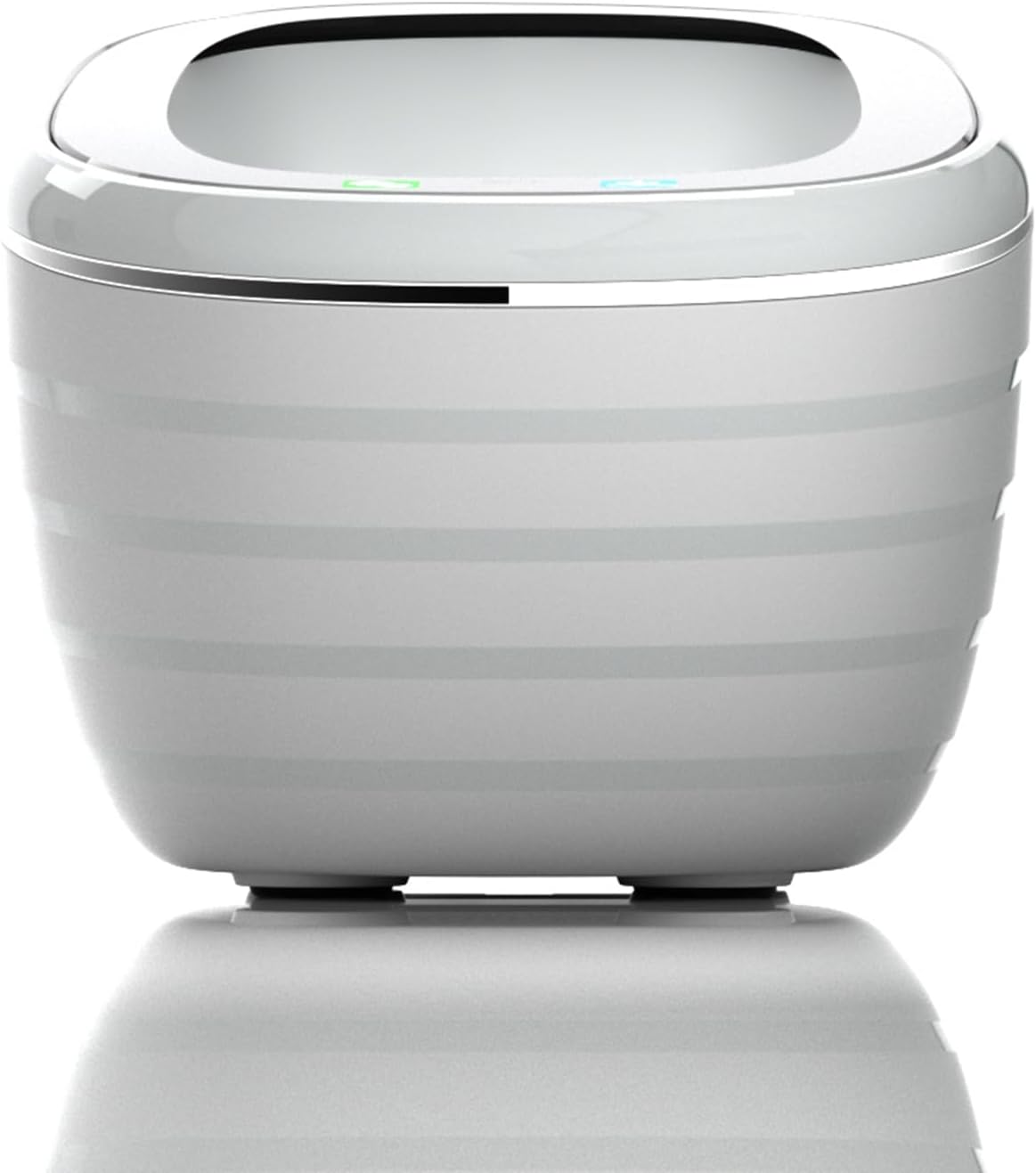
Front view of the Docooler 2D Barcode Scanner, showing its compact and ergonomic design.

Back view of the Docooler 2D Barcode Scanner, highlighting the USB cable connection port.
Operating Instructions
Scanning Modes
The scanner offers flexible dual operation modes to suit various needs:
- Automatic Detection Mode: The scanner automatically detects a barcode placed within its scanning window and initiates a scan. This is an energy-saving mode.
- Continuous Scan Mode: The scanner's illumination remains on, continuously scanning for barcodes. This mode is suitable for high-volume scanning without interruption.
To switch between these modes, refer to the setting codes provided in the full user manual (if applicable) or follow specific instructions for your model. Some models allow switching by pressing and holding the top button for 5 seconds to toggle between a 'product code mode' and 'normal mode', which may correspond to different sets of enabled barcode types.

The scanner supports both continuous scanning and automatic detection modes for operational flexibility.
Barcode Decoding Capability
This scanner is capable of decoding a wide range of 1D and 2D barcodes, including but not limited to:
- 1D Barcodes: UPC/EAN, Code128, Code39, ITF25, etc.
- 2D Barcodes: QR Code, DataMatrix, PDF417, etc.

The scanner efficiently decodes various 1D and 2D barcode types.
Voice Announcement and Tone Settings
The scanner features a voice broadcast function that announces scan results, enhancing user efficiency and accessibility. The speaker prompt method can be turned on or off by scanning specific setting codes. Additionally, you can adjust the tone settings:
- The scanner offers various frequencies of tones, with a total of 4 styles of tones and a mute mode.
- To change these modes, click the top button when the light is off.

The scanner offers adjustable tone and mute modes for user preference.

Voice announcements enhance the user experience by confirming successful scans.
Scanning Window and Angle
The scanner is designed with an expanded scanning window and an ergonomic 90-degree scan angle for ease of use and efficient barcode capture. This design simplifies the scanning process and reduces scan time.

The large scan window and ergonomic scan angle facilitate easy and accurate barcode reading.
Maintenance
To ensure optimal performance and longevity of your Docooler barcode scanner, follow these maintenance guidelines:
- Cleaning: Use a soft, dry, lint-free cloth to clean the scanner's exterior. For the scanning window, gently wipe with a microfiber cloth. Avoid using abrasive cleaners, solvents, or excessive moisture, as these can damage the device.
- Storage: Store the scanner in a cool, dry place away from direct sunlight and extreme temperatures.
- Handling: Handle the scanner with care. Avoid dropping it or subjecting it to strong impacts, which can affect its internal components and scanning accuracy.
- Cable Care: Do not bend or twist the USB cable excessively. Ensure it is not pinched or placed under heavy objects to prevent damage.
Troubleshooting
If you encounter issues with your Docooler barcode scanner, please refer to the following common troubleshooting steps:
Scanner Not Responding
- Check USB Connection: Ensure the USB cable is securely plugged into both the scanner and the computer/POS system. Try plugging it into a different USB port.
- Restart Device: Disconnect the scanner, restart your computer/POS system, and then reconnect the scanner.
- Power Source: Verify that the USB port provides sufficient power. Try connecting to a powered USB hub if available.
Unable to Scan Barcodes
- Barcode Type: Ensure the barcode type you are trying to scan is supported by the scanner. Refer to the 'Barcode Decoding Capability' section.
- Barcode Quality: Check if the barcode is clear, undamaged, and properly printed. Faded, smudged, or distorted barcodes may be difficult to read.
- Scanning Distance: Position the barcode within the optimal scanning distance (typically 0-10cm for this model) and ensure it is centered in the scanning window.
- Lighting Conditions: Ensure adequate lighting. Avoid direct glare or very dim conditions.
- Scanning Mode: Confirm the scanner is in the correct operating mode (e.g., automatic detection or continuous scan).
Incorrect Data Output
- Keyboard Layout: If the scanner is set to a different keyboard layout (e.g., Japanese instead of English), characters may appear incorrectly. Refer to the full user manual for instructions on changing keyboard layouts via setting codes.
- Software Compatibility: Ensure the application you are using is compatible with barcode scanner input.
If these steps do not resolve the issue, please contact Docooler customer support for further assistance.
Specifications
| Feature | Specification |
|---|---|
| Color | Gray |
| Scan Mode | Automatic detection / Continuous scan |
| Communication Interface | USB-HID keyboard, USB-COM virtual serial port |
| Prompt Method | Speaker (adjustable on/off via settings) |
| Setting Method | Manually scan setting codes |
| Shell Material | ABS+PC |
| Cable Specification | Straight line 1.35m |
| Product Size | 125mm × 90mm × 86mm |
| Product Weight | 200g |
| Package Size | 17cm × 11cm × 10cm |
| Package Weight | 258g |
| Brand | Docooler |
| Manufacturer | docooler |
| Connectivity Technology | USB Cable |
| Actual Angle | 90 degrees |
| Battery Used | No |
| Model Number | IEG4698344060366PA |

The scanner's compact dimensions and versatile compatibility make it suitable for various retail systems.
Warranty and Support
For warranty information and customer support, please refer to the documentation included with your purchase or visit the official Docooler website. Keep your purchase receipt as proof of purchase for warranty claims.
If you require technical assistance or have questions not covered in this manual, please contact Docooler customer service through their official channels.