
HiFuture HSSW11-AURORA
HiFuture AURORA Smartwatch User Manual
Model: HSSW11-AURORA
1. Product Overview
The HiFuture AURORA Smartwatch is designed to blend style, functionality, and innovation. It features a 1.43-inch AMOLED display, Bluetooth calling, and comprehensive health and fitness tracking capabilities. With IP68 waterproofing and a long-lasting battery, it is suitable for various activities and daily wear.

Image 1.1: Front view of the HiFuture AURORA Smartwatch in brown, showcasing its round display and brown strap.

Image 1.2: Side view of the HiFuture AURORA Smartwatch, highlighting the design of its magnetic strap.
Key Features:
- 1.43-inch AMOLED Display: Provides vibrant visuals and clear clarity.
- Bluetooth Calling: Enables seamless wireless calling directly from the watch.
- Health & Fitness Tracking: Includes heart rate monitoring, sleep analysis, and activity tracking.
- IP68 Waterproof: Offers protection against water and dust.
- Long Battery Life: Up to 6 days of battery life on a single charge.
- 170+ Sports Modes: Supports a wide range of sports and fitness activities.
- Syntra AI: Enhances daily tasks and adapts to user lifestyle.
2. Setup
2.1. Charging the Smartwatch
Before first use, fully charge your HiFuture AURORA Smartwatch. Connect the magnetic charging cable to the charging points on the back of the watch and plug the USB end into a power adapter (not included) or a computer's USB port. The watch display will indicate charging status.
2.2. Powering On/Off
- To Power On: Press and hold the side button until the HiFuture logo appears.
- To Power Off: Press and hold the side button, then select "Power Off" on the screen.
2.3. Pairing with Your Smartphone
To unlock the full potential of your AURORA Smartwatch, pair it with your smartphone via the dedicated HiFuture app.
- Download the official HiFuture app from your smartphone's app store (iOS or Android).
- Ensure Bluetooth is enabled on your smartphone.
- Open the HiFuture app and follow the on-screen instructions to add a new device.
- Select "AURORA" from the list of available devices.
- Confirm the pairing request on both your smartphone and the smartwatch.
Once paired, the watch will synchronize data with your phone, and you can customize settings, receive notifications, and manage health data through the app.
3. Operating the Smartwatch
3.1. Navigating the Display
The AURORA Smartwatch features a touch-sensitive AMOLED display for intuitive navigation.
- Swipe Up/Down: Scroll through menus and notifications.
- Swipe Left/Right: Access quick widgets or different watch faces.
- Tap: Select an item or open an application.
- Press Side Button: Return to the home screen or access the app list.

Image 3.1: Close-up of the 1.43-inch AMOLED display, showcasing its vibrant colors and clarity.
3.2. Bluetooth Calling
The AURORA Smartwatch supports wireless calling, allowing you to make and receive calls directly from your wrist when connected to your smartphone.
- Making a Call: Access the dial pad or contacts list on the watch. Tap to dial a number or select a contact.
- Receiving a Call: When a call comes in, the watch will display the caller ID. Tap the green icon to answer or the red icon to reject.

Image 3.2: Screenshot of the smartwatch display showing the Bluetooth calling interface with a dial pad.
3.3. Health and Fitness Tracking
The smartwatch continuously monitors various health metrics and tracks your fitness activities.
- Heart Rate Monitoring: The watch measures your heart rate throughout the day. View real-time data on the watch or detailed trends in the app.
- Sleep Tracking: Automatically monitors your sleep patterns, including deep sleep, light sleep, and wake times.
- Activity Tracking: Records steps taken, distance covered, and calories burned.
- Sports Modes: Select from over 170 sports modes to accurately track specific workouts. Common modes include outdoor run, indoor walk, cycling, and various exercises.

Image 3.3: Display showing various health tracking features including heart rate, sleep analysis, and suggested workouts.
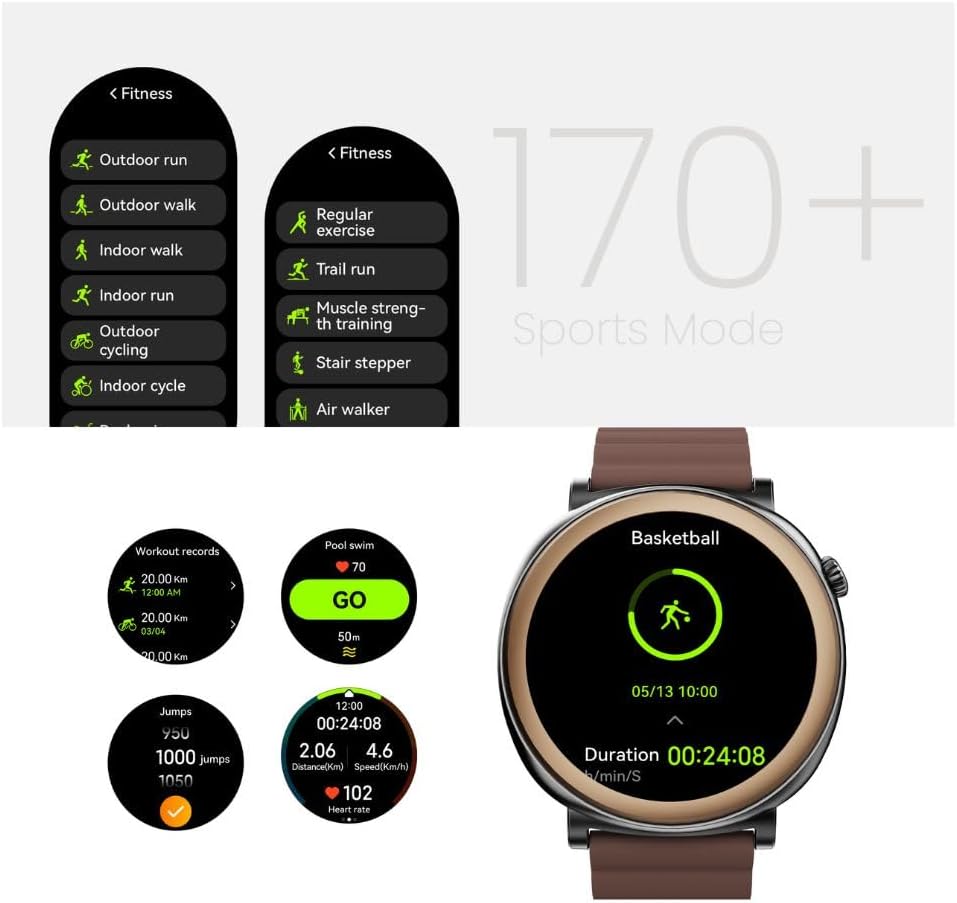
Image 3.4: Screenshots illustrating the wide range of sports modes available on the smartwatch, such as outdoor run, indoor walk, and basketball tracking.
4. Maintenance
4.1. Cleaning Your Smartwatch
Regular cleaning helps maintain the appearance and functionality of your smartwatch.
- Wipe the screen and body with a soft, lint-free cloth.
- For stubborn smudges, slightly dampen the cloth with water. Avoid using harsh chemicals or abrasive materials.
- Clean the charging contacts periodically to ensure proper charging.
4.2. Water Resistance (IP68)
The HiFuture AURORA Smartwatch is IP68 rated, meaning it is protected against dust ingress and can withstand immersion in water up to 1.5 meters for up to 30 minutes. While it is suitable for daily use, hand washing, and light rain, it is not recommended for diving, high-pressure water activities, or prolonged submersion.

Image 4.1: The smartwatch being splashed with water, demonstrating its IP68 water resistance.
After exposure to water, ensure the watch is completely dry before charging to prevent damage to the charging contacts.
5. Troubleshooting
Common Issues and Solutions:
| Issue | Possible Solution |
|---|---|
| Watch not turning on | Ensure the watch is fully charged. Connect it to the charger for at least 30 minutes. |
| Unable to pair with smartphone |
|
| Inaccurate health data | Ensure the watch is worn snugly on your wrist, not too loose or too tight. Clean the sensor on the back of the watch. |
| Notifications not received |
|
| Short battery life | Reduce screen brightness, disable unnecessary features like always-on display, and limit frequent heart rate monitoring. |
If you encounter issues not listed here, please refer to the official HiFuture support website or contact customer service.
6. Specifications
| Feature | Detail |
|---|---|
| Model Number | HSSW11-AURORA |
| Display | 1.43-inch AMOLED |
| Connectivity | Bluetooth |
| Water Resistance | IP68 |
| Battery Life | Up to 6 days (typical usage) |
| Special Features | Voice Call, Multisport Tracker, Activity Tracker, Notifications, Heart Rate Monitor |
| Dimensions (Package) | 10.5 x 10.3 x 6.7 cm |
| Weight (Package) | 190 g |
7. Warranty and Support
7.1. Warranty Information
The HiFuture AURORA Smartwatch comes with a standard manufacturer's warranty. Please refer to the warranty card included in your product packaging for specific terms and conditions, including warranty period and coverage details. Keep your purchase receipt as proof of purchase for warranty claims.
Extended warranty options may be available from third-party providers. For example, 1-Year and 2-Year Extended Warranties by Salama Care are mentioned as available options for this product.
7.2. Customer Support
For technical assistance, troubleshooting, or warranty inquiries, please visit the official HiFuture website or contact their customer support. You can often find FAQs, software updates, and contact information on their support pages.
Note: Always purchase from authorized retailers to ensure valid warranty coverage.
Related documentsHSSW11-AURORA


Ask a question about this manual
Ask about setup, troubleshooting, compatibility, parts, safety, or missing instructions. Manuals+ will review the question and use this page’s manual context to help answer it.