
1. Introduction
The MCHOSE X75 V2 is a versatile 75% layout wireless mechanical keyboard designed for enhanced productivity and gaming. It features tri-mode connectivity (Bluetooth 5.0, 2.4GHz wireless, and USB-C wired), hot-swappable switches for customization, vibrant RGB lighting, and an ergonomic design for comfortable use. This manual provides comprehensive instructions for setting up, operating, maintaining, and troubleshooting your X75 V2 keyboard.

Top-down view of the MCHOSE X75 V2 Wireless Mechanical Keyboard in Retro White.
2. What's in the Box
- MCHOSE X75 V2 Keyboard
- Keycap & Switch Puller
- USB Cable (Type-C)
- 2.4GHz Receiver
- 2 x Replace Switch
- Dust Cover
- User Manual (this document)

Contents of the MCHOSE X75 V2 keyboard package.
3. Setup
3.1 Connectivity Modes
The MCHOSE X75 V2 supports three connection modes:
- 2.4GHz Wireless: For a stable, low-latency connection. The 2.4GHz receiver is conveniently stored in a hidden magnetic side plate on the right side of the keyboard.
- Bluetooth 5.0: For wireless connection to multiple devices (up to 3) with easy switching.
- USB-C Wired: For a direct, reliable connection and charging.
Switch between modes using the dedicated button on the right side of the keyboard.

Tri-mode connectivity and wide compatibility of the MCHOSE X75 V2 keyboard.

Ergonomic design details, including the USB receiver container.
3.2 Charging
The keyboard is equipped with an 8000mAh battery. Connect the supplied USB-C cable to the keyboard's Type-C port and to a power source (e.g., computer USB port, wall adapter) to charge. The RGB lighting can indicate battery status.
4. Operating Instructions
4.1 RGB Lighting Control
The X75 V2 features per-key RGB lighting and an atmosphere light bar with 16.8 million colors and various effects. Adjustments can be made directly on the keyboard:
- Fn + Tab: Switch backlight color.
- Fn + \|: Switch backlight mode.
- Fn + Up Arrow: Increase backlight brightness.
- Fn + Down Arrow: Decrease backlight brightness.
- Fn + Left Arrow: Decrease backlight speed.
- Fn + Right Arrow: Increase backlight speed.
- Fn + Right Shift: Switch atmosphere lighting mode.
- Fn + B: Switch ambient light strip to power mode.
- Fn + Z: Switch atmosphere lighting color.

RGB Backlighting and Atmosphere Lighting Settings.
4.2 Embedded Multimedia Knob
The convenient multimedia knob located on the left side allows for seamless adjustment of media volume. Rotate the knob to increase or decrease volume. Press the knob to mute/unmute audio.
4.3 Hot-Swappable Switches
The X75 V2 features hot-swappable PCB sockets, allowing you to easily change 3-pin and 5-pin mechanical switches without soldering. Use the included keycap and switch puller to remove and replace switches. This enables customization of typing feel and sound.

Hot-Swappable PCBA for customized typing experience.
4.4 MCHOSE HUB Software
For advanced customization, download and install the MCHOSE HUB software. This software allows you to:
- Remap keys.
- Configure lighting effects and colors.
- Adjust polling rate settings.
- Create and manage macros.
Visit the official MCHOSE website (mchose.store) and navigate to the 'Drivers & Firmwares' section to download the MCHOSE HUB driver.
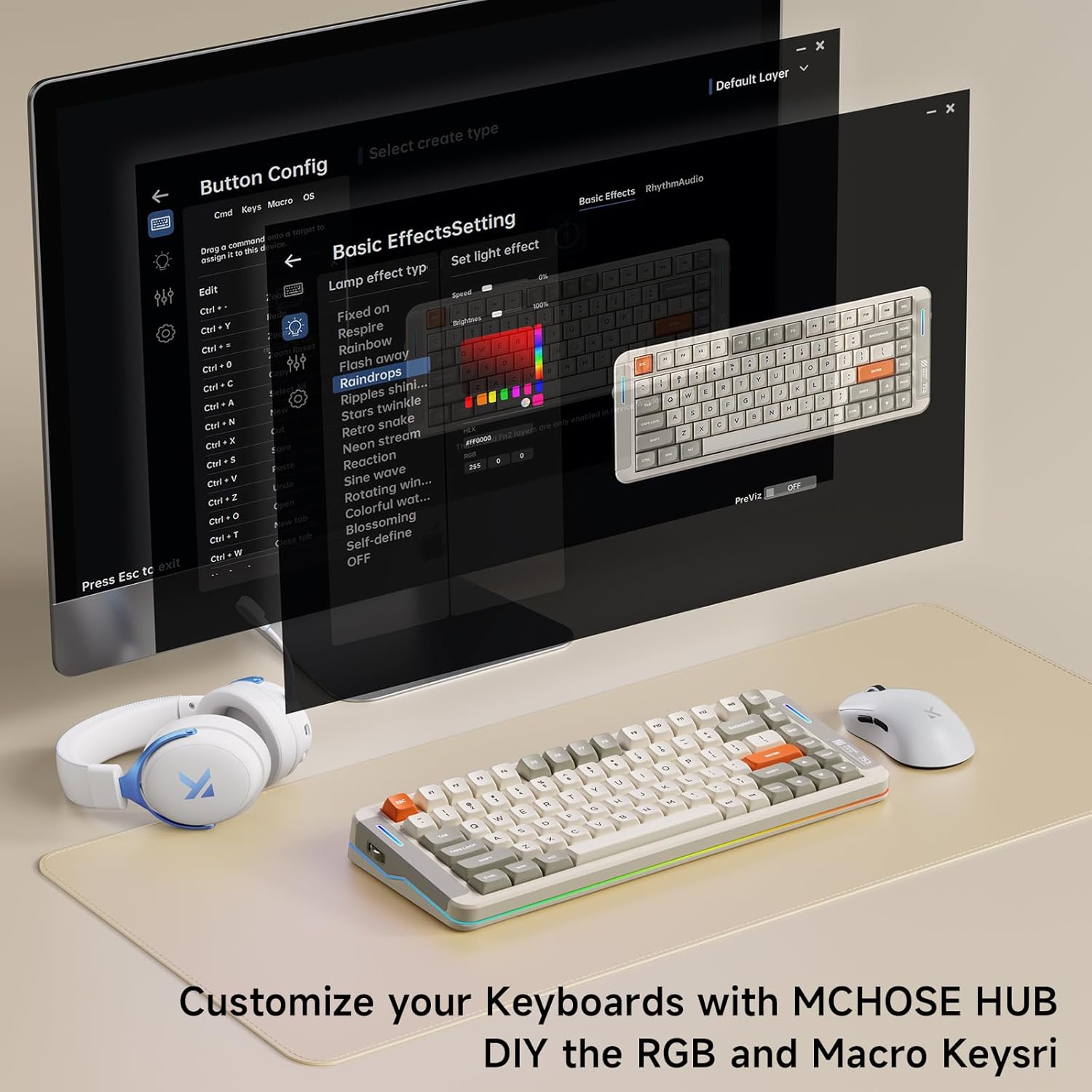
Customize your keyboard with MCHOSE HUB software.
This video provides instructions on how to connect and use the MCHOSE Web driver and Desktop driver software for the MCHOSE X75 V2 keyboard, enabling customization of settings and features.
An introductory video showcasing the MCHOSE X75 V2 Retro White mechanical keyboard, highlighting its design, features, and immersive lighting effects.
A sound test video demonstrating the typing acoustics of the MCHOSE X75 V2 mechanical keyboard, showcasing the 'creamy' sound profile of its linear switches.
5. Maintenance
5.1 Cleaning
To maintain your keyboard's performance and appearance:
- Regularly dust the keyboard using compressed air or a soft brush.
- For keycaps, gently remove them using the keycap puller and clean with a damp cloth and mild soap solution if necessary. Ensure they are completely dry before reattaching.
- Wipe the keyboard surface with a soft, lint-free cloth. Avoid harsh chemicals.
5.2 Switch and Keycap Replacement
As the X75 V2 is hot-swappable, you can easily replace individual switches or keycaps. Use the provided tools to carefully remove components. When inserting new switches, ensure the pins align correctly with the PCB sockets to avoid bending.
6. Troubleshooting
- Keyboard not responding: Ensure the keyboard is charged. Check the connection mode (2.4GHz, Bluetooth, USB-C) and ensure it matches your device's setting. For 2.4GHz, verify the receiver is properly inserted. For Bluetooth, ensure it's paired correctly.
- Lag or disconnections in wireless mode: Ensure the keyboard is within range of the receiver/device. Minimize interference from other wireless devices. Update keyboard firmware via MCHOSE HUB.
- RGB lighting issues: Check lighting settings using Fn key combinations. Ensure MCHOSE HUB software is updated and configured correctly.
- Keys not registering: If a specific key is not working, it might be a faulty switch. Utilize the hot-swappable feature to replace the switch with one of the spares provided or a new compatible switch.
- Software not detecting keyboard: Ensure the keyboard is connected via USB-C. Reinstall MCHOSE HUB software.
7. Specifications
| Feature | Detail |
|---|---|
| Product Dimensions | 13.7 x 5.5 x 1.57 inches |
| Item Weight | 3.43 pounds |
| Manufacturer | MCHOSE |
| Item model number | X75 V2 |
| Batteries | 1 Lithium Polymer batteries required. (included) |
| Connectivity Technology | 2.4GHz Wireless, BT5.0, USB-C |
| Keyboard Description | Mechanical |
| Special Feature | Ergonomic, Backlit, Rechargeable, Customizable Display Keys, Hot-Swappable |
| Color | White (Retro) |
| Number of Keys | 82 |
| Keyboard backlighting color support | RGB |

Internal structure of the MCHOSE X75 V2 keyboard, highlighting the 5-Layer Gasket Structure.
8. Warranty and Support
For warranty information, technical support, and the latest drivers or firmware updates, please visit the official MCHOSE website: mchose.store. You can also find additional support resources and FAQs there.