
CHROX TX98 PRO+
CHROX TX98 PRO+ Android 14.0 TV Box User Manual
Model: TX98 PRO+
1. Introduction
This manual provides detailed instructions for the setup, operation, and maintenance of your CHROX TX98 PRO+ Android 14.0 TV Box. Please read this guide thoroughly before using the device to ensure proper functionality and to maximize your viewing experience. The CHROX TX98 PRO+ is designed to transform your television into a smart entertainment hub, offering access to a wide range of applications, streaming services, and media content.
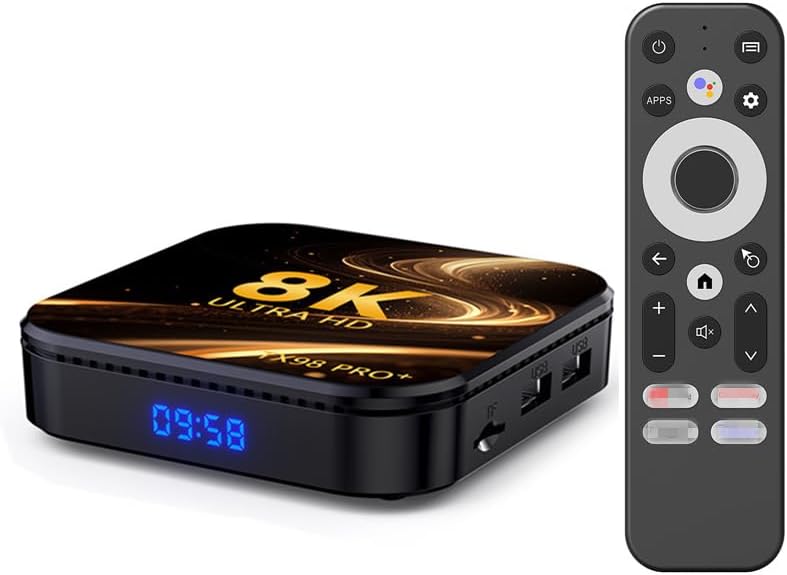
Image 1.1: The CHROX TX98 PRO+ Android TV Box and its accompanying remote control.
2. Package Contents
Before proceeding with the setup, please verify that all items listed below are included in your package. If any items are missing or damaged, please contact customer support.
- 1 x CHROX TX98 PRO+ Android 14.0 TV Box
- 1 x Remote Control
- 1 x HD Cable (HDMI Cable)
- 1 x Power Adapter (DC 5V/2.5A)
- 1 x User Manual (this document)

Image 2.1: Visual representation of the items included in the product package.
3. Product Overview
The CHROX TX98 PRO+ features a compact design with various ports for connectivity. Familiarize yourself with the device's layout and available interfaces.
3.1 Device Components
- Front Panel: Digital display (time/status).
- Side Panel: USB ports, TF Card slot.
- Rear Panel: Power input, HDMI output, Ethernet port, AV port, SPDIF port.
3.2 Available Interfaces

Image 3.1: Illustration of the various input and output ports on the CHROX TX98 PRO+ TV Box.
- USB 3.0 Port: For high-speed data transfer with external storage devices.
- USB 2.0 Port: For connecting peripherals like keyboards, mice, or USB drives.
- TF Card Slot: Supports Micro SD cards for expanded storage.
- HDMI 2.0a Output: Connects to your TV or display for video and audio output (supports up to 4K@60Hz).
- AV Port: For connecting to older televisions using an AV cable (not included).
- LAN (Ethernet) Port: For wired network connection (10/1000M).
- DC 5V Power Input: Connects to the provided power adapter.
- SPDIF Port: For digital audio output to compatible audio systems.
4. Setup Guide
Follow these steps to set up your CHROX TX98 PRO+ Android TV Box.
- Connect to TV: Connect one end of the provided HDMI cable to the HDMI port on the TV Box and the other end to an available HDMI input on your television.
- Connect Power: Plug the power adapter into the DC 5V port on the TV Box, then plug the adapter into a wall outlet.
- Power On: The TV Box should automatically power on. If not, press the power button on the remote control or the device.
- Select Input: On your television, select the correct HDMI input source using your TV's remote control.
- Initial Setup: Follow the on-screen instructions to complete the initial setup, including language selection, network connection, and Google account login.
5. Operating Instructions
5.1 Remote Control Functions
The included remote control allows you to navigate the Android interface and control media playback.
- Power Button: Turns the device on or off.
- Navigation Pad: Use the directional arrows to move through menus and select items.
- OK Button: Confirms selections.
- Back Button: Returns to the previous screen.
- Home Button: Returns to the main home screen.
- Volume Buttons: Adjusts the audio volume.
- Apps Button: Accesses the installed applications list.
- Settings Button: Opens the system settings menu.
5.2 Navigating the Android Interface
The CHROX TX98 PRO+ runs on Android 14.0, providing a user-friendly interface.
- Home Screen: Displays frequently used apps, recommended content, and system information.
- App Drawer: Access all installed applications.
- Settings: Customize network, display, sound, and other system preferences.
5.3 Installing Applications
You can download and install applications from the Google Play Store or other compatible sources.
- Ensure the TV Box is connected to the internet.
- Navigate to the Google Play Store app on the home screen or app drawer.
- Search for your desired application.
- Select the app and choose "Install".
6. Connectivity
6.1 Wi-Fi Connection
The device supports dual-band 2.4G/5G Wi-Fi 6 for fast and stable wireless internet access.
- Go to Settings > Network & Internet > Wi-Fi.
- Turn Wi-Fi On.
- Select your desired Wi-Fi network from the list.
- Enter the network password if prompted and select Connect.
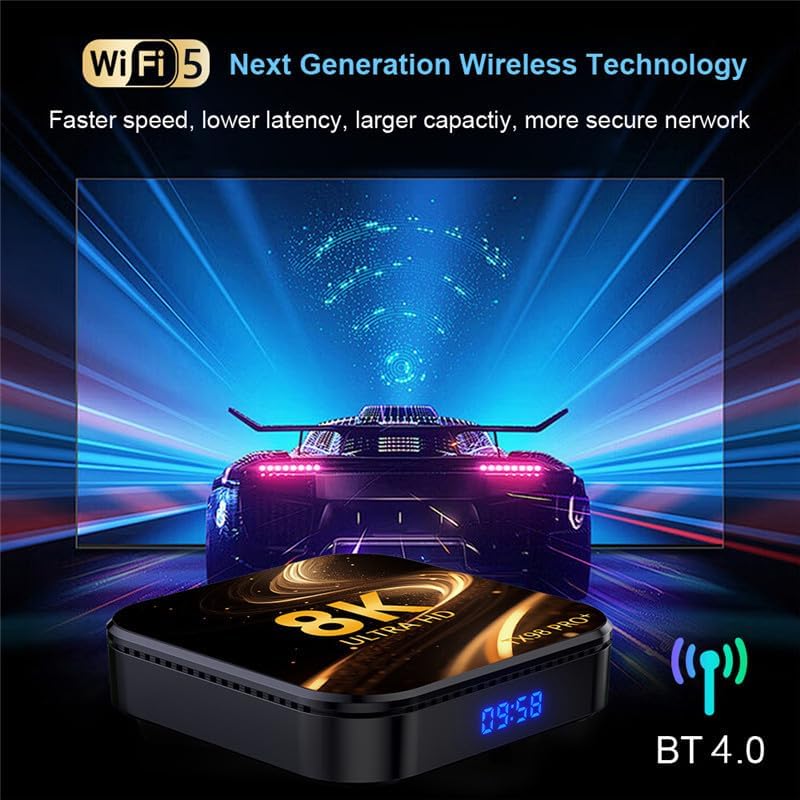
Image 6.1: The TV Box supports advanced wireless technologies for network connectivity. Note: While the image shows "Wi-Fi 5", the product supports Wi-Fi 6 for enhanced performance.
6.2 Ethernet Connection
For a more stable internet connection, you can use a wired Ethernet connection.
- Connect an Ethernet cable from your router or modem to the LAN port on the TV Box.
- The device will automatically detect and connect to the wired network.
6.3 Bluetooth Pairing
The TV Box features Bluetooth 4.0 for connecting wireless accessories like headphones, speakers, or game controllers.
- Go to Settings > Connected devices > Pair new device.
- Put your Bluetooth device into pairing mode.
- Select your device from the list on the TV screen to pair.
6.4 Multi-Screen Interaction
The CHROX TX98 PRO+ supports multi-screen interaction technologies like DLNA and Miracast, allowing you to cast content from your mobile phone or tablet to your TV.
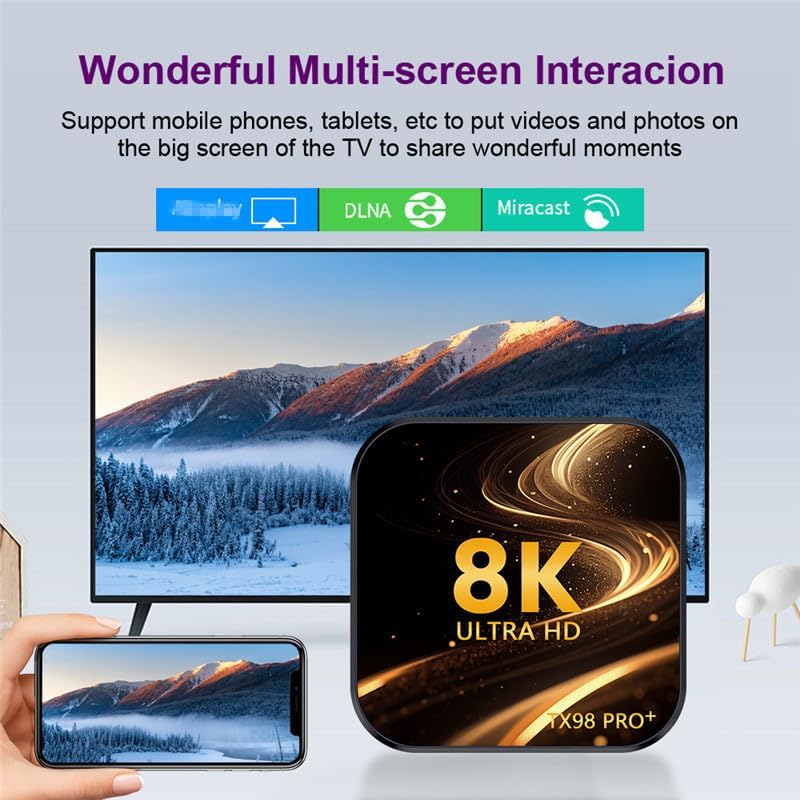
Image 6.2: Demonstrates the ability to share content from mobile devices to the TV via the TV Box.
7. Media Playback
The CHROX TX98 PRO+ supports a wide range of media formats and high-resolution video playback, including 8K and 4K content.
7.1 High-Resolution Video
Experience stunning visuals with support for 8K and 4K video decoding. The device utilizes H.265 technology for efficient playback, reducing bandwidth and storage requirements.

Image 7.1: The TV Box is capable of decoding and displaying 8K resolution video content.
7.2 HDR10 Support
With HDR10 support, the TV Box delivers a wider range of colors and deeper contrast, resulting in a more vivid and immersive viewing experience.

Image 7.2: Comparison illustrating the enhanced visual quality with HDR10 enabled.
7.3 Supported Media Formats
- Decoder Formats: 4K VP9, H.265/H.264, 1080P (VC-1, MPEG-1/2/4, VP6/8).
- Media Formats: Avi, Ts, Vob, Mkv, Mov, ISO, wmv, asf, flv, dat, mpg, mpeg.
- Music Formats: MP3, WMA, AAC, WAV, OGG, DDP, HD, FLAC, APE.
- Photo Formats: HD JPEG, BMP, GIF, PNG, TIFF.
8. Maintenance
To ensure the longevity and optimal performance of your CHROX TX98 PRO+ TV Box, follow these maintenance guidelines:
- Cleaning: Use a soft, dry cloth to clean the device. Avoid liquid cleaners or abrasive materials.
- Ventilation: Ensure the device is placed in a well-ventilated area to prevent overheating. Do not block ventilation openings.
- Power Off: When not in use for extended periods, disconnect the power adapter from the wall outlet.
- Software Updates: Periodically check for and install system updates to ensure the latest features and security patches.
9. Troubleshooting
If you encounter issues with your CHROX TX98 PRO+ TV Box, refer to the following common problems and solutions.
| Problem | Possible Cause | Solution |
|---|---|---|
| No power | Power adapter not connected or faulty. | Ensure the power adapter is securely connected to the device and a working power outlet. Try a different outlet. |
| No signal on TV | Incorrect HDMI input selected or loose HDMI cable. | Verify the TV is on the correct HDMI input. Check that the HDMI cable is securely connected to both the TV Box and the TV. |
| Wi-Fi connection issues | Incorrect password, weak signal, or router issue. | Re-enter the Wi-Fi password carefully. Move the TV Box closer to the router. Restart your router and the TV Box. |
| Remote control not responding | Low batteries or obstruction. | Replace the batteries in the remote control. Ensure there are no obstructions between the remote and the TV Box. |
| Applications crashing or freezing | Insufficient memory or app compatibility issues. | Close background applications. Clear app cache (Settings > Apps > [App Name] > Clear Cache). Restart the TV Box. |
If the problem persists after trying these solutions, please contact CHROX customer support for further assistance.
10. Specifications
Detailed technical specifications for the CHROX TX98 PRO+ Android 14.0 TV Box.
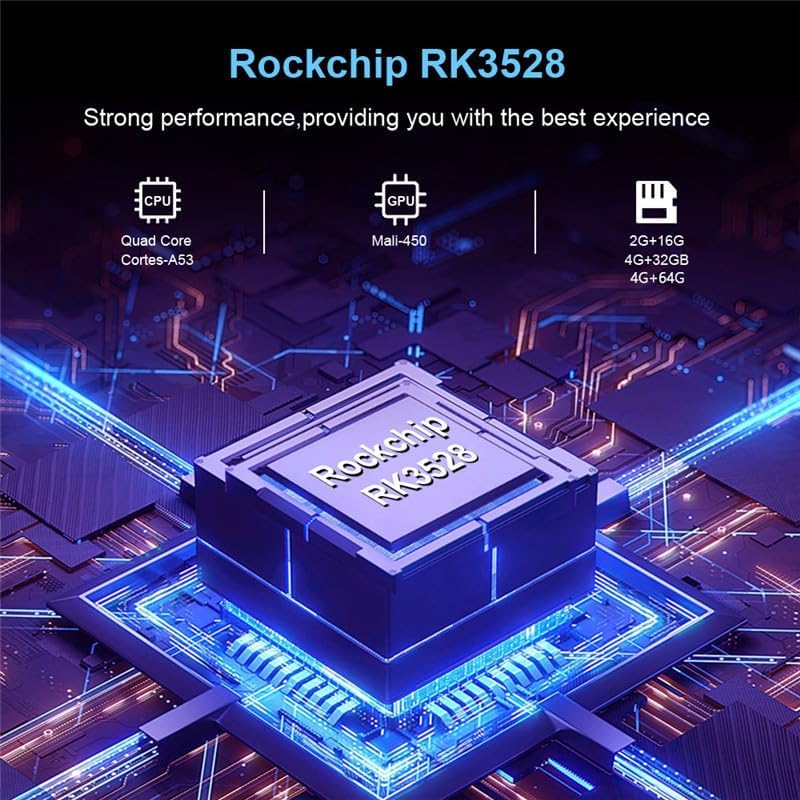
Image 10.1: Overview of the Rockchip RK3528 processor, highlighting its CPU, GPU, and memory configurations.
| Feature | Detail |
|---|---|
| Operating System | Android 14.0 |
| CPU | RK3528 Quad-Core 64-bit ARM Cortex-A53 |
| GPU | Penta-Core Mali-450 |
| SDRAM | 4 GB |
| ROM Flash | 32 GB (available in 32GB/64GB variants) |
| Wi-Fi | 2.4G/5G Dual-band Wi-Fi 6 (802.11 a/b/g/n/ac/ax) |
| Bluetooth | 4.0 |
| LAN Ethernet | 10/1000M Standard RJ-45 |
| USB Ports | 1 x USB 3.0, 1 x USB 2.0 |
| HDMI Output | HDMI 2.0a for 4K@60Hz |
| Other Ports | 1 x AV, 1 x Micro SD Card Reader, 1 x Power DC 5V/2.5A, 1 x SPDIF |
| Video Decoder Support | 4K VP9, H.265/H.264, 1080P (VC-1, MPEG-1/2/4, VP6/8) |
| HDR Support | HDR10 |
| OSD Languages | English, French, German, Spanish, Italian, etc. |
11. Safety Information
Please observe the following safety precautions to prevent damage to the device or personal injury:
- Do not expose the device to water, moisture, or extreme temperatures.
- Avoid dropping or subjecting the device to severe impact.
- Do not attempt to open or repair the device yourself. Refer all servicing to qualified personnel.
- Use only the provided power adapter. Using unauthorized adapters may damage the device and void the warranty.
- Keep the device away from direct sunlight and heat sources.
12. Warranty and Support
Your CHROX TX98 PRO+ Android 14.0 TV Box comes with a standard manufacturer's warranty. For specific warranty terms and conditions, please refer to the documentation included with your purchase or contact your retailer.
For technical support, troubleshooting assistance beyond what is provided in this manual, or inquiries regarding your product, please contact CHROX customer service.
Customer Support: Please refer to your purchase receipt or the CHROX official website for contact information.
Ask a question about this manual
Ask about setup, troubleshooting, compatibility, parts, safety, or missing instructions. Manuals+ will review the question and use this page’s manual context to help answer it.