
1. Introduction
This manual provides essential information for setting up, operating, maintaining, and troubleshooting your Lenovo IdeaCentre Tower Desktop Computer. The IdeaCentre Tower is designed for productivity, offering robust performance for various tasks.
The system features Intel Core processors and integrated Intel graphics, supporting multitasking and efficient file management. Its design incorporates easily accessible ports and advanced connectivity options like WiFi 6E and 1G LAN.
For optimal performance and longevity, please read this manual thoroughly before using your computer.
2. What's in the Box
Verify that all items are present in the packaging:
- Lenovo IdeaCentre Tower Desktop Computer
- USB Keyboard
- USB Mouse
- Power Cable
- Quick Start Guide

Image: Front view of the Lenovo IdeaCentre Tower Desktop Computer.
3. Initial Setup
Follow these steps to set up your Lenovo IdeaCentre Tower:
- Unpack the Computer: Carefully remove the computer and all accessories from the packaging.
- Connect Peripherals:
- Connect the USB Keyboard to an available USB port on the computer.
- Connect the USB Mouse to another available USB port.
- Connect your monitor to the computer using an HDMI or VGA cable. Ensure the cable is securely fastened to both the computer's video output port and the monitor's input port.
- If connecting to a wired network, plug an Ethernet cable into the RJ45 port on the back of the computer.
- Connect Power: Plug the power cable into the power connector on the back of the computer, then plug the other end into a grounded electrical outlet.
- Power On: Press the power button located on the front of the computer.
- Initial Windows Setup: Follow the on-screen instructions to complete the Windows 11 Pro setup, including language, region, network connection, and user account creation.

Image: Rear view of the computer, highlighting various connectivity ports including HDMI, VGA, USB, and Ethernet.

Image: Front view of the computer with labels indicating the power button, optical disk drive, headphone/mic combo jack, USB-C, and USB-A ports.
4. Operating Your Computer
4.1 Power On/Off
- To Power On: Press the power button on the front panel.
- To Shut Down: Click the Windows Start button, then select Power > Shut down.
- To Restart: Click the Windows Start button, then select Power > Restart.
- To Sleep: Click the Windows Start button, then select Power > Sleep.
4.2 Using the Optical Drive
The integrated DVD-RW drive allows you to read and write CDs and DVDs. Press the eject button on the drive to open the tray, insert your disc, and close the tray.
4.3 Connecting to the Internet
- Wired Connection: If you connected an Ethernet cable during setup, your computer should automatically connect to the internet.
- Wireless Connection (Wi-Fi):
- Click the Wi-Fi icon in the system tray (bottom right of the screen).
- Select your desired Wi-Fi network from the list.
- Click "Connect" and enter the network security key (password) if prompted.

Image: The IdeaCentre Tower connected to a monitor, demonstrating a typical desktop setup with internet connectivity.
5. Maintenance and Care
- Cleaning: Use a soft, dry cloth to clean the exterior of the computer. For the screen, use a specialized screen cleaner and a microfiber cloth. Avoid abrasive cleaners or solvents.
- Software Updates: Regularly check for and install Windows updates and driver updates to ensure optimal performance and security.
- Ventilation: Ensure that the computer's ventilation openings are not blocked to prevent overheating. Maintain adequate space around the tower for airflow.
- Data Backup: Periodically back up important data to an external drive or cloud storage to prevent data loss.
- Antivirus Software: Keep your antivirus software updated and perform regular scans to protect against malware.
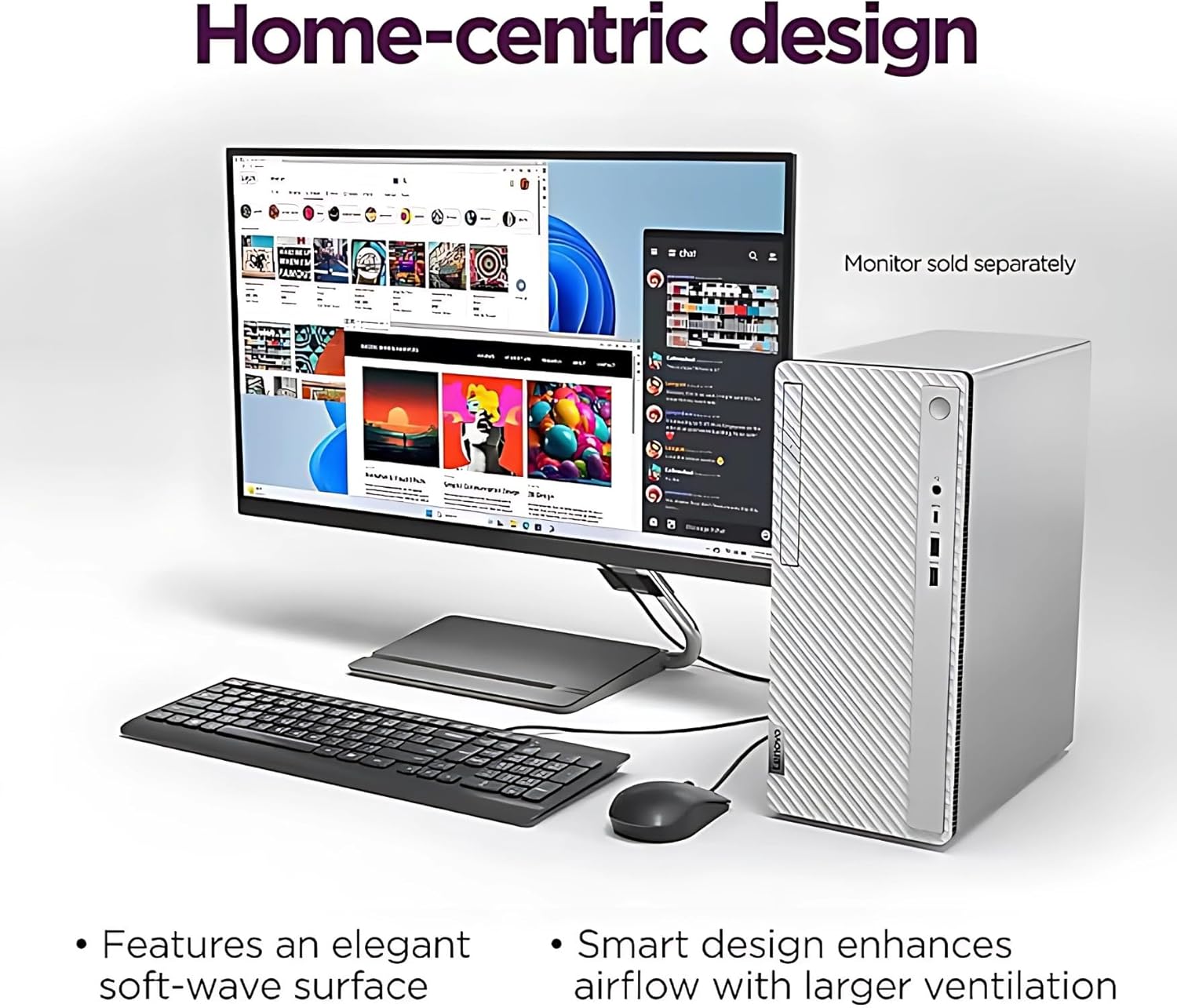
Image: The IdeaCentre Tower integrated into a home environment, illustrating its compact and airflow-optimized design.
6. Troubleshooting
This section addresses common issues you might encounter:
- No Power:
- Ensure the power cable is securely connected to both the computer and the electrical outlet.
- Verify the power outlet is functional by plugging in another device.
- Check the power supply unit (PSU) switch on the back of the computer, if present, to ensure it is in the 'On' position.
- No Display on Monitor:
- Confirm the monitor is powered on and its power indicator light is active.
- Check that the video cable (HDMI/VGA) is securely connected to both the computer and the monitor.
- Ensure the correct input source is selected on your monitor.
- Keyboard or Mouse Not Responding:
- Verify that the USB cables for the keyboard and mouse are securely plugged into the computer's USB ports.
- Try plugging them into different USB ports.
- If wireless, ensure batteries are charged and the receiver is properly connected.
- No Internet Connection:
- For wired connections, check the Ethernet cable and your router/modem status.
- For Wi-Fi, ensure Wi-Fi is enabled on the computer and you are connected to the correct network with the correct password.
- Restart your router/modem.
7. Technical Specifications
| Component | Specification |
|---|---|
| Processor | 14th Generation Intel Core i7-14700 (20-Core, 2.10 GHz, up to 5.40 GHz Turbo Boost) |
| RAM | 96GB DDR5 4800MHz |
| Storage | 512GB PCIe NVMe SSD + 1TB HDD (7200 RPM) |
| Graphics | Intel UHD Graphics 770 (Integrated) |
| Optical Drive | DVD-RW Slim Optical Drive |
| Operating System | Windows 11 Pro (64-bit) |
| Wireless Connectivity | WiFi 6E 802.11AX (2x2) + Bluetooth 5.3 |
| Ethernet | Gigabit Ethernet Controller (RJ45) |
| Front Ports | 1x USB-C 5Gbps, 2x USB-A 5Gbps, 1x Headphone / Mic Combo |
| Rear Ports | 1x HDMI 2.1 TMDS, 1x VGA, 4x USB-A 480Mbps, 1x Audio out |
| Dimensions (LxWxH) | 13.39 x 11.33 x 5.71 inches |
| Weight | 10.8 pounds |
| Model Number | 14IRR9 |
8. Warranty and Support
Your Lenovo IdeaCentre Tower Desktop Computer comes with a 2-Year Warranty by Techno Intelligence. This warranty covers manufacturing defects and hardware malfunctions under normal use.
For technical assistance, troubleshooting, or warranty claims, please contact Techno Intelligence support. Free technical support is provided during the warranty period.
For additional resources and support, you may also visit the official Lenovo support website: Lenovo Support.


