
Bigme B1051C
Bigme B1051C Eink Tablet User Manual
Comprehensive Guide for Your Bigme B1051C Eink Tablet with Keyboard and Stylus
Introduction
The Bigme B1051C is an advanced E-ink tablet designed for reading, writing, and productivity. It features a 10.3-inch Kaleido 3 color E-ink HD display, offering a paper-like reading experience with adjustable color temperature brightness for comfortable use day and night.
Equipped with an octa-core 2.4GHz processor, 6GB RAM, and 128GB ROM (expandable up to 1TB via TF card), the B1051C runs on Android 14, providing a versatile and open system. Its ultra-light and ultra-thin design (5.5mm thickness) makes it highly portable, ideal for both study and business environments. The device comes bundled with a unique keyboard that requires no Bluetooth or charging, and a stylus for precise input.

Image: The Bigme B1051C tablet with its accompanying keyboard and stylus, showcasing its sleek design and functionality.
What's in the Box
Upon unboxing your Bigme B1051C, please ensure all the following components are present:
- Bigme B1051C E-ink Tablet
- Dedicated Keyboard Case
- Stylus (Electromagnetic Pen)
- User Manual (this document)

Image: An overview of the Bigme B1051C package contents, including the tablet, stylus, keyboard case, and documentation.
Setup Guide
1. Initial Power On
- Locate the power button on the side or top edge of the Bigme B1051C tablet.
- Press and hold the power button for a few seconds until the Bigme logo appears on the screen.
- Follow the on-screen prompts to complete the initial setup, including language selection, Wi-Fi connection, and Google account sign-in (optional).
2. Attaching the Keyboard
The Bigme B1051C keyboard case features a unique connection interface that does not require Bluetooth pairing or charging.
- Align the tablet's connection port with the corresponding port on the keyboard case.
- Gently bring the tablet and keyboard together until the magnetic adsorption sensor connects. The keyboard will automatically become active.
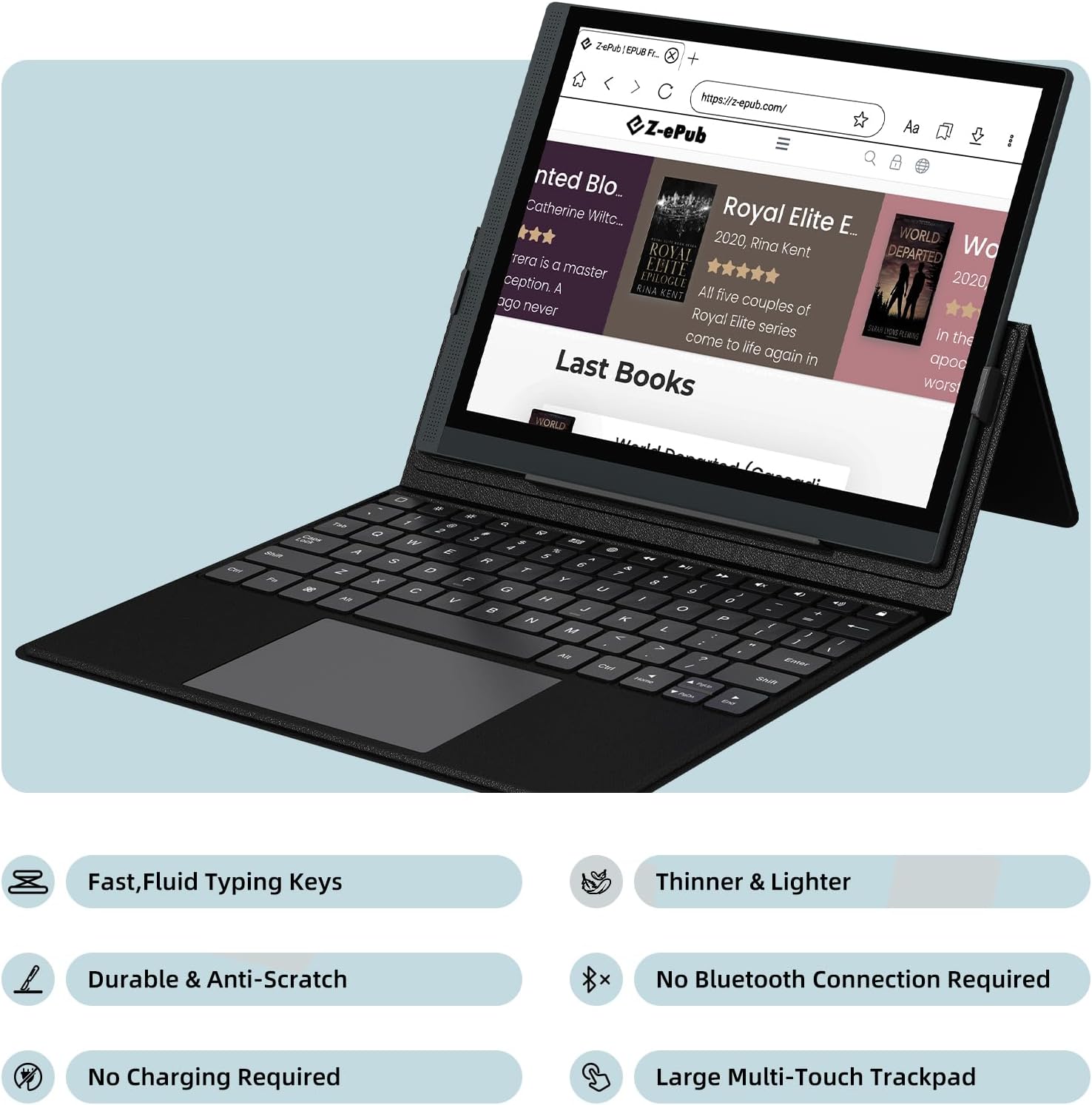
Image: The Bigme B1051C tablet securely attached to its dedicated keyboard case, ready for use.
3. Using the Stylus
The included stylus is an electromagnetic pen that requires no charging. It attaches magnetically to the Bigme B1051C for convenient storage.
- To use the stylus, simply touch its tip to the tablet screen.
- The stylus features a built-in eraser (sensor) on its top end for quick corrections during note-taking or drawing.
- When not in use, attach the stylus to the magnetic side of the B1051C tablet.

Image: A detailed view of the Bigme B1051C stylus, highlighting its built-in eraser and magnetic attachment capability.
Operating Instructions
1. Navigating the Interface
- Touchscreen: Use familiar touch gestures (tap, swipe, pinch-to-zoom) to navigate the Android 14 interface.
- Keyboard: Utilize the physical keyboard for typing, navigation shortcuts, and interacting with applications. The large multi-touch trackpad allows for precise cursor control.
- Stylus: Ideal for precise selections, drawing, and handwriting input in compatible applications.
2. Reading and Document Viewing
The 10.3-inch E-ink display is optimized for reading, providing a comfortable, eye-friendly experience without backlight glare.
- Open your preferred e-reading application to access eBooks, PDFs, and other documents.
- Adjust the 36-level adjustable color temperature brightness for optimal viewing in various lighting conditions.
- Utilize the full font size and margin customization options for personalized reading comfort.
- The device supports landscape mode for wider viewing.

Image: Demonstrates the eye-friendly reading experience of the Bigme B1051C, showing users comfortably engaging with content.
3. Note-Taking and Drawing
The stylus enables natural handwriting and drawing on the E-ink display.
- Open a note-taking or drawing application.
- Use the stylus to write, sketch, or annotate documents directly on the screen.
- The built-in eraser on the stylus allows for quick corrections.

Image: The Bigme B1051C displaying a drawing application, with the stylus poised for creative input.
4. Connectivity
- Wi-Fi: Connect to dual-band Wi-Fi networks for internet access, content downloads, and cloud synchronization.
- Bluetooth: Pair with Bluetooth accessories such as headphones or external speakers.
- USB-C Port: Use the USB-C port for data transfer and charging.
- MicroSD Card Slot: Expand storage up to 1TB by inserting a compatible TF (MicroSD) card.
Maintenance
1. Cleaning the Device
- Use a soft, lint-free cloth to gently wipe the screen and body of the tablet.
- For stubborn smudges, slightly dampen the cloth with water or a screen-cleaning solution specifically designed for electronics. Avoid harsh chemicals.
- Ensure the device is powered off before cleaning.
2. Battery Care
- The Bigme B1051C is equipped with a 3700 mAh battery.
- To prolong battery life, avoid exposing the device to extreme temperatures.
- Charge the device using the provided cable and a compatible power adapter.
- It is recommended to fully charge the device before first use.
3. Software Updates
Periodically check for software updates to ensure optimal performance and access to new features.
- Navigate to "Settings" on your tablet.
- Look for "System" or "About tablet" and then "Software update" to check for available updates.
- Ensure your device is connected to Wi-Fi and has sufficient battery life before starting an update.
4. Protection
The included keyboard case provides secure, form-fit protection for your B1051C Series E-Ink Reader, safeguarding it from scuffs and scratches. Always use the case when transporting the device.
Troubleshooting
| Issue | Possible Solution |
|---|---|
| Device does not power on. | Ensure the battery is charged. Connect the device to a power source and try again. If unresponsive, press and hold the power button for 10-15 seconds for a forced restart. |
| Keyboard is not responding. | Ensure the tablet is correctly seated and connected to the keyboard's unique interface. Detach and reattach the tablet to the keyboard. The keyboard does not require charging or Bluetooth. |
| Stylus is not writing/drawing. | Ensure you are using a compatible application. The stylus is passive and does not require charging. Try restarting the tablet. |
| Screen flickering or ghosting. | E-ink displays naturally have some ghosting. The B1051C features Auto Ghosting technology to minimize this. A full screen refresh (often triggered by navigating or specific app settings) can clear residual images. |
| Wi-Fi connection issues. | Check if other devices can connect to the Wi-Fi network. Restart your router. Forget the network on the tablet and reconnect. |
Specifications
Below are the key technical specifications for the Bigme B1051C Eink Tablet:
| Feature | Detail |
|---|---|
| Model Name | B1051C |
| Display | 10.3-inch Kaleido 3 E-ink HD display |
| Display Resolution Maximum | 1280x720 |
| Operating System | Android 14 |
| Processor | Octa-core 2.4GHz |
| RAM Memory Installed Size | 6 GB |
| Memory Storage Capacity | 128 GB |
| Expandable Storage | Supports TF card up to 1TB (via MicroSD card slot) |
| Battery | 3700 mAh |
| Camera | 8-megapixel rear-facing camera |
| Connectivity | Dual-band Wi-Fi, Bluetooth, USB-C |
| Dimensions (Thickness) | 5.5mm |
| Manufacturer | Bigme |
| Date First Available | December 14, 2024 |

Image: A visual summary of the Bigme B1051C's core features, including display type, processor, memory, and physical attributes.
Warranty and Support
For warranty information and technical support, please refer to the official Bigme website or contact Bigme customer service directly.
- Manufacturer: Bigme
- Online Support: Visit the official Bigme website for FAQs, drivers, and support contact information.
- Product Returns: Refer to your purchase agreement or retailer's return policy for details on returns and replacements.
Related Documents - B1051C
 |
Bigme inkNote Color+ User Manual: Features, Setup, and Specifications Explore the Bigme inkNote Color+ e-ink tablet with this comprehensive user manual. Learn about device setup, interface navigation, core applications like note-taking and reading, advanced features, and technical specifications for models B1051C, B1051, and B1051C Pro. |
 |
BIGME B751C E-reader and E-ink Notebook User Manual | BIGME Comprehensive user manual for the BIGME B751C, detailing setup, features, and operations of this versatile E-ink Android tablet, e-reader, and notebook. |
 |
Bigme B1051 User Manual: Your Guide to E-Ink Reading Explore the features and functionalities of the Bigme B1051 e-ink reader with this comprehensive user manual. Learn about setup, operation, specifications, and more for an enhanced reading experience. |
 |
BIGME Hibreak 5.84" E-ink Reader and Smartphone User Manual User manual for the BIGME Hibreak, a 5.84-inch E-ink reader and Android 11 smartphone with Google Play support. Provides information on features, specifications, and usage. |
 |
Bigme B7 Product Manual This manual provides comprehensive instructions for the Bigme B7 e-paper tablet, covering its features, specifications, usage, and safety guidelines. Learn about device setup, charging, data transfer, app installation, and maintenance. |
 |
Bigme READ AI Reader 2A8EM-READ User Manual User manual for the Bigme READ AI Reader 2A8EM-READ, providing instructions and information for operation and use. |