
ORICO M4Ultra
ORICO MiniMate M4Ultra External SSD Docking Station User Manual
Model: M4Ultra
1. Introduction
The ORICO MiniMate M4Ultra is an external SSD docking station designed to expand the storage and connectivity options for your Mac mini. It features high-speed data processing, backup storage capabilities, multiple USB ports, and TF/SD card slots, all integrated into a compact and aesthetically matching design for your Mac mini.

Figure 1: ORICO MiniMate M4Ultra connected to a Mac mini.
2. Package Contents
Please verify that all items listed below are included in your package. If any items are missing or damaged, please contact customer support.
- 1x MiniMate M4Ultra Docking Station
- 1x Packaging Box
- 1x 10Gbps USB C-C 0.15M Cable
- 1x 12V3A Power Adapter
- 1x 10Gbps USB C-C/A 1M Cable

Figure 2: Package contents of the ORICO MiniMate M4Ultra.
3. Product Overview and Features
3.1 Design and Compatibility
The MiniMate M4Ultra is engineered for seamless integration with your Mac mini, matching its dimensions and aesthetic. It provides a compact solution for expanding your system's capabilities without adding clutter.

Figure 3: Dimensional precision and seamless integration with Mac mini.
3.2 High-Speed Data Expansion
The device supports significant storage expansion, offering dedicated capacities for data processing and backup storage with high transfer speeds.

Figure 4: Storage expansion capabilities and speeds.
3.3 Connectivity Ports
The MiniMate M4Ultra provides a variety of ports for enhanced connectivity:
- Front Ports: 3x USB 3.2 (10Gbps), SD 4.0, TF 4.0, Power Button.
- Back Ports: DC 12V Power Input, USB4 40Gbps PC IN (for connection to Mac mini).
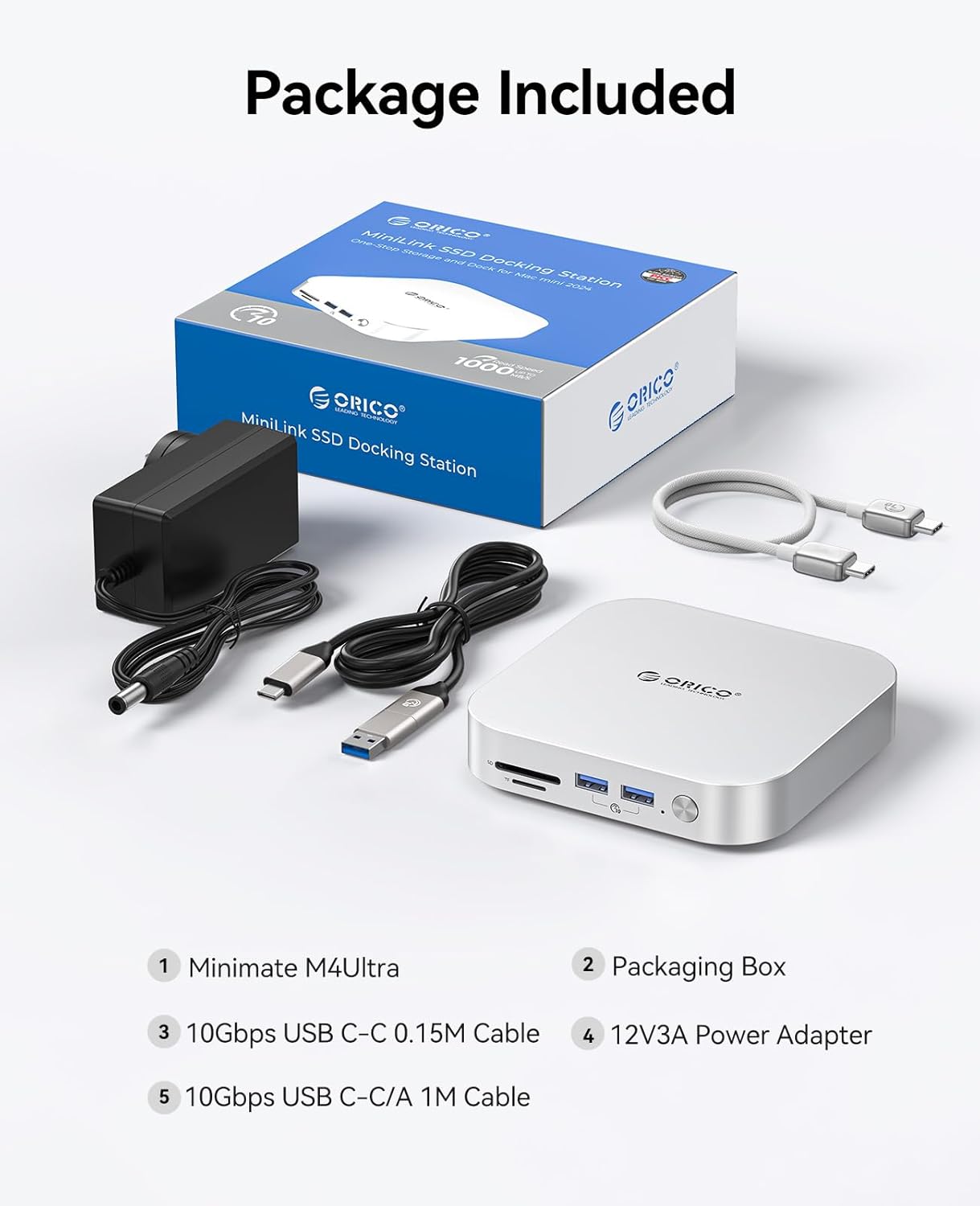
Figure 5: Front and back port configurations.
3.4 Performance
The device supports high-speed data transfer, with up to 40Gbps via its USB4 interface, ensuring efficient workflow for demanding tasks.

Figure 6: Data transfer speed comparison.
This performance makes the MiniMate M4Ultra suitable for various applications, including creative work, coding, and gaming.
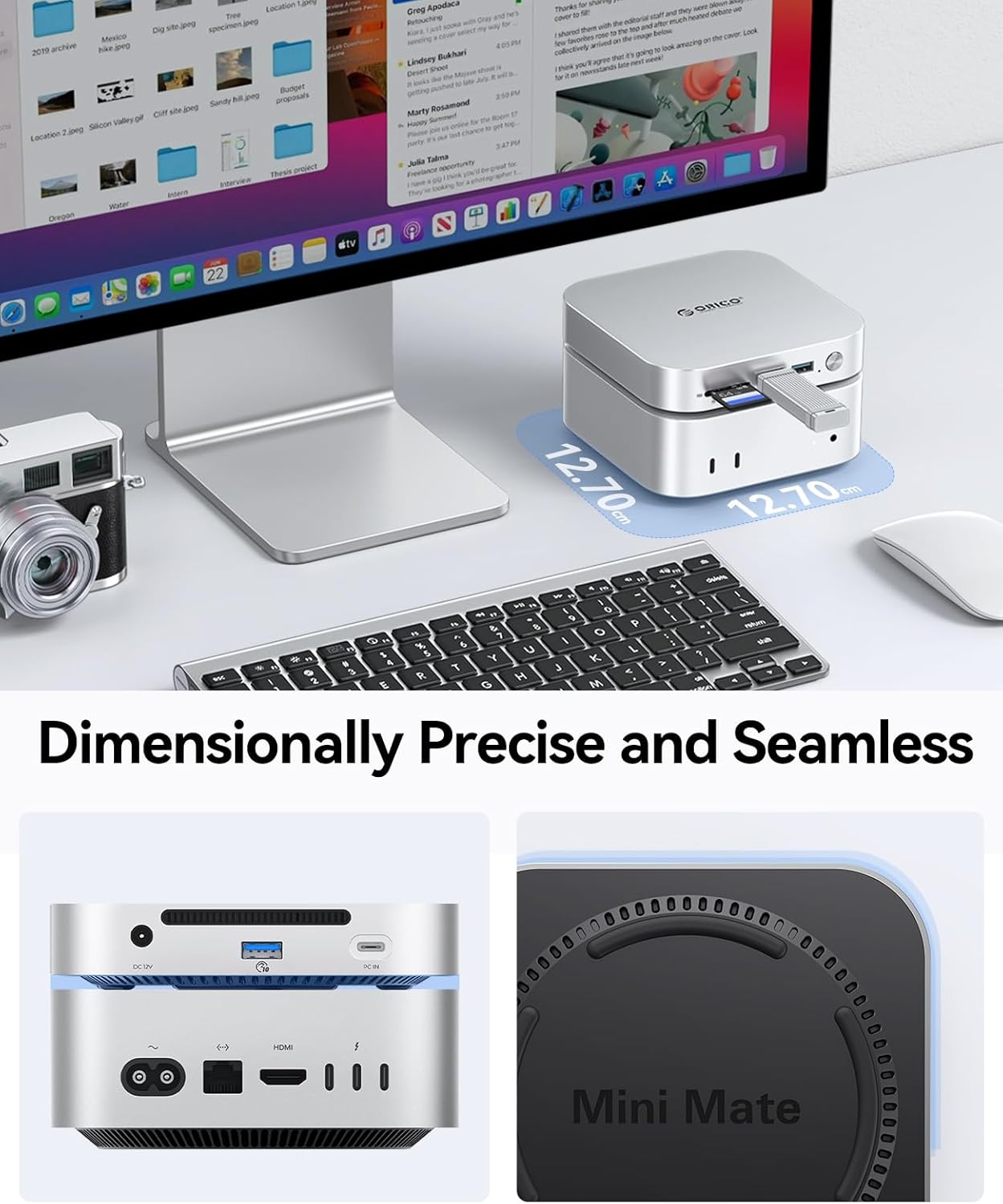
Figure 7: Application scenarios for the MiniMate M4Ultra.
4. Setup Instructions
4.1 Connecting the MiniMate M4Ultra
- Place the ORICO MiniMate M4Ultra directly beneath your Mac mini, ensuring proper alignment.
- Connect the provided USB4 40Gbps cable from the "PC IN" port on the back of the MiniMate M4Ultra to a Thunderbolt/USB4 port on your Mac mini.
- Connect the 12V3A power adapter to the "Power IN (DC12V)" port on the back of the MiniMate M4Ultra, then plug the adapter into a power outlet.
- Press the power button on the front of the MiniMate M4Ultra to turn it on.

Figure 8: MiniMate M4Ultra connected and ready for use.
5. Operating Instructions
5.1 Using USB Ports and Card Slots
The front USB 3.2 ports (10Gbps) can be used to connect various peripherals such as keyboards, mice, external drives, or other USB devices. The SD 4.0 and TF 4.0 card slots allow for direct access to memory cards for data transfer.
5.2 Disk Formatting for Mac OS
Before using the internal SSD storage for the first time, it may need to be formatted. For Mac OS systems, follow these steps or refer to the video guide below:
- Click "Go" in the Finder menu, then select "Utilities".
- In the Utilities folder, open "Disk Utility".
- In Disk Utility, locate and select the external ORICO drive under the "External" section.
- Click the "Erase" button in the toolbar.
- In the Erase dialog box, provide a name for the disk. For the format, select "Exfat" if you intend to use the drive with both Mac OS and Windows systems. If you will only use it with Mac OS, you can choose an APFS format. For the scheme, select "GUID Partition Map".
- Click "Erase" to confirm. Once the process is complete, click "Done".
- The newly formatted disk will appear on your desktop and in Finder.
Video 1: A step-by-step video guide on how to format and partition an external drive using Disk Utility on a Mac OS system, specifically for ORICO devices.
Video 2: A brief video showcasing the ORICO MiniMate M4Ultra external SSD docking station, highlighting its compact design, connectivity options, and integration with Mac mini.
6. Maintenance
- Keep the device in a clean, dry environment away from direct sunlight and extreme temperatures.
- Avoid dropping or subjecting the device to strong impacts.
- Do not attempt to disassemble the device, as this will void the warranty.
- Use a soft, dry cloth to clean the exterior of the device. Avoid using liquid cleaners.
7. Troubleshooting
7.1 Device Not Recognized
- Ensure the USB4 cable is securely connected to both the MiniMate M4Ultra and your Mac mini.
- Verify that the power adapter is correctly connected and the device is powered on.
- Try connecting the MiniMate M4Ultra to a different Thunderbolt/USB4 port on your Mac mini.
- Check Disk Utility on your Mac mini to see if the drive is detected but unformatted. Refer to Section 5.2 for formatting instructions.
7.2 Slow Data Transfer Speeds
- Ensure you are using the provided 40Gbps USB4 cable for optimal performance.
- Confirm that your Mac mini's port supports Thunderbolt/USB4 speeds.
- Close any unnecessary applications that might be consuming system resources or bandwidth.
- Check the health of the internal SSD using appropriate diagnostic tools.
7.3 Peripherals Not Working
- Ensure the MiniMate M4Ultra is powered on and properly connected to your Mac mini.
- Try connecting the peripheral to a different USB port on the MiniMate M4Ultra.
- Test the peripheral by connecting it directly to your Mac mini to rule out a device issue.
8. Specifications
| Feature | Specification |
|---|---|
| Brand | ORICO |
| Model Name | M4Ultra |
| Hard Drive Type | SSD |
| Memory Storage Capacity | 8 TB (as per current model) |
| Connectivity Technology | USB, Thunderbolt |
| Hardware Interface | Thunderbolt |
| Total USB Ports | 3 (USB 3.2 Gen2 10Gbps) + 1 (USB4 40Gbps PC IN) |
| Card Reader | SD 4.0, TF 4.0 |
| Compatible Devices | Mac, Desktop, Laptop, Gaming Console |
| Item Weight | 11.6 ounces |
| Package Dimensions | 9.84 x 9.84 x 1.97 inches |
9. Warranty and Support
ORICO products typically come with a standard manufacturer's warranty. Please refer to the warranty card included in your product packaging or visit the official ORICO website for detailed warranty terms and conditions.
For technical support, troubleshooting assistance, or any product-related inquiries, please contact ORICO customer service through their official website or the contact information provided in your product documentation.
Related documentsM4Ultra


Ask a question about this manual
Ask about setup, troubleshooting, compatibility, parts, safety, or missing instructions. Manuals+ will review the question and use this page’s manual context to help answer it.