
Introduction
This manual provides detailed instructions for the MOKiN Thunderbolt 4 Dock, Model B0DPWZ6KH9. It covers product features, setup procedures, operational guidelines, maintenance tips, and troubleshooting information to ensure optimal performance and longevity of your device.
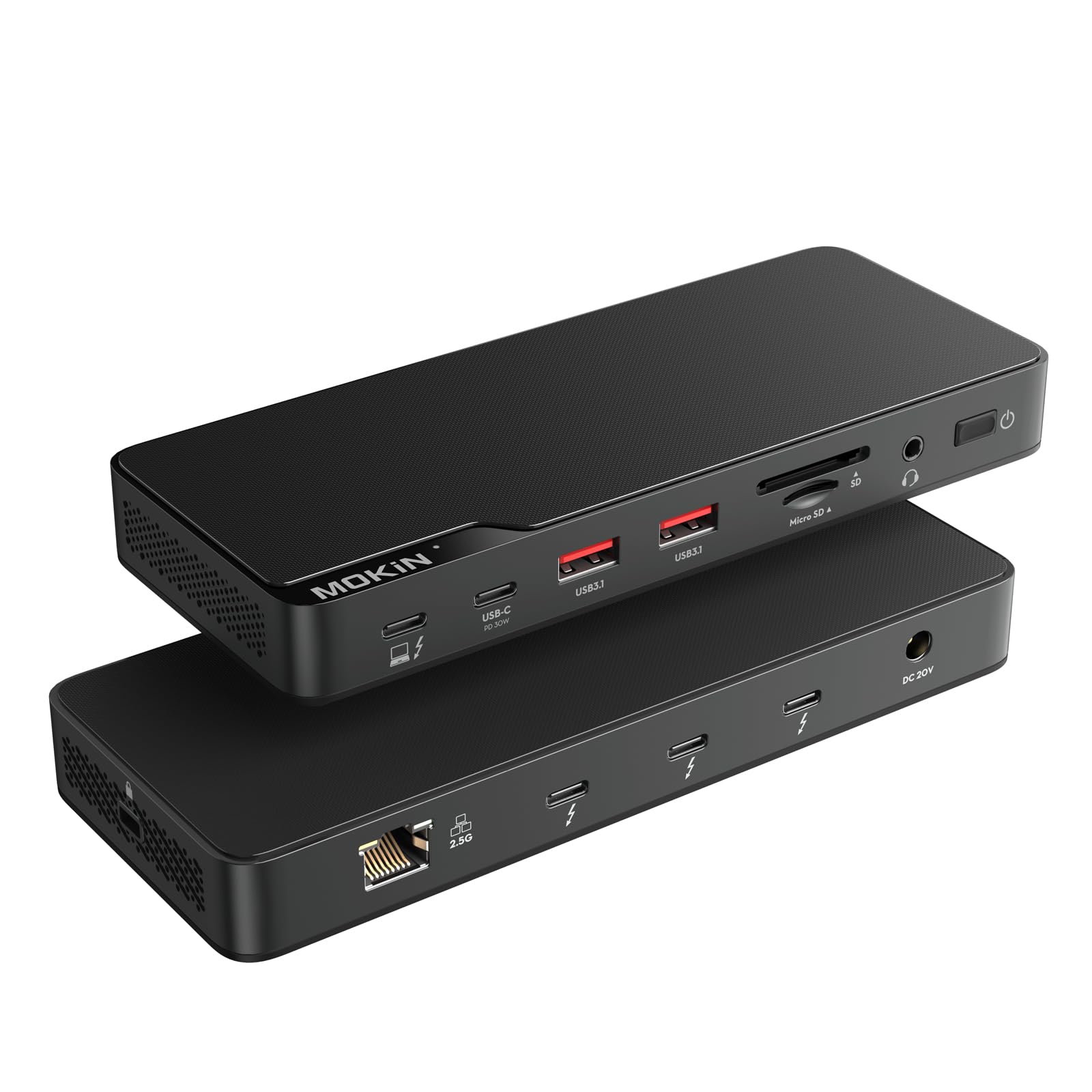
Image: MOKiN Thunderbolt 4 Dock, a compact black rectangular device.
Product Overview
The MOKiN Thunderbolt 4 Dock expands the connectivity of your laptop, providing multiple ports for peripherals, external displays, and network access, along with power delivery. It is compatible with Thunderbolt 3/4 Mac and PC systems.
Port Layout

Image: Top and bottom views of the MOKiN Thunderbolt 4 Dock, illustrating the location and type of each port.
- Front/Side Ports:
- Thunderbolt 4 Host (85W Charging): Connects to your laptop for data and power.
- USB A 3.1 (10Gbps): For high-speed USB devices.
- SD/Micro SD (250MB/s): For memory card access.
- USB C 2.0 & PD Charging Combo (30W): For charging devices or connecting USB-C peripherals.
- 3.5mm Audio/Mic: For headphones or microphones.
- Power Switch: To turn the dock on/off.
- Security Lock: For physical security.
- Rear Ports:
- Ethernet Port (2.5Gbps): For wired network connection.
- 3x Thunderbolt 4/USB4 (40Gbps & 15W output): For connecting external displays, storage, or other Thunderbolt devices.
- DC (150W input): Power input for the dock.
Setup Instructions
- Power Connection: Connect the provided power adapter to the DC 150W input port on the rear of the dock, then plug the adapter into a power outlet.
- Host Connection: Connect the Thunderbolt 4 host cable from the dock's Thunderbolt 4 Host (85W charging) port to a Thunderbolt 3 or Thunderbolt 4 port on your laptop. Ensure your laptop's USB-C port supports full functionality (data, video, and power delivery).
- Peripheral Connection:
- Displays: Connect external monitors to the Thunderbolt 4/USB4 ports using appropriate cables (e.g., Thunderbolt to DisplayPort, Thunderbolt to HDMI via adapter).
- Network: Connect an Ethernet cable from your router or modem to the 2.5Gbps Ethernet port on the dock.
- USB Devices: Connect USB-A devices (e.g., keyboard, mouse, external hard drive) to the USB A 3.1 ports. Connect USB-C devices to the USB C 2.0 & PD Charging Combo port.
- Memory Cards: Insert SD or Micro SD cards into the respective slots.
- Audio: Connect headphones or speakers to the 3.5mm Audio/Mic jack.
- Power On: Press the power switch on the dock to turn it on. Your laptop should recognize the connected peripherals automatically.

Image: MOKiN Thunderbolt 4 Dock connected to a laptop and various peripherals, demonstrating a typical setup for diverse daily use.
Operating Instructions
Display Connectivity
The dock supports dual display output on macOS and multi-display output on Windows systems via its Thunderbolt 4/USB4 ports. Each Thunderbolt 4 port can support up to 8K@30Hz or dual 4K@60Hz displays.

Image: A laptop connected to the MOKiN Thunderbolt 4 Dock, which in turn is connected to two external monitors, illustrating a dual display setup on macOS. Note: M1/M2/M3 MacBook Air series only support one external display.
- macOS Users: For M1/M2/M3 MacBook Air series, only one external display is supported. Other macOS models may support dual displays.
- Windows Users: Supports multiple external displays, depending on your graphics card capabilities.
- Ensure your display cables are compatible with Thunderbolt 4 ports.
Power Delivery and Charging
The dock provides power to your connected laptop and other devices.

Image: The MOKiN Thunderbolt 4 Dock connected to a laptop, smartphone, and smartwatch, demonstrating its powerful charging capabilities for multiple devices. It provides 85W for laptops, 30W PD for phones/tablets, and 15W for earbuds/smartwatches.
- Laptop Charging: The Thunderbolt 4 Host port delivers up to 85W of power to your laptop.
- Device Charging: The USB C 2.0 & PD Charging Combo port provides up to 30W for charging smartphones, tablets, or power banks. The Thunderbolt 4/USB4 downstream ports provide 15W output for smaller devices like earbuds or smartwatches.
Data Transfer
Utilize the various ports for high-speed data transfer.
- Thunderbolt 4/USB4 Ports: Offer up to 40Gbps data transfer speeds, ideal for external SSDs or high-bandwidth devices.
- USB A 3.1 Ports: Provide 10Gbps data transfer for compatible USB devices.
- SD/Micro SD Slots: Support data transfer up to 250MB/s for memory cards.
Network Connection
The 2.5 Gigabit Ethernet port provides a stable and fast wired network connection.
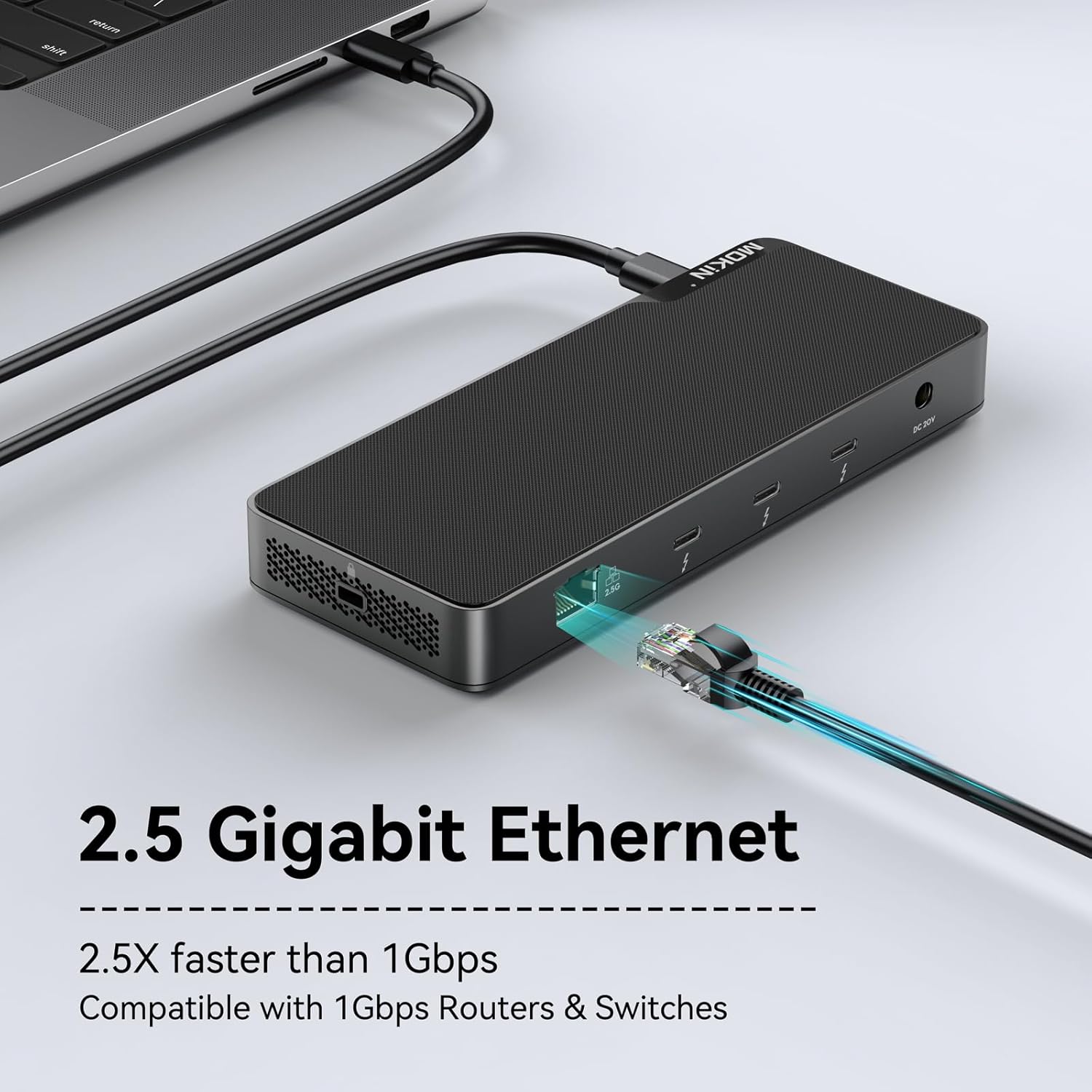
Image: A close-up of the MOKiN Thunderbolt 4 Dock's 2.5 Gigabit Ethernet port with an Ethernet cable connected, highlighting its speed capabilities (2.5X faster than 1Gbps).
- Connect an Ethernet cable to the 2.5Gbps port for a stable internet connection, which is 2.5 times faster than standard 1Gbps Ethernet.
- Compatible with 1Gbps routers and switches.
Maintenance
- Keep the dock in a clean, dry environment, away from direct sunlight and extreme temperatures.
- Avoid exposing the device to water or other liquids.
- Clean the exterior with a soft, dry cloth. Do not use harsh chemicals or abrasive cleaners.
- Ensure proper ventilation around the dock to prevent overheating.
- Periodically check cable connections to ensure they are secure.
Troubleshooting
| Problem | Solution |
|---|---|
| Dock is not recognized by laptop. |
|
| External display is not working. |
|
| No internet connection via Ethernet. |
|
| Devices are not charging or charging slowly. |
|
Specifications
| Feature | Detail |
|---|---|
| Model | B0DPWZ6KH9 |
| Brand | imokin |
| Host Connection | Thunderbolt 4 (85W Power Delivery) |
| Downstream Thunderbolt 4/USB4 Ports | 3x (40Gbps data, 15W output each) |
| USB-A Ports | 2x USB A 3.1 (10Gbps) |
| USB-C Ports | 1x USB C 2.0 & PD Charging Combo (30W) |
| Ethernet | 2.5 Gigabit Ethernet |
| Card Reader | SD/Micro SD (250MB/s) |
| Audio | 3.5mm Audio/Mic Jack |
| Power Input | DC 150W |
| Compatible Devices | Thunderbolt 3/4 Mac/PC, macOS |
| Dimensions | 3 x 2 x 1 inches (Package Dimensions) |
| Item Weight | 1.6 ounces |
Warranty and Support
MOKiN products are designed for reliability and performance. For warranty information and technical support, please refer to the official MOKiN website or contact their customer service directly. Keep your purchase receipt for warranty claims.
Manufacturer: MOKiN
Brand: imokin
For further assistance, visit the imokin Store on Amazon.