
1. Product Overview
The Phomemo M834 is a portable wireless thermal printer designed for convenient printing on the go. It offers high-resolution 300 dpi printing without the need for ink, toner, or ribbons, utilizing thermal technology. This printer supports various paper sizes and types, and connects via Bluetooth to smartphones or USB to PCs, making it compatible with a wide range of operating systems.
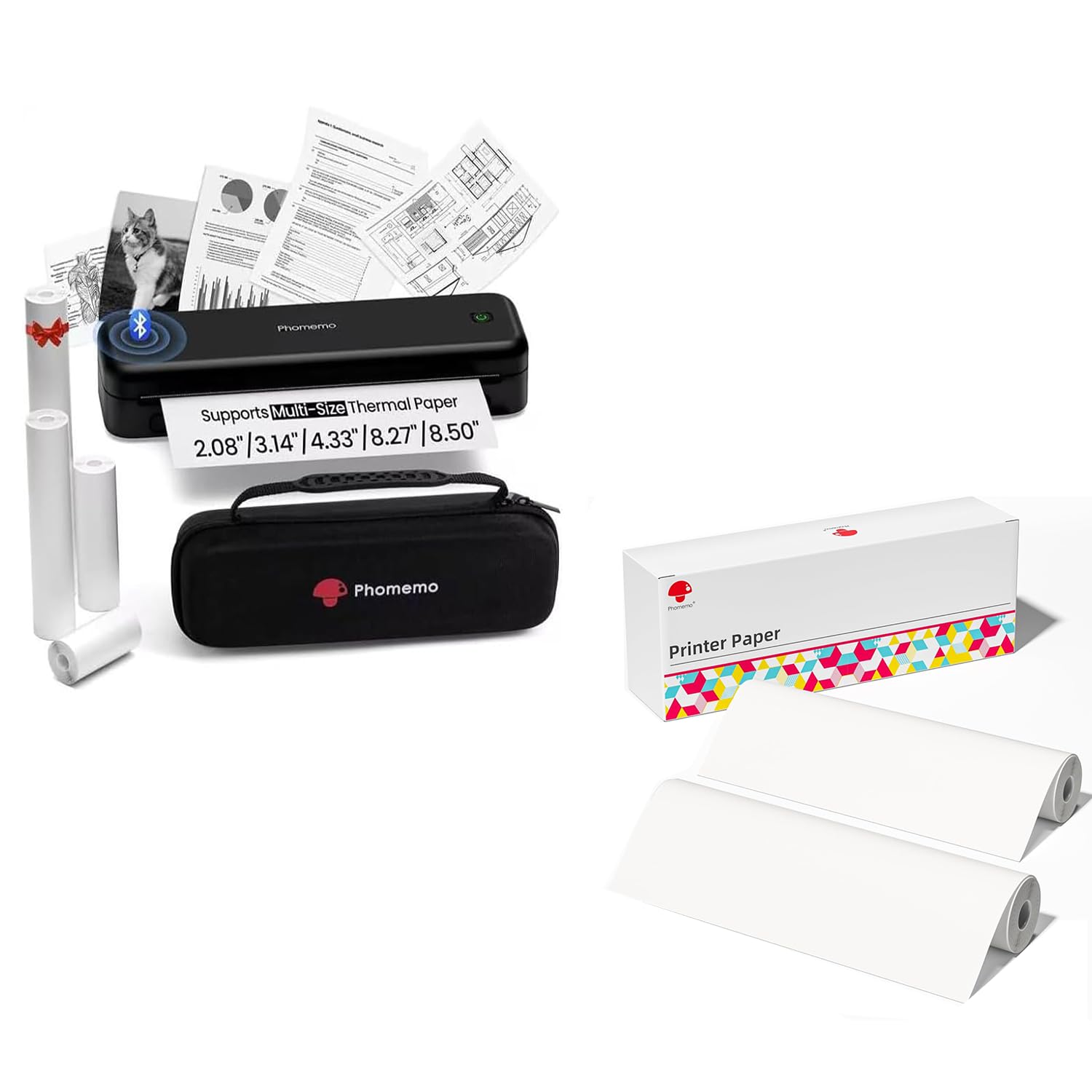
Image 1.1: Phomemo M834 Portable Printer with included accessories and supported paper sizes.
Key Features:
- Enhanced Print Clarity: 300 dpi resolution for sharp, clear documents.
- Versatile Paper Support: Compatible with US Letter, A4, 4.33'', 3.14'', 2.08'' paper sizes, including roll, fold, and ordinary thermal paper.
- Extended Battery Life: Equipped with a 2600mAh rechargeable battery, capable of printing over 160 pages continuously.
- Wide Device Compatibility: Supports Bluetooth connection for Android/iOS and USB connection for Windows 10/11, Linux, ChromeOS, and macOS.
- Inkless Technology: Uses thermal printing, eliminating the need for ink cartridges, toner, or ribbons.
2. Setup Guide
2.1 What's in the Package
Before you begin, ensure all components are present in your package:

Image 2.1: Contents of the Phomemo M834 package, including the printer, various thermal paper rolls, a user guide, a USB-C cable, and a USB-C to USB adapter.
- Phomemo M834 Portable Printer
- Thermal Paper Roll(s) (various widths)
- Printer Case
- User Guide
- USB-C Cable
- USB-C to USB Adapter
2.2 Charging the Printer
The printer comes with a built-in 2600mAh rechargeable battery. For optimal performance, fully charge the printer before first use.
- Connect the provided USB-C cable to the printer's charging port.
- Connect the other end of the USB-C cable to a USB power adapter (not included) or a computer's USB port.
- The indicator light will show charging status (refer to the LED indicator section in the user guide for details).
- A full charge typically takes approximately 3-4 hours.

Image 2.2: The Phomemo M834 features a 2600mAh large capacity battery, supporting fast charging via USB-C and enabling over 160 sheets of continuous printing.
2.3 Loading Thermal Paper
The Phomemo M834 supports various types and sizes of thermal paper. Only use thermal paper with this printer. Regular copy paper is not compatible.

Image 2.3: The Phomemo M834 supports 5 different sizes (2.08", 3.14", 4.33", A4, US Letter) and 4 types of thermal paper, including single sheets, continuous folding paper, inner roll paper, and stickers.
- Open the printer's paper cover.
- Insert the thermal paper roll or stack, ensuring the printable side (usually smoother) is facing the print head. For roll paper, ensure it feeds smoothly from the bottom.
- Adjust the paper guides to fit the width of your paper snugly, but without creasing it.
- Close the paper cover securely.

Image 2.4: Example of Phomemo thermal printer paper rolls.
2.4 Connecting to Your Device
The Phomemo M834 offers both Bluetooth and USB connectivity.

Image 2.5: The Phomemo M834 printer demonstrates multiple system compatibility, connecting via Bluetooth to iOS, Android, and tablets, and via USB to Windows, macOS, Chrome OS, and Linux.
2.4.1 Bluetooth Connection (for Smartphones/Tablets)
- Ensure the printer is powered on.
- Enable Bluetooth on your smartphone or tablet.
- Download and install the Phomemo app from your device's app store.
- Open the Phomemo app and follow the in-app instructions to search for and connect to your M834 printer.
2.4.2 USB Connection (for PCs)
- Ensure the printer is powered on.
- Connect the printer to your PC using the provided USB-C cable and adapter if necessary.
- Install the appropriate printer drivers for your operating system (Windows, macOS, Linux, ChromeOS). Drivers can typically be found on the official Phomemo website.
- Once drivers are installed, the printer should appear in your system's printer list.
3. Operating Instructions
3.1 Power On/Off
- To Power On: Press and hold the power button until the indicator light illuminates.
- To Power Off: Press and hold the power button until the indicator light turns off.
3.2 Printing from the Phomemo App (Bluetooth)
- Ensure your printer is connected via Bluetooth to your smartphone/tablet.
- Open the Phomemo app.
- Select the document, image, or text you wish to print within the app.
- Adjust print settings (e.g., number of copies, density) as needed.
- Tap the print button to initiate printing.
3.3 Printing from a PC (USB)
- Ensure your printer is connected via USB to your PC and drivers are installed.
- Open the document or file you wish to print (e.g., Word, PDF, Excel, image).
- Go to 'File' > 'Print' (or use the print shortcut Ctrl+P/Cmd+P).
- Select 'Phomemo M834' from the list of available printers.
- Adjust print settings as required (e.g., paper size, orientation).
- Click 'Print'.

Image 3.1: The Phomemo M834 delivers high-definition printouts with 300 DPI, resulting in significantly clearer text and images compared to standard 203 DPI printers.
4. Maintenance
4.1 Cleaning the Print Head
Regular cleaning of the print head ensures optimal print quality and extends the printer's lifespan.
- Ensure the printer is powered off and disconnected from any power source.
- Open the paper cover.
- Gently wipe the print head (the dark strip inside the printer) with a cotton swab lightly dampened with isopropyl alcohol.
- Allow the print head to dry completely before closing the cover and powering on the printer.
4.2 Battery Care
- Avoid fully discharging the battery frequently.
- If storing the printer for an extended period, charge it to about 50-70% and recharge every few months to prevent deep discharge.
- Use only the provided USB-C cable for charging.
4.3 Paper Handling
- Always use high-quality thermal paper to prevent damage to the print head and ensure clear prints.
- Store thermal paper in a cool, dry place away from direct sunlight and heat to preserve its printability.
- Do not use wrinkled or damaged paper.
5. Troubleshooting
If you encounter issues with your Phomemo M834 printer, refer to the following common problems and solutions:
| Problem | Possible Cause | Solution |
|---|---|---|
| Printer does not power on | Low battery; Power button not pressed correctly | Charge the printer; Press and hold the power button for a few seconds. |
| Poor print quality (faint, streaky) | Print head dirty; Low battery; Poor quality thermal paper | Clean the print head (Section 4.1); Charge the printer; Use high-quality thermal paper. |
| Cannot connect via Bluetooth | Bluetooth off on device; Printer not in pairing mode; App issue | Ensure Bluetooth is enabled; Restart printer and device; Reinstall Phomemo app. |
| Cannot print from PC via USB | Drivers not installed; Loose USB connection; Incorrect printer selected | Install/reinstall printer drivers; Check USB cable connection; Select 'Phomemo M834' in print dialog. |
| Paper not feeding | Paper loaded incorrectly; Paper jam; No paper | Re-load paper correctly (Section 2.3); Clear any obstructions; Ensure paper is loaded. |
6. Specifications
Detailed technical specifications for the Phomemo M834 Portable Wireless Thermal Printer:
| Feature | Specification |
|---|---|
| Model Name | M834 |
| Printing Technology | Thermal |
| Maximum Print Resolution | 300 dpi (Monochrome) |
| Connectivity Technology | Bluetooth, USB |
| Hardware Interface | USB |
| Battery Capacity | 2600mAh |
| Maximum Media Size | US Letter (8.5 x 11 inches / 216 mm) |
| Supported Paper Sizes | US Letter, A4, 4.33'', 3.14'', 2.08'' |
| Print Media | Thermal Paper (plain, roll, fold, stickers) |
| Max Input Sheet Capacity | 30 sheets (for folded paper) |
| Printer Output | Monochrome |
| Dual-sided printing | No (Simplex) |
| Color | Black |
| Item Model Number | M834 |
7. Warranty and Support
7.1 Warranty Information
The Phomemo M834 Portable Wireless Thermal Printer comes with a limited warranty. Please refer to the warranty card included in your package or visit the official Phomemo website for detailed terms and conditions regarding warranty coverage and duration.
7.2 Customer Support
For further assistance, technical support, or inquiries regarding your Phomemo M834 printer, please contact Phomemo customer service through their official website or the contact information provided in your product packaging.