Introduction
Thank you for choosing the SHURIKEY GEAR SHT68 65% Gaming Keyboard. This manual provides detailed instructions for setting up, operating, and maintaining your keyboard to ensure optimal performance and longevity. Please read this manual thoroughly before using the product.
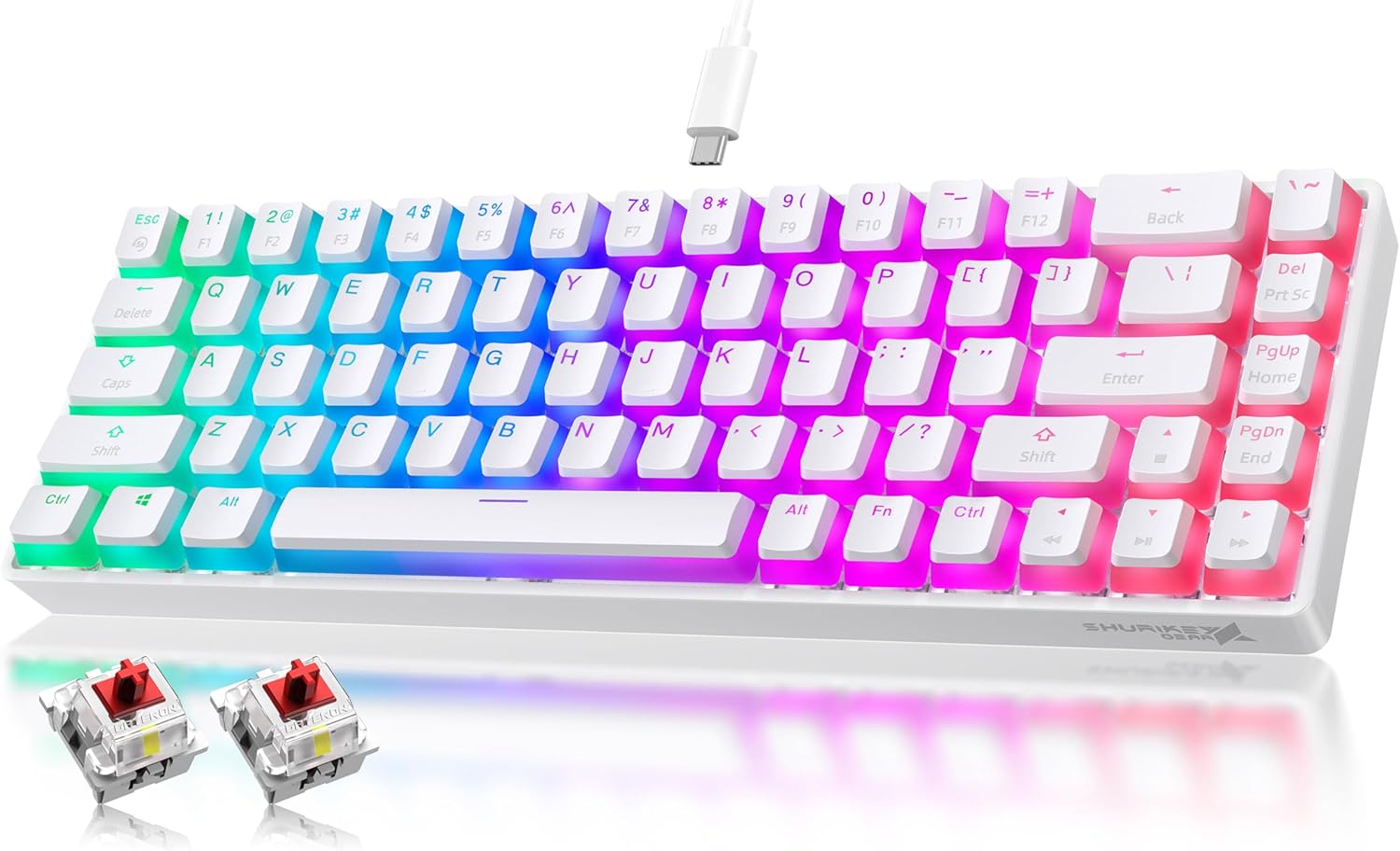
Image: The SHURIKEY GEAR SHT68 65% Gaming Keyboard, featuring vibrant RGB backlighting and a compact layout. Two red mechanical switches are displayed below the keyboard, highlighting its hot-swappable design.
Package Contents
- SHURIKEY GEAR SHT68 65% Gaming Keyboard
- USB-C Cable
- User Manual
- Keycap Puller (may be included)
- Switch Puller (may be included)
Setup and Connectivity
The SHURIKEY GEAR SHT68 keyboard supports three connectivity modes: Wired (USB-C), 2.4GHz Wireless, and Bluetooth 5.0.

Image: An overview of the keyboard's versatile connectivity options, showing it connected via 2.4G wireless to a laptop, Bluetooth 5.0 to a tablet, and Type-C wired to a desktop setup.
1. Wired Mode (USB-C)
- Ensure the keyboard power switch (located on the underside) is in the OFF position.
- Connect the provided USB-C cable to the keyboard's USB-C port and the other end to your computer's USB port.
- Press Fn + I to switch to wired mode. The keyboard will be recognized automatically.
2. 2.4GHz Wireless Mode
- Install two AAA batteries (not included) into the battery compartment on the underside of the keyboard.
- Locate the 2.4G USB dongle in its storage area on the underside of the keyboard.
- Plug the 2.4G USB dongle into an available USB port on your computer.
- Turn the keyboard power switch to the ON position.
- Press Fn + O to switch to 2.4G wireless mode. The keyboard should connect automatically.
3. Bluetooth 5.0 Mode
The keyboard can connect to up to three Bluetooth devices simultaneously.
- Ensure the keyboard power switch is in the ON position.
- Press and hold Fn + /, Fn + {, or Fn + } for 3 seconds to enter pairing mode for Bluetooth device 1, 2, or 3 respectively. The corresponding indicator light will flash.
- On your device (computer, smartphone, tablet), enable Bluetooth and search for "SHURIKEY GEAR SHT68".
- Select the keyboard to pair. Once connected, the indicator light will stop flashing.
- To switch between paired Bluetooth devices, press Fn + /, Fn + {, or Fn + } briefly.

Image: A detailed guide outlining the steps for connecting the keyboard via Bluetooth 5.0, 2.4GHz Wireless, and Type-C Wired modes, including specific key combinations.
Operating Instructions
RGB Backlight Control
The keyboard features 17 RGB backlight modes and 8 backlight color switching options. Note: RGB backlighting is not available in wireless and Bluetooth modes to conserve power.
- Fn + K: Switch ON/OFF the backlight.
- Fn + H: Adjust backlight color.
- Fn + L: Adjust backlight brightness.
- Fn + :: Adjust backlight speed.
- Fn + ": Adjust backlight mode.

Image: A visual guide demonstrating 17 different RGB backlight modes and the corresponding Fn key combinations for adjusting color, brightness, speed, and mode.
Hot-Swappable Red Switches
The keyboard is equipped with hot-swappable red mechanical switches, allowing for easy replacement of 3-pin or 5-pin switches without soldering. This feature enables customization of your typing experience.
Full Anti-Ghosting
The SHURIKEY GEAR SHT68 supports full key anti-ghosting, ensuring that every keystroke is registered accurately, even when multiple keys are pressed simultaneously. This is particularly beneficial for gaming and fast typing.

Image: A graphic illustrating the full anti-ghosting feature of the keyboard, showing multiple key presses being registered simultaneously without conflict.
Ergonomic Design and Adjustable Stand
The keyboard features an ergonomic design with adjustable stands, allowing you to set the typing angle to 9° or 13° for enhanced comfort during extended use. Anti-slip silicone pads ensure stability.

Image: Detailed views of the keyboard's adjustable feet, demonstrating the 9-degree and 13-degree tilt options for ergonomic comfort.
Maintenance
Cleaning
- Disconnect the keyboard from all power sources before cleaning.
- Use a soft, lint-free cloth slightly dampened with water or a mild cleaning solution to wipe the keycaps and surface.
- For dust and debris between keys, use compressed air or a small brush.
- Avoid using harsh chemicals or abrasive materials, as these can damage the keyboard's finish.
Switch and Keycap Replacement
To replace switches or keycaps:
- Gently remove the keycap using a keycap puller.
- Use a switch puller to carefully extract the mechanical switch.
- Align the pins of the new switch with the holes on the PCB and press firmly until it clicks into place.
- Install the new keycap.
Troubleshooting
- Keyboard not responding (Wired Mode): Ensure the USB-C cable is securely connected to both the keyboard and the computer. Verify that the keyboard is set to wired mode (Fn + I).
- Keyboard not responding (2.4GHz Wireless Mode): Check if the 2.4G USB dongle is properly inserted into a USB port. Ensure the keyboard has fresh AAA batteries and is switched ON. Confirm the keyboard is set to 2.4G wireless mode (Fn + O).
- Keyboard not responding (Bluetooth Mode): Make sure Bluetooth is enabled on your device and the keyboard is paired. Try re-pairing the keyboard if connection issues persist. Ensure the keyboard is switched ON and has sufficient battery power.
- Backlight not working: Backlighting is only available in wired mode. Ensure the keyboard is connected via USB-C. Use Fn + K to toggle the backlight ON/OFF.
- Keys not registering: Clean under the keycaps for any debris. If a specific switch is faulty, consider replacing it using the hot-swappable feature.
- Compatibility issues: The keyboard is compatible with Windows (XP, Vista, 7, 8, 10, 11) and Mac OS. Windows XP/Vista only supports Type-C and 2.4G modes.
Image: A visual representation of the keyboard's broad compatibility with different operating systems, including Windows XP/Vista, Windows 7/8, Windows 10, Windows 11, and Mac OS.
Specifications
| Feature | Detail |
|---|---|
| Model Name | SHT68 |
| Connectivity Technology | Bluetooth 5.0, 2.4GHz Wireless, USB-C Wired |
| Keyboard Description | 65% Mechanical Gaming Keyboard (68 Keys) |
| Switch Type | Red Mechanical Switches (Hot-Swappable) |
| Backlighting | RGB (17 modes, 8 colors) |
| Anti-Ghosting | Full Key Anti-Ghosting |
| Compatible Devices | Laptop, PC, Smartphone, Tablet |
| Operating System Compatibility | Windows (XP, Vista, 7, 8, 10, 11), Mac OS |
| Special Features | Backlit, Ergonomic, Hot-Swappable, Adjustable Stand, Portable |
| Material | Plastic |
| Item Weight | 2.35 pounds |
| Package Dimensions | 14.29 x 5.71 x 2.72 inches |
Warranty and Support
SHURIKEY GEAR products are manufactured to high quality standards. For information regarding warranty coverage, please refer to the documentation included with your purchase or contact your retailer.
If you encounter any issues or have questions about your SHURIKEY GEAR SHT68 keyboard, please contact customer support through the retailer's platform or the official SHURIKEY GEAR website for assistance.


