
1. Introduction
This manual provides essential information for the proper installation, operation, and maintenance of your GAMEON Pro Series 27-inch Fast IPS Gaming Monitor (Model: GOAE27QHD165IPS). Please read this manual thoroughly before using the product to ensure optimal performance and safety. Keep this manual for future reference.

Image 1.1: Front view of the GAMEON Pro Series 27-inch Fast IPS Gaming Monitor, showcasing its slim bezels and stand.
The GAMEON Pro Series 27-inch Fast IPS Gaming Monitor features a QHD 2K (2560x1440p) resolution, a 165Hz refresh rate, and a 0.5ms MPRT response time. It supports Adaptive-Sync and Variable Refresh Rate (VRR) technologies for smooth, tear-free gameplay. Connectivity options include dual HDMI 2.1 ports and dual DisplayPort 1.4 ports, along with an audio-out jack and integrated speakers. This monitor is compatible with various gaming consoles and PCs, including PS5.
2. Package Contents
Please check the package contents upon unboxing. If any items are missing or damaged, contact your retailer.
- GAMEON Pro Series 27-inch Fast IPS Gaming Monitor
- Monitor Stand (Base and Neck)
- Power Adapter and Power Cable
- HDMI Cable
- DisplayPort Cable
- User Manual
3. Setup
3.1 Monitor Assembly
- Carefully remove the monitor from its packaging, keeping the screen protected.
- Attach the stand neck to the monitor panel. Ensure it clicks securely into place or is fastened with screws if provided.
- Attach the stand base to the stand neck and tighten the screw at the bottom of the base.
- Place the assembled monitor on a stable, flat surface.
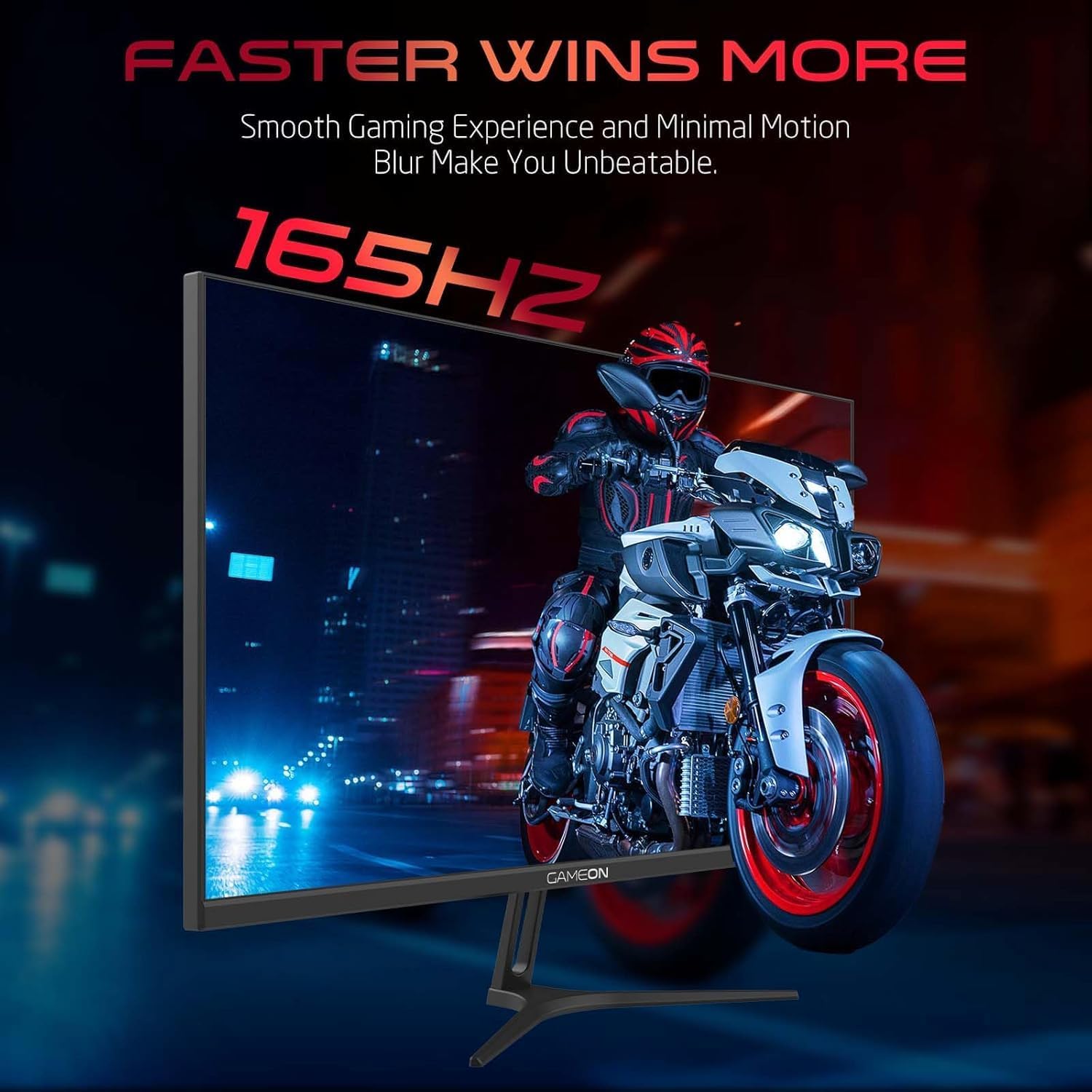
Image 3.1: Illustration of the monitor with its stand, ready for assembly.
3.2 Connecting to Devices
The monitor offers multiple input options. Choose the appropriate cable for your device (PC, gaming console, etc.).

Image 3.2: Rear view of the monitor, highlighting the input ports and VESA mounting points.

Image 3.3: Detailed diagram illustrating the various input/output ports and their corresponding devices.
- HDMI Connection: Connect one end of the HDMI cable to the HDMI output port of your device (PC, PS5, Xbox, TV box) and the other end to one of the HDMI 2.1 ports on the monitor.
- DisplayPort Connection: Connect one end of the DisplayPort cable to the DisplayPort output of your PC and the other end to one of the DisplayPort 1.4 ports on the monitor.
- Audio Output: For external audio, connect headphones or external speakers to the 3.5mm audio-out jack on the monitor.
3.3 Power Connection
- Connect the power adapter to the DC IN port on the monitor.
- Plug the power cable into the power adapter, then plug the other end of the power cable into a power outlet.
4. Operating Instructions
4.1 Power On/Off
Press the power button located on the monitor to turn it on or off. The power indicator light will illuminate when the monitor is on.
4.2 On-Screen Display (OSD) Menu
The monitor features a menu button (often a joystick or a series of buttons) usually located on the back or bottom right of the monitor. Use this to navigate the OSD menu and adjust settings.
- Press the menu button to open the OSD menu.
- Use the navigation controls to move through menu options.
- Press the menu button again (or a designated 'Enter' button) to select an option.
- Use the navigation controls to adjust values or select sub-menus.
- Select 'Exit' or press the menu button repeatedly to close the OSD menu.
4.3 Common OSD Settings
- Picture Settings: Adjust brightness, contrast, sharpness, gamma, and color temperature.
- Color Settings: Fine-tune RGB values, hue, and saturation.
- Input Source: Manually select between HDMI 1, HDMI 2, DisplayPort 1, or DisplayPort 2.
- Audio: Adjust volume for built-in speakers or connected headphones.
- Gaming Features: Enable/disable Adaptive-Sync/FreeSync, adjust overdrive settings, and activate crosshair overlays if available.
4.4 PS5 120Hz Setup Guide
To enable 120Hz output on your PlayStation 5 with this monitor, follow these steps:

Image 4.1: Visual guide for configuring 120Hz refresh rate on a PlayStation 5 console.
- Enable 120Hz from PS5 Settings:
- Go to Settings > Screen and Video > Video Output.
- Set Enable 120Hz Output to Automatic.
- Set Resolution to 1080p or Automatic. (Note: While the monitor supports 1440p, some PS5 games may require 1080p for 120Hz output.)
- Enable Performance Mode for Gamers:
- Go to Settings > Save Data and Game App Settings > Game Presets.
- Set Performance Mode as the default.
- Check In-Game Settings:
- Go to the specific game's Game Settings > Video Settings and select 120fps or Performance Mode.
5. Maintenance
5.1 Cleaning the Screen
- Turn off the monitor and unplug the power cable.
- Use a soft, lint-free cloth lightly dampened with water or a specialized screen cleaner.
- Wipe the screen gently. Do not press hard or use abrasive materials.
- Avoid using alcohol, ammonia, or benzene-based cleaners, as they may damage the screen surface.
5.2 Cleaning the Casing
- Use a soft, dry cloth to wipe the monitor casing.
- For stubborn stains, lightly dampen the cloth with water and a mild detergent, then wipe dry.
6. Troubleshooting
If you encounter issues with your monitor, refer to the following troubleshooting guide:
| Problem | Possible Cause | Solution |
|---|---|---|
| No image on screen | No power; Incorrect input source; Loose video cable | Ensure power cable is securely connected and power outlet is active. Press power button. Check OSD menu to select correct input source (HDMI/DP). Reconnect video cable firmly. |
| Image is blurry or distorted | Incorrect resolution; Video cable issue | Set display resolution to 2560x1440p in your device's display settings. Try a different video cable. |
| No sound | Volume too low; Incorrect audio output selected; Loose audio cable | Adjust monitor volume via OSD. Ensure monitor is selected as the audio output device on your PC/console. Check external audio cable connection if using headphones/speakers. |
| Screen flickering | Refresh rate mismatch; Adaptive-Sync/VRR issue | Ensure your device's refresh rate is set to 165Hz. If flickering persists with Adaptive-Sync/VRR enabled, try disabling it in the OSD or your graphics card settings. |
| Monitor not detected by PC/console | Video cable issue; Driver issue | Try a different video cable or port. Update your graphics card drivers. Restart your PC/console. |
7. Specifications
Below are the technical specifications for the GAMEON Pro Series 27-inch Fast IPS Gaming Monitor (GOAE27QHD165IPS):
| Feature | Specification |
|---|---|
| Display Size | 27 inches |
| Panel Type | Fast IPS |
| Resolution | QHD 2K (2560x1440p) |
| Refresh Rate | 165Hz |
| Response Time | 0.5ms MPRT |
| Contrast Ratio | 1000:1 |
| Brightness | 280 (±30) nits typical |
| Viewing Angles | Wide viewing angles (IPS technology) |
| Adaptive Sync Technology | Adaptive-Sync, FreeSync, VRR Compatible |
| Connectivity | 2x HDMI 2.1, 2x DisplayPort 1.4, 1x Audio Out (3.5mm) |
| Audio | Built-in 4Ω2W speakers |
| VESA Mount Compatibility | 100x100mm |
| Power Input | External DC 12V 4A adapter |
| Max Power Consumption | 48W |
| Product Dimensions (with stand) | 16.2 x 61.4 x 45.3 cm |
| Product Weight | 5.84 kg |
| Model Number | GOAE27QHD165IPS |
8. Warranty and Support
The GAMEON Pro Series 27-inch Fast IPS Gaming Monitor comes with a 2-year warranty from the date of purchase. This warranty covers manufacturing defects under normal use. Please retain your proof of purchase for warranty claims.
For technical support, warranty inquiries, or service requests, please contact GAMEON customer service through their official website or the retailer where the product was purchased. Provide your monitor's model number (GOAE27QHD165IPS) and a detailed description of the issue to expedite assistance.