
1. Introduction
Thank you for purchasing the sainlogic S-M-1 Video Baby Monitor. This device is designed to provide a secure and reliable way to monitor your baby. Featuring a 1080P FHD 5-inch display, two-way audio, night vision, and temperature monitoring, it offers comprehensive surveillance for your peace of mind. Please read this manual thoroughly before use to ensure proper operation and safety.
2. Safety Information
- Strangulation Hazard: Keep all cables out of reach of children (at least 1 meter / 3 feet away). Never place the camera or monitor within reach of the baby's crib or playpen.
- Choking Hazard: This product contains small parts. Keep them away from children.
- Power Source: Use only the provided power adapters. Using unauthorized adapters may damage the device and void the warranty.
- Water and Moisture: Do not expose the product to water or moisture. Do not use near bathtubs, sinks, or other wet areas.
- Heat Sources: Keep the product away from heat sources such as radiators, heat registers, stoves, or other heat-producing appliances.
- Ventilation: Ensure proper ventilation. Do not block any ventilation openings.
- Interference: This product operates on 2.4 GHz FHSS technology. Avoid placing it near other 2.4 GHz devices (e.g., Wi-Fi routers, microwaves) to prevent interference.
- Adult Supervision: This product is intended to assist in monitoring your baby and should not replace proper adult supervision.
3. Package Contents
Please check the package contents. If any items are missing or damaged, contact your retailer.
- Baby Monitor Unit (Parent Unit)
- Baby Camera Unit (Baby Unit)
- Power Adapter for Monitor
- Power Adapter for Camera
- User Manual
- Wall Mount Kit (optional, if included)
4. Product Overview
4.1 Parent Unit (Monitor)
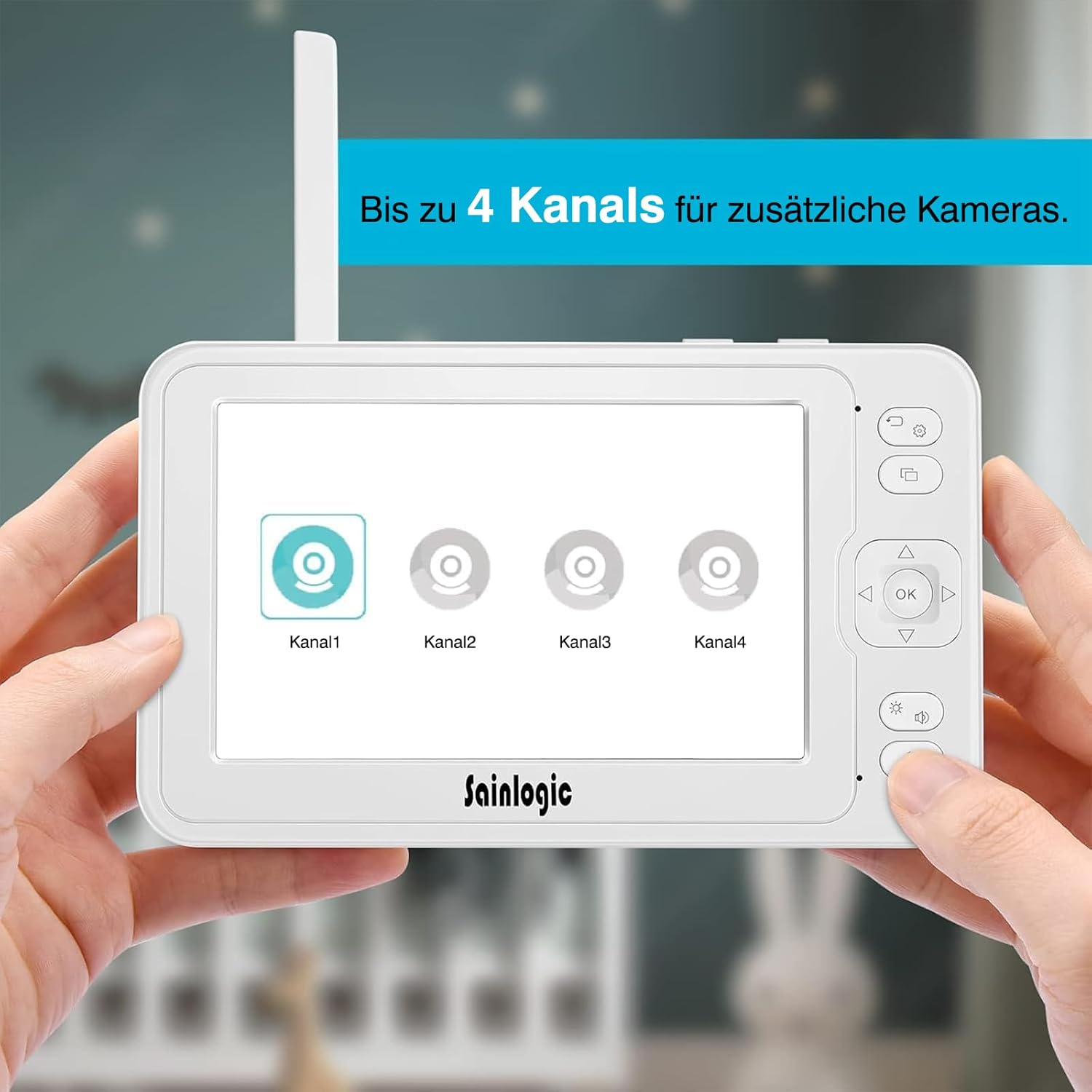
Figure 4.1: The parent unit (monitor) displaying options for connecting up to four camera channels.
- 5-inch HD LCD Screen: Displays live video feed from the camera.
- Antenna: For wireless signal reception.
- Power Button: Turns the monitor ON/OFF.
- Menu Button: Accesses monitor settings and features.
- Navigation Buttons (Up/Down/Left/Right): For menu navigation and camera pan/tilt control.
- OK Button: Confirms selections.
- Talk Button: Activates two-way intercom.
- Volume Buttons: Adjusts monitor speaker volume.
- Microphone: For two-way communication.
- Speaker: Outputs audio from the baby unit.
- Power Input: Connects to the power adapter.
- MicroSD Card Slot: For video recording storage (MicroSD card not included).
4.2 Baby Unit (Camera)

Figure 4.2: The baby unit (camera) providing a clear 1080P Full HD view of a baby, demonstrating high-quality image capture.
- Camera Lens: Captures video.
- Infrared LEDs: For night vision.
- Light Sensor: Detects ambient light for automatic night vision activation.
- Microphone: Picks up sounds from the baby's room.
- Speaker: Outputs audio from the parent unit (lullabies, two-way talk).
- Temperature Sensor: Monitors room temperature.
- Pair Button: For pairing the camera with the monitor.
- Power Input: Connects to the power adapter.
- Mounting Hole: For wall mounting.
5. Setup
5.1 Powering the Baby Unit (Camera)
- Place the baby unit in a location that provides a clear view of your baby. Ensure it is at least 1 meter (3 feet) away from the baby's crib or playpen to prevent strangulation hazards from the power cable.
- Connect the small plug of the camera power adapter to the camera's power input.
- Plug the other end of the power adapter into a suitable electrical outlet.
- The camera will automatically power on.
5.2 Powering the Parent Unit (Monitor)
- Connect the small plug of the monitor power adapter to the monitor's power input.
- Plug the other end of the power adapter into a suitable electrical outlet.
- Press and hold the Power button on the monitor for a few seconds to turn it on.
- The monitor has a built-in rechargeable battery for portable use. Charge it fully before initial use.
5.3 Pairing the Camera and Monitor
The baby unit and parent unit are pre-paired at the factory. If you lose connection or add additional cameras, follow these steps:
- Ensure both the camera and monitor are powered on.
- On the monitor, press the Menu button.
- Navigate to the Camera or Add Camera option and select it.
- Choose an available channel (e.g., Camera 1, Camera 2).
- The monitor will display a message indicating it is searching for a camera.
- Within 10 seconds, press and hold the Pair button on the back of the baby unit until the monitor displays the video feed.
- Once paired, the video feed will appear on the monitor.

Figure 5.3: The monitor interface illustrating the capability to connect and switch between up to four camera channels for expanded monitoring.
6. Operating Instructions
6.1 Basic Monitoring
Once the camera and monitor are powered on and paired, the monitor will automatically display the live video feed from the camera. Adjust the volume using the Volume buttons on the side of the monitor.
6.2 Camera Control (Pan/Tilt/Zoom)
- Use the Navigation buttons (Up/Down/Left/Right) on the monitor to remotely pan (355° horizontally) and tilt (90° vertically) the camera lens to get the desired view.
- To zoom in/out, press the Zoom button (often integrated with a navigation button or a dedicated button, refer to monitor button layout).
6.3 Two-Way Intercom
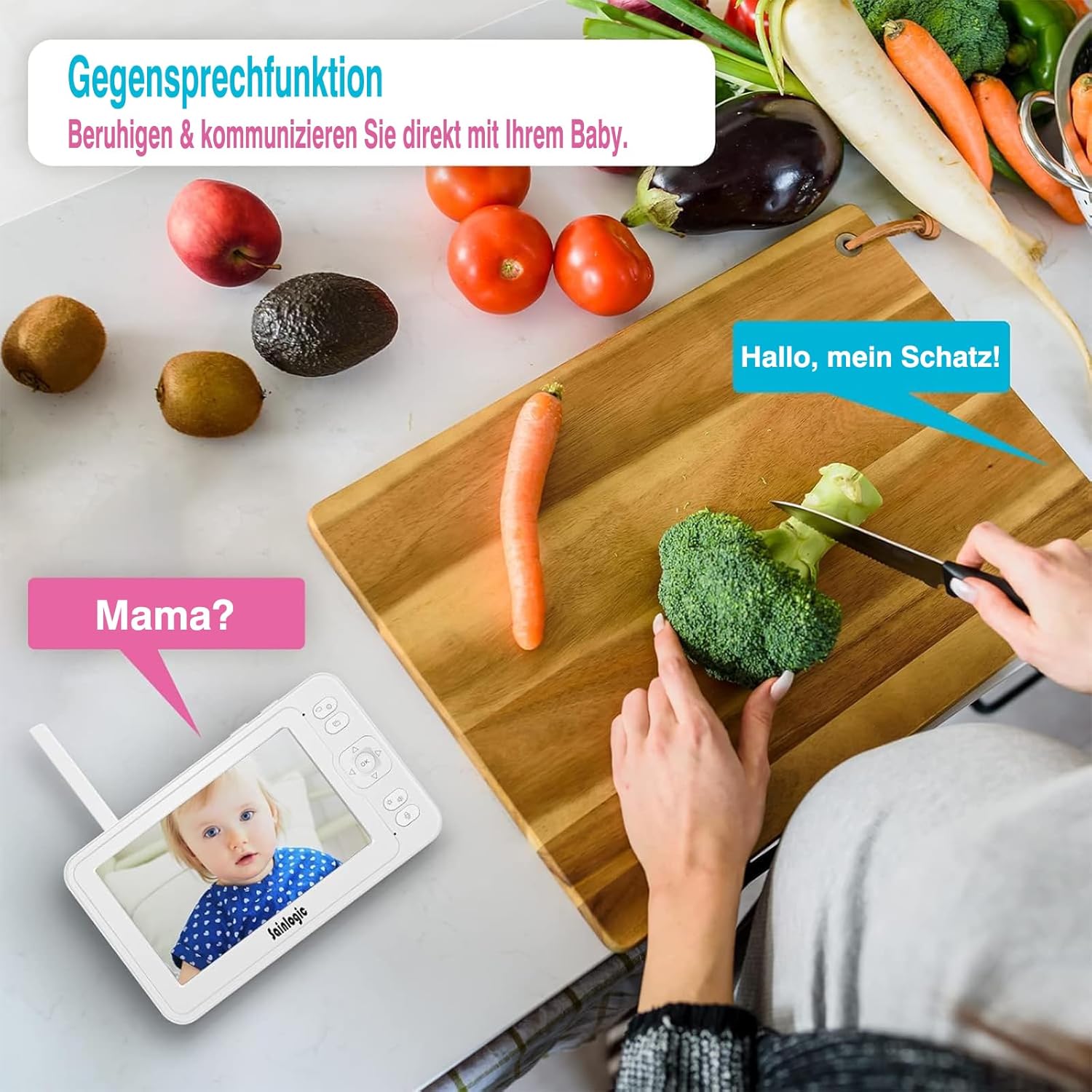
Figure 6.3: Demonstrating the two-way intercom function, allowing a parent to speak to their baby through the monitor.
To speak to your baby, press and hold the Talk button on the monitor. Release the button to hear your baby's sounds.
6.4 VOX Function (Voice Operated Exchange)

Figure 6.4: The monitor displaying a crying baby, indicating the activation of the sound detection alarm via integrated VOX technology and auto-wake feature.
The VOX function automatically activates the monitor screen and sound when it detects noise above a certain level in the baby's room. You can adjust the VOX sensitivity level in the monitor's menu settings.
- High Sensitivity: Detects even soft sounds.
- Low Sensitivity: Only activates for louder sounds.
6.5 Lullabies
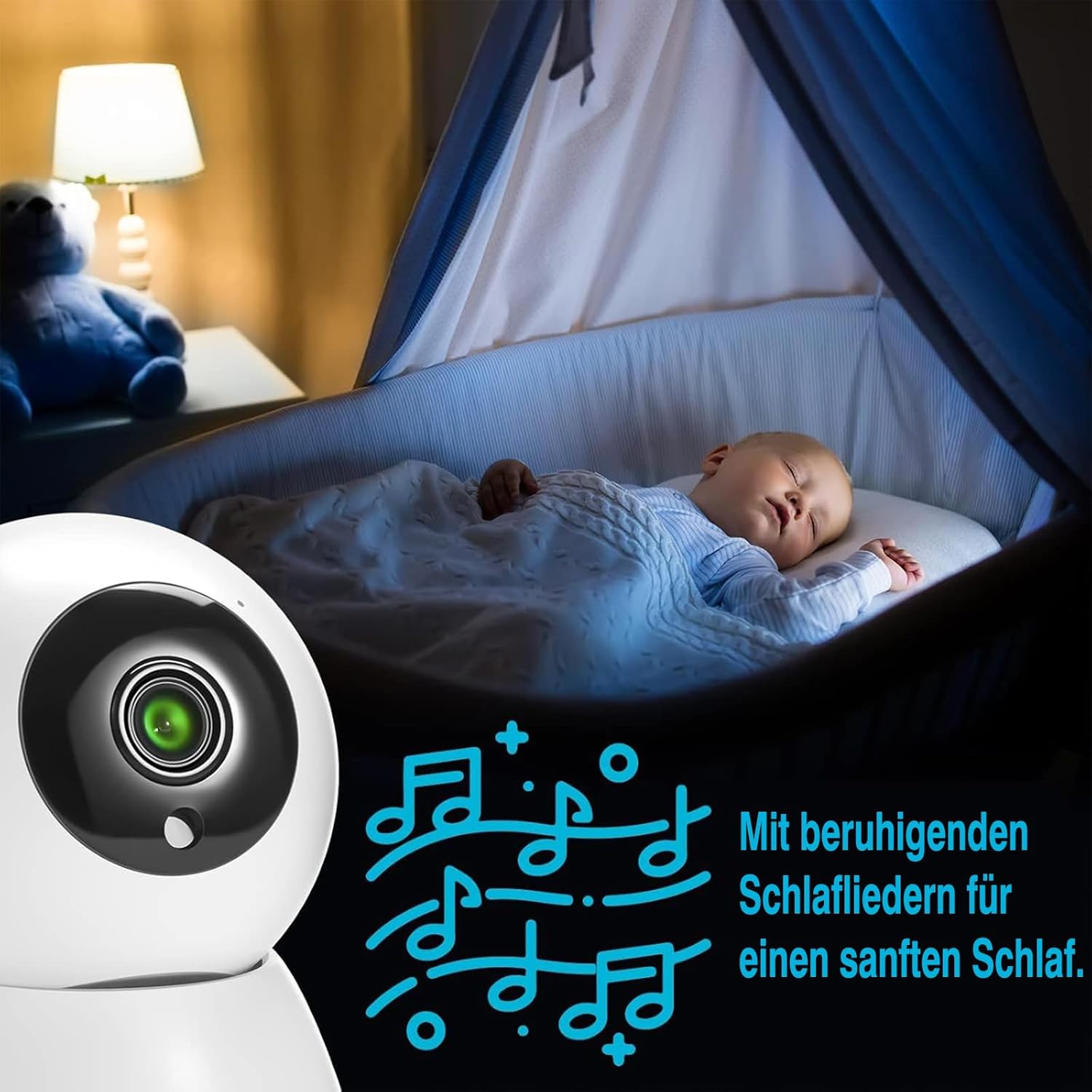
Figure 6.5: A baby sleeping soundly, accompanied by musical notes, illustrating the monitor's lullaby feature for soothing sleep.
The monitor includes 8 soothing lullabies. To play a lullaby, access the menu, navigate to the Lullaby option, and select your desired tune. You can also set a timer for how long the lullaby plays.
6.6 Temperature Monitoring

Figure 6.6: The baby monitor displaying a baby, with an overlay indicating both temperature and sound alarms, ensuring a safe environment.
The baby unit has a built-in temperature sensor that displays the room temperature on the parent unit. You can set high and low temperature alerts in the menu to be notified if the room becomes too hot or too cold.
6.7 Feeding Reminders
Set up feeding reminders through the monitor's menu. This feature allows you to schedule alerts to help maintain your baby's feeding schedule.
6.8 MicroSD Recording
Insert a MicroSD card (not included) into the designated slot on the monitor to record video footage. Access recording options and playback through the monitor's menu.
6.9 Menu Navigation

Figure 6.9: The monitor screen displaying a range of menu icons, including options for cameras, feeding reminders, sound alarms, temperature alarms, lullabies, display settings, recording, playback, system settings, and language.
Press the Menu button to access the main menu. Use the Navigation buttons to scroll through options and the OK button to select. Common menu options include:
- Camera Settings: Add/delete cameras, switch camera views.
- VOX Settings: Adjust sensitivity, enable/disable.
- Alarm Settings: Temperature alerts, feeding reminders.
- Lullabies: Select and play melodies.
- Display Settings: Brightness, sleep mode.
- System Settings: Time, date, language, factory reset.
7. Maintenance
- Cleaning: Clean the monitor and camera with a soft, dry cloth. Do not use cleaning agents or solvents.
- Battery Care: For optimal battery life, avoid fully discharging the monitor's battery frequently. Charge it regularly.
- Storage: If storing the device for an extended period, ensure the battery is partially charged and store it in a cool, dry place.
8. Troubleshooting
| Problem | Possible Cause | Solution |
|---|---|---|
| No picture/sound on monitor. |
|
|
| Picture is blurry or distorted. |
|
|
| VOX not working or too sensitive. |
|
|
| Two-way talk not functioning. |
|
|
9. Specifications
| Model Number | S-M-1 |
| Brand | sainlogic |
| Screen Size | 5-inch HD LCD |
| Video Resolution | 1080P FHD (Recording and Effective Video Resolution) |
| Connectivity Protocol | FHSS 2.4 GHz (No Wi-Fi required) |
| Power Input | 5 Volts, 10 Watts |
| Monitor Battery | 1 Non-standard battery (rechargeable) |
| Product Dimensions (L x W x H) | 16 x 1.5 x 10 cm |
| Product Weight | 830 grams |
| Mounting Type | Wall Mount |
| Alert Types | Audio and Motion, Temperature |
| Lullabies | 8 built-in melodies |
| Multi-Camera Support | Up to 4 cameras |
| Usage Environment | Indoor |
| GTIN/UPC | 734257140072 |
10. Warranty and Support
For warranty information or technical support, please refer to the warranty card included in your package or visit the official sainlogic website. Keep your purchase receipt as proof of purchase.

