
Introduction
The UGREEN FineTrack Slim S is an ultra-slim, rechargeable Bluetooth tracker designed to help you locate your valuable items such as wallets, keys, and luggage. It integrates seamlessly with the Samsung SmartThings application, providing a reliable and efficient way to keep track of your belongings. This device is exclusively compatible with Samsung phones and tablets running Android 9.0 or above.
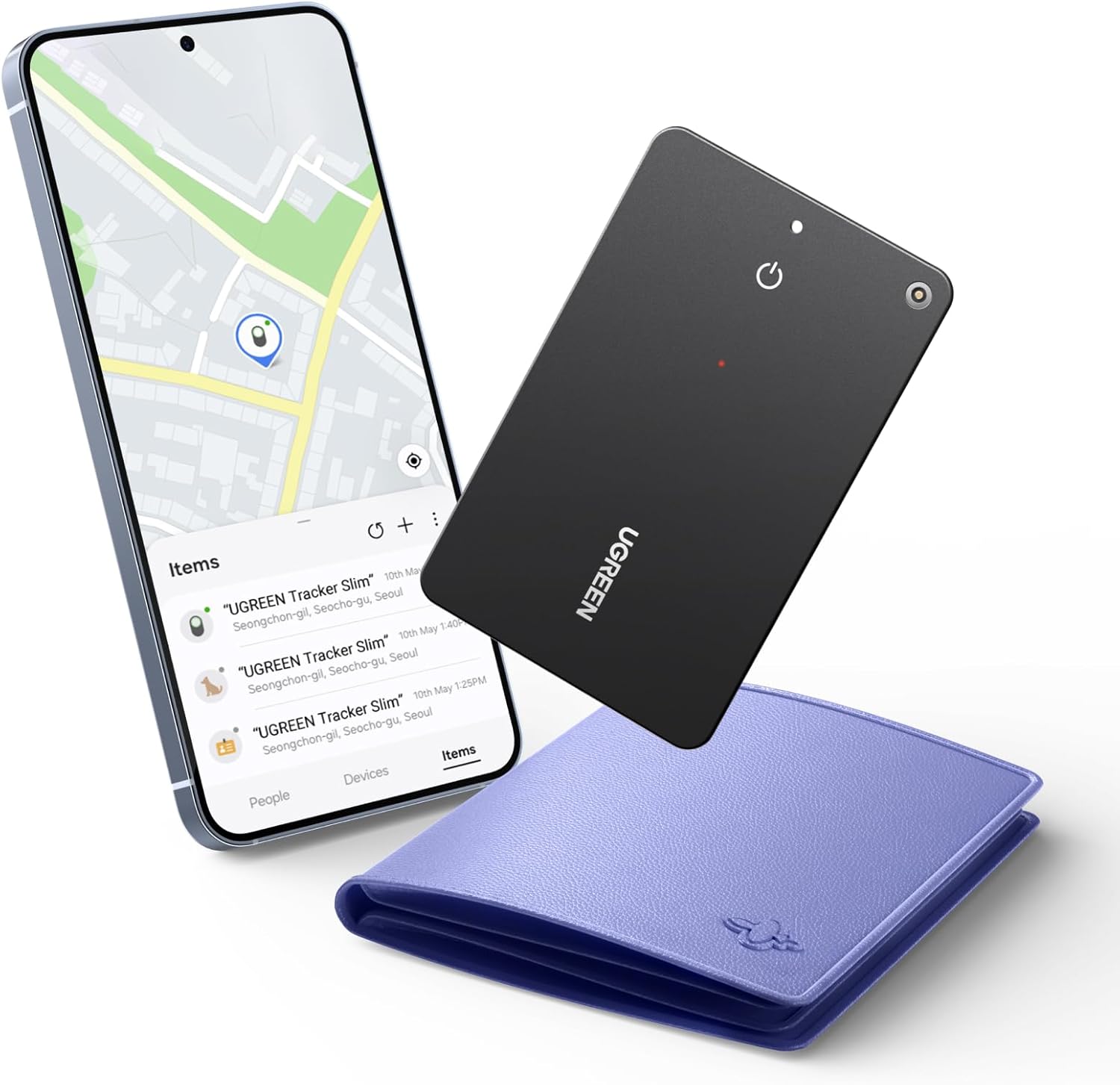
Image: The UGREEN FineTrack Slim S tracker, a smartphone showing its location on a map within the SmartThings app, and a wallet, illustrating its primary use.
Setup
Follow these steps to set up your UGREEN FineTrack Slim S tracker with your Samsung device.
Step 1: Power on the Device
Place the UGREEN FineTrack Slim S device near your Samsung phone or tablet. Press the power button on the tracker once to activate it.
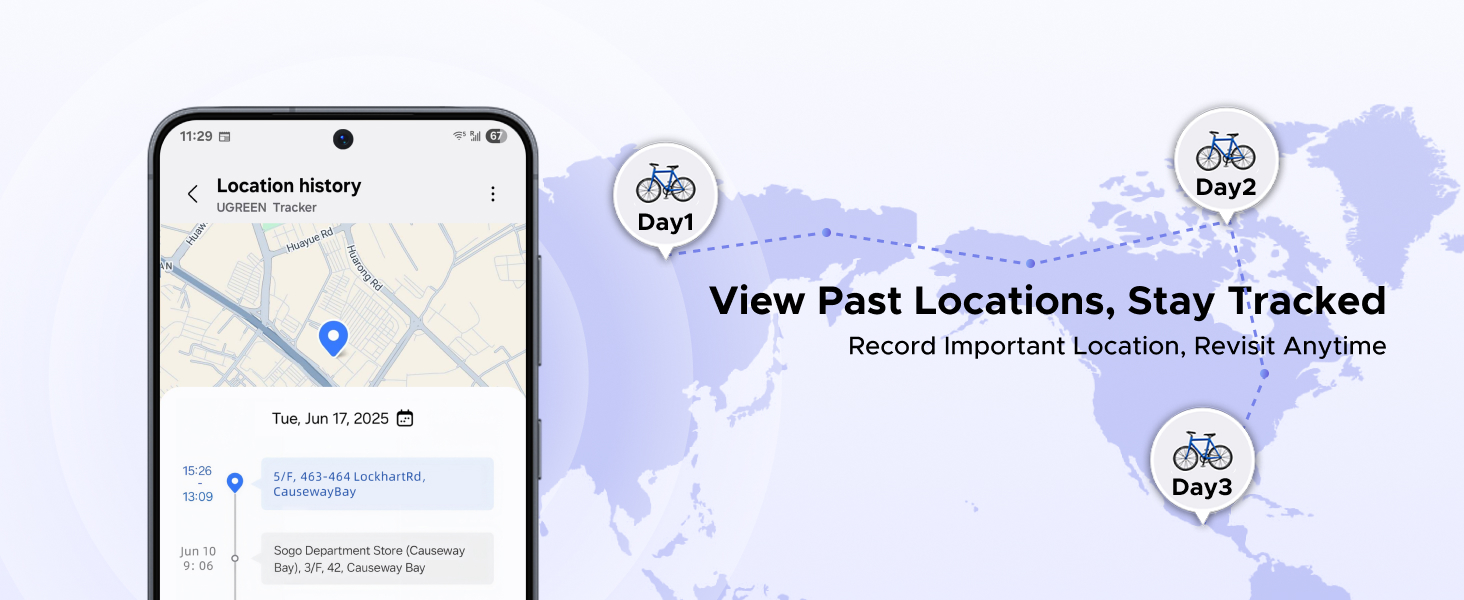
Image: Illustration of powering on the device by pressing its button while near a smartphone.
Step 2: Select a Connection Method
There are two methods to connect your tracker to the Samsung SmartThings app:
- Method 1 (Automatic Prompt): A connection prompt will automatically appear on your phone. Select "Add" to proceed with the pairing process.
- Method 2 (Manual Addition): Open the SmartThings app, navigate to "Devices," and tap the "+" icon. Choose either "Scan QR Code" or "Scan Nearby Devices" to pair.
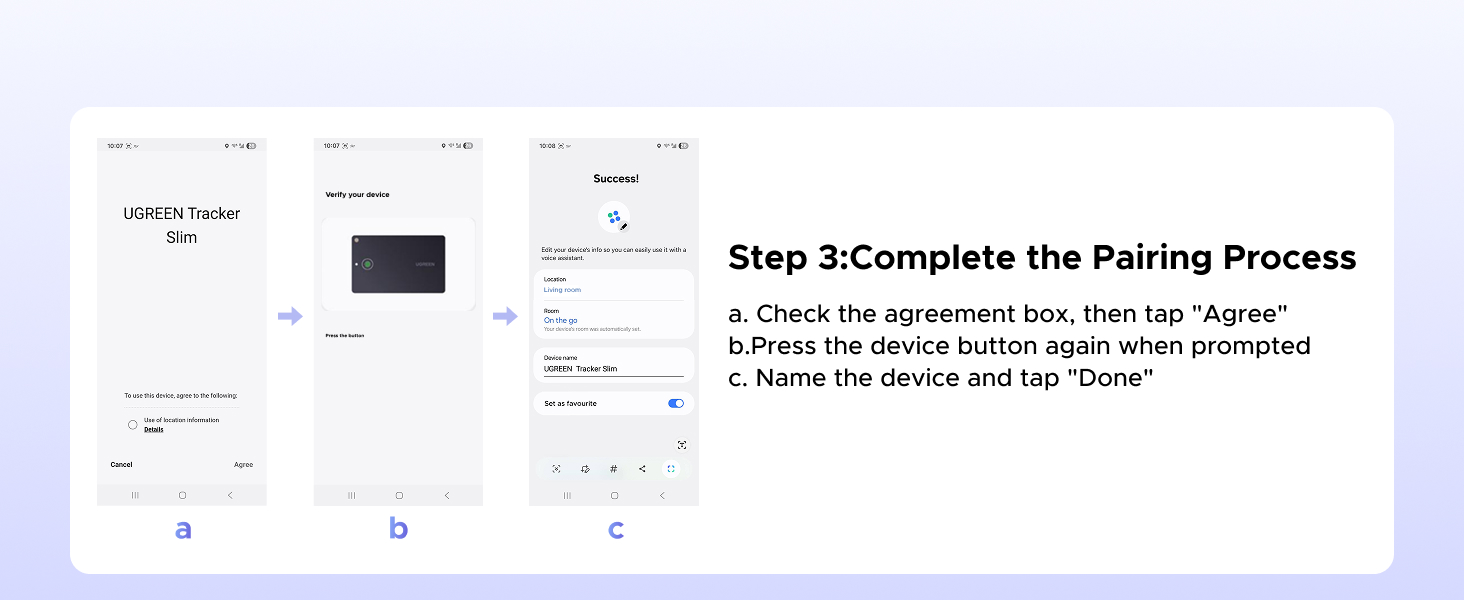
Image: Screenshots demonstrating the two methods for connecting the tracker within the SmartThings app.
Step 3: Complete the Pairing Process
Once you've initiated the connection:
- Check the agreement box, then tap "Agree."
- Press the device button again when prompted by the app.
- Name the device within the app and tap "Done."

Image: Screenshots illustrating the final steps to complete the pairing of the tracker with the SmartThings app.
Operating Instructions
Finding Items with a Ring
When your tagged item is nearby, you can make the tracker emit a loud sound to help you locate it quickly. Open the Samsung SmartThings app, select your UGREEN FineTrack Slim S, and tap the "Ring" option. The built-in buzzer will activate.

Image: A man at an airport using the tracker to find his luggage, with an illustration of the tracker emitting a sound.
Finding Your Phone
If you can't find your Samsung Galaxy phone, simply double-press the button on your UGREEN FineTrack Slim S tracker. Your phone will ring instantly, even if it's on silent mode, making it easy to locate.
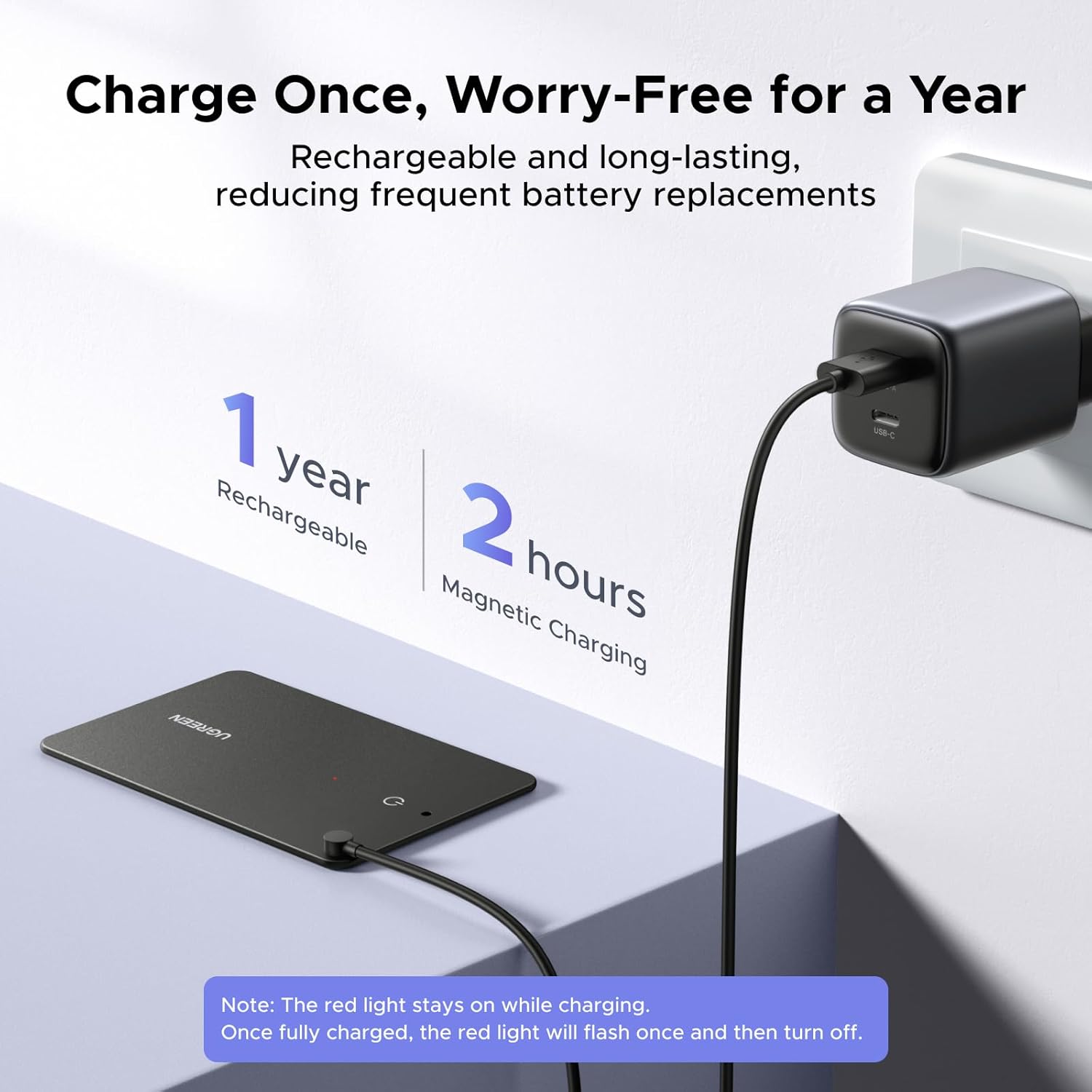
Image: A person demonstrating how to make their phone ring by pressing the tracker's button.
Global Tracking and Location History
The UGREEN FineTrack Slim S leverages the global Samsung SmartThings network to help you locate your items anywhere. The app also records and stores the historical location of your tracker for up to 7 days, allowing you to review its past movements.
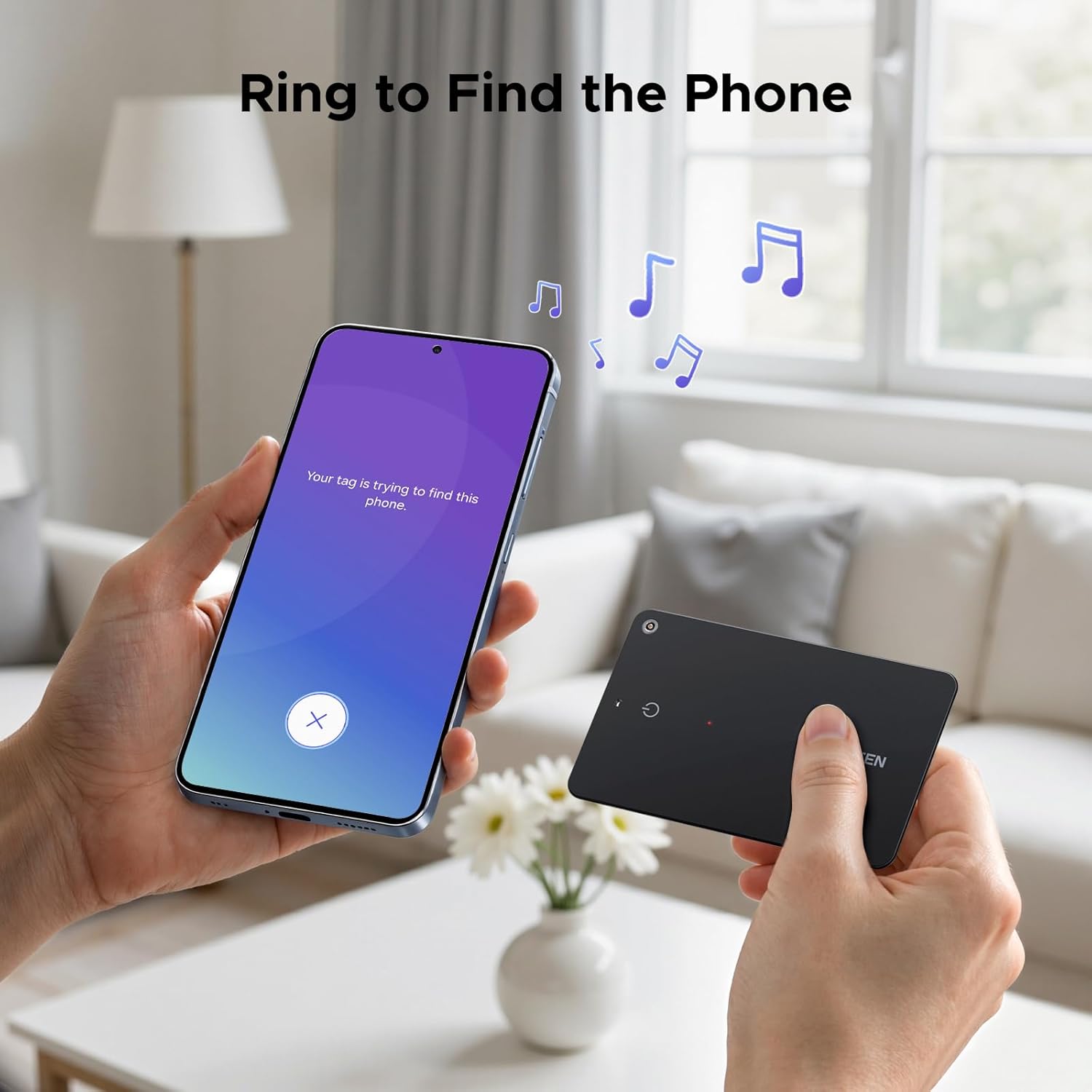
Image: A person using their smartphone to track the location of their item on a map.

Image: An illustration of the historical tracking feature, showing a device's movement over several days on a map.
Out-of-Range Alerts
Receive instant notifications on your phone if you leave a tagged item behind, helping to prevent loss. The alert distance can be adjusted based on your environment.

Image: An illustration of an out-of-range alert, showing a notification on a phone when the tracker is left behind.
Sharing Location and Managing Multiple Trackers
You can share the location of your tracked items with family or friends through the SmartThings app. Note that only one contact can be added for sharing at a time. To change the shared contact, you must first remove the device from the current shared phone. A single Samsung device can connect up to 200 UGREEN trackers, allowing you to manage multiple items easily.
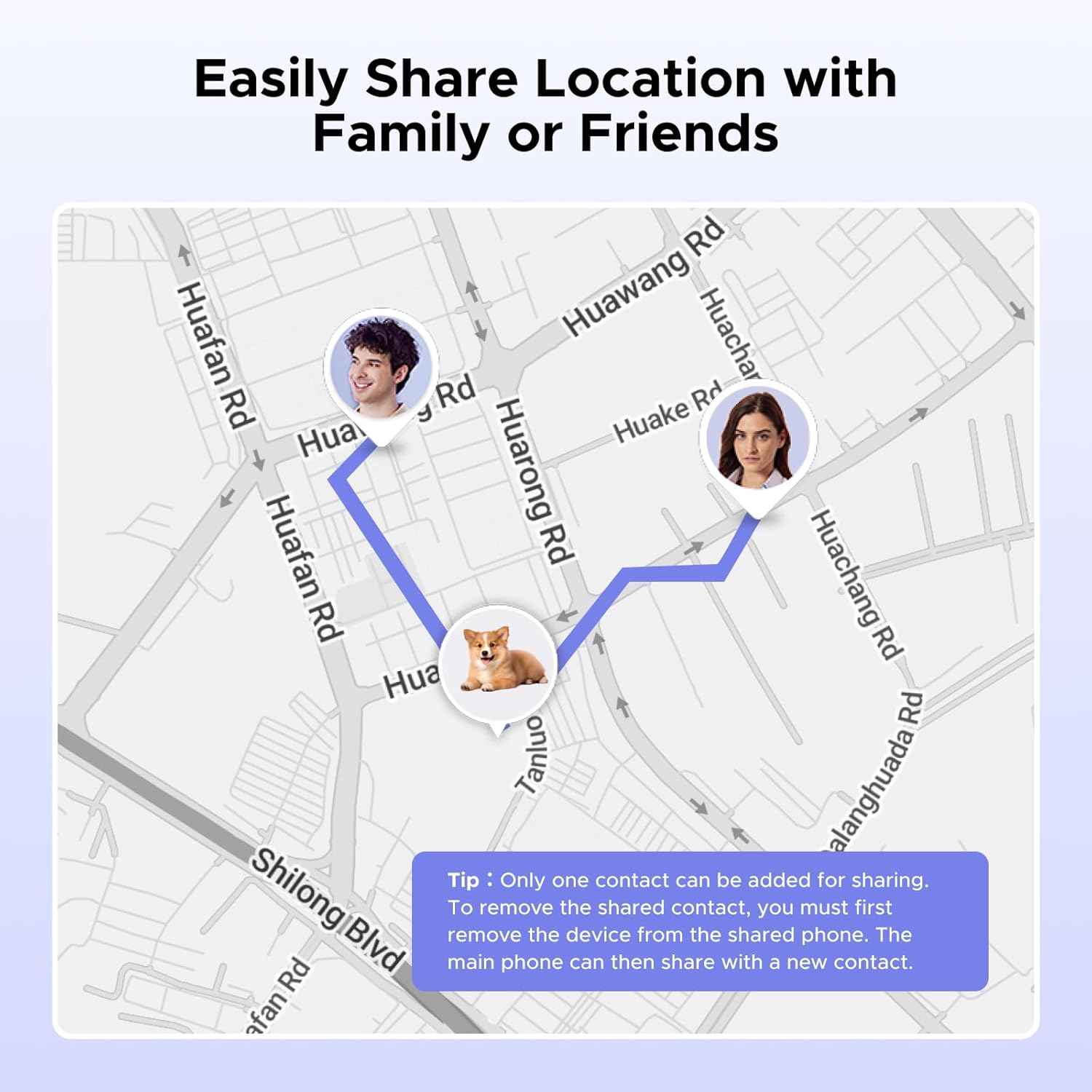
Image: An illustration of the location sharing feature on a map, showing how the tracker's location can be shared with others.
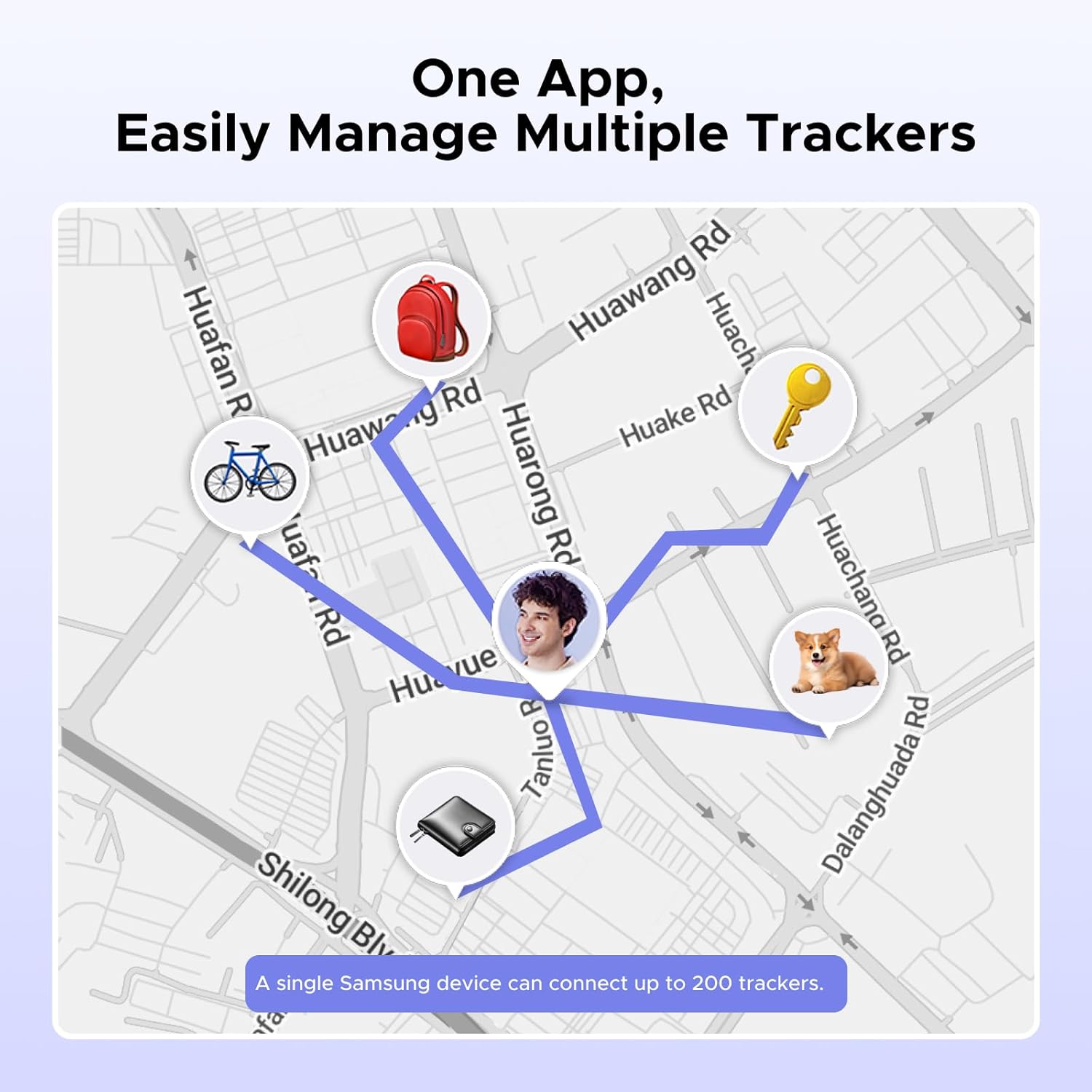
Image: An illustration demonstrating the ability to manage multiple trackers from a single SmartThings app interface.
Maintenance
Charging the Device
The UGREEN FineTrack Slim S features a rechargeable battery that can last up to 2 years on a single charge. It uses magnetic charging and takes approximately 1 hour to fully charge. You can check the battery level through the SmartThings app. During charging, the red light will stay on and turn off once fully charged. If the tracker is already fully charged when you connect it, the red light may flash briefly and then turn off.
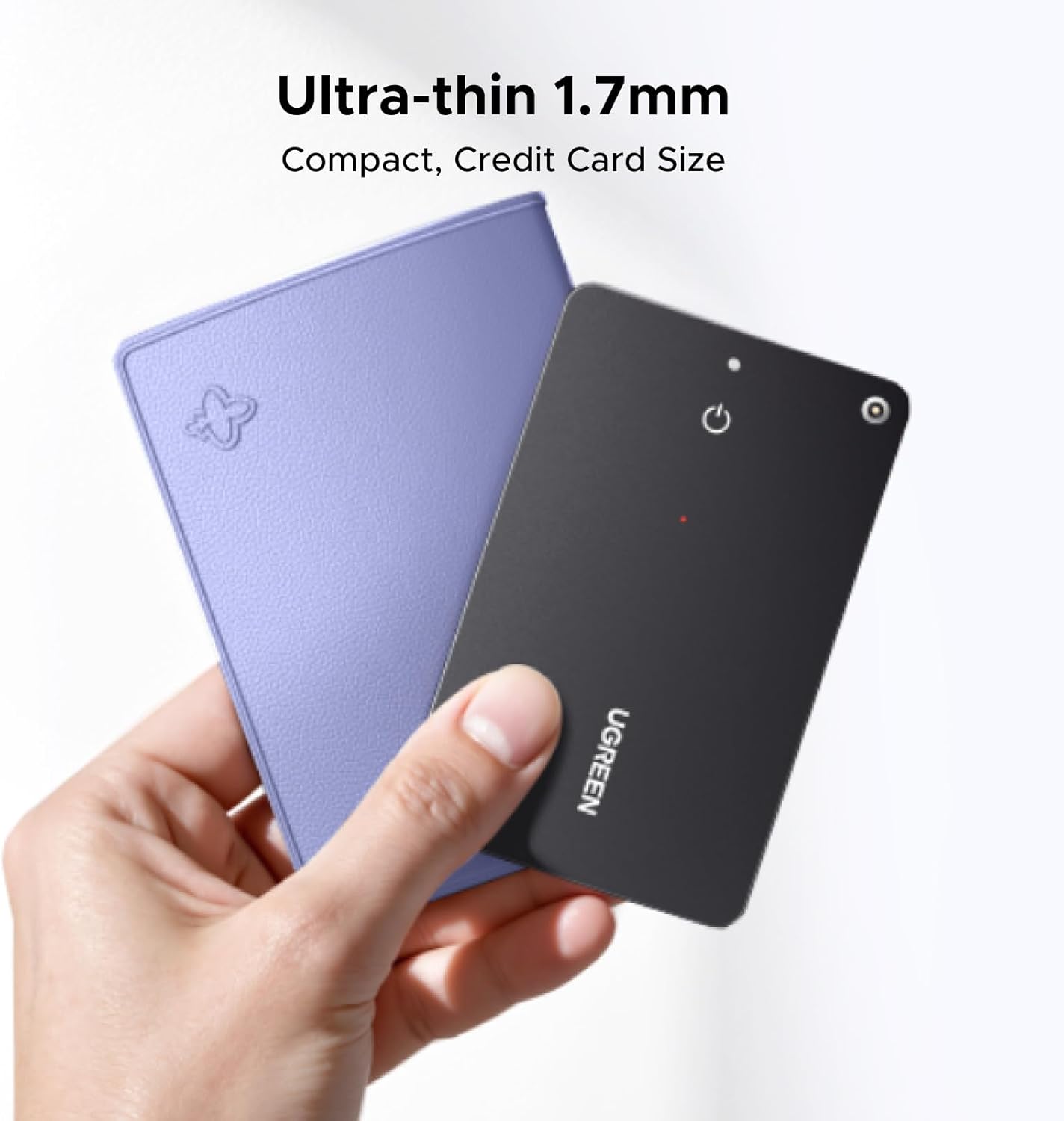
Image: The tracker being charged magnetically, highlighting its long battery life and quick charging time.
Water Resistance
The UGREEN FineTrack Slim S is IP68 rated for water resistance. This means it is protected against dust and can withstand immersion in water up to 1.5 meters for up to 30 minutes. While it is designed to be durable against spills and splashes, avoid prolonged submersion or exposure to high-pressure water jets.
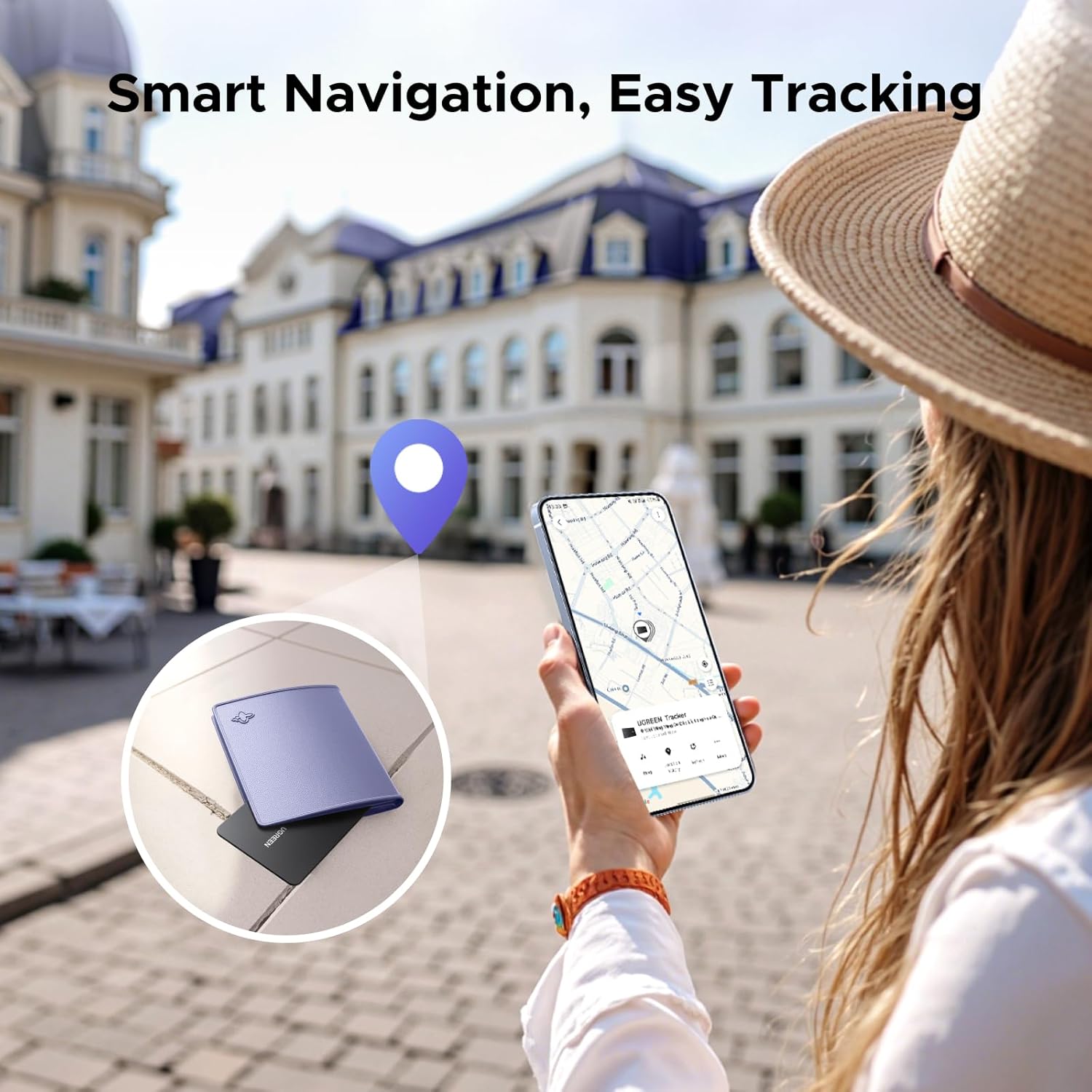
Image: The tracker shown in water, demonstrating its IP68 water-resistant capability.
Troubleshooting
| Problem | Possible Cause / Solution |
|---|---|
| Tracker not connecting to SmartThings app. |
|
| Tracker not ringing or sound is too low. |
|
| Phone not ringing when tracker button is double-pressed. |
|
| Location tracking is inaccurate or not updating. |
|
| Battery drains quickly. |
|
Specifications
| Feature | Detail |
|---|---|
| Model Number | 55770 |
| Dimensions (L x W x Th) | 3.3" x 0.17" x 2.08" (8.38 cm x 0.43 cm x 5.28 cm) |
| Weight | 3.2 ounces (90.7 grams) |
| Battery Type | 1 Lithium Ion battery (included, rechargeable) |
| Charging Time | Approx. 1 hour (magnetic charging) |
| Battery Life | Up to 2 years per charge |
| Water Resistance | IP68 Rated |
| Connectivity | Bluetooth, Samsung SmartThings Network |
| Compatibility | Samsung phones/tablets running Android 9.0 or above (Samsung Only) |
| Color | Black |
| Material | Plastic |
Warranty and Support
UGREEN products come with a standard manufacturer's warranty. For specific warranty details, please refer to the warranty card included with your product or visit the official UGREEN website. If you encounter any issues or require technical assistance, please contact UGREEN customer support through their official channels. You can often find support contact information on the UGREEN website or within the Samsung SmartThings app's help section related to connected devices.
For the latest information and support resources, please visit the UGREEN Store on Amazon.