
1. Introduction
This manual provides detailed instructions for the setup, operation, and maintenance of your DeLUX Rechargeable Wireless Ergonomic Keyboard and Vertical Mouse Combo. Please read this manual thoroughly before using the product to ensure optimal performance and longevity.

Image 1.1: The DeLUX ergonomic keyboard, vertical mouse, and USB receiver. This image displays the complete combo, highlighting the curved design of the keyboard and the unique vertical orientation of the mouse, along with the small USB dongle for wireless connectivity.
2. Package Contents
Verify that all items are present in your package:
- DeLUX Ergonomic Wireless Keyboard
- DeLUX Vertical Wireless Mouse
- USB Receiver (2.4G)
- USB-C Charging Cable
- User Manual
3. Product Overview
3.1. Ergonomic Keyboard Features
- Curved Split Design: Promotes natural wrist and forearm alignment.
- Full-Size Layout: Includes a numeric keypad and dedicated function keys.
- Backlit Keys: Enhances visibility in various lighting conditions.
- Touchable Volume Control: Allows for precise and coarse volume adjustments via a touch-sensitive strip.
- Removable Wrist Rest: Provides support and comfort, reducing wrist friction.

Image 3.1: The ultra-thin ergonomic split design of the keyboard. This image illustrates the natural arc and slope of the keyboard, designed to offer a more comfortable and familiar typing experience by promoting better wrist posture.

Image 3.2: The leather cushioned palm rest of the keyboard. This image highlights the soft, synthetic leather and memory foam layer of the palm rest, designed to provide comfort and support for the user's palm and wrist during extended use.
3.2. Vertical Mouse Features
- Ergonomic Vertical Design: Features a unique snail bionic design with a curved backside and thumb groove to reduce arm discomfort.
- Removable Palm Rest: Lifts the forearm and mouse as a unified unit, preventing wrist friction.
- Adjustable DPI: High precision up to 1600 DPI for accurate tracking.
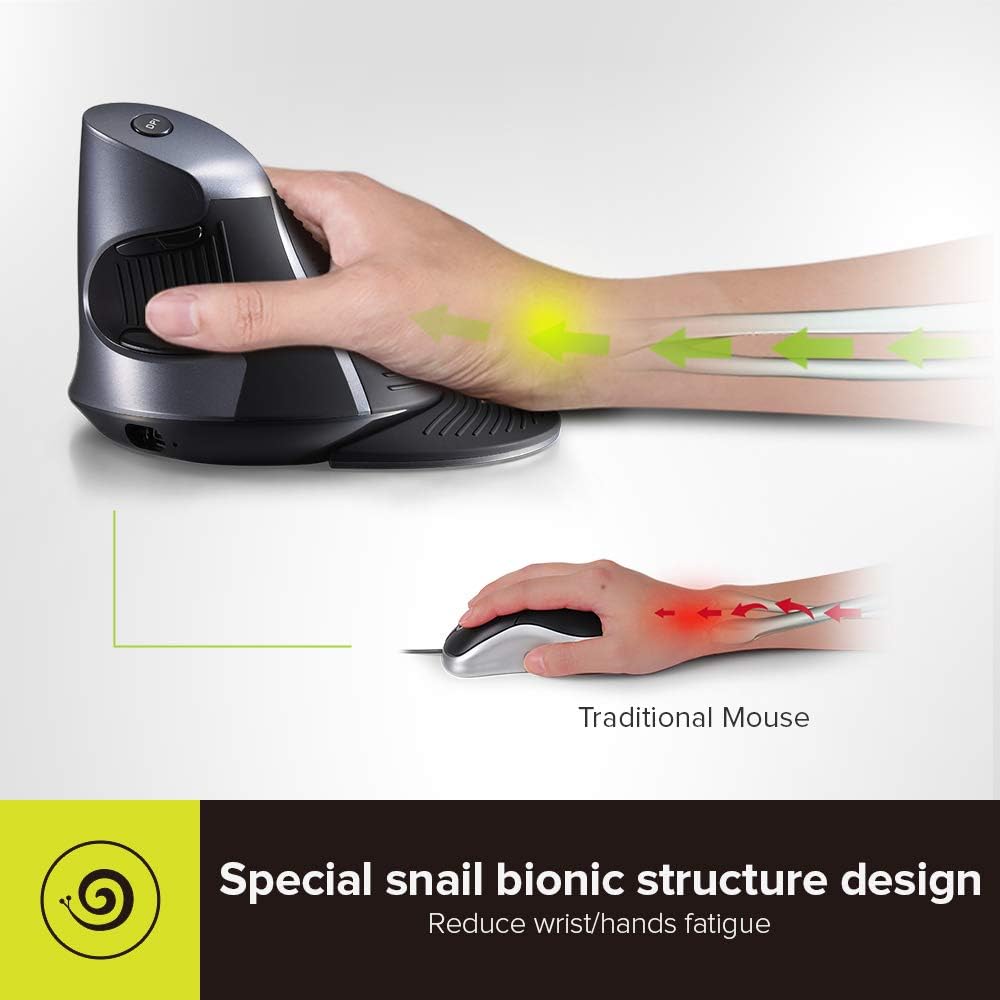
Image 3.3: The special snail bionic structure design of the vertical mouse. This image demonstrates how the vertical orientation and contoured shape of the mouse help reduce wrist and hand fatigue compared to a traditional mouse.

Image 3.4: The removable palm rest feature of the vertical mouse. This image shows the mouse with and without its detachable palm rest, illustrating how the rest can be attached or removed to protect the wrist and relieve pressure.
4. Setup
4.1. Charging the Devices
Both the keyboard and mouse are equipped with rechargeable batteries. Use the provided USB-C charging cable to charge them.
- Connect the USB-C end of the cable to the charging port on the keyboard/mouse.
- Connect the USB-A end to a powered USB port (e.g., computer, wall adapter).
- A full charge typically takes approximately 2 hours.
- The keyboard has a 2000mAh battery, offering up to 500 hours of battery life with the backlight off.

Image 4.1: The 2000mAh rechargeable battery and Type-C charging port on the keyboard. This image shows the USB-C charging cable connected to the keyboard, indicating the charging process and highlighting the battery capacity and charging time.
4.2. Connecting to Your Device
The combo supports multi-device connection via 2.4G wireless and Bluetooth (BT1, BT2).

Image 4.2: Multi-device connection options for the DeLUX keyboard. This image illustrates the ability to switch between 2.4G wireless and two Bluetooth channels (BT1, BT2), showing the keyboard connected to a laptop, tablet, and desktop computer.
4.2.1. 2.4G Wireless Connection
- Locate the USB receiver. It may be stored in a compartment on the mouse or keyboard.
- Plug the USB receiver into an available USB port on your computer.
- Turn on the keyboard and mouse using their respective power switches.
- The devices should automatically connect to your computer.
4.2.2. Bluetooth Connection (BT1 / BT2)
- Turn on the keyboard/mouse.
- On the keyboard, press the dedicated Bluetooth channel key (BT1 or BT2) for 3-5 seconds until the indicator light flashes, indicating pairing mode.
- On your device (computer, tablet), go to Bluetooth settings and search for new devices.
- Select "DeLUX Keyboard" or "DeLUX Mouse" from the list of available devices.
- Follow any on-screen prompts to complete the pairing process.
- Repeat for the second Bluetooth channel (BT2) if desired for another device.
5. Operating Instructions
5.1. Keyboard Operation
- Power On/Off: Use the switch located on the keyboard's underside.
- Backlight Control: Press the Fn key combined with the light bulb icon key (usually F10 or similar) to cycle through backlight modes or turn it off.
- Touchable Volume Control: Use the touch-sensitive strip located above the function keys.
- Precise Adjustment: Tap the '+' or '-' ends of the strip for fine-tuning (approx. ±2 units).
- Coarse Adjustment: Swipe your finger along the strip to quickly set the volume.
- Mute: Tap the center of the strip to mute/unmute.
- Function Keys: The F1-F12 keys have secondary functions (e.g., media control, application shortcuts) accessible by pressing the Fn key simultaneously.
- Switching Devices: Press the corresponding 2.4G, BT1, or BT2 key to switch between connected devices.

Image 5.1: The touchable volume control feature on the keyboard. This image demonstrates how to use the touch-sensitive strip for both precise (tapping) and coarse (swiping) volume adjustments, allowing for quick and intuitive audio control.
5.2. Mouse Operation
- Power On/Off: Use the switch located on the mouse's underside.
- DPI Adjustment: Press the DPI button (usually located near the scroll wheel) to cycle through different sensitivity levels (e.g., 800, 1200, 1600 DPI).
- Standard Buttons: Left-click, right-click, scroll wheel, and forward/back buttons function as standard.

Image 5.2: High precision up to 1600 DPI for the vertical mouse. This image illustrates the mouse's ability to adjust its tracking sensitivity, allowing for less physical movement and potentially reducing fatigue during use.
6. Maintenance
- Cleaning: Use a soft, dry cloth to clean the surfaces of the keyboard and mouse. For stubborn dirt, slightly dampen the cloth with water or a mild cleaning solution. Avoid harsh chemicals or abrasive materials.
- Battery Care: To prolong battery life, avoid fully discharging the devices frequently. Charge them when the low battery indicator appears. If storing for an extended period, charge them to about 50% and store in a cool, dry place.
- Storage: Store the devices in a clean, dry environment away from extreme temperatures and direct sunlight.
7. Troubleshooting
| Problem | Possible Cause | Solution |
|---|---|---|
| Device not responding | Low battery; Device is off; Connection issue | Charge the device; Turn on the device; Re-establish connection (see Section 4.2) |
| Lag or intermittent connection | Interference; Distance from receiver; Low battery | Move closer to the receiver; Remove obstacles; Charge the device; Try a different USB port |
| Keyboard backlight not working | Backlight off; Low battery | Press Fn + light bulb key; Charge the keyboard |
| Mouse cursor erratic | Dirty sensor; Surface issues | Clean the mouse sensor; Use on a suitable mouse pad or clean, flat surface |
8. Specifications
- Brand: DeLUX
- Model: B0DPQM7D54
- Connectivity Technology: Bluetooth, 2.4 GHz Wireless
- Special Features: Backlit, Ergonomic, Wrist Rest (Keyboard), Vertical Design (Mouse)
- Compatible Devices: Laptop, Personal Computer, Tablet
- Keyboard Battery: 2000mAh Rechargeable (Type-C charging)
- Mouse DPI: Up to 1600 DPI
- Color: Black
9. Warranty and Support
For warranty information and technical support, please refer to the documentation included with your purchase or visit the official DeLUX website. Contact customer service for assistance with any issues not covered in this manual.
You can visit the DeLUX store on Amazon for more information: DeLUX Store