
Introduction
Welcome to the user manual for your 1MORE SonoFlow-Pro HQ51 Noise Cancelling Headphones. These headphones are designed to provide an immersive audio experience with advanced noise cancellation, high-resolution sound, and extended battery life. This manual will guide you through the setup, operation, and maintenance of your new headphones.
What's in the Box
- 1MORE SonoFlow-Pro Headphones
- Carrying Case
- 3.5mm Audio Cable
- USB-C Charging Cable
- User Manual (this document)
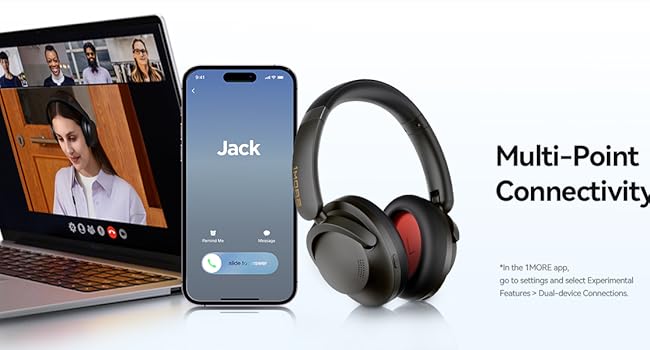
Image: The 1MORE SonoFlow-Pro headphones, folded in their protective carrying case, alongside the included 3.5mm audio cable, USB-C charging cable, and user manual.
Product Features
Advanced QuietMax Noise Cancellation
Experience tranquility with QuietMax dual-feed technology, reducing external noise by over 45dB. Ideal for travel, work, or any noisy environment.
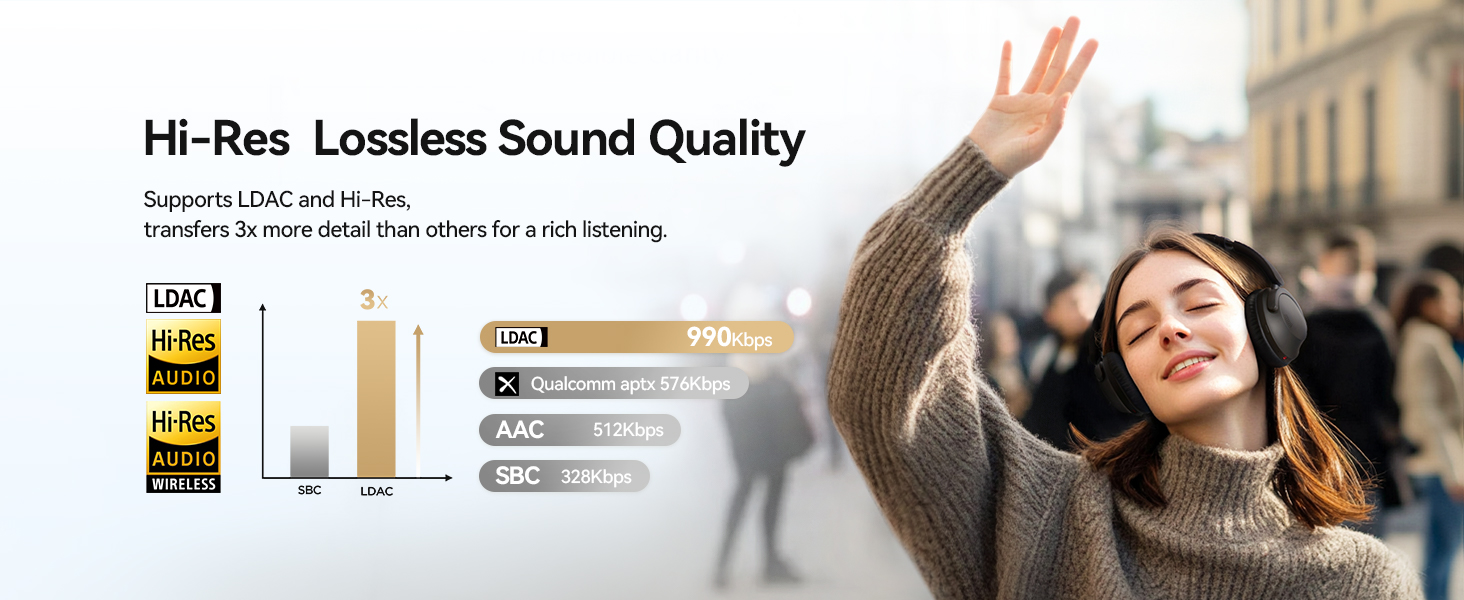
Image: A visual representation of QuietMax Intelligent Noise Cancellation, depicting sound waves being actively reduced by the headphone's technology.
Hi-Res Audio Excellence
Enjoy unparalleled sound quality with dual Hi-Res gold certification and LDAC technology, delivering three times the data of standard Bluetooth for rich, detailed audio. The 40mm diamond-like drivers produce clear, balanced sound up to 40kHz.
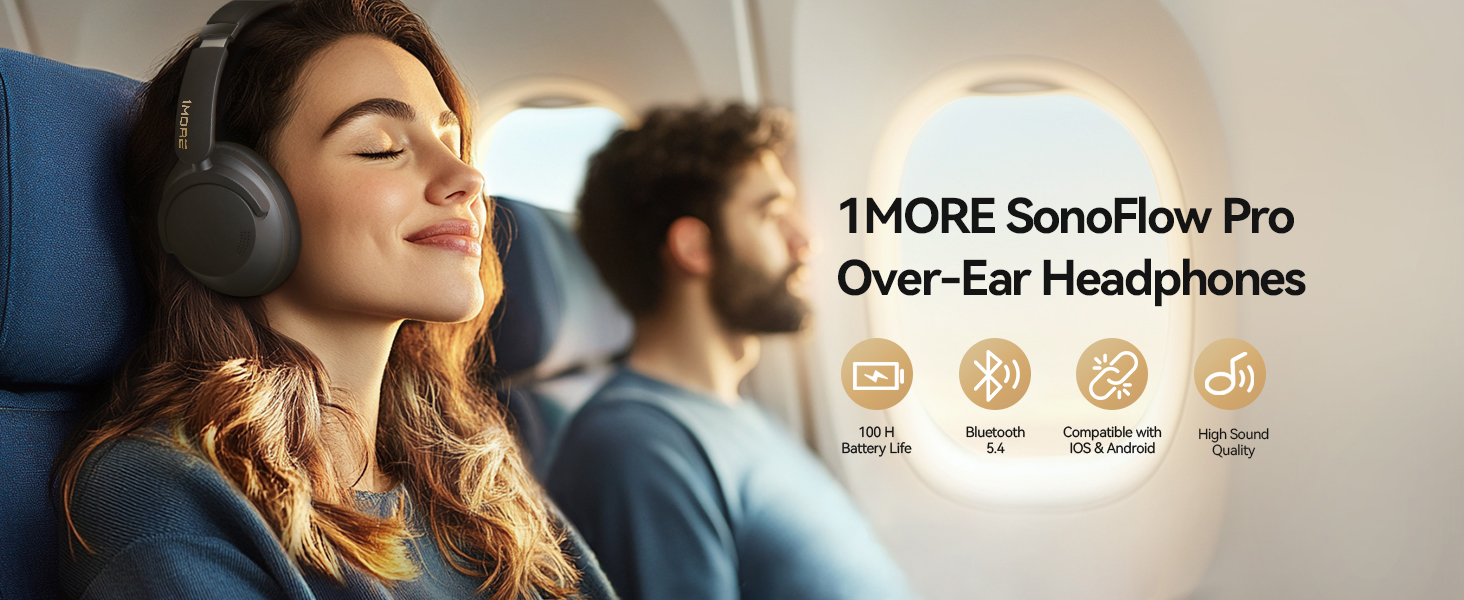
Image: A woman wearing 1MORE SonoFlow-Pro headphones, with visual cues highlighting Hi-Res Audio and LDAC lossless decoding capabilities.
Long-Lasting Battery with Quick Charge
Keep your music going for up to 100 hours in standard mode (ANC off) or 65 hours with ANC on. A rapid 5-minute charge provides an additional 10 hours of playtime.

Image: A man wearing the headphones, with graphics detailing the extensive battery life in various modes and the quick charge feature.
All-Day Comfort and Fit
Designed with ultra-lightweight materials and soft protein leather ear cushions, these headphones offer an adjustable and comfortable fit for long listening sessions.

Image: A woman wearing 1MORE SonoFlow-Pro headphones, with icons representing stretchability, rotatability, and suppleness for enhanced comfort.
Crystal Clear Calls
The advanced microphone and AI noise reduction algorithm ensure your voice is heard clearly, even in noisy environments.
Precision-Tuned Audio
Enjoy studio-quality sound, tuned by Grammy-winning engineer Luca Bignardi, for a natural and balanced listening experience.
Setup & Connectivity
Bluetooth Pairing
- Ensure the headphones are charged.
- Press and hold the power button for 2 seconds to turn on the headphones.
- The headphones will automatically enter pairing mode (indicated by a flashing LED).
- On your device (smartphone, laptop, etc.), enable Bluetooth and search for '1MORE SonoFlow-Pro'.
- Select the headphones to connect. A voice prompt will confirm successful pairing.
Wired Connection
For a wired connection, use the included 3.5mm audio cable. Plug one end into the headphone's audio jack and the other into your audio source. The headphones support ANC functionality even when connected via cable, provided they are powered on.

Image: A man wearing 1MORE SonoFlow-Pro headphones, connected via the 3.5mm audio cable to a laptop.
Multi-Point Connectivity
The SonoFlow-Pro supports connecting to two devices simultaneously. To enable this feature, open the 1MORE app, go to Settings > Experimental Features > Dual-device Connections. You can seamlessly switch between audio sources by pausing media on one device and playing on the other. Incoming calls will automatically switch to the active call device.

Image: 1MORE SonoFlow-Pro headphones shown connected to a laptop for a video call and a smartphone for an incoming call, demonstrating multi-point connectivity.
Operating Controls
The headphones feature intuitive physical buttons for easy control:
- Power Button: Long press for 2s to turn ON, long press for 5s to turn OFF.
- Play/Pause: Press once the Power Button.
- Volume +: Press the '+' button.
- Volume -: Press the '-' button.
- Previous Track: Long press the '-' button for 2s.
- Next Track: Long press the '+' button for 2s.
- ANC/Transparency Mode: Press the 'NC' button to cycle through ANC ON, Pass-through (Transparency), and ANC OFF.
- Answer/End Call: Press the Power Button once.

Image: A detailed view of the physical buttons on the 1MORE SonoFlow-Pro headphones, indicating their respective functions.
1MORE App Features
Enhance your listening experience by downloading the 1MORE app (not 1MORE Music app) from the App Store or Google Play. The app provides access to:
- Adjustable EQ: Customize your sound with various preset EQs (Studio, Bass Reducer, Bass Booster, Acoustic, Classical, Podcast, Deep, Electronic, Hip-Hop, Lounge, Pop, Loud) or create custom EQ settings.
- Firmware Updates: Keep your headphones up-to-date with the latest features and improvements.
- Listening Modes: Easily switch between ANC, Transparency, and Off modes.
- Spatial Sound: Toggle immersive spatial audio features.
- Low-Latency Connection: Optimize for gaming or video.
- Dual-Device Connection: Manage multi-point connectivity.

Image: Multiple smartphone screens displaying the 1MORE app interface, showcasing custom EQ settings, listening modes, and various preset EQs.
Specifications
| Feature | Detail |
|---|---|
| Model Name | HQ51 |
| Noise Control | Active Noise Cancellation (QuietMax) |
| Connectivity Technology | Wireless (Bluetooth 5.4), Wired (3.5mm) |
| Audio Driver Type | 40mm Dynamic Driver |
| Battery Life (ANC Off) | Up to 100 Hours |
| Battery Life (ANC On) | Up to 65 Hours |
| Quick Charge | 5 minutes charge for 10 hours playtime |
| Material | Leather, Plastic |
| Item Weight | 1.17 pounds (0.53 Kilograms) |
| Earpiece Shape | Over Ear |
| Included Components | Cable, Protective Case, User Manual |
Troubleshooting
If you encounter any issues with your 1MORE SonoFlow-Pro headphones, please try the following common troubleshooting steps:
- No Power: Ensure the headphones are fully charged using the provided USB-C cable.
- Cannot Pair: Make sure the headphones are in pairing mode (flashing LED) and within range of your device. Try restarting both the headphones and your device.
- Sound Issues: Check the volume levels on both the headphones and your connected device. If using a wired connection, ensure the cable is securely plugged in. Try different EQ settings in the 1MORE app.
- ANC Not Working: Ensure ANC mode is activated via the 'NC' button or the 1MORE app.
- App Connectivity Issues: If the 1MORE app doesn't connect, try restarting the app or the headphones. Ensure Bluetooth is enabled on your device.
For further assistance, please refer to the support section in the 1MORE app or visit the official 1MORE website.
Warranty and Support
Your 1MORE SonoFlow-Pro HQ51 headphones come with a standard manufacturer's warranty. Please retain your proof of purchase for warranty claims. For detailed warranty terms, product support, and service inquiries, please visit the official 1MORE website or contact their customer service directly. Information regarding protection plans may also be available from your retailer.