
Introduction
This manual provides comprehensive instructions for the SENGBIRCH Magic Keyboard Case, designed to enhance your iPad experience. It features a QWERTZ layout, a multi-touch trackpad, and adjustable backlighting, transforming your iPad into a versatile workstation. Please read this manual carefully before use to ensure proper operation and longevity of your device.
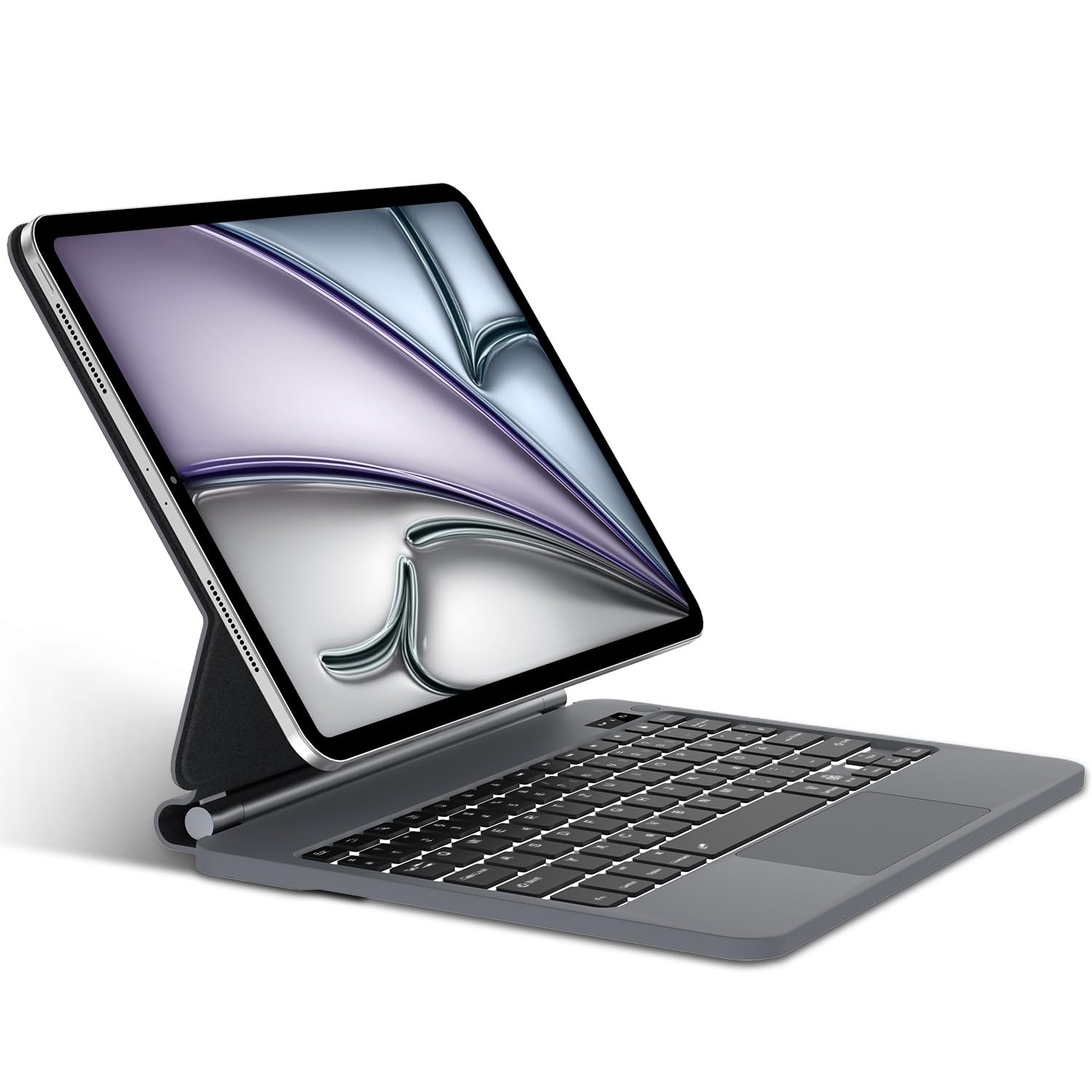
Image: The SENGBIRCH Magic Keyboard Case with an iPad, illustrating the product's overall appearance.
Compatibility
The SENGBIRCH Magic Keyboard Case is compatible with the following iPad models:
- iPad Air 11-inch (M3 2025)
- iPad Air 11-inch (M2 2024)
- iPad Pro 11-inch 4th Generation 2022 (Models: A2435, A2761, A2762)
- iPad Pro 11-inch 3rd Generation 2021 (Models: A2377, A2459, A2301, A2460)
- iPad Pro 11-inch 2nd Generation 2020 (Models: A2228, A2068, A2230, A2231)
- iPad Pro 11-inch 1st Generation 2018 (Models: A1980, A2013, A1934, A1979)
- iPad Air 10.9-inch 5th Generation 2022 (Models: A2588, A2589, A2591)
- iPad Air 10.9-inch 4th Generation 2020 (Models: A2316, A2324, A2325, A2072)
Please verify your iPad's model number before use to ensure compatibility. The model number is typically found on the back of your iPad.

Image: Detailed compatibility chart illustrating supported iPad models and their specific model numbers.
Setup
1. Charging the Keyboard
The keyboard comes with a USB-C charging cable. Connect the USB-C cable to the keyboard's charging port and the other end to a compatible USB power adapter. A full charge takes approximately 2 to 3 hours.

Image: The keyboard case being charged via USB-C, highlighting its long-lasting battery and quick charging capabilities.
2. Powering On/Off
- To Power On: Press and hold the physical power button located in the upper right corner of the keyboard for 3 to 5 seconds.
- To Power Off: Press and hold the power button again for approximately 5 seconds. A red indicator light on the left side of the button will flash when powering off.
3. Bluetooth Connection
- Ensure the keyboard is fully charged and powered on.
- Press and hold the power button for 3 seconds to turn on the keyboard.
- Press the Fn + C keys simultaneously to activate Bluetooth pairing mode. The Bluetooth indicator light will flash.
- On your iPad, go to Settings > Bluetooth.
- Locate and select "Bluetooth Keyboard" from the list of available devices.
- The connection will be established automatically.
Operating Instructions
1. Using the Multi-Touch Trackpad
The integrated multi-touch trackpad allows for precise navigation, scrolling, swiping, and more. To ensure the trackpad functions correctly:
- First, ensure the trackpad is enabled on the keyboard by pressing Fn + Space.
- On your iPad, navigate to Settings > Accessibility > Touch > AssistiveTouch and ensure it is enabled.
The trackpad automatically deactivates when typing to prevent accidental inputs.

Image: Close-up of the multi-functional trackpad, highlighting its capabilities and the keyboard's overall protective design.
2. Adjustable Backlit Keyboard
The keyboard features ergonomic keys with adjustable backlighting. You can choose from three levels of brightness to type comfortably in various lighting conditions, including dark environments.
- Use the dedicated backlight keys (usually Fn + Light icon or similar) to cycle through brightness levels or turn the backlight off.
3. Smart Features and Design
- Magnetic Attachment: Your iPad magnetically attaches to the back cover, allowing for easy setup and removal.
- Adjustable Viewing Angles: The floating cantilever design enables smooth adjustment of the viewing angle for optimal comfort.
- 3-in-1 Functionality: The case serves as a protective cover, a stable stand, and a functional keyboard, transforming your iPad into a laptop-like device.
- Apple Pencil Storage: A dedicated spot allows you to place and charge your Apple Pencil.

Image: The keyboard case in use, demonstrating its wireless connectivity, quick access keys, magnetic attachment, and flexible viewing angles.

Image: Visual representation of the keyboard case's versatility, functioning as a stand, a keyboard, and a protective case.

Image: A user typing on the keyboard case, illustrating the ergonomic design and typing experience.
Maintenance
- Cleaning: Use a soft, damp cloth to wipe the surface of the keyboard and case. Avoid using harsh chemicals or abrasive materials.
- Storage: When not in use, store the keyboard case in a cool, dry place away from direct sunlight and extreme temperatures.
- Battery Care: To prolong battery life, avoid fully discharging the keyboard frequently. Charge it regularly, even if not in constant use.
Troubleshooting
- Keyboard Not Connecting:
- Ensure the keyboard is charged and powered on.
- Verify Bluetooth is enabled on your iPad and the keyboard is in pairing mode (Fn+C).
- Forget the device in iPad's Bluetooth settings and try pairing again.
- Restart both your iPad and the keyboard.
- Trackpad Not Working:
- Ensure the trackpad is enabled on the keyboard (Fn+Space).
- Check if "AssistiveTouch" is enabled in your iPad's Accessibility settings (Settings > Accessibility > Touch > AssistiveTouch).
- Ensure your iPadOS version is 13 or higher.
- Keys Not Responding:
- Check battery level and charge the keyboard if low.
- Reconnect the Bluetooth connection.
- Ensure no debris is lodged under the keys.
- Backlight Not Working:
- Ensure the keyboard is powered on.
- Press the backlight adjustment keys to cycle through brightness levels.
- Check battery level; low battery might disable backlighting.
Specifications
| Keyboard Dimensions | 31.2 x 22.4 x 2.7 cm (12.28 x 8.82 x 1.06 inches) |
| Keyboard Weight | 940 g (2.07 lbs) |
| Bluetooth Version | Bluetooth 5.0 |
| Battery Capacity | 680 mAh Lithium-polymer |
| Key Lifespan | 500 million clicks |
| Operating Range | 10 meters (33 feet) |
| Standby Time | 300 days (Note: Some visuals may indicate 90 days) |
| Working Time (without backlight) | 100 hours (Note: Some visuals may indicate 70-80 hours) |
| Working Time (with backlight) | 10 hours (Note: Some visuals may indicate 5-7 hours) |
| Charging Time | 2-3 hours |
| Keyboard Layout | QWERTZ (German) |
| Material | Plastic, Synthetic Leather |
| Compatible OS | iPadOS 13 or higher |
Warranty and Support
Information regarding product warranty and customer support is not available in the provided product details. Please refer to the product packaging or contact the retailer/manufacturer directly for warranty claims and technical assistance.


