
1. Introduction
This manual provides detailed instructions for the installation, operation, and maintenance of your JMANCE 13-inch Android 13 Car Stereo. Please read this manual thoroughly before using the product to ensure proper functionality and safety. This unit is designed for specific vehicle models: Chevy Tahoe, Suburban, and GMC Yukon manufactured between 2008 and 2012.
2. Product Overview
The JMANCE 13-inch Android 13 Car Stereo is an advanced multimedia system featuring a QLED touch screen, Octa-Core processor, 6GB RAM, and 128GB ROM. It offers seamless integration with your vehicle's electrical system and provides a range of functionalities including navigation, multimedia playback, and communication tools.
Key Features:
- 13-inch QLED Touch Screen display.
- Android 13 Operating System with Octa-Core CPU, 6GB RAM, 128GB ROM.
- Built-in Wireless CarPlay and Android Auto for smartphone integration.
- Integrated GPS navigation with support for online and offline maps.
- Advanced Digital Sound Processor (DSP) with adjustable EQ bands.
- Support for Steering Wheel Control (SWC).
- Unique 3D User Interface (UI) with customizable themes.
- AM/FM/RDS Radio tuner.
- Bluetooth 5.0 for hands-free calling and audio streaming.
- Includes front and rear 1080P AHD cameras with dual-camera recording capability.
- Integrated intelligent cooling fan for optimal performance.
3. What's in the Box
Please verify that all components are present before beginning installation:
- 13-inch QLED 6+128GB Octa Core Android GPS Stereo for GMC
- Wires and Harnesses (Power, RCA, USB, GPS Antenna, Radio Antenna)
- Front Camera
- Backup Camera
- Car Radio Flat Pry Bar
- User Manual (this document)

Image: Main unit, front camera, rear camera, and pry tool included in the package.
4. Setup and Installation
Professional installation is recommended. Ensure the vehicle's battery is disconnected before starting installation. Refer to your vehicle's service manual for specific dashboard disassembly instructions.
4.1 Vehicle Compatibility
This unit is specifically designed for:
- Chevy Tahoe (2008-2012)
- Chevy Suburban (2008-2012)
- GMC Yukon (2008-2012)

Image: Visual comparison of the vehicle dashboard before and after the stereo installation.
4.2 Wiring Diagram
Carefully follow the wiring diagram provided. Incorrect wiring can damage the unit or the vehicle's electrical system.

Image: Comprehensive wiring diagram illustrating all necessary connections for the car stereo system.
4.3 Camera Installation
Install the front and rear cameras according to the included camera instructions. Ensure proper routing of cables to avoid interference and damage.
5. Operating Instructions
5.1 Power On/Off
Press and hold the power button on the unit or use the vehicle's ignition to turn the stereo on or off.
5.2 Wireless CarPlay & Android Auto
Connect your iPhone or Android device wirelessly via Bluetooth and Wi-Fi, or use a USB cable for wired connection. Once connected, your phone's interface will be mirrored on the stereo screen, allowing access to navigation, music, messages, and voice assistants.

Image: Demonstration of wireless CarPlay and Android Auto functionality on the stereo display.
5.3 GPS Navigation & Wi-Fi
The unit comes with pre-installed navigation capabilities. Connect to a Wi-Fi hotspot (e.g., from your smartphone) to download online maps or update existing ones. You can also download various navigation apps from the Android Market.

Image: GPS navigation interface and Wi-Fi connectivity options.
5.4 Digital Sound Processor (DSP) & Equalizer
Access the built-in DSP settings to customize audio output. The adjustable EQ band allows fine-tuning of sound frequencies to match your preferences and vehicle acoustics.

Image: Digital Sound Processor (DSP) and Equalizer settings interface.
5.5 Steering Wheel Control (SWC)
If your vehicle supports it, the stereo can be configured to work with your existing steering wheel controls. This allows you to manage audio playback, volume, and calls without taking your hands off the steering wheel. Refer to the system settings for SWC learning and configuration.
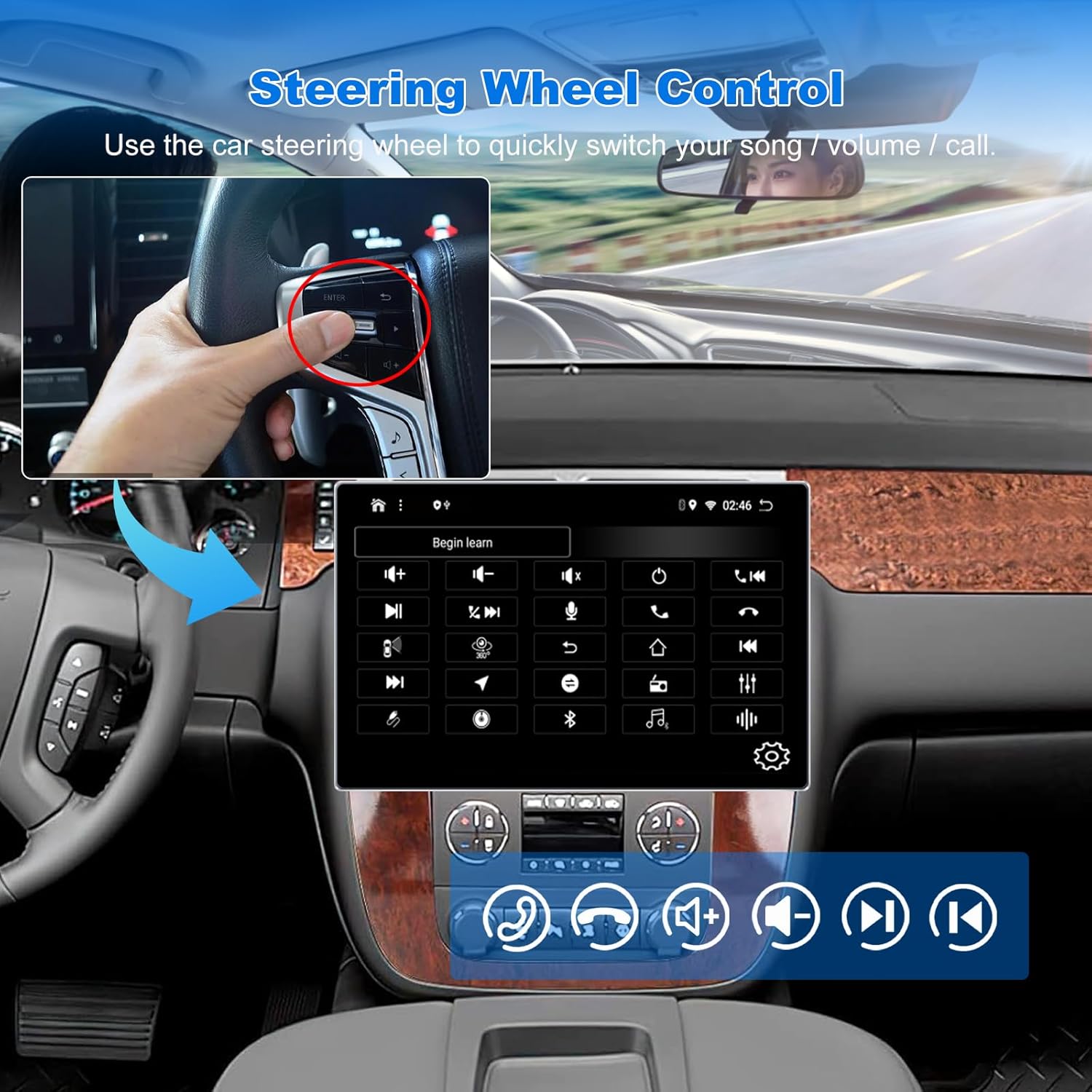
Image: Illustration of Steering Wheel Control functionality and setup.
5.6 3D User Interface (UI)
The stereo features a unique 3D UI. You can switch between applications using a 3D sphere display effect, or choose from 12 planetary themes for a personalized visual experience.

Image: Example of the 3D User Interface on the car stereo.
5.7 FM/AM/RDS Radio & Bluetooth
Tune into your favorite FM or AM radio stations. The RDS (Radio Data System) feature provides additional information like station name and traffic updates where available. Use Bluetooth 5.0 for hands-free calling and to stream music from your paired smartphone.

Image: FM/AM/RDS radio interface and Bluetooth connectivity for calls and music.
5.8 Dual Camera Recording
The included front and rear 1080P AHD cameras support simultaneous recording. You can view real-time feeds from either camera on the stereo screen, enhancing driving safety and providing recording capabilities for incidents.
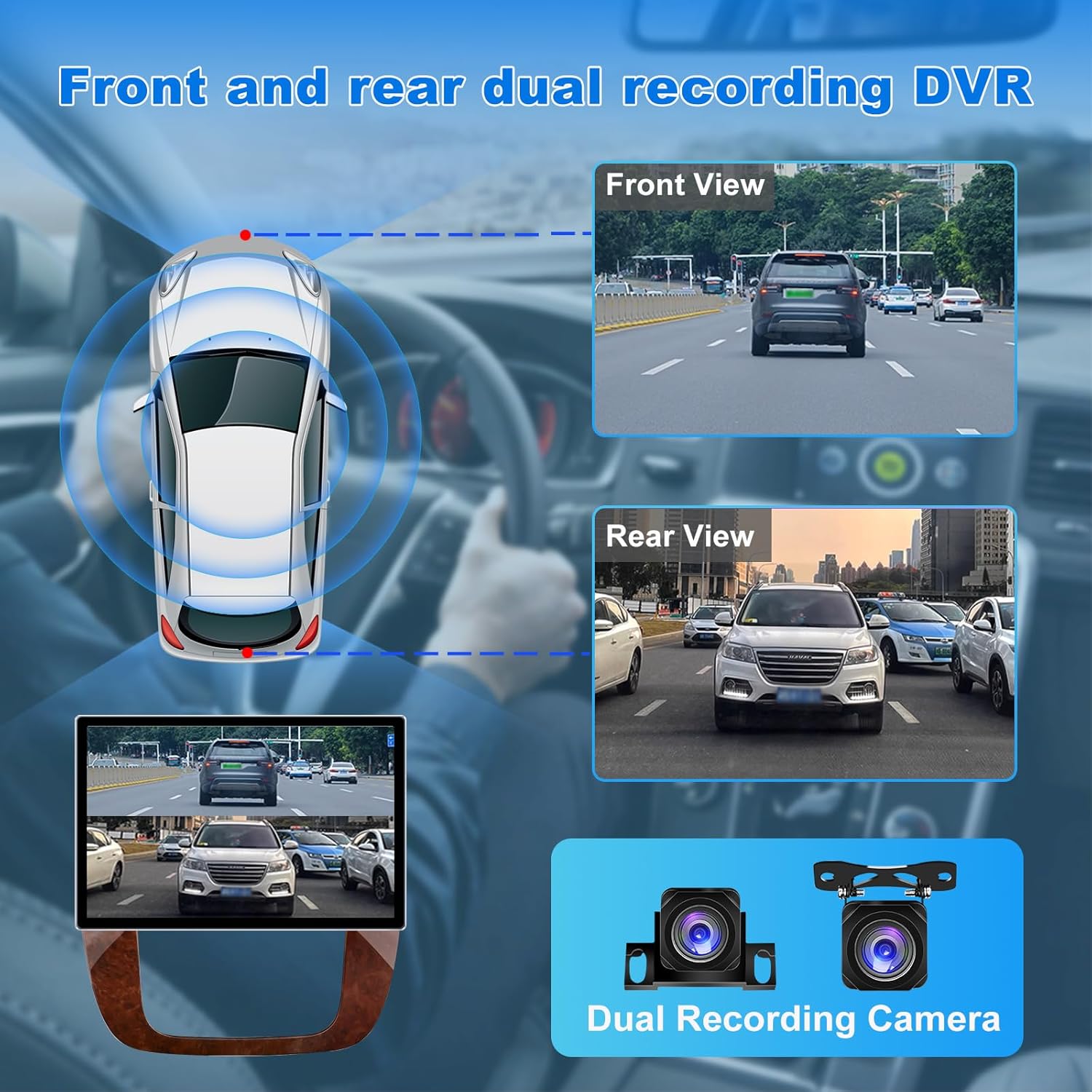
Image: Dual camera recording system with front and rear camera views displayed on the stereo.
6. Maintenance
To ensure the longevity and optimal performance of your JMANCE car stereo, follow these maintenance guidelines:
- Screen Cleaning: Use a soft, lint-free cloth to gently wipe the screen. For stubborn smudges, slightly dampen the cloth with water or a screen-safe cleaner. Avoid harsh chemicals or abrasive materials.
- Software Updates: Periodically check for software updates through the system settings or the manufacturer's website to ensure you have the latest features and bug fixes.
- Environmental Conditions: Avoid exposing the unit to extreme temperatures, direct sunlight for prolonged periods, or excessive moisture.
- Cable Connections: Ensure all cables are securely connected. Loose connections can lead to intermittent issues.
7. Troubleshooting
If you encounter issues with your car stereo, refer to the following common troubleshooting steps:
| Problem | Possible Cause | Solution |
|---|---|---|
| Unit does not power on | No power supply; Blown fuse; Incorrect wiring | Check power connections; Inspect vehicle fuses; Verify wiring against diagram. |
| No sound output | Volume too low; Mute activated; Speaker wiring issue; DSP settings | Increase volume; Deactivate mute; Check speaker connections; Reset DSP settings. |
| GPS signal lost or inaccurate | GPS antenna obstructed or disconnected; Poor satellite coverage | Ensure GPS antenna has clear view of sky; Check antenna connection; Move to an open area. |
| CarPlay/Android Auto not connecting | Bluetooth/Wi-Fi off; Incorrect pairing; USB cable issue; Phone software issue | Enable Bluetooth/Wi-Fi on phone and stereo; Re-pair device; Try a different USB cable; Restart phone and stereo. |
| Touch screen unresponsive | System freeze; Software glitch | Restart the unit (press and hold power button); Perform a factory reset if issue persists (data will be lost). |
If the problem persists after attempting these solutions, please contact customer support.
8. Specifications
- Model Number: 13GMC1846
- Operating System: Android 13
- CPU: Octa-Core
- RAM: 6GB
- ROM: 128GB
- Display Size: 13 Inches
- Display Type: QLED Touch Screen
- Connectivity: Wi-Fi, Bluetooth 5.0, USB
- Special Features: Wireless CarPlay, Android Auto, GPS Navigation, DSP, Cooling Fan, 3D UI, Dual Camera Recording
- Included Components: Main unit, Wiring Harnesses, Front Camera, Backup Camera, Pry Bar, User Manual
- Item Weight: 5.5 pounds
- Package Dimensions: 13.98 x 12.64 x 5.94 inches
9. Warranty and Support
9.1 Warranty Information
The JMANCE 13-inch Android 13 Car Stereo comes with a one-year manufacturer warranty covering defects in materials and workmanship from the date of purchase. Additionally, lifetime technical support is provided for the head unit.
This warranty does not cover damage caused by improper installation, accident, misuse, abuse, unauthorized modifications, or normal wear and tear.
9.2 Customer Support
For technical assistance, warranty claims, or any questions regarding your product, please contact JMANCE customer support through the retailer where the product was purchased. You may also visit the official JMANCE store or website for support resources.
When contacting support, please have your product model number (13GMC1846) and proof of purchase readily available.
