
1. Introduction
Thank you for choosing the AMprime Android 15 Car Stereo. This manual provides detailed instructions for the installation, operation, and maintenance of your new car stereo system, designed specifically for Hummer H2 models from 2002 to 2007. This unit features an 8-core processor, 4GB RAM, 64GB ROM, a 9.7-inch touch screen, Wireless Carplay & Android Auto, GPS, WiFi, Bluetooth, FM/RDS radio, Steering Wheel Control (SWC), Dual USB/AUX-in, and supports an AHD backup camera.
2. Safety Information
- Read all instructions carefully before installation and use.
- Professional installation is recommended to avoid damage to the unit or vehicle.
- Do not operate the unit in a way that distracts you from driving.
- Ensure all wiring connections are secure and properly insulated to prevent short circuits.
- Keep the unit away from water and excessive moisture.
3. Package Contents
Please verify that all items listed below are included in your package:
- AMprime Android 15 Car Stereo Unit
- AHD Rear Camera
- Power Cable
- Radio Antenna
- Installation Tool
- Microphone
- GPS Antenna
- Canbus Decoder
- 6-Pin USB Cable
- 4-Pin USB Cable
- Camera Input Cable
- User Manual
- RCA Cable Set
- Reverse Line
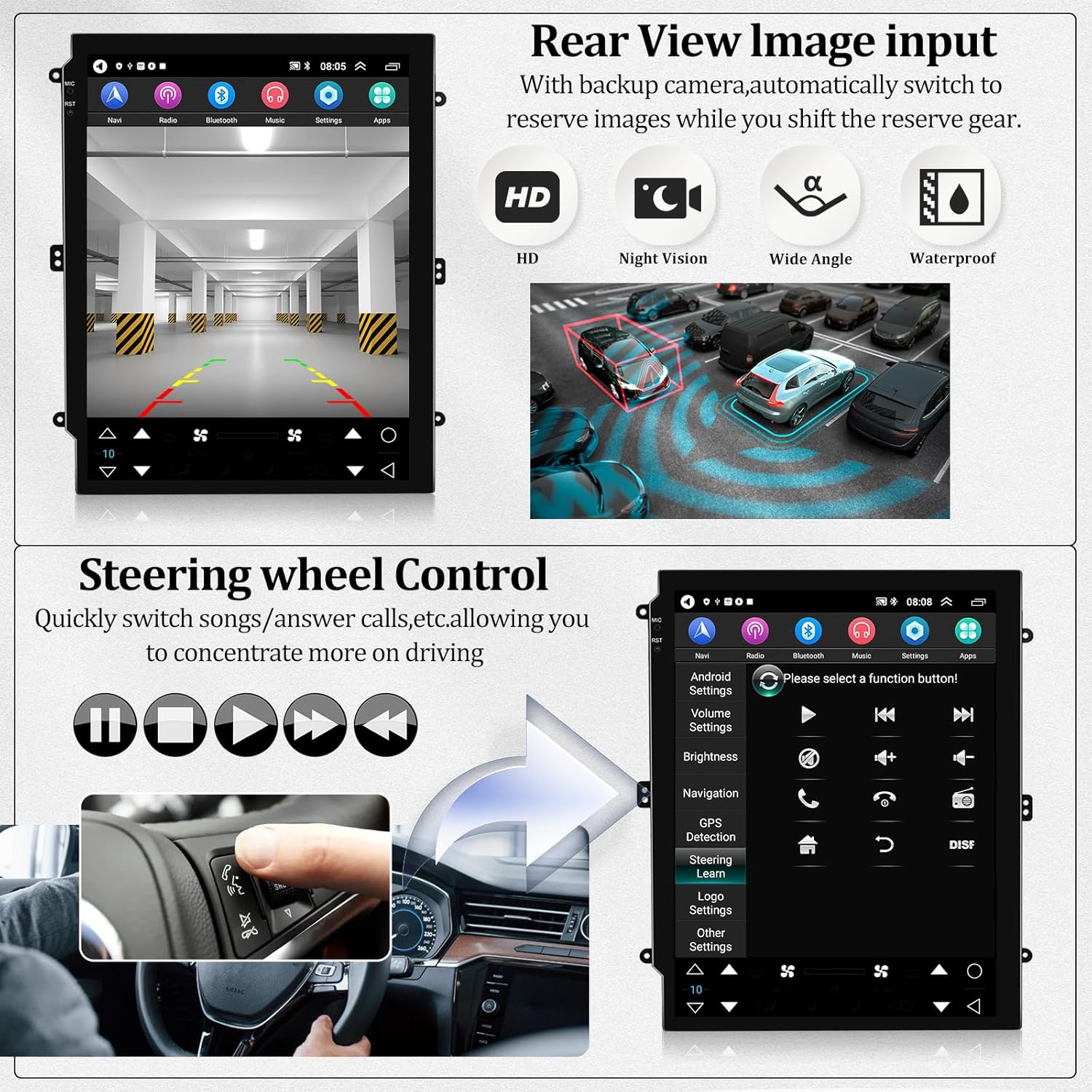
Figure 3.1: Included components in the package.

Figure 3.2: Rear connections and cable identification.
4. Installation Guide
4.1. Compatibility
This car stereo is designed for Hummer H2 models manufactured between 2002 and 2007.
4.2. Pre-Installation Checks
- Disconnect the vehicle's battery before starting any electrical work.
- Ensure you have all necessary tools and components.
- Familiarize yourself with your vehicle's dashboard and existing wiring.
4.3. Wiring Instructions
Refer to the wiring diagram for proper connections. Incorrect wiring can damage the unit or vehicle's electrical system.
- Power Cable: Connect the main power harness to the vehicle's power supply.
- RCA Cables: Connect for audio/video output to external devices or amplifiers.
- USB Cables: Connect the provided USB cables for external USB devices.
- Camera Input: Connect the AHD rear camera cable.
- Radio Antenna: Connect the vehicle's radio antenna.
- GPS Antenna: Mount the GPS antenna in a location with a clear view of the sky.
- Canbus Decoder: Connect the Canbus decoder as per the diagram to ensure proper communication with the vehicle's systems, especially for steering wheel controls.
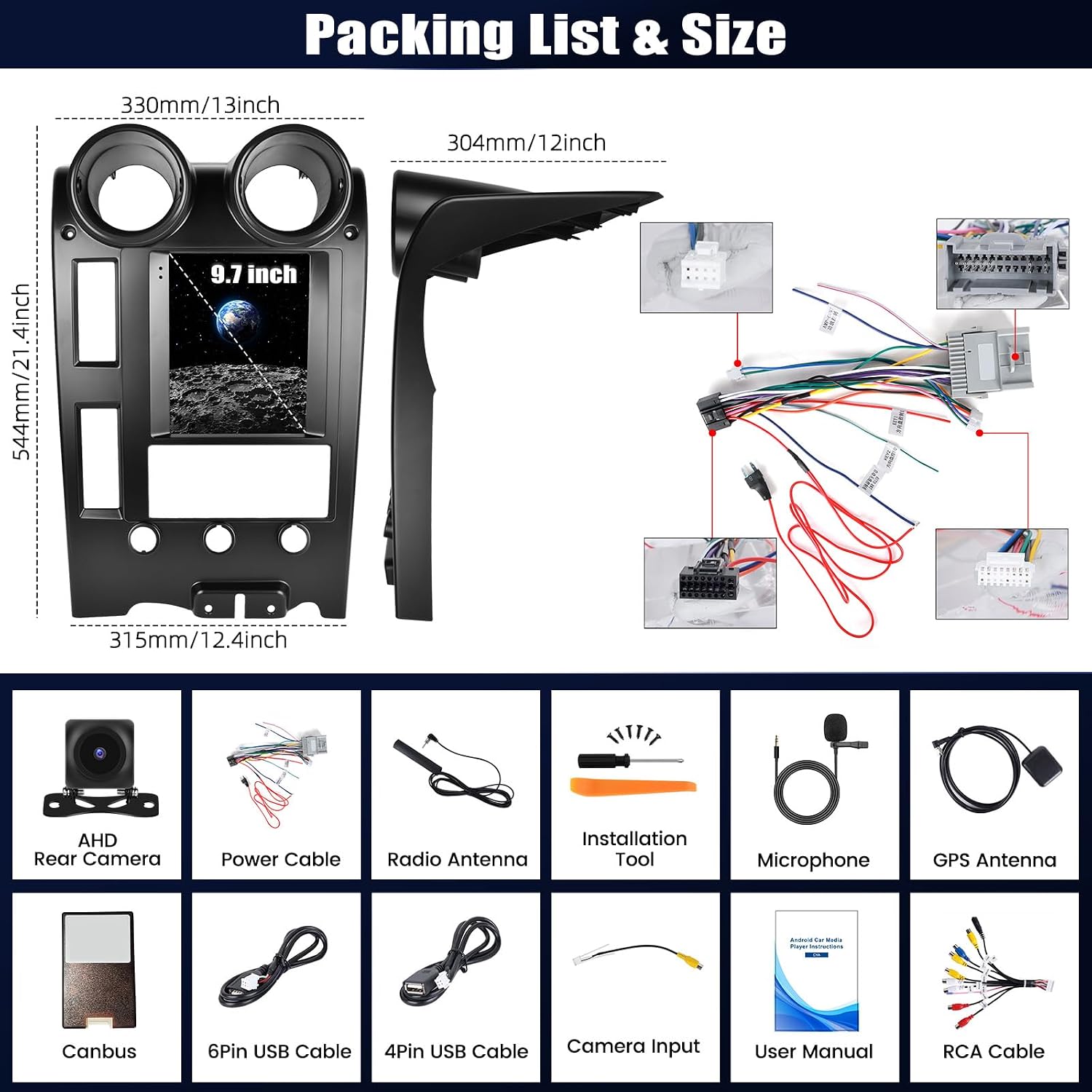
Figure 4.1: Before and After Installation in Hummer H2.

Figure 4.2: Wiring Diagram and Canbus Connection.
5. Basic Operation
5.1. Power On/Off
The unit will power on automatically when the vehicle's ignition is turned on. To manually power off or restart, press and hold the power button on the unit (if available) or use the software power options.
5.2. Touch Screen Interface
Navigate the system using the responsive 9.7-inch capacitive touch screen. Swipe, tap, and pinch gestures are supported for various functions and applications.
6. Key Features and Functions
6.1. Wireless/Wired Carplay & Android Auto
Connect your smartphone via USB or Bluetooth to access Carplay (for iOS) or Android Auto (for Android devices). This allows for seamless integration of navigation, music, calls, and other apps directly on the car stereo screen. Voice control via Siri or Google Assistant is supported.
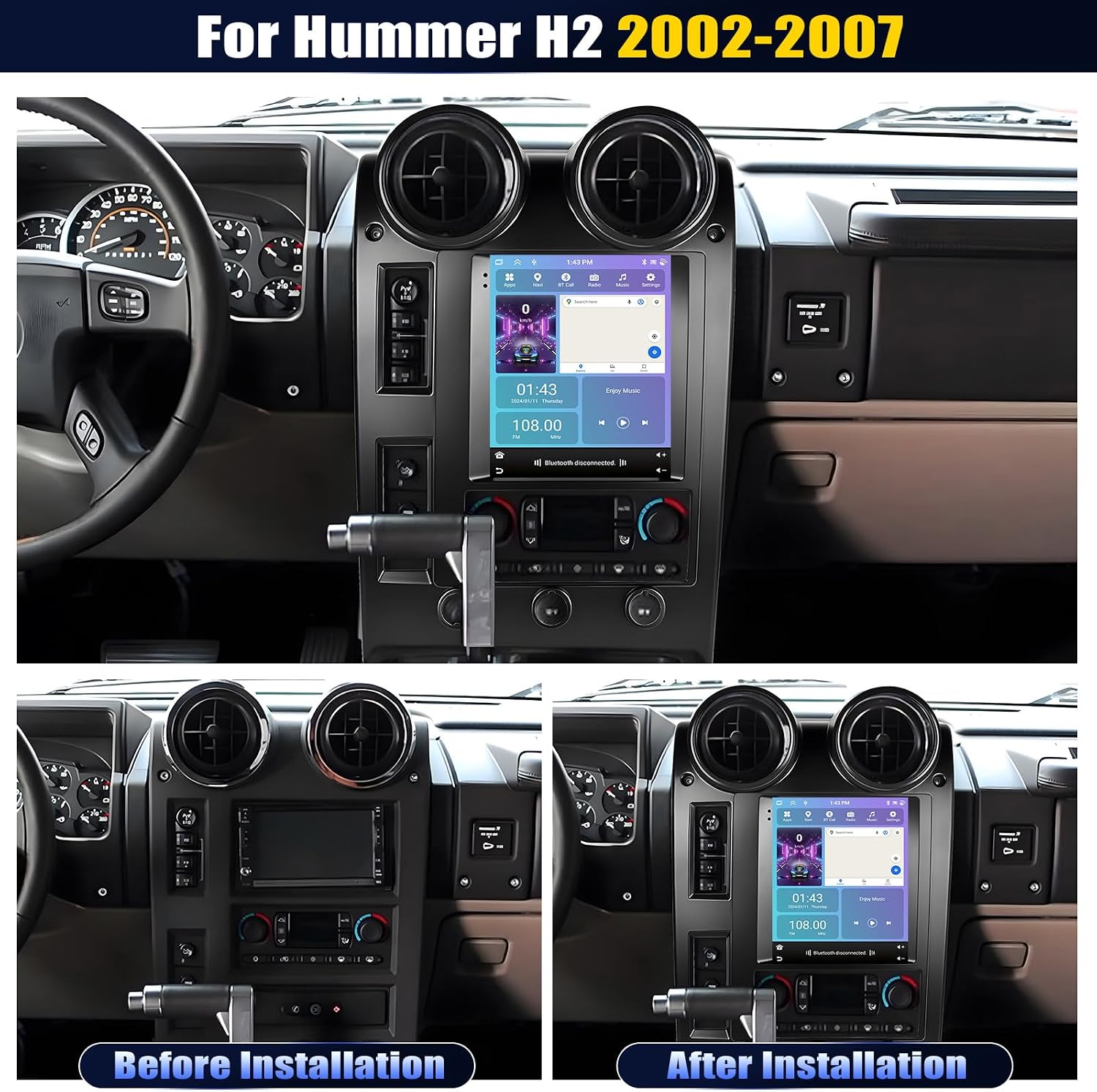
Figure 6.1: Wireless/Wired Carplay & Android Auto Interface.

Figure 6.2: Carplay and Android Auto in action.
6.2. GPS Navigation & WiFi Connectivity
The unit includes a built-in WiFi module and supports both online and offline maps. An offline map of North America is pre-installed. Connect to a WiFi hotspot to use online navigation services and download additional Android applications from the Application Store, similar to a smartphone.

Figure 6.3: GPS Navigation and WiFi Connection Interface.

Figure 6.4: Navigation and App Access via WiFi.
6.3. FM/RDS Radio
Enjoy clear radio reception with the built-in FM tuner and RDS (Radio Data System) functionality. The automotive-grade chipset ensures optimal signal reception. You can scan for stations, save presets, and view station information where available.
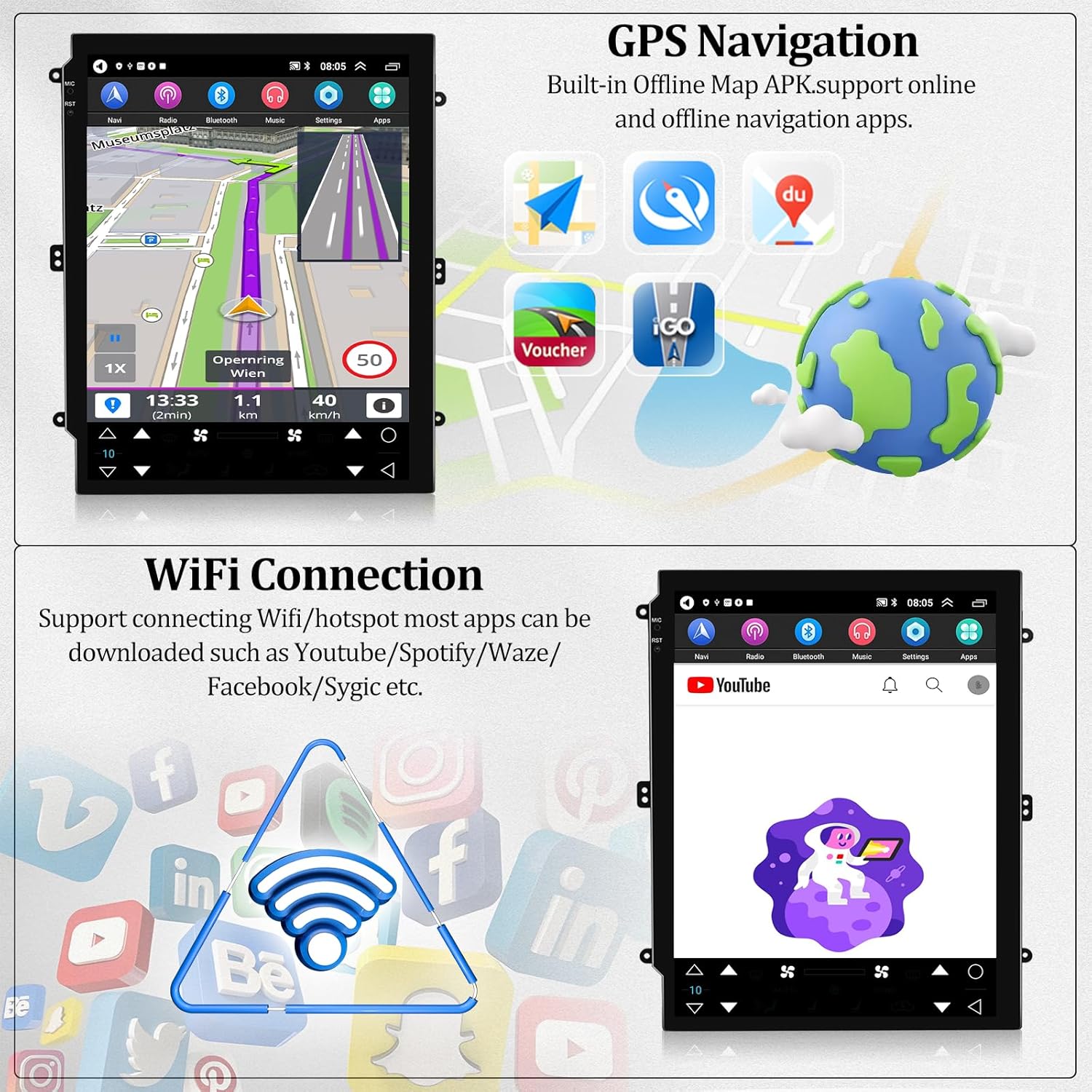
Figure 6.5: FM/RDS Radio Interface.

Figure 6.6: FM/RDS Radio Functionality.
6.4. Bluetooth Functionality
The integrated Bluetooth module allows for hands-free calling and wireless music streaming. Pair your phone to make and receive calls safely, and play audio directly from your device through the car's speakers.

Figure 6.7: Bluetooth Hands-Free and Music Streaming.
6.5. Steering Wheel Control (SWC)
The car radio supports your vehicle's steering wheel controls, allowing you to manage functions like switching songs, adjusting volume, and answering calls without taking your hands off the wheel. This enhances driving safety.
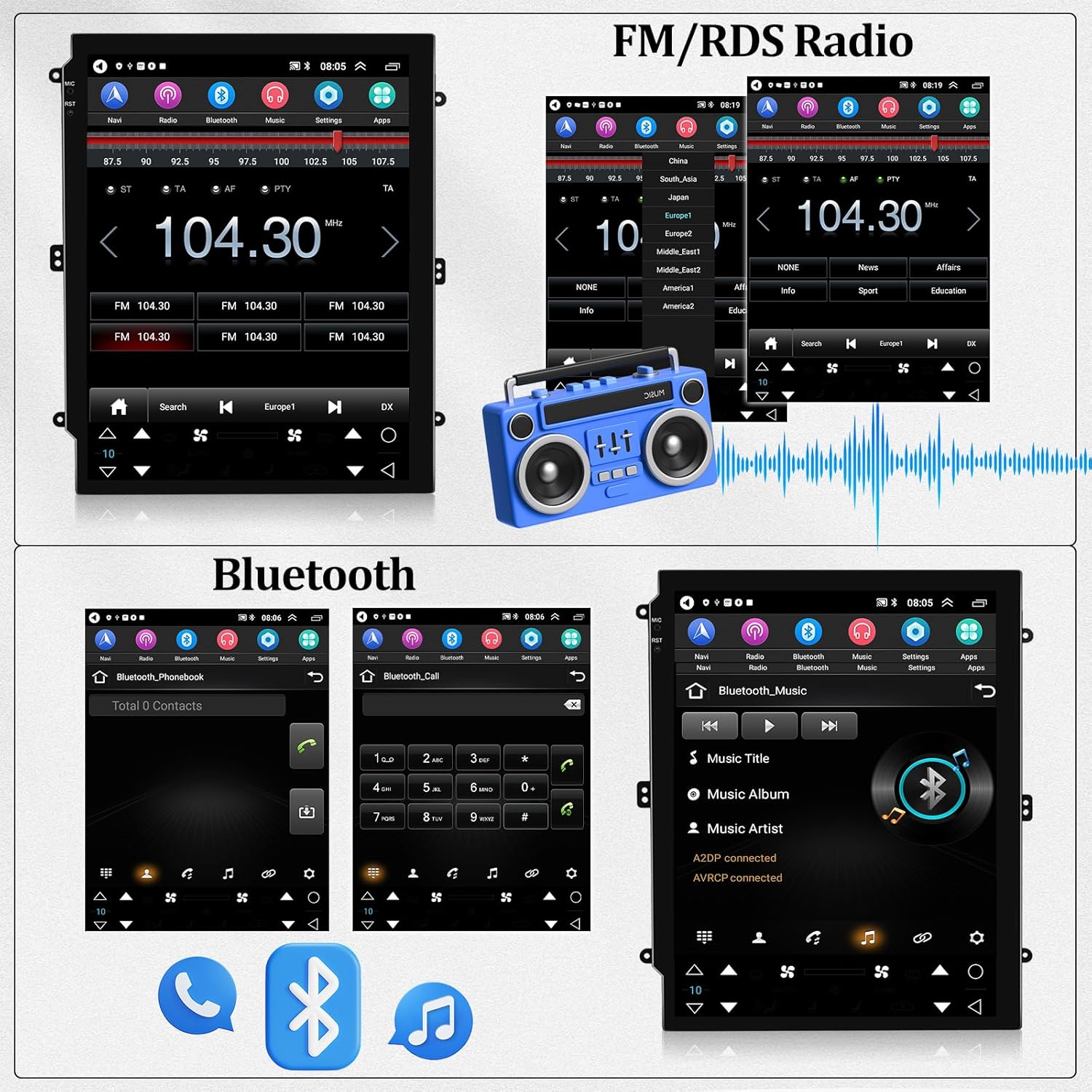
Figure 6.8: Steering Wheel Control Interface.

Figure 6.9: Steering Wheel Control in Use.
6.6. AHD Rear View Camera
The included AHD rear view camera provides a clear, wide-angle, and waterproof view with excellent night vision. When you shift into reverse, the camera feed will automatically display on the touch screen, assisting with safe parking and maneuvering.

Figure 6.10: AHD Rear View Camera Display.
6.7. EQ Setting & DSP
Utilize the built-in DSP (Digital Sound Processor) tuning software to customize your audio experience. Adjust frequency, 36-band equalization, and sound types to compensate for original car speaker limitations and achieve optimal lossless sound quality.

Figure 6.11: EQ Settings and DSP Interface.
6.8. Dual USB/AUX-in
The unit provides dual USB ports for connecting external storage devices, charging smartphones, or connecting other USB accessories. An AUX-in port is also available for wired audio input.
6.9. Full RCA Output
The full RCA output allows you to connect external monitors, such as headrest screens, to display video content from the car stereo, providing entertainment for rear passengers.

Figure 6.12: Full RCA Output to External Displays.
7. Maintenance
7.1. Cleaning the Screen
Use a soft, lint-free cloth to gently wipe the touch screen. For stubborn smudges, slightly dampen the cloth with water or a screen-safe cleaner. Avoid harsh chemicals or abrasive materials.
7.2. Software Updates
Periodically check for software updates through the system settings or the manufacturer's website. Updates can improve performance, add new features, and fix bugs. Follow the update instructions carefully to avoid system corruption.
7.3. General Care
Avoid exposing the unit to extreme temperatures or direct sunlight for prolonged periods. Ensure proper ventilation around the unit to prevent overheating.
8. Troubleshooting
- No Power: Check all power cable connections and the vehicle's fuse box. Ensure the ACC line is properly connected.
- No Sound: Verify speaker connections. Check volume levels and EQ settings. If an external amplifier is used, ensure it is powered and connected correctly.
- Steering Wheel Control Not Working:
- Check the Canbus decoder wire connection.
- Verify the steering wheel control wiring.
- In the system settings, check the agreement set (e.g., Luzheng-Hummer-Hummer H2 or Xinpu-Volkswagen-Volkswagen series for full compatibility).
- GPS Signal Lost: Ensure the GPS antenna is mounted in a location with a clear view of the sky and its connection is secure.
- Bluetooth Connection Issues: Ensure Bluetooth is enabled on both the stereo and your phone. Delete previous pairings and try re-pairing.
- Screen Unresponsive: Try restarting the unit. If the issue persists, perform a factory reset (note: this will erase all user data).
9. Specifications
| Feature | Specification |
|---|---|
| Brand | AMprime |
| Model | 8 Core 4+64G |
| Operating System | Android 15 |
| RAM | 4GB |
| ROM | 64GB |
| Screen Size | 9.7 Inches |
| Display Type | LED |
| Touch Screen Type | Capacitive |
| Connectivity | Wi-Fi, Bluetooth |
| Navigation | GPS (Worldwide maps, North America offline map included) |
| Special Features | Wireless Carplay & Android Auto, FM/RDS Radio, SWC, Dual USB, AUX-in, AHD Backup Camera, DSP |
| Vehicle Service Type | Car (Hummer H2 2002-2007) |
| Item Weight | 3.56 Kilograms |
10. Warranty Information
This product comes with a limited warranty. Please refer to the warranty card included in your package or contact customer support for specific details regarding coverage and duration. Keep your proof of purchase for warranty claims.
11. Customer Support
For technical assistance, troubleshooting, or any questions regarding your AMprime car stereo, please contact our customer support team:
- Email: AmprimeTechSupport@yeah.net
- Online Support: Visit the AMprime store on Amazon for additional resources and FAQs.

Figure 11.1: Online Customer Support.
