1. Introduction
Thank you for choosing the Blaupunkt 50UGC5500S 50-inch 4K Ultra HD LED Google Smart TV. This manual provides essential information for setting up, operating, and maintaining your new television. Please read these instructions carefully before use and retain them for future reference.
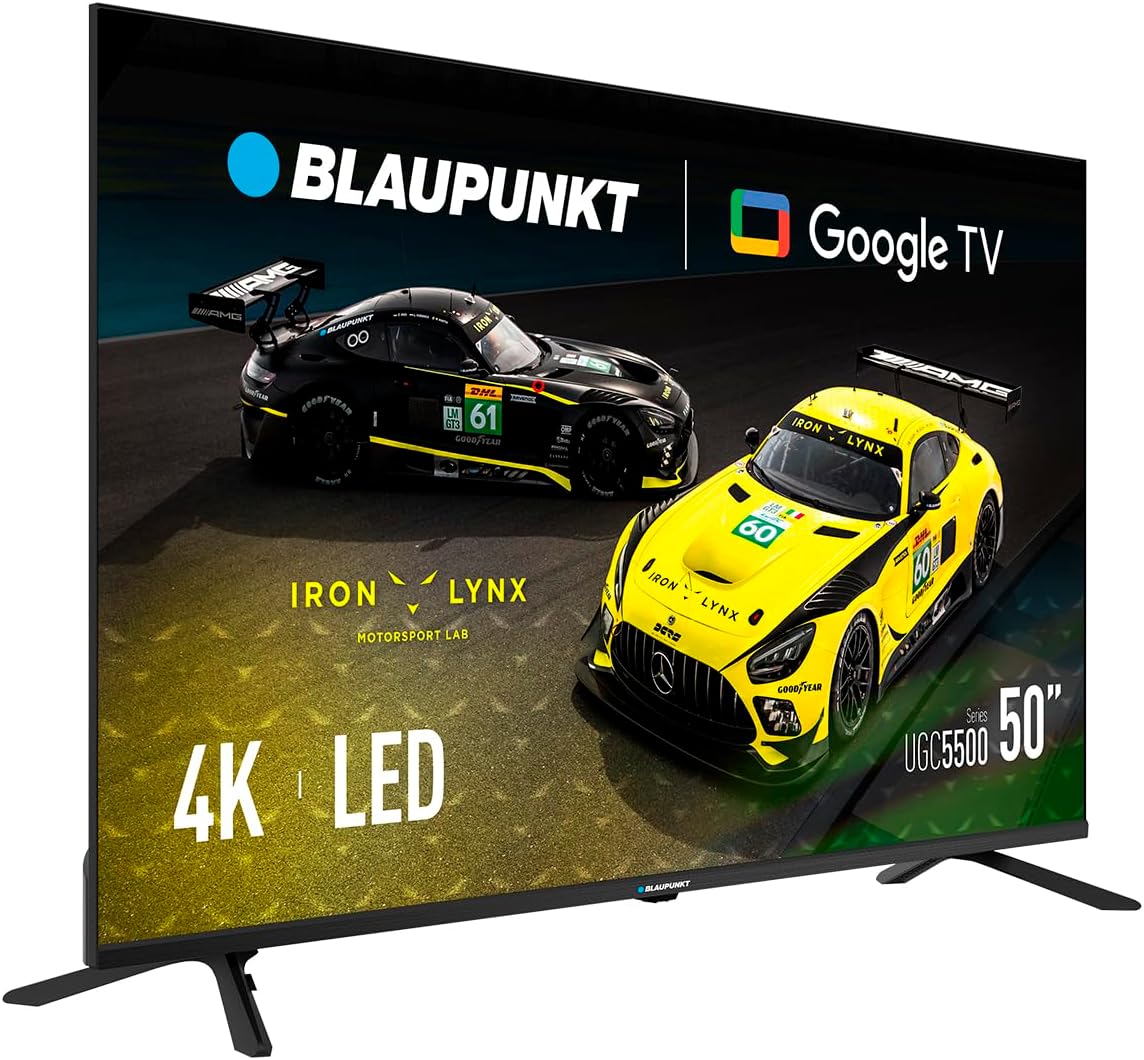
Figure 1.1: Blaupunkt 50UGC5500S Smart TV (Angled View)
This television features a stunning 4K Ultra HD display, integrated Google TV for access to a wide range of streaming services and apps, and advanced connectivity options including Wi-Fi and Bluetooth. Enjoy an immersive viewing experience with vibrant colors and clear sound.

Figure 1.2: Enjoying the Blaupunkt Smart TV
2. Safety Information
Always observe the following safety precautions to prevent electric shock, fire, or damage to the television.
- Power Source: Connect the TV only to an AC power outlet of the specified voltage.
- Ventilation: Ensure adequate ventilation around the TV. Do not block ventilation openings.
- Water and Moisture: Do not expose the TV to rain or moisture. Do not place objects filled with liquids on the TV.
- Cleaning: Unplug the TV before cleaning. Use a soft, dry cloth.
- Placement: Place the TV on a stable, level surface or mount it securely to a wall. Keep it away from heat sources.
- Servicing: Do not attempt to service the TV yourself. Refer all servicing to qualified personnel.
3. Package Contents
Verify that all items are present in the packaging:
- Blaupunkt 50UGC5500S 50-inch Smart TV
- Remote Control
- Power Cable
- Stand (2 pieces)
- User Manual (this document)
- Screws for Stand Assembly
4. Setup
4.1 Stand Assembly
To attach the stand to your television:
- Carefully place the TV face-down on a soft, clean surface to prevent screen damage.
- Align each stand piece with the corresponding slots on the bottom of the TV.
- Secure each stand piece using the provided screws. Ensure they are tightened firmly.

Figure 4.1: TV with Stand Assembled
4.2 Wall Mounting (Optional)
This TV is compatible with VESA 300 x 300 mm wall mounts. Wall mount kits are sold separately. Follow the instructions provided with your wall mount for proper installation. Ensure the wall can support the weight of the TV (11 kg) and the mount.
4.3 Connecting Devices
Connect your external devices to the TV using the appropriate ports.
- HDMI: Connect Blu-ray players, game consoles, or set-top boxes to the HDMI ports (3 available).
- USB: Connect USB storage devices for media playback or software updates (2 available).
- Ethernet (RJ45): For a wired internet connection (2 available).
- Antenna/Cable: Connect your antenna or cable TV feed.

Figure 4.2: Rear View of TV with Ports

Figure 4.3: Side View of TV with Ports
4.4 First Power On and Initial Setup
After connecting the power cable, press the power button on the remote control or the TV. The TV will guide you through the initial setup process:
- Language Selection: Choose your preferred language.
- Network Connection: Connect to your Wi-Fi network or use an Ethernet cable.
- Google Account Setup: Sign in with your Google account to access Google TV features, apps, and personalized recommendations.
- Channel Scan: Scan for available TV channels.
- Privacy Settings: Review and adjust privacy settings as desired.
5. Operating
5.1 Remote Control Functions
The remote control allows you to navigate the TV's interface and control various functions. Familiarize yourself with the buttons for power, volume, channel, input selection, and Google Assistant.
5.2 Google TV Interface
Google TV organizes movies, shows, and live TV from all your apps into one place. Use the remote's navigation buttons to browse content, access your favorite streaming services like Netflix, YouTube, and Prime Video, and discover new content.

Figure 5.1: TV Displaying High-Quality Content
5.3 Voice Control with Google Assistant
Press the Google Assistant button on your remote and speak into the microphone to search for content, control smart home devices, get answers, and more.
5.4 Connectivity Features
- Wi-Fi (2T2R): Connect wirelessly to your home network for internet access.
- Bluetooth 5.1: Pair Bluetooth-enabled devices such as headphones, soundbars, or game controllers.
- Chromecast Built-in: Cast content from your compatible mobile devices or computer directly to the TV screen.
5.5 Picture and Sound Settings
Access the settings menu to adjust picture modes (e.g., Standard, Vivid, Movie), brightness, contrast, and color. For audio, select sound modes, adjust bass/treble, and enable Dolby Audio features for an optimized listening experience.
6. Maintenance
6.1 Cleaning the Screen
Gently wipe the screen with a soft, lint-free cloth. For stubborn marks, lightly dampen the cloth with water or a specialized screen cleaner. Never spray liquid directly onto the screen.
6.2 Cleaning the Cabinet
Wipe the TV cabinet with a soft, dry cloth. Avoid using abrasive cleaners or solvents that could damage the finish.
6.3 General Care
- Unplug the TV during lightning storms or when unused for extended periods.
- Do not place heavy objects on the TV or power cord.
- Keep the TV away from direct sunlight and extreme temperatures.
7. Troubleshooting
If you encounter issues with your TV, refer to the following common solutions:
| Problem | Possible Solution |
|---|---|
| No Power | Check if the power cable is securely connected to the TV and the power outlet. Ensure the outlet is active. |
| No Picture, but Sound is Present | Verify the correct input source is selected. Check cable connections to external devices. |
| No Sound, but Picture is Present | Check volume levels and mute settings. Ensure external audio devices are connected correctly. |
| Remote Control Not Working | Replace batteries. Ensure there are no obstructions between the remote and the TV. |
| Cannot Connect to Wi-Fi | Check your router and modem. Re-enter the Wi-Fi password. Try restarting the TV and router. |
8. Specifications
Detailed technical specifications for the Blaupunkt 50UGC5500S Smart TV:
- Model: 50UGC5500S
- Display Size: 50 Inches
- Display Technology: LED
- Resolution: 4K Ultra HD (3840 x 2160 pixels)
- Refresh Rate: 60 Hz
- Operating System: Google TV
- Audio Output: 16 W (2 x 8 W) with Dolby compatibility
- Connectivity:
- 3 x HDMI ports
- 2 x USB ports
- 2 x RJ45 (Ethernet) ports
- Bluetooth 5.1
- Wi-Fi 2T2R
- CI+ Slot
- Special Features: Built-in Speaker, Chromecast, Parental Control, Flat Screen
- VESA Mounting: 300 x 300 mm
- Product Dimensions (with stand): 112.1 cm (width) x 70.8 cm (height) x 25.4 cm (depth)
- Product Weight (with stand): 11 kg
- Energy Consumption: 70 W (SDR/HDR Class G)
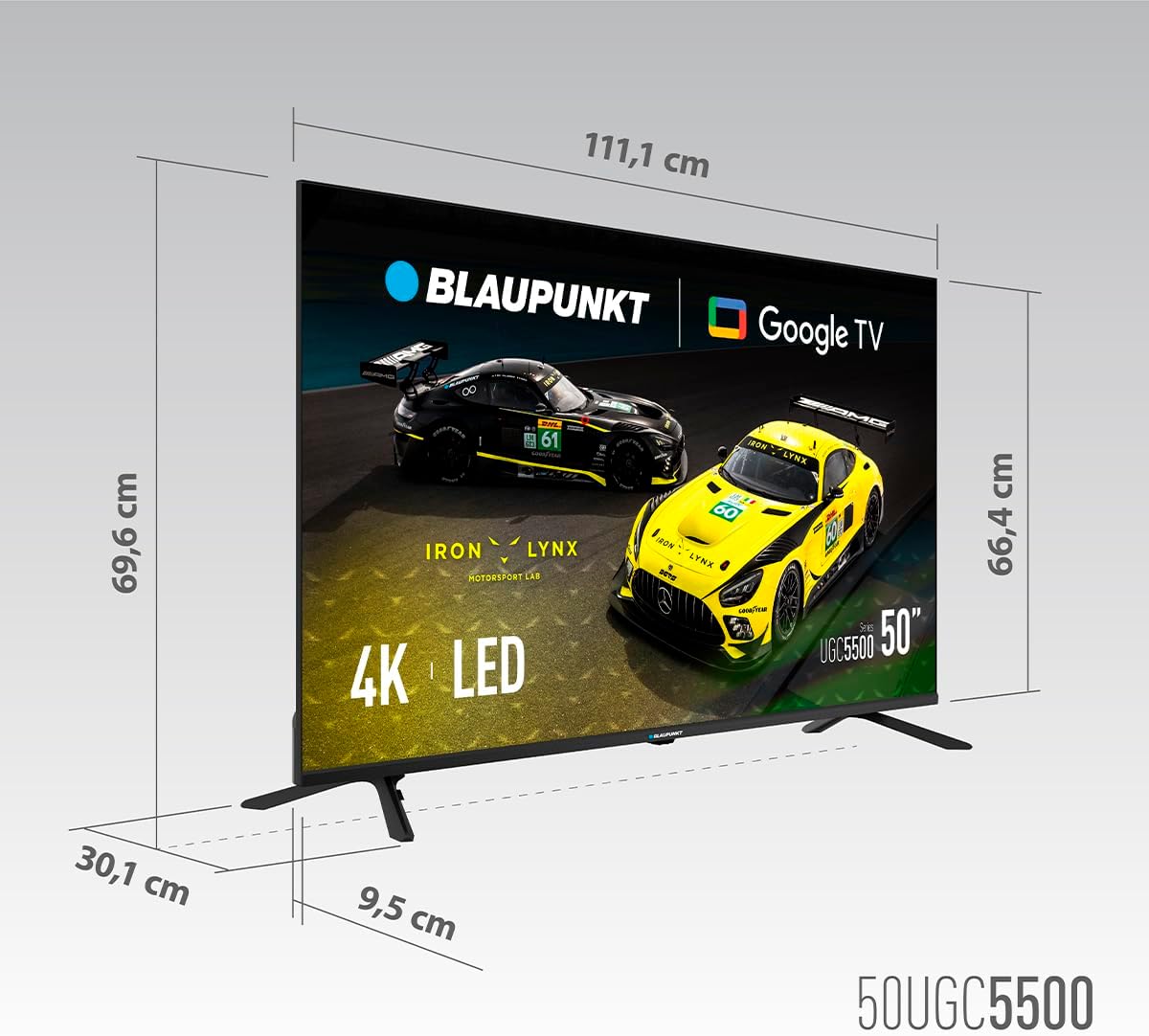
Figure 8.1: TV Dimensions

Figure 8.2: Energy Label (SDR/HDR Class G)
For more detailed energy information, visit: https://eprel.ec.europa.eu/qr/2045779
9. Warranty and Support
Your Blaupunkt 50UGC5500S Smart TV comes with a standard manufacturer's warranty. Please refer to the warranty card included in your package for specific terms and conditions, including the warranty period and coverage details.
For technical support, troubleshooting assistance, or service inquiries, please contact Blaupunkt customer service. Contact information can typically be found on the Blaupunkt official website or on your warranty documentation.


