1. Introduction
This manual provides detailed instructions for the operation and maintenance of your BAOFENG UV-32 Professional Ham Radio. Please read this manual thoroughly before using the device to ensure proper function and safety.
2. Safety Information
- Do not operate the radio in explosive atmospheres.
- Do not transmit without an antenna attached.
- Use only BAOFENG approved batteries and chargers.
- Keep the radio away from medical devices.
- Avoid exposing the radio to extreme temperatures or direct sunlight for prolonged periods.
- Do not attempt to disassemble or modify the radio.
3. Package Contents
Verify that all items are present in your package:
- BAOFENG UV-32 Radio Unit
- Antenna
- 2500mAh Rechargeable Battery
- Desktop Charger
- Power Adapter
- Belt Clip
- Lanyard
- User Manual

Image: Contents of the BAOFENG UV-32 package, showing the radio unit, battery, desktop charger, power adapter, antenna, belt clip, and user manual.
4. Product Overview
Familiarize yourself with the main components of your UV-32 radio.

Image: Labeled diagram of the BAOFENG UV-32 radio, highlighting the antenna, encoder/channel selector switch, power/volume knob, TX/RX status indication, 2-inch color LCD screen, PTT key, side keys (SK1, SK2), numeric keypad, built-in microphone, charge contact, and Type-C charging port.
5. Setup
5.1. Battery Installation
- Align the battery with the back of the radio.
- Slide the battery upwards until it clicks into place.
5.2. Antenna Attachment
- Screw the antenna clockwise into the connector on top of the radio until it is finger-tight.
5.3. Charging the Battery
The UV-32 supports both USB-C direct charging and desktop charger cradle charging.
- USB-C Charging: Connect a USB-C cable to the port at the bottom of the radio and to a compatible USB power source (e.g., wall adapter, power bank, car charger).
- Desktop Charger: Place the radio into the desktop charging cradle. Ensure the charging contacts align. The indicator light will show charging status.

Image: The BAOFENG UV-32 radio being charged directly via its USB-C port located at the bottom of the unit.
Video: Demonstrates charging the BAOFENG UV-32 radio using both the USB-C port and the desktop charging cradle.
6. Operating Instructions
6.1. Power On/Off and Volume
Rotate the Power/Volume knob clockwise to turn on the radio and adjust the volume. Rotate counter-clockwise until it clicks to turn off.
6.2. Channel Selection
Use the up/down arrow keys on the numeric keypad to navigate through channels or frequencies.
6.3. Frequency Cloning (Copy Frequency)
The UV-32 allows for quick frequency cloning from another radio.
- On your UV-32, long press the P2 key (often labeled with a house icon) to enter the search mode. The display will show "SEARCH SEEK..".
- When a frequency is found, press the OK button to save the channel.
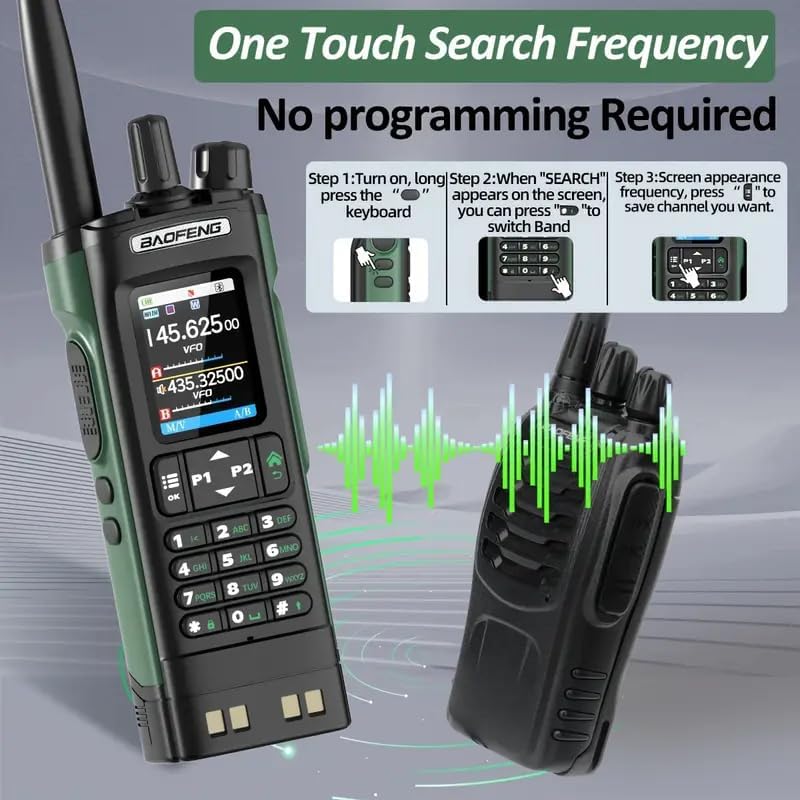
Image: Illustration of the one-touch search frequency function on the BAOFENG UV-32, showing steps to initiate a search and save a found frequency.
Video: Demonstrates the frequency copy operation guidance on the BAOFENG UV-32 radio, showing how to search for and save frequencies quickly.
6.4. NOAA Weather Alert
The radio can receive NOAA weather alerts to keep you informed of critical weather updates.
Video: Illustrates the NOAA Weather Receiver function, showing how the radio can provide weather alerts.
6.5. GPS/APRS Location Tracking
The built-in GPS and APRS features allow for real-time location tracking and sharing.
- Press the Menu button (often labeled with three horizontal lines) to enter the main menu.
- Navigate to GNSS > Information.
- Long press the OK button to check your current location.
Image: The BAOFENG UV-32 screen showing GPS information, including longitude and latitude, with options for "My Position", "Share Position", and "Request Position".
Video: Demonstrates the GPS function of the BAOFENG UV-32, showing how to enable and use GPS for accurate location tracking.
6.6. Bluetooth APP Programming
Program your radio effortlessly using the dedicated mobile application via Bluetooth.
- On the radio, go to Menu > Bluetooth and set it to ON.
- Download the "walkie-talkie tool" app from your smartphone's app store.
- Open the app, connect to your UV-32 radio via Bluetooth.
- Select the radio model (UV-32) within the app.
- Read the current radio settings, modify parameters as needed, and then write the new settings back to the radio.
Image: A smartphone displaying the programming application for the BAOFENG UV-32, showing various channel and frequency settings being adjusted.
Video: A detailed guide on how to program the BAOFENG UV-32 radio using the dedicated mobile application via Bluetooth, covering connection and parameter settings.
6.7. FM Radio
The UV-32 includes an FM radio function for entertainment or receiving local broadcasts.
Video: Demonstrates the FM Radio feature of the BAOFENG UV-32, showing the radio tuned to an FM frequency.
6.8. Side Key Customization
The side keys (SK1, SK2) can be customized for quick access to frequently used functions. Refer to the radio's menu settings under "Key Func" to assign specific actions.
6.9. Monitor Function
The monitor function allows you to listen to weak signals by temporarily disabling squelch.
6.10. Alarm Function
The alarm function can be activated for emergency situations, emitting a loud alert sound.
7. Maintenance
- Cleaning: Use a soft, damp cloth to clean the radio's exterior. Do not use harsh chemicals or solvents.
- Battery Care: Store batteries in a cool, dry place. Avoid overcharging or fully discharging the battery frequently.
- Storage: If storing the radio for an extended period, remove the battery.
8. Troubleshooting
| Problem | Possible Cause | Solution |
|---|---|---|
| Radio won't turn on | Low battery; Battery not installed correctly | Charge battery; Reinstall battery |
| Cannot transmit or receive | Incorrect frequency/channel; Antenna loose; Out of range | Verify settings; Reattach antenna; Move closer to other radio |
| Poor audio quality | Low battery; Obstructions; Incorrect squelch level | Charge battery; Move to open area; Adjust squelch |
9. Specifications
- Model: UV-32
- Brand: BAOFENG
- Power Output: 10W (Max)
- Battery Capacity: 2500mAh
- Charging: USB-C, Desktop Charger
- Features: NOAA Weather Alert, GPS, APP Programming, Frequency Cloning, UHF/VHF Multi-band Support
- Display: 2-inch Color LCD Screen
- Water Resistance Level: Water Resistant
- Item Weight: 1.63 pounds
- Package Dimensions: 10.39 x 8.46 x 2.44 inches
- Number of Channels: Up to 1000 channels
- Impedance: 50 Ohm
10. Warranty
The product information indicates "Warranty: NO". Please refer to your retailer's return policy for details on product support.
11. Support
For further assistance or technical support, please visit the official BAOFENG website or contact your authorized dealer.
Official BAOFENG Store: BAOFENG Store on Amazon


