
INFINMIND L980
INFINMIND Wireless Bluetooth Multi-Device Mouse User Manual
Model: L980
Brand: INFINMIND
Introduction
This manual provides detailed instructions for the setup, operation, and maintenance of your INFINMIND Wireless Bluetooth Multi-Device Mouse. Please read this manual thoroughly before using the product to ensure optimal performance and longevity.
Package Contents
- INFINMIND Wireless Bluetooth Multi-Device Mouse (Black)
- 2.4G USB Receiver
- AA Batteries (2 included)
- User Manual (this document)
Product Overview
The INFINMIND Wireless Bluetooth Multi-Device Mouse is designed for versatile use across multiple devices, offering seamless switching and ergonomic comfort. Key features include 4-way scrolling, adjustable DPI, and silent clicks.
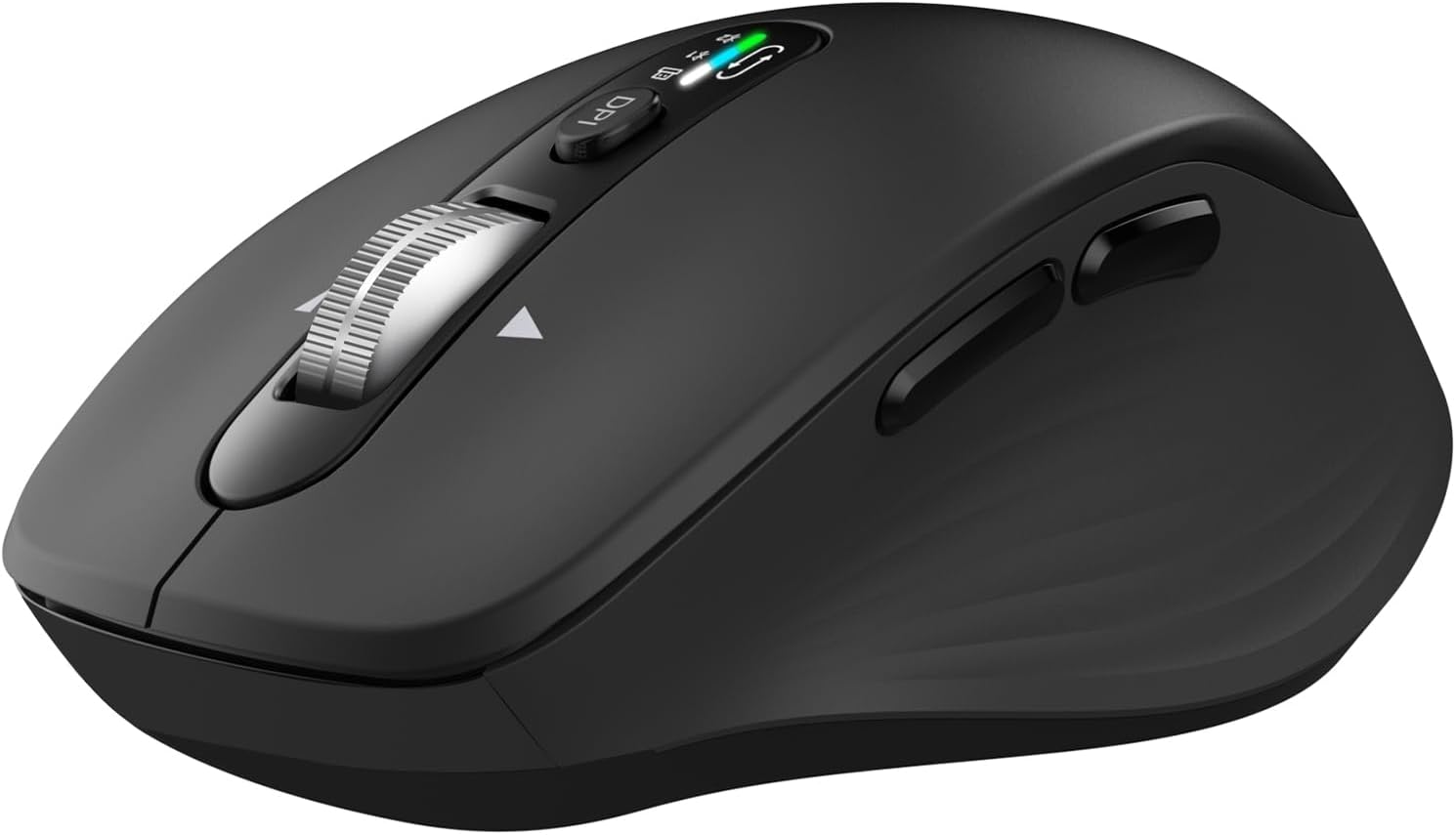
Image: Top-down view of the INFINMIND Wireless Bluetooth Multi-Device Mouse in black, showing the scroll wheel, DPI button, and mode indicator lights.

Image: A hand comfortably gripping the INFINMIND mouse, illustrating its ergonomic design suitable for medium to large hands.
Mouse Components
- Left Click Button
- Right Click Button
- 4-Way Scroll Wheel (Scroll up/down, tilt left/right)
- DPI Adjustment Button
- Mode Indicator Lights (for 2.4G, BT1, BT2)
- Forward Button (Thumb side)
- Backward Button (Thumb side)
- Device Switch Button (Bottom of mouse)
- Power ON/OFF Switch (Bottom of mouse)
- Battery Compartment (Bottom of mouse)
- USB Receiver Storage Slot (Bottom of mouse)
Setup
1. Battery Installation
- Locate the battery compartment on the underside of the mouse.
- Open the battery compartment cover.
- Insert the two included AA batteries, ensuring correct polarity (+/-). The mouse can operate with one or two AA batteries to adjust weight.
- Close the battery compartment cover.
- Turn on the mouse using the ON/OFF switch located on the bottom.
2. Connecting via 2.4G USB Receiver
- Remove the 2.4G USB receiver from its storage slot on the bottom of the mouse.
- Plug the USB receiver into an available USB port on your computer or laptop.
- Press the device switch button on the bottom of the mouse until the indicator light for 2.4G (usually green) illuminates.
- The mouse should automatically connect to your device.
3. Connecting via Bluetooth (BT1 / BT2)
- Turn on the mouse using the ON/OFF switch.
- Press the device switch button on the bottom of the mouse to select either BT1 or BT2. The corresponding indicator light (usually blue) will flash slowly.
- To enter pairing mode, press and hold the device switch button for 3-5 seconds until the BT1 or BT2 indicator light flashes rapidly.
- On your device (computer, laptop, tablet, iPad, MacBook):
- Go to Bluetooth settings.
- Ensure Bluetooth is enabled.
- Search for new devices.
- Select "INFINMIND Mouse" or a similar name from the list of available devices.
- Confirm pairing. The indicator light on the mouse will stop flashing and remain solid for a few seconds, then turn off, indicating a successful connection.
- Repeat these steps to connect to a second Bluetooth device using the other Bluetooth channel (BT1 or BT2).
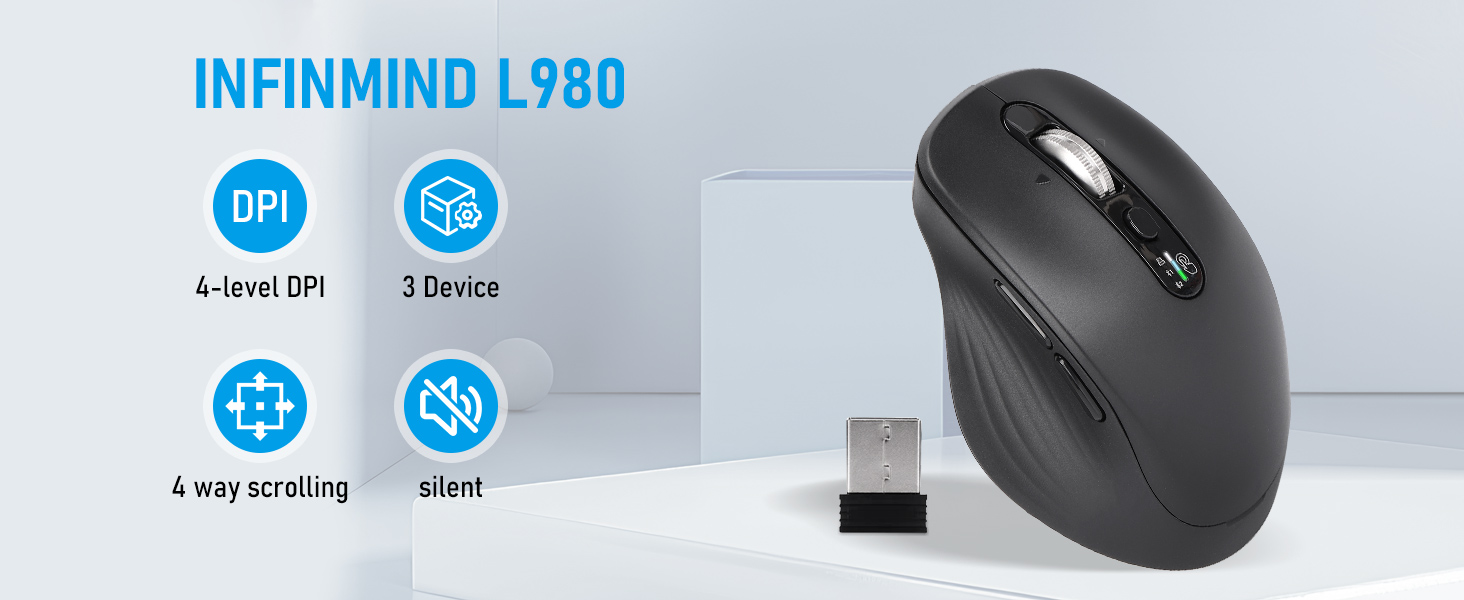
Image: Diagram illustrating the mouse connecting to three different devices (Windows PC via 2.4G USB, macOS laptop via Bluetooth, iOS phone via Bluetooth) with a "One key switch" label.
Operating Instructions
1. Switching Between Devices
The mouse supports connection to up to three devices simultaneously (one 2.4G USB and two Bluetooth devices). To switch between connected devices:
- Press the device switch button located on the bottom of the mouse.
- Each press will cycle through the connected channels: 2.4G, BT1, BT2.
- The corresponding indicator light on the mouse will briefly illuminate to show the active channel.
2. Adjusting DPI (Sensitivity)
The mouse features four adjustable DPI levels to suit different tasks and preferences:
- Press the DPI adjustment button located on the top of the mouse, behind the scroll wheel.
- Each press will cycle through the DPI settings: 1000, 1600, 2400, and 3000 DPI.
- The indicator lights may briefly flash to indicate the current DPI level (e.g., one flash for 1000, two for 1600, etc.).

Image: A hand operating the mouse, with an overlay showing the four DPI levels: 1000, 1600, 2400, and 3000 DPI, indicating adjustable sensitivity.
3. 4-Way Scrolling
The metal scroll wheel allows for both vertical and horizontal scrolling:
- Vertical Scrolling: Roll the scroll wheel up or down to navigate vertically through documents or web pages.
- Horizontal Scrolling: Tilt the scroll wheel to the left or right to scroll horizontally. This feature is useful for wide spreadsheets or timelines.
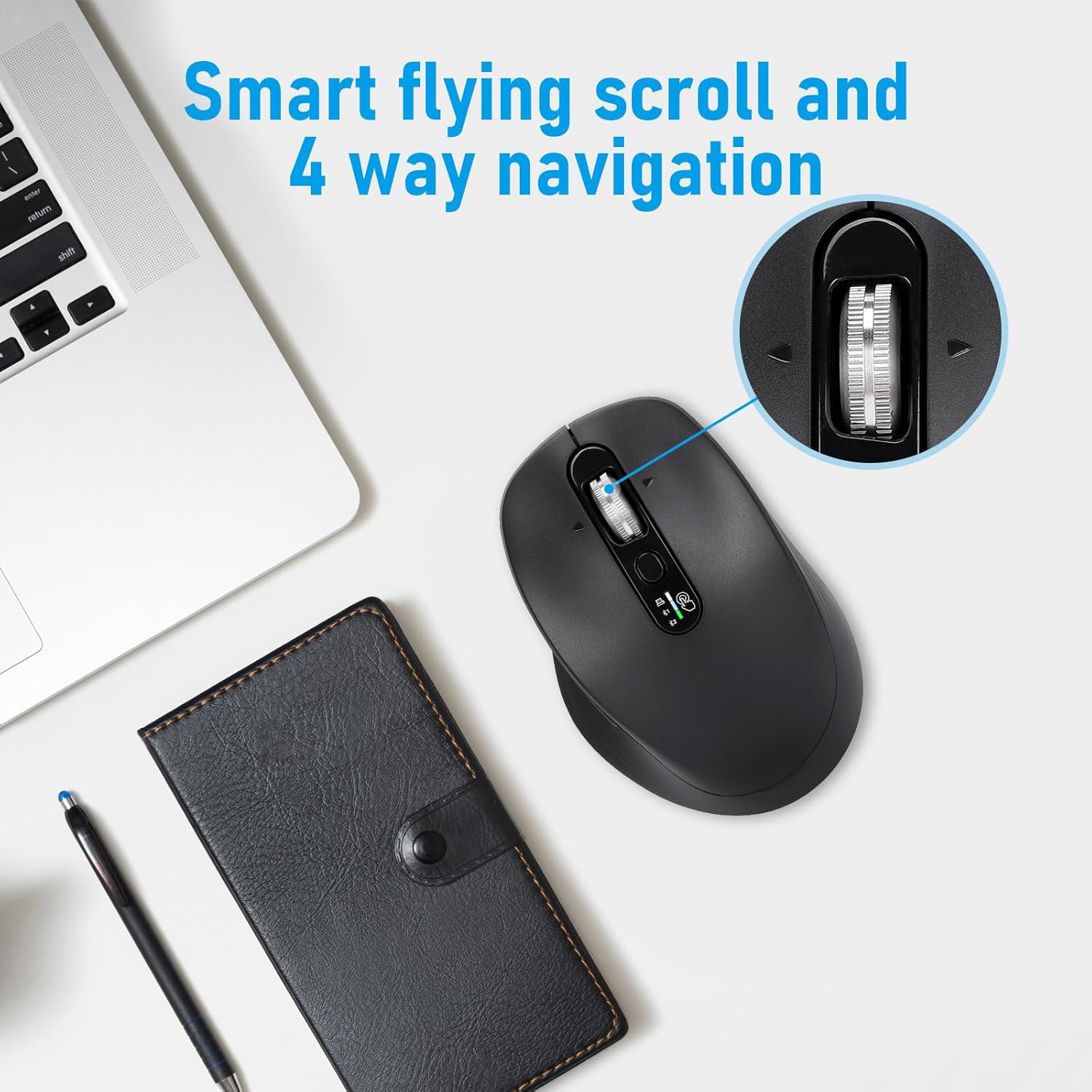
Image: Close-up of the mouse scroll wheel, highlighting its ability for smart flying scroll and 4-way navigation (vertical and horizontal scrolling).
4. Silent Clicks
The mouse is designed with silent click buttons, reducing noise for a quieter working environment. This feature is beneficial in offices, libraries, or shared spaces.

Image: A person using the INFINMIND mouse at a desk, with an icon indicating silent clicks, suitable for various environments and flat surfaces.
5. Usage Scenarios
The INFINMIND mouse is suitable for various environments and tasks, including:
- Office Work: Efficient navigation and multi-device switching for productivity.
- Study: Quiet operation minimizes distractions.
- Travel: Compact design and wireless connectivity for on-the-go use.
- Home Use: Comfortable grip for extended periods.
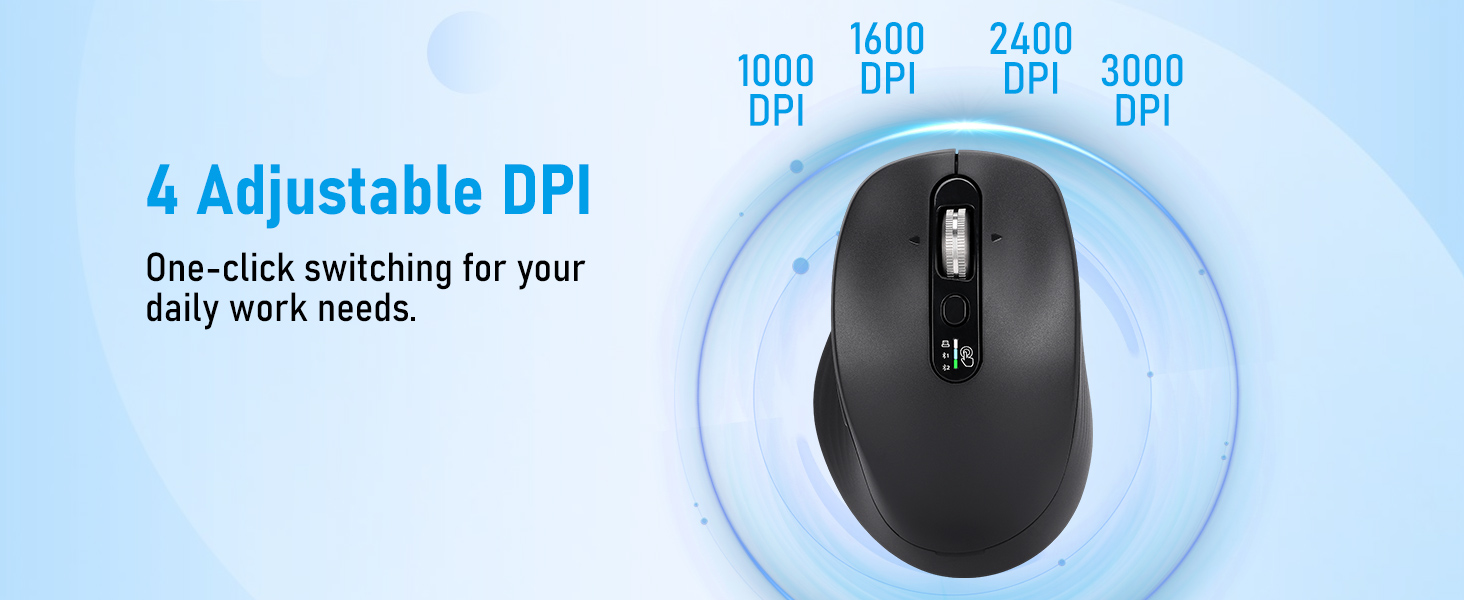
Image: A collage showing the INFINMIND mouse being used in different settings: a study room, during travel, in an office, and at home, highlighting its versatility.
Maintenance
1. Cleaning
- Ensure the mouse is turned off before cleaning.
- Use a soft, dry, lint-free cloth to wipe the surface of the mouse.
- For stubborn dirt, slightly dampen the cloth with water or a mild, non-abrasive cleaner. Avoid excessive moisture.
- Do not use harsh chemicals, solvents, or abrasive materials, as these can damage the mouse's finish.
2. Battery Replacement
When the mouse's performance degrades or the indicator light signals low battery, replace the AA batteries:
- Turn off the mouse.
- Open the battery compartment on the underside.
- Remove the old batteries and dispose of them according to local regulations.
- Insert new AA batteries, observing correct polarity.
- Close the compartment cover and turn the mouse back on.
Note: The mouse can operate with one or two AA batteries. Using two batteries can extend battery life up to 40 months, while one battery can last up to 20 months.
Troubleshooting
| Problem | Possible Cause | Solution |
|---|---|---|
| Mouse not responding |
|
|
| Lagging or intermittent connection |
|
|
| DPI button not changing sensitivity |
|
|
Specifications
| Model Number | L980 |
| Connectivity Technology | 2.4G Wireless, Bluetooth (BT1, BT2) |
| Movement Detection | Optical |
| DPI Levels | 1000 / 1600 / 2400 / 3000 |
| Special Features | 4-Way Scrolling, Multi-Device Connection, Silent Clicks, Ergonomic Design |
| Power Source | 2 x AA Batteries (included) |
| Battery Life | Up to 20 months (1 AA battery), up to 40 months (2 AA batteries) |
| Compatibility | Windows, macOS, Chrome OS, Linux, iPadOS |
| Item Weight | 6.3 ounces |
| Dimensions | 4.65 x 3.23 x 2.05 inches |
| Color | Black |
Warranty and Support
INFINMIND products are designed for reliability and performance. For warranty information, technical support, or customer service inquiries, please refer to the contact information provided with your purchase or visit the official INFINMIND website.
Online Resources: For additional support and FAQs, please visit the INFINMIND Store on Amazon.
Ask a question about this manual
Ask about setup, troubleshooting, compatibility, parts, safety, or missing instructions. Manuals+ will review the question and use this page’s manual context to help answer it.