
Product Overview
The Dreo Tower Fan for Bedroom, model DR-HEC002s TF Black, is a 43-inch evaporative air cooler designed to provide ultimate cooling performance and comfort. With wind speeds up to 25 ft/s and a 6L water tank, it offers rapid heat relief and all-night comfort. This versatile unit combines cooling, fan, and humidify functions, making it suitable for various needs. It features smart control via the DREO app or voice commands (Alexa/Google), allowing users to monitor temperature and humidity remotely. Its quiet operation at 33 dB ensures uninterrupted comfort, especially in bedrooms.
Included Components
- User Manual
- Remote Control
- Tower Fan
- Ice Pack
Setup Guide
Before first use, ensure all packaging materials are removed. Place the fan on a stable, flat surface.
1. Attaching the Base
The fan comes with a separate base. Align the tower fan with the base and secure it according to the instructions in the quick reference guide. A single screw is typically used to firmly attach the base to the main unit.
2. Preparing the Water Tank
The evaporative cooling function requires water. Locate the water tank at the bottom rear of the unit. Pull out the water tank drawer. Remove any plastic inserts or filters as instructed. Fill the 6-liter water tank with clean, cool water. For enhanced cooling, place the included ice packs (after freezing) into the water tank.
3. Inserting Ice Packs
Freeze the provided blue ice packs. Once frozen, place them into the water tank along with the water. This will help to lower the air temperature further as the water evaporates.
4. Power Connection
Plug the power cord into a standard 120 Volts electrical outlet.
5. Initial Power On
Press the power button on the top control panel or use the remote control to turn on the fan. The digital display will illuminate.

Figure 1: Dreo Tower Fan with included accessories.
Video 1: Overview of the DREO Evaporative Air Cooler IceWind 712S, demonstrating its features and setup.
Video 2: Instructions on how to configure a network for the device, useful for initial setup and app connectivity.
Operating Instructions
The Dreo Tower Fan offers multiple modes and speeds for customized comfort.
Control Options
- Control Panel: The top of the fan features a touch-sensitive control panel with various icons for direct operation.
- Remote Control: A detailed remote control is included for convenient operation from a distance. It allows control over all fan functions, including power, speed, mode, oscillation, and timer.
- DREO App Control: For smart convenience, download the DREO app on your smartphone. The fan can be controlled via the app or voice commands (Alexa/Google). This allows remote monitoring of temperature and humidity, and full control of your home's climate settings.

Figure 2: Smartphone displaying the DREO app interface for controlling the fan.
Video 3: A guide on how to download and set up the DREO app for controlling your device.
Fan Speeds
The fan offers 4 speed settings. Use the '+' and '-' buttons on the remote or control panel to adjust the fan speed. The digital display will show the current speed level (1-4).
Operating Modes
- Normal Mode: Provides a steady airflow at your selected speed.
- Natural Mode: Mimics natural breezes by varying fan speed intermittently.
- Sleep Mode: Operates at a lower, quieter speed for undisturbed rest.
- Auto Mode: Adjusts fan speed automatically based on ambient temperature and humidity.
Oscillation
Press the oscillation button to activate the 85° wide oscillation feature, providing widespread cooling across the room. Press again to stop oscillation at the desired angle.

Figure 3: Visual representation of the fan's 85-degree oscillation for wide coverage.
Timer Function
Set the fan to automatically turn off after a specified period, up to 12 hours. Use the timer button on the remote or control panel to set the desired duration.
Evaporative Cooling
Activate the evaporative cooling function to infuse water into the breeze, providing a cooling sensation. Ensure the water tank is filled for this feature to operate effectively.
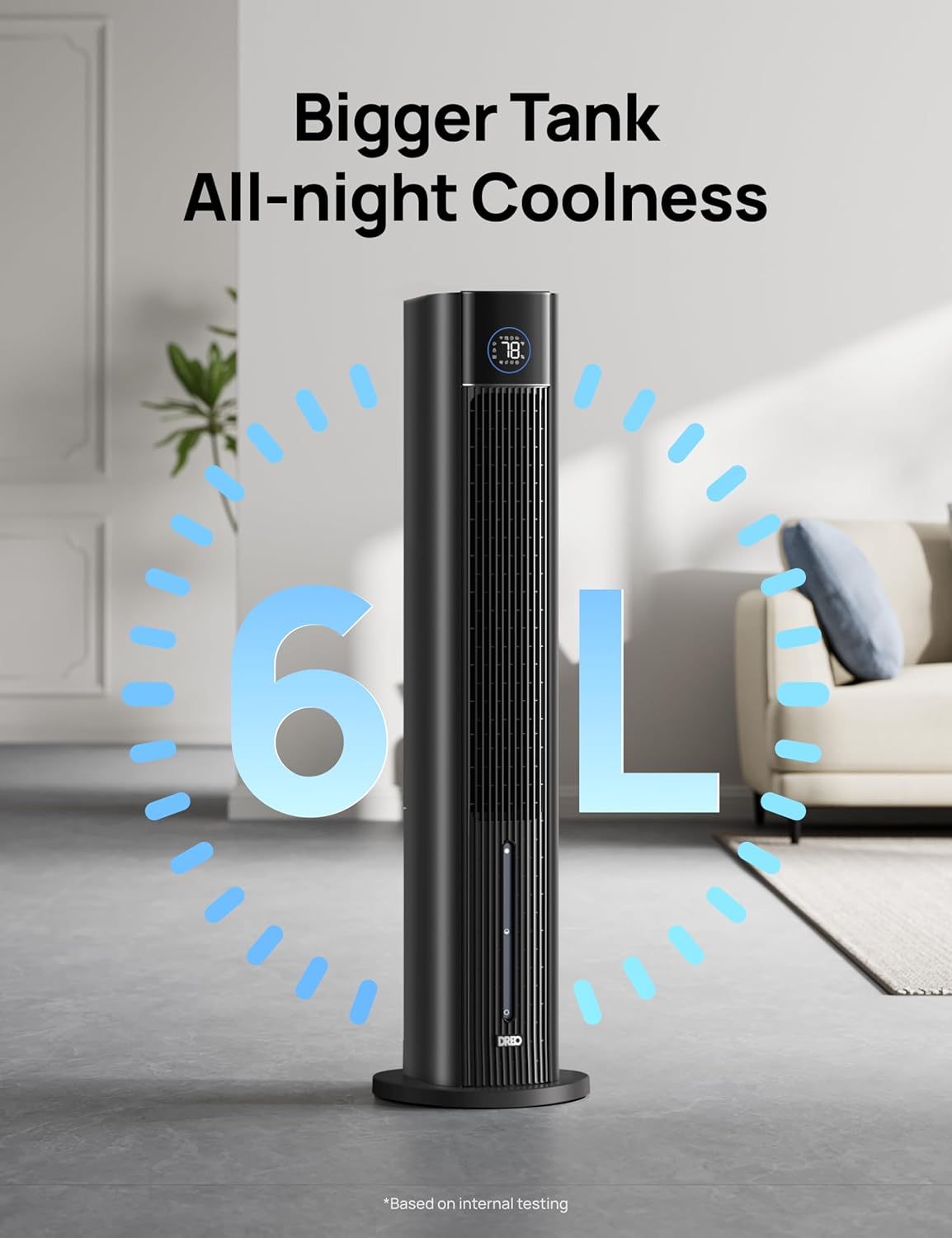
Figure 4: The 6-liter water tank of the Dreo Tower Fan, essential for evaporative cooling.

Figure 5: Illustration of the fan's 3-in-1 ultimate cooler functions: Fan Only, +Water, and +Ice Packs.
Maintenance
Regular maintenance ensures optimal performance and longevity of your Dreo Tower Fan.
Water Tank Cleaning
Periodically remove and clean the 6-liter water tank to prevent mold and mildew buildup. Use mild soap and water, rinse thoroughly, and dry before reinserting.
Filter Cleaning
The fan's filter should be cleaned regularly. Refer to the user manual for specific instructions on how to remove and clean the filter. A clean filter ensures efficient air circulation and cooling.
Exterior Cleaning
Wipe the exterior of the fan with a soft, damp cloth. Do not use abrasive cleaners or solvents.
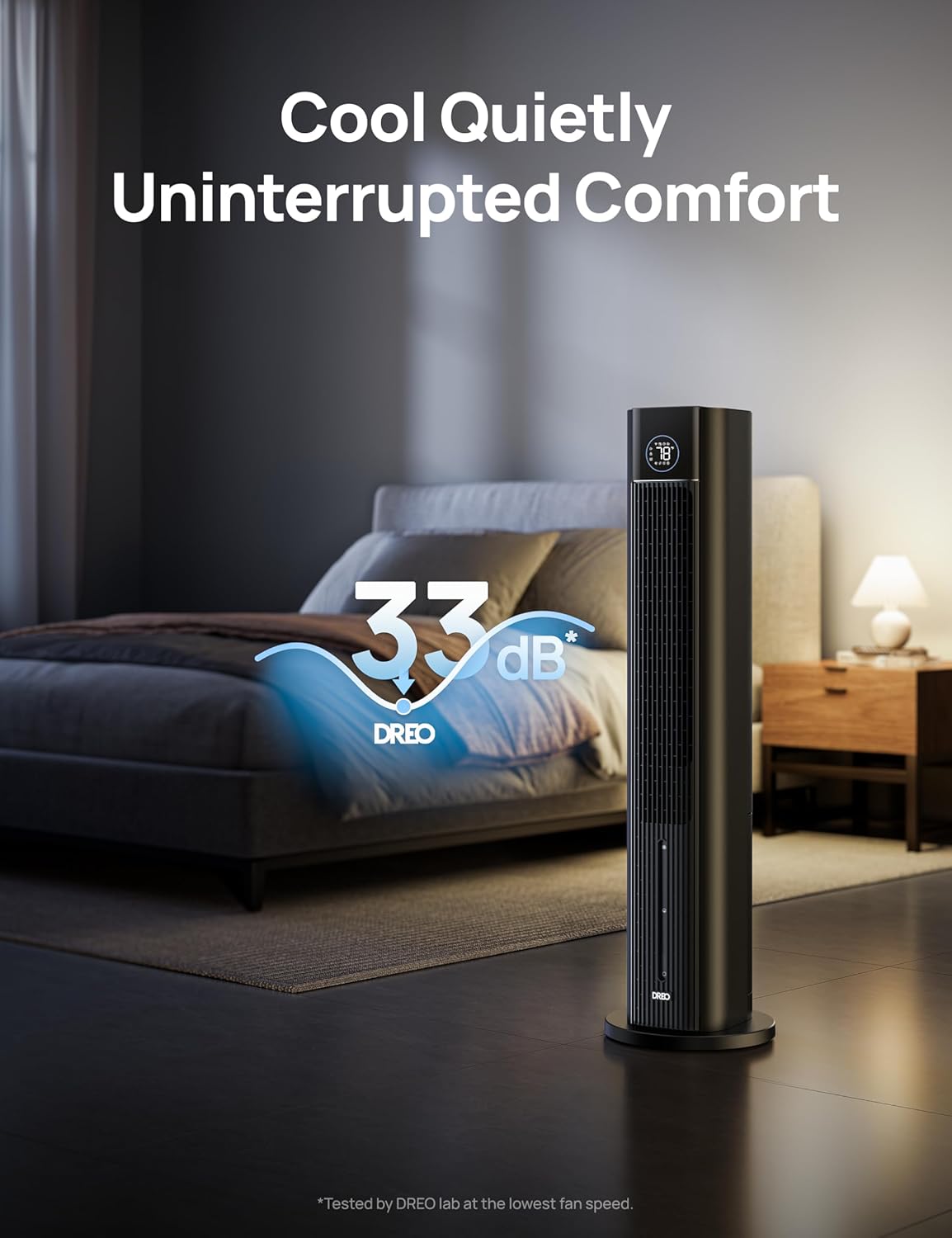
Figure 6: The detachable design of the fan's components for easy cleaning.
Troubleshooting
If you encounter issues with your Dreo Tower Fan, refer to the following common solutions:
Fan Not Turning On:
- Ensure the power cord is securely plugged into a working electrical outlet.
- Check if the power button on the control panel or remote is pressed correctly.
- Verify that the water tank is properly seated if using evaporative cooling mode.
Weak Airflow:
- Increase the fan speed setting.
- Check if the air intake and outlet grilles are free from obstructions.
- Ensure the water tank is filled and the evaporative cooling function is active for maximum cooling.
Unusual Noise:
- Ensure the fan is placed on a stable, level surface.
- Check for any foreign objects inside the fan grilles.
- If using evaporative cooling, ensure the water tank is properly filled and seated.
Evaporative Cooling Not Working:
- Verify that the water tank is filled with water.
- Ensure the ice packs are frozen and placed in the tank for optimal performance.
- Check if the evaporative cooling function is activated via the control panel or remote.
App Connectivity Issues:
- Ensure your smartphone's Wi-Fi and Bluetooth are enabled.
- Verify that the fan is within range of your Wi-Fi router.
- Follow the app's pairing instructions carefully. If issues persist, try resetting the fan's Wi-Fi connection (refer to manual).
Specifications
| Feature | Specification |
|---|---|
| Brand | Dreo |
| Model Name | IceWind 712S (DR-HEC002s TF Black) |
| Mounting Type | Floor Mount |
| Color | Black |
| Air Flow Capacity | 1327 Cubic Feet Per Minute |
| Controls Type | App, Touch, Remote |
| Reservoir Capacity | 6 Liters |
| Floor Area | 25 Feet Per Second |
| Noise Level | 33 dB |
| Number of Speeds | 4 |
| Product Dimensions | 11.42"D x 11.42"W x 42.99"H |
| Voltage | 120 Volts |
| Item Weight | 22.6 pounds |
| UPC | 810142850230 |
Warranty and Support
The Dreo Tower Fan comes with a 12-month default warranty. This warranty is extendable up to 30 months by registering your product on the official Dreo website.
For further assistance, troubleshooting, or warranty claims, please visit the official Dreo support website or contact their customer service. Keep your purchase receipt and product model number handy for quicker service.
Visit the Dreo Store for more information and support resources.