1. Introduction
This manual provides detailed instructions for the safe and efficient use of your Beafon Fold10 LTE flip phone. Please read this manual thoroughly before operating the device and keep it for future reference. The Beafon Fold10 LTE is a 4G flip phone designed for ease of use, featuring large buttons, dual color displays, and an emergency call button.

Image: The Beafon Fold10 LTE flip phone shown on its charging cradle, with the phone open to display its keypad and internal screen. The 4G LTE logo is visible, indicating its network capability.

Image: The Beafon Fold10 LTE phone depicted with a graphical overlay of a 4G LTE network, emphasizing its advanced connectivity features.
2. Safety Information
Always follow basic safety precautions when using this product to reduce the risk of injury, fire, or electric shock. Keep the device away from water and high humidity. Do not attempt to disassemble or repair the device yourself. Use only approved accessories. Avoid exposing the device to extreme temperatures.
- Battery Safety: Use only the specified battery. Do not short-circuit, puncture, or expose the battery to fire or high temperatures.
- Hearing Protection: Avoid prolonged listening at high volume levels to prevent hearing damage.
- Driving Safety: Do not use the phone while driving. Always prioritize road safety.
- Medical Devices: Maintain a safe distance between the phone and medical implants like pacemakers. Consult your physician and medical device manufacturer for specific guidelines.
3. Package Contents
Verify that all items are present in the package:
- Beafon Fold10 LTE Flip Phone
- Battery (1 P76 Lithium-ion)
- Charging Cradle
- USB A to USB Type C Cable
- User Manual (this document)
4. Device Overview
Familiarize yourself with the main components of your Beafon Fold10 LTE phone.

Image: Front view of the Beafon Fold10 LTE flip phone in its closed position, highlighting the external color display and the camera lens.

Image: Side view of the Beafon Fold10 LTE flip phone, illustrating the location of the volume control buttons and the charging port.

Image: Back view of the Beafon Fold10 LTE flip phone, clearly showing the dedicated SOS emergency button.
Key Components:
- External Color Display (1.44"): Shows time, date, battery status, and caller ID when closed.
- Internal Color Display (2.2"): Main display for menus, calls, and messages.
- Keypad: Large, backlit keys for easy dialing and navigation. Keys can announce numbers when pressed.
- SOS Button: Located on the back for emergency calls to pre-programmed numbers.
- Camera: For taking photos.
- Flashlight: Integrated light source.
- Charging Port: USB Type C.
- Volume Buttons: Adjust call and ringtone volume.
5. Setup
5.1 Installing the SIM Card and Battery
- Open the back cover of the phone.
- Insert your SIM card(s) into the designated slot(s). Ensure the SIM card is correctly oriented.
- Insert the battery into its compartment, aligning the contacts.
- Replace the back cover until it clicks into place.
5.2 Initial Charging
Before first use, fully charge the phone's battery.
- Connect the USB cable to the charging cradle and a power adapter (not included) or a computer.
- Place the phone into the charging cradle. The charging indicator will illuminate.
- Allow the phone to charge until the battery icon shows full.
5.3 Powering On/Off
- To Power On: Press and hold the Power/End Call button until the screen lights up.
- To Power Off: Press and hold the Power/End Call button, then confirm "Power Off" on the screen.
6. Basic Operation
6.1 Making and Receiving Calls
- Making a Call:
- Open the flip.
- Dial the desired number using the keypad.
- Press the Green Call button to initiate the call.
- Press the Red End Call button to end the call.
- Receiving a Call:
- When the phone rings, open the flip or press the Green Call button.
- Press the Red End Call button to end the call.
- Hands-Free Calling: The phone supports hands-free operation via Bluetooth or speakerphone.
6.2 Sending and Receiving SMS
- Navigate to the "Messages" menu.
- Select "New Message" to compose an SMS.
- Enter the recipient's number and your message.
- Select "Send".
- Incoming messages will be displayed on the screen and a light signal may activate.
6.3 SOS Emergency Button
The SOS button on the back of the phone allows for quick emergency calls.
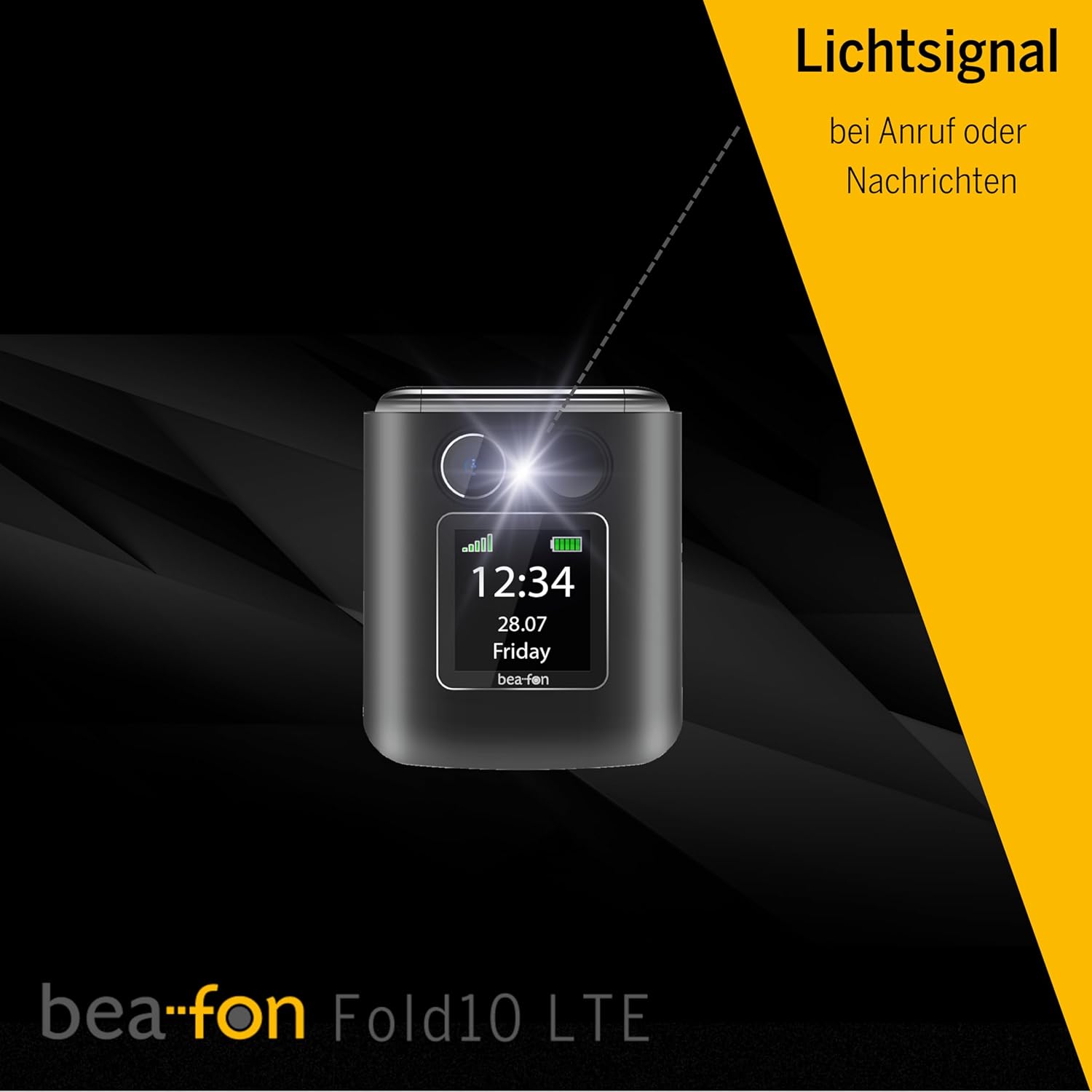
Image: A diagram illustrating the SOS button's function, showing its location on the phone's back and its connection to a network of up to five user-programmable emergency contacts.
- Programming SOS Numbers: Access the SOS settings in the phone's menu to program up to 5 emergency contact numbers.
- Activating SOS: Press and hold the SOS button for a few seconds. The phone will automatically call the programmed numbers in sequence until an answer is received.
6.4 Photo Contacts
Assign photos to your contacts for easy visual identification of callers.

Image: A visual representation of the phone's internal display during an incoming call, demonstrating the photo contact feature where a contact's picture is shown alongside their name.
- Navigate to "Contacts".
- Select a contact and choose "Edit".
- Select the option to add a photo from your gallery or take a new one.
6.5 Light Signal for Incoming Calls/Messages
The phone features a light signal that flashes to alert you of incoming calls or messages, providing a visual notification in addition to the ringtone.
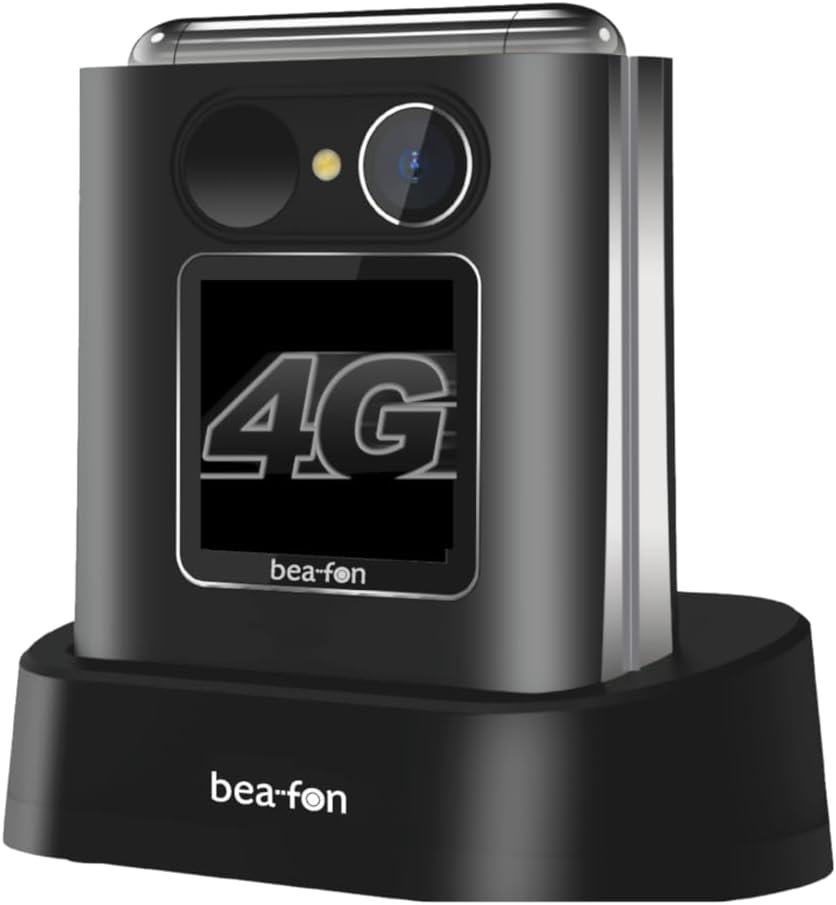
Image: The Beafon Fold10 LTE phone displaying a visible light signal on its external screen, indicating an incoming call or message.
6.6 Other Features
- Camera: Access the camera from the main menu to take photos.
- Flashlight: Activate the flashlight feature from the quick access menu or settings.
- Bluetooth: Pair with Bluetooth headsets or other devices for wireless connectivity.
7. Maintenance
7.1 Cleaning the Device
Use a soft, dry cloth to clean the phone's surface. Do not use liquid cleaners or aerosols. Avoid getting moisture into openings.
7.2 Battery Care
- Do not leave the battery fully discharged for extended periods.
- Avoid overcharging the battery.
- If the phone will not be used for a long time, store it with a partially charged battery in a cool, dry place.
7.3 Storage
Store the phone in a cool, dry environment, away from direct sunlight and extreme temperatures.
8. Troubleshooting
| Problem | Possible Cause | Solution |
|---|---|---|
| Phone does not turn on. | Battery is discharged or not properly inserted. | Charge the battery. Ensure the battery is correctly installed. |
| Cannot make or receive calls. | No network signal, SIM card not inserted or activated. | Check network coverage. Ensure SIM card is correctly inserted and activated. Contact your service provider. |
| Poor call quality. | Weak network signal, interference. | Move to an area with better signal. Avoid sources of interference. |
| Battery drains quickly. | High usage, background applications, old battery. | Reduce screen brightness, close unused applications. Consider replacing the battery if it's old. |
9. Specifications
| Feature | Detail |
|---|---|
| Brand | Beafon |
| Model Name | Fold10 LTE |
| Product Type | Flip Phone |
| Operating System | beafon |
| Internal Screen Size | 2.2 Inches |
| External Screen Size | 1.44 Inches |
| Connectivity | 4G LTE |
| Cellular Technology | 4G |
| Wireless Network Technology | LTE |
| Special Features | Flip phone, SOS emergency call button, Photo contacts, Backlit keys, Extra loud ringtone, Flashlight, Bluetooth, Hands-free |
| Battery Composition | Lithium-ion |
| Color | Black/Silver |
| Included Components | Charging cradle |
| Effective Still Resolution | 0.3 MP (Camera) |
| Dimensions (approx.) | 71mm (Height) x 63mm (Width) x 22.4mm (Depth) |
10. Warranty and Support
For warranty information and customer support, please refer to the warranty card included with your product or visit the official Beafon website. Keep your proof of purchase for warranty claims.


