
1. Introduction
This manual provides comprehensive instructions for the installation, operation, and maintenance of your MekedeTech DUDUAUTO DUDU7 Car Multimedia Head Unit. This device is designed for Hyundai Sonata 6 YF models from 2009 to 2014, offering advanced navigation, entertainment, and connectivity features. Please read this manual thoroughly before installation and use to ensure proper function and safety.
The DUDU7 model features a 2K 2000x1200 touch screen, Android 13 operating system, 12GB RAM, and 256GB ROM, providing a high-performance in-car experience.
2. Package Contents
Verify that all items listed below are present in your package. If any items are missing or damaged, contact customer support.

Figure 2.1: Overview of the DUDUAUTO DUDU7 package contents, including the main unit, wiring harnesses, and accessories.
- DUDUAUTO DUDU7 Head Unit (Main Machine)
- Power Cable + Canbus Box
- Microphone (MIC)
- RCA Cable
- Reversing Camera Input Cable
- Audio Out Cables
- Fakra 4G Antenna
- Fakra GPS Antenna
- USB Plugs (x3)
- Dash Kit for Hyundai Sonata 6 YF (2009-2014)
3. Technical Specifications
The DUDUAUTO DUDU7 is equipped with advanced components for optimal performance.

Figure 3.1: Detailed specifications for the DUDU7 model compared to other DUDU series units.
| Feature | Specification |
|---|---|
| Model | DUDU7-12-256 |
| Operating System | Android 13 |
| CPU | 8 Core UIS7870 Customized version A76 2.7Ghz 6nm processor |
| Memory (RAM/ROM) | 12GB RAM / 256GB ROM (UFS 3.1) |
| Display | 9.5 inch 2K QLED Touch Screen (2000x1200 resolution) |
| GPS | Dual Band 6 mode L1 L5 B1 B2a E1 E5a |
| Microphone | Digital Noise Cancellation Microphone |
| USB Ports | USB 3.2 GEN1*1 (TYPE-C), USB2.0*3 |
| Power Amplifier | TDA7808 Digital AB type |
| DSP | AKM7739 Velvet Audio Technology |
| Bluetooth | Qualcomm 3031, BT5.0, supports aptx HD protocol |
| Audio Output | Optical + Coaxial, RCA 5.1 Channel Outputs |
| WiFi | 802.11a/b/g/n/ac, Support 5G WIFI |
| Radio IC | TDA7708 |
| CarPlay/Android Auto | Support Wired and Wireless CarPlay and Android Auto |
| Vehicle Compatibility | Hyundai Sonata 6 YF (2009-2014) |
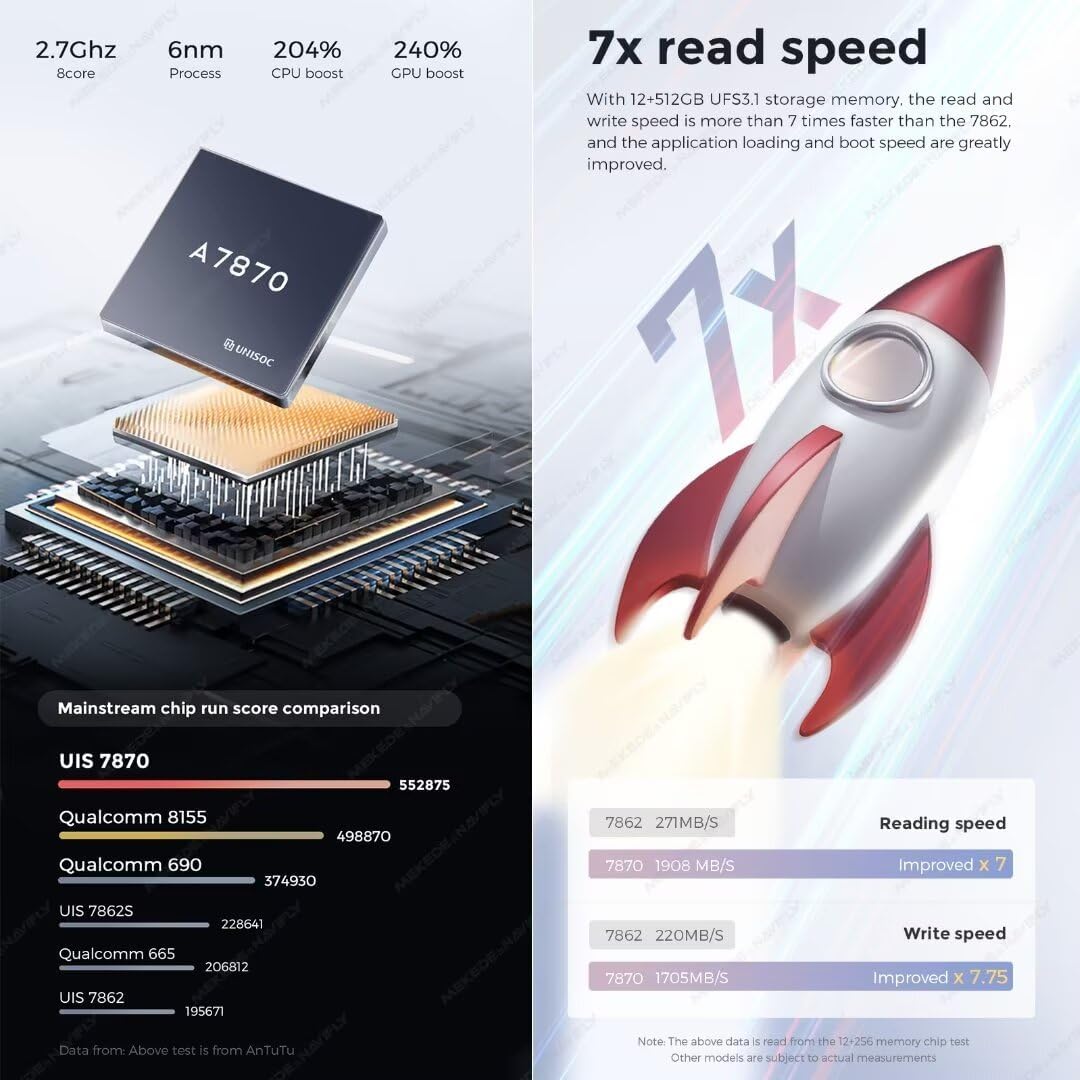
Figure 3.2: Performance overview of the UIS 7870 processor, highlighting CPU and GPU boost.

Figure 3.3: Illustration of the UFS 3.1 storage read and write speed improvements.

Figure 3.4: Explanation of Dual Band GPS L1+L5 for improved positioning and the Digital Noise Cancelling Microphone for clear voice transmission.

Figure 3.5: Details on the AKM7739 DSP Velvet Audio Technology for enhanced acoustic experience.
4. Installation Guide
Professional installation is recommended. Disconnect the vehicle's battery before beginning installation. Refer to your vehicle's service manual for specific dashboard disassembly instructions.
4.1 Pre-Installation Check
- Ensure the vehicle is turned off and the parking brake is engaged.
- Disconnect the negative terminal of the car battery to prevent electrical shorts.
- Verify all package contents are present and undamaged.
4.2 Component Identification

Figure 4.1: Rear view of the DUDU7 head unit, indicating various ports for power, antennas, USB, and audio/video connections.
Familiarize yourself with the rear connections of the DUDU7 unit:
- Power Cable (G): Connects to the vehicle's power harness via the Canbus box.
- Radio Antenna (8): For FM/AM radio reception.
- WIFI Antenna (7): For wireless internet connectivity.
- GPS Antenna (6): For navigation and positioning.
- 4G Antenna (4): For mobile data connectivity.
- Type-C USB 3.2 GEN1 (8): High-speed USB port.
- 4Pin USB (E) & 6Pin USB (D): Additional USB ports for peripherals.
- Reverse Video Cable (F): For connecting a reversing camera.
- RCA Cable (A): For audio/video input/output.
- Coaxial/Optical Audio Out: For connecting to external amplifiers or DSPs.
- MIC (0): External microphone input.
4.3 Installation Steps
- Carefully remove the original car radio and dashboard trim. Refer to your vehicle's specific disassembly guide.
- Connect the provided power cable and Canbus box to the DUDU7 head unit and the vehicle's wiring harness. Ensure all connections are secure.
- Connect the GPS antenna, 4G antenna, and WiFi antenna to their respective ports on the DUDU7 unit. Position the antennas in locations that provide optimal signal reception, away from metal obstructions.
- If installing a reversing camera or other external devices, connect their cables to the appropriate ports (e.g., Reverse Video Cable, RCA cables).
- Connect the USB cables and route them to a convenient location within the dashboard or glove compartment.
- Mount the DUDU7 head unit into the dashboard opening using the provided dash kit and mounting brackets. Ensure it is securely fastened.
- Reconnect the vehicle's battery.
- Turn on the vehicle's ignition and test the DUDU7 unit's basic functions (power, audio, touch screen, radio).
- Reassemble the dashboard trim, ensuring no wires are pinched.

Figure 4.2: Visual comparison of the car's dashboard before and after the DUDU7 head unit installation.
5. Operation Guide
The DUDU7 operates on Android 13, offering a user-friendly interface. The touch screen is the primary method of interaction.

Figure 5.1: The DUDU7 main interface showing navigation, media, and system information.
5.1 Basic Functions
- Power On/Off: The unit typically powers on with the vehicle's ignition. A long press on the power button (if available) may turn it off or put it to sleep.
- Volume Control: Adjust volume using the on-screen controls or steering wheel controls (if configured).
- Touch Screen: Navigate through menus and applications by tapping, swiping, and pinching on the capacitive touch screen.
5.2 Navigation
The DUDU7 features a Dual Band 6-mode GPS system for accurate positioning. Pre-installed navigation applications or those downloaded from the app store can be used.
- Ensure the GPS antenna has a clear view of the sky for optimal signal reception.
- Open your preferred navigation app and follow its instructions for setting destinations and routes.
5.3 CarPlay and Android Auto
The unit supports both wired and wireless Apple CarPlay and Android Auto.
- Wireless Connection:
- Enable Bluetooth and Wi-Fi on your smartphone.
- On the DUDU7, open the CarPlay/Android Auto application.
- Pair your phone via Bluetooth with the DUDU7. Follow the on-screen prompts to establish the wireless connection.
- Wired Connection:
- Connect your smartphone to one of the DUDU7's USB ports using a high-quality USB cable.
- The unit should automatically detect your phone and launch CarPlay or Android Auto.
5.4 Bluetooth Connectivity
Utilize the Qualcomm 3031 Bluetooth 5.0 chip for hands-free calling and audio streaming.
- Go to the Bluetooth settings on the DUDU7.
- Enable Bluetooth on your device and search for available devices.
- Select the DUDU7 from the list and pair. Confirm the pairing code if prompted.
- Once connected, you can make calls, play music, and use other Bluetooth features.
5.5 Audio Settings (DSP)
The AKM7739 DSP with Velvet Audio Technology allows for advanced audio customization.
- Access the DSP settings through the audio or sound menu.
- Adjust equalizer settings, sound stage, and other audio parameters to your preference.
Figure 5.2: Overview of the DUDU OS 3.0 user interface, showcasing customizable dynamic wallpapers and application layout.
6. Maintenance
Regular maintenance ensures the longevity and optimal performance of your DUDU7 head unit.
- Screen Cleaning: Use a soft, lint-free cloth specifically designed for electronics screens. Do not use abrasive cleaners or solvents. Gently wipe the screen to remove dust and fingerprints.
- Software Updates: Periodically check for system updates through the unit's settings menu or the manufacturer's website. Keeping the software updated can improve performance and add new features.
- Ventilation: Ensure the cooling fan and ventilation openings on the unit are not obstructed to prevent overheating.
- Cable Connections: Periodically check that all cables are securely connected, especially after driving on rough terrain.
7. Troubleshooting
This section addresses common issues you might encounter with your DUDU7 head unit.
| Problem | Possible Cause | Solution |
|---|---|---|
| Unit does not power on. | Loose power connection, blown fuse, vehicle battery issue. | Check power cable connections. Inspect vehicle fuses. Ensure car battery is charged. |
| No sound from speakers. | Volume too low, mute activated, incorrect wiring, amplifier issue. | Increase volume. Check if unit is muted. Verify speaker wiring. Check external amplifier if used. |
| GPS signal is weak or inaccurate. | GPS antenna obstructed or improperly placed, antenna faulty. | Relocate GPS antenna to a position with a clear view of the sky. Ensure antenna cable is securely connected. |
| Bluetooth connection issues. | Device not discoverable, incorrect pairing, interference. | Ensure Bluetooth is enabled on both devices. Delete previous pairings and re-pair. Move closer to the unit. |
| CarPlay/Android Auto not connecting. | Incorrect settings, faulty USB cable, phone software issue. | Check CarPlay/Android Auto settings on both unit and phone. Try a different USB cable. Restart phone and unit. |
| Touch screen unresponsive. | Temporary software glitch, screen damage. | Restart the unit. If issue persists, contact support. |
If the problem persists after attempting these solutions, please contact MekedeTech customer support for further assistance.
8. Customer Support and Warranty
8.1 Customer Support
For technical assistance, troubleshooting beyond this manual, or inquiries regarding your MekedeTech DUDUAUTO DUDU7, please visit the official MekedeTech store or contact their customer service department.
- Online Support: Visit the MekedeTech Store on Amazon
- Refer to your purchase documentation for specific contact information.
8.2 Warranty Information
MekedeTech products are covered by a manufacturer's warranty. The duration and terms of the warranty may vary by region and product. Please retain your proof of purchase for warranty claims.
- The warranty typically covers defects in materials and workmanship under normal use.
- Damage resulting from improper installation, accident, misuse, unauthorized repair, or modification is generally not covered.
- For detailed warranty terms and conditions, please consult the warranty card included with your product or contact MekedeTech customer support.