
Bettdow AC1059
BETTDOW AC1059 Projector User Manual
Model: AC1059
1. Introduction
This manual provides essential instructions for the safe and efficient operation of your BETTDOW AC1059 Projector. Please read this manual thoroughly before using the projector and retain it for future reference. The BETTDOW AC1059 is designed to deliver a high-quality viewing experience with features such as electric focus, auto keystone correction, WiFi 6, Bluetooth 5.0, native 1080P resolution with 4K support, and a sealed engine design.
2. Safety Information
- Do not block ventilation openings. Ensure adequate airflow around the projector.
- Avoid direct eye exposure to the projector lens when the lamp is on.
- Do not place the projector on unstable surfaces.
- Use only the power adapter supplied with the projector.
- Keep the projector away from water or other liquids.
- Refer all servicing to qualified personnel.
3. Package Contents
Verify that all items are present in your package:
- BETTDOW AC1059 Projector
- Power Adapter
- HDMI Cable
- Remote Control (requires 2*AAA batteries, not included)
- User Manual (this document)

Image: The BETTDOW AC1059 projector with its remote control, showcasing its compact design and key features like 1080p Full HD, 4K support, 9000 lumen brightness, electronic focus, and WiFi 6.
4. Product Overview
4.1 Projector Components
Familiarize yourself with the main parts of your projector:
- Lens: Projects the image onto the screen.
- Ventilation Openings: For heat dissipation. Do not obstruct.
- Power Button/Indicator: Turns the projector on/off and shows status.
- Focus Adjustment: Electric focus controlled via remote.
- Input Ports: HDMI, USB, AV, Audio Out.
4.2 Remote Control
The remote control allows you to operate the projector from a distance. It requires two AAA batteries (not included).

Image: Close-up of the BETTDOW AC1059 projector's remote control, showing the battery compartment and various function buttons including F+ and F- for electric focus.
- Power Button: Turns the projector on or off.
- Navigation Buttons (Up/Down/Left/Right/OK): For menu navigation and selection.
- Back Button: Returns to the previous menu.
- Menu Button: Accesses projector settings.
- Source Button: Selects input source (HDMI, USB, AV).
- F+/F- Buttons: Adjusts electric focus.
- Keystone Button: Activates keystone correction.
- Volume Up/Down: Adjusts audio volume.
5. Setup
5.1 Placement and Power Connection
Place the projector on a stable, flat surface or mount it according to your preference (desktop, ceiling mount, or tripod). Ensure there is sufficient space around the projector for ventilation.

Image: Diagram illustrating various installation methods for the BETTDOW AC1059 projector, including desktop setup, ceiling mount, and tray bracket (tripod), highlighting its versatile design.
Connect the power adapter to the projector's power input and then plug it into a power outlet.
5.2 Initial Power On
Press the power button on the projector or the remote control to turn on the device. The power indicator light will illuminate.
5.3 Focus and Keystone Correction
The BETTDOW AC1059 features electric focus and automatic keystone correction for a clear, rectangular image.
- Electric Focus: Use the F+ or F- buttons on the remote control to adjust the focus until the image is sharp and clear.
- Auto Keystone Correction: The projector will automatically correct vertical and horizontal keystone distortion to ensure a square picture. Manual adjustments may be available in the settings menu if needed.
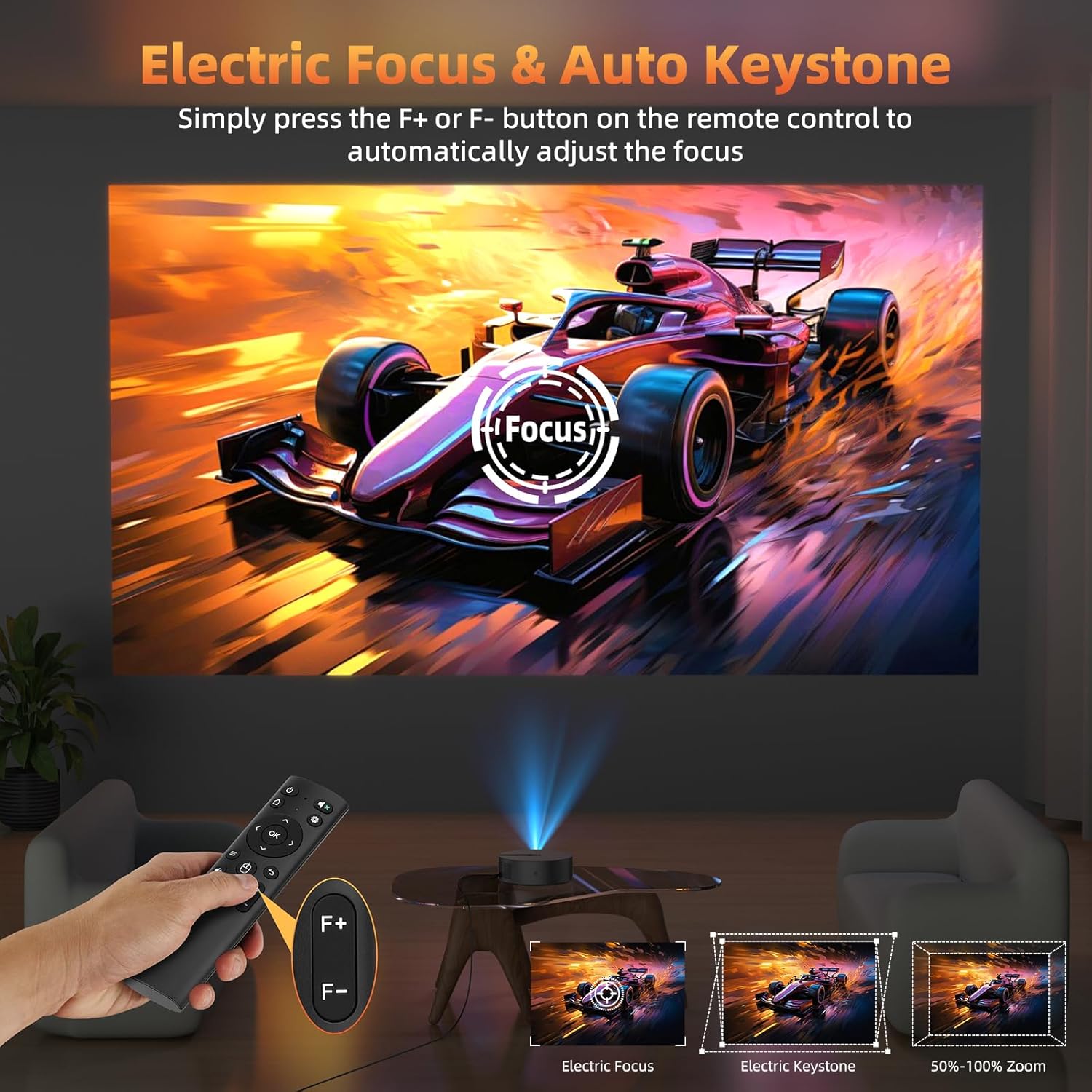
Image: A visual representation of the electric focus and auto keystone correction features. A hand holds the remote, pressing F+ or F- to adjust focus, with examples of electric focus, electric keystone, and screen size adjustment (50%-100% Zoom).
5.4 Screen Size Adjustment
The projector supports an adjustable screen size from 24 to 180 inches, with a casting distance range of 0.8m to 5.2m. Adjust the projector's distance from the screen to achieve your desired image size.
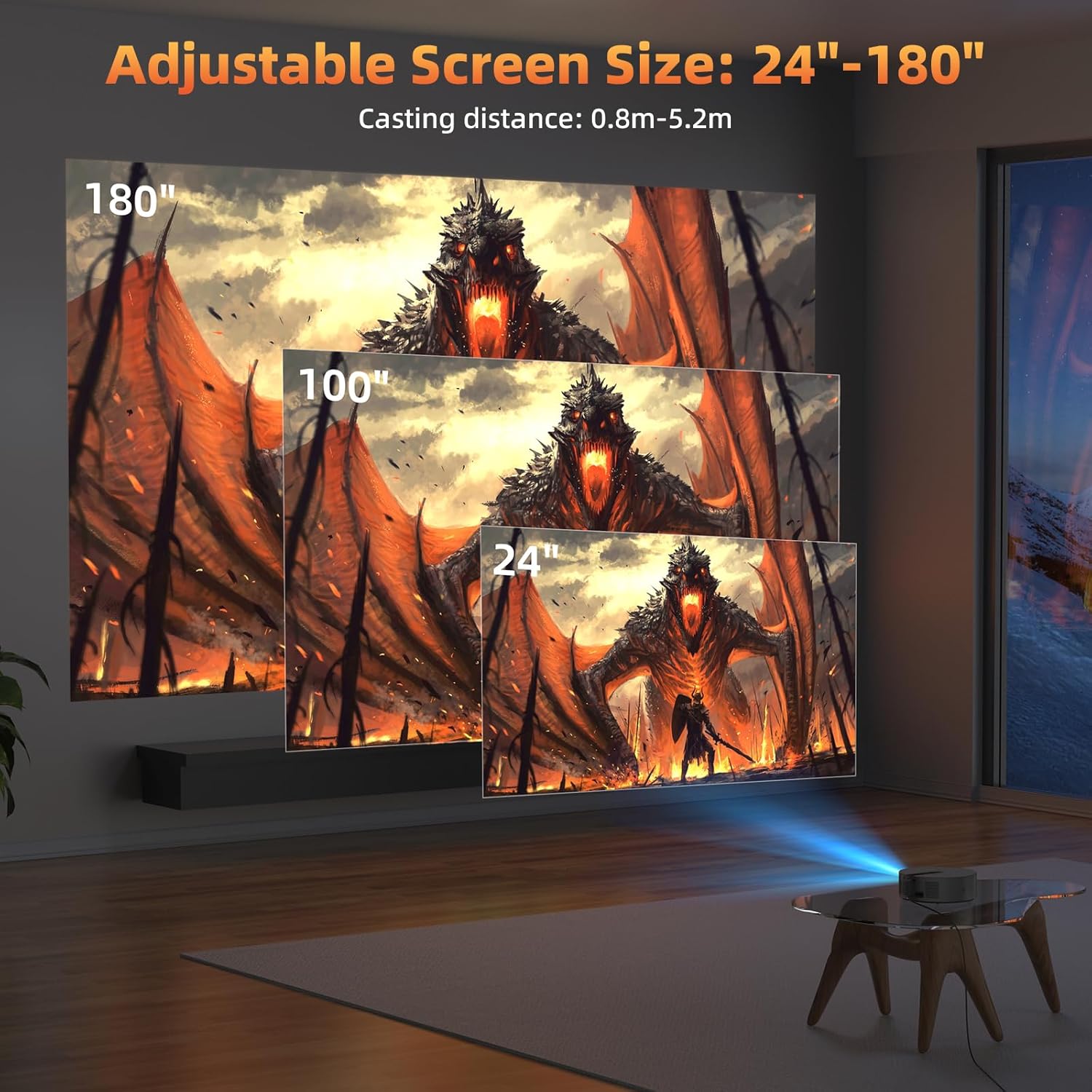
Image: A demonstration of the adjustable screen size feature, showing projected images at 24, 100, and 180 inches, with the projector positioned to achieve these sizes.
6. Operating Instructions
6.1 Connecting Devices
The projector offers wide compatibility with various devices via multiple input ports:
- HDMI: Connect devices like laptops, TV sticks, gaming consoles (e.g., Nintendo Switch, PlayStation, Xbox), or Blu-ray players using an HDMI cable. Select HDMI as the input source.
- USB: Insert a USB drive to play media files directly. Select USB as the input source.
- AV: Use the AV port for older devices with composite video output. Select AV as the input source.
- Audio Out: Connect external speakers or headphones via the 3.5mm audio jack.

Image: An illustration showing the BETTDOW AC1059 projector's rear panel with AV, USB, and HDMI ports, and various compatible devices such as smartphones, tablets, laptops, gaming consoles, USB drives, and external speakers.
6.2 Wireless Connectivity (WiFi 6)
The projector features built-in dual-band (2.4GHz + 5GHz) WiFi 6 for stable and fast wireless connections.
- Navigate to the projector's network settings menu.
- Select "WiFi" and turn it on.
- Choose your desired WiFi network from the list.
- Enter the password if prompted and connect.
- Once connected, you can use screen mirroring features from compatible devices (e.g., Android phones, iPhones, laptops).
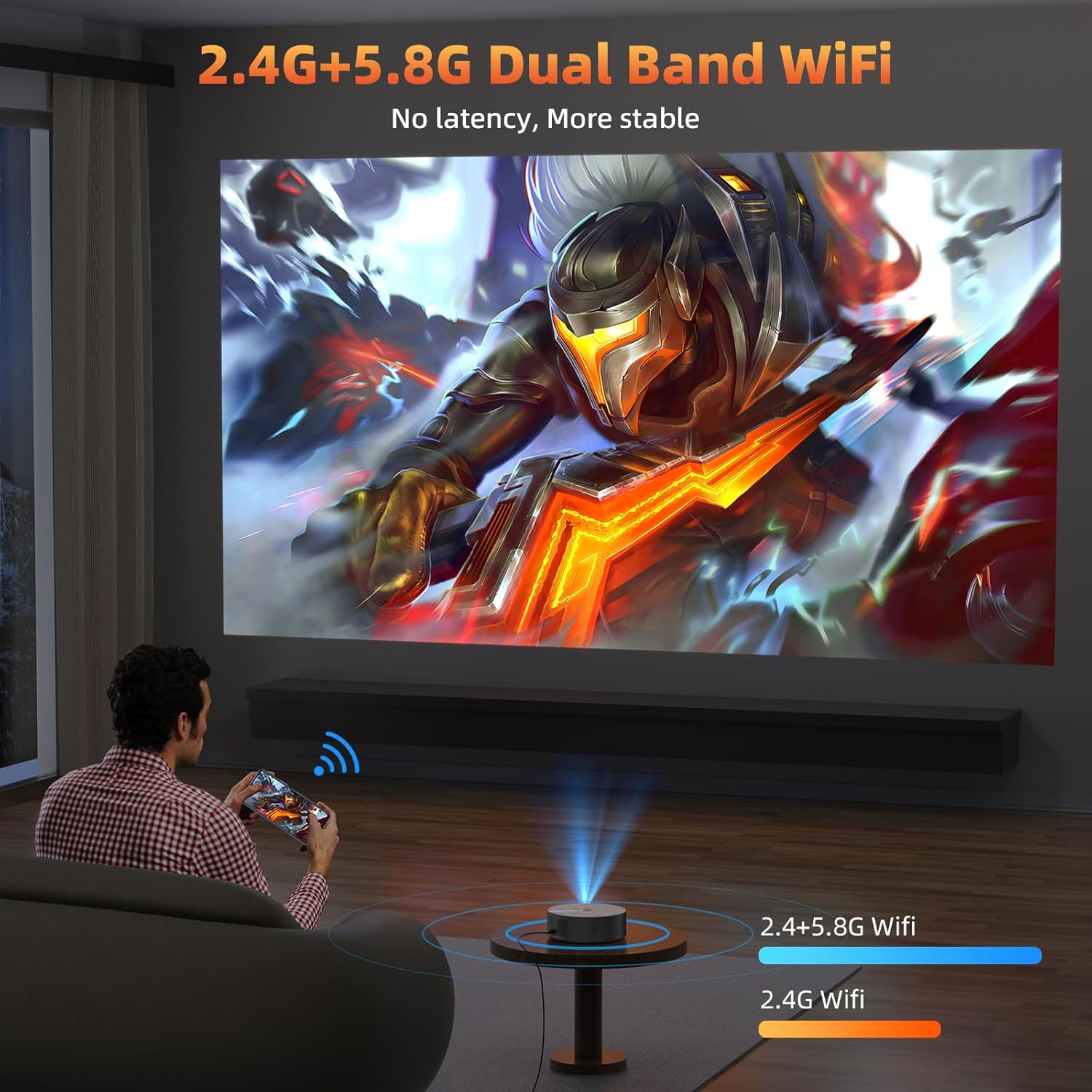
Image: A user is shown wirelessly casting content from a smartphone to the BETTDOW AC1059 projector, illustrating the 2.4G+5.8G Dual Band WiFi feature for stable, low-latency streaming.
6.3 Bluetooth Audio Connection
Connect external Bluetooth audio devices like speakers or headphones for an enhanced audio experience.
- Ensure your Bluetooth audio device is in pairing mode.
- On the projector, go to the Bluetooth settings menu.
- Scan for available devices.
- Select your audio device from the list to pair.
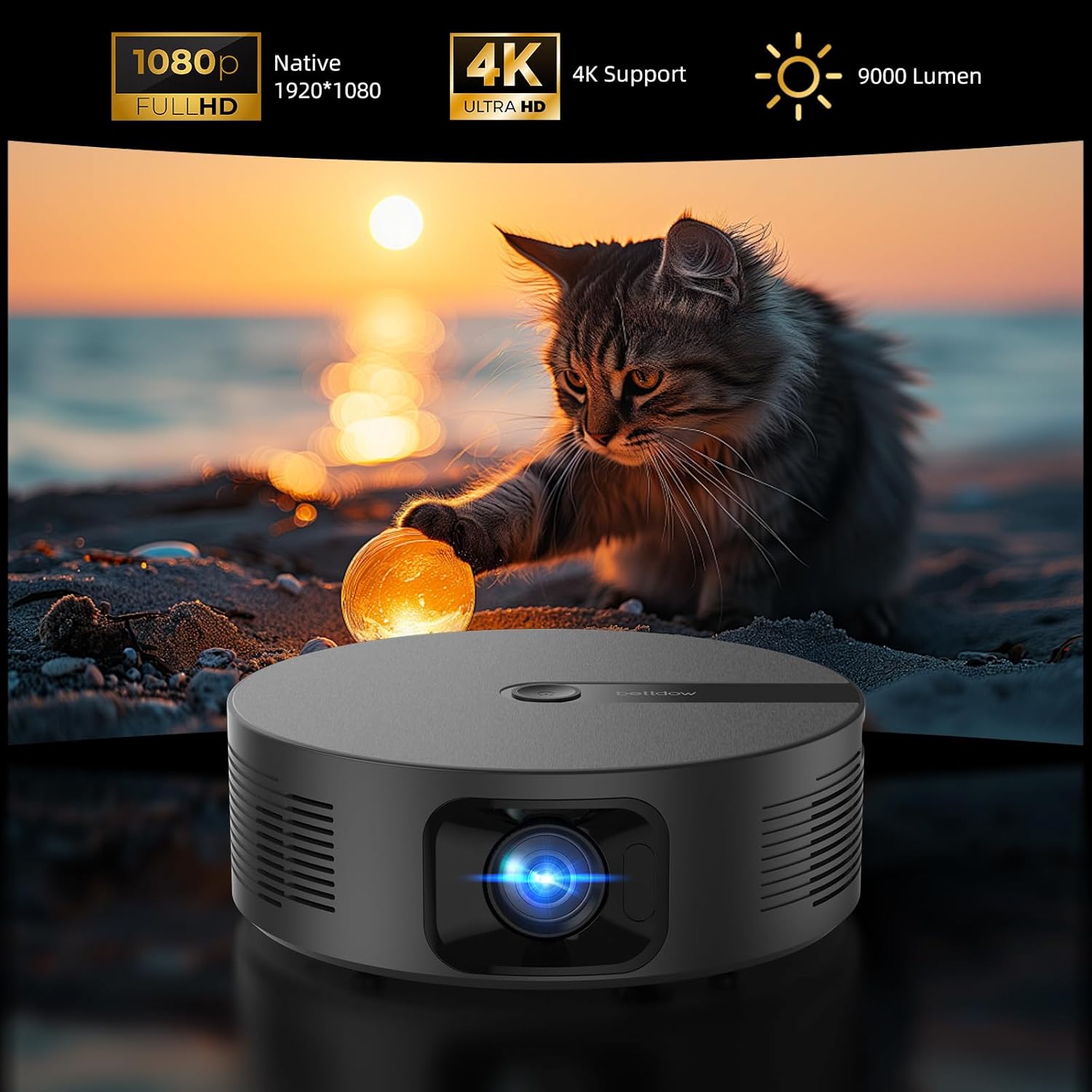
Image: The BETTDOW AC1059 projector connected via Bluetooth 5.0 to various audio devices, including a portable speaker, a soundbar, and wireless headphones, demonstrating its audio output capabilities.
7. Maintenance
7.1 Cleaning the Projector
- Lens: Use a soft, lint-free cloth specifically designed for optical lenses. Do not use abrasive cleaners.
- Exterior: Wipe the projector's exterior with a soft, dry cloth. For stubborn marks, a slightly damp cloth can be used, followed by a dry one.
- Ventilation: Ensure ventilation openings are free from dust and debris. Use a soft brush or compressed air to gently clean them.
7.2 Sealed Engine Design
The BETTDOW AC1059 features a fully sealed engine design, which significantly reduces dust intrusion and extends the projector's lifespan. This design also contributes to lower fan noise and easier maintenance.

Image: An illustration highlighting the "Fully-Sealed Engine Design" of the BETTDOW AC1059 projector, emphasizing its benefits: dustproof, low noise, and low maintenance, with a visual representation of a protective dome over the projector.
8. Troubleshooting
| Problem | Possible Cause | Solution |
|---|---|---|
| No image displayed | Power not connected, incorrect input source, cable issue. | Check power connection. Select correct input source (HDMI, USB, AV). Ensure cables are securely connected. |
| Image is blurry | Focus not adjusted. | Use the F+ / F- buttons on the remote control to adjust the electric focus. |
| Image is distorted (not square) | Keystone correction needed. | The projector has auto keystone correction. If manual adjustment is needed, check settings. |
| No sound | Volume too low, external audio device not connected, incorrect audio output. | Increase volume. Check Bluetooth connection or 3.5mm audio cable. Ensure correct audio output is selected in settings. |
| WiFi connection unstable | Interference, distance from router, incorrect band. | Ensure projector is within range of router. Try switching between 2.4GHz and 5GHz bands in settings. Reduce interference from other devices. |
9. Specifications
| Feature | Detail |
|---|---|
| Model Number | AC1059 |
| Native Resolution | 1920 x 1080 (Native 1080P) |
| Supported Resolution | Up to 4K |
| Brightness | 9000 Lumens |
| Focus | Electric Focus |
| Keystone Correction | Automatic Vertical and Horizontal |
| WiFi | WiFi 6 (Dual-band 2.4GHz + 5GHz) |
| Bluetooth | Bluetooth 5.0 |
| Input Ports | HDMI x1, USB x1, AV x1 |
| Output Ports | Audio Out (3.5mm) |
| Projection Size | 24 - 180 inches |
| Projection Distance | 0.8m - 5.2m |
| Dimensions | 12.28 x 10.87 x 4.92 inches |
| Weight | 4.37 pounds |
10. Warranty and Support
For warranty information and technical support, please refer to the contact details provided with your purchase documentation or visit the official BETTDOW website. Keep your proof of purchase for warranty claims.
Ask a question about this manual
Ask about setup, troubleshooting, compatibility, parts, safety, or missing instructions. Manuals+ will review the question and use this page’s manual context to help answer it.